
You are here:
Salesforce Spiff Release Notes for December 15, 2025
Expand the scale and sophistication of your company’s incentive compensation management program. Integrate Salesforce Spiff with other systems more efficiently, and help your sales team understand complex statement details more effectively.
Required Editions
| Available in: both Salesforce Classic (not available in all orgs) and Lightning Experience |
| Available in: Enterprise, Unlimited, and Developer Editions |
| Available for an additional cost in: Professional Edition with Web Services API Enabled |
Help Your Sales Team Understand Statement Metrics and Data
Keep your sales reps and managers informed and motivated by providing more transparency around the metrics and data that contribute to payout amounts. To help explain what data the statement shows or describe how Spiff calculated amounts, add custom tooltips to supported parts of a statement. This added context also helps Spiff admins avoid a few headaches by deflecting disputes or resolving questions in advance.
How: When you’re editing a statement, click the three dots menu in one of these locations and select Add Tooltip Description. Tooltips can include a text description and an optional link.
- Metric tile at the top of the statement
- Key Metrics and Data card in a payout rule
- Obligations table column header
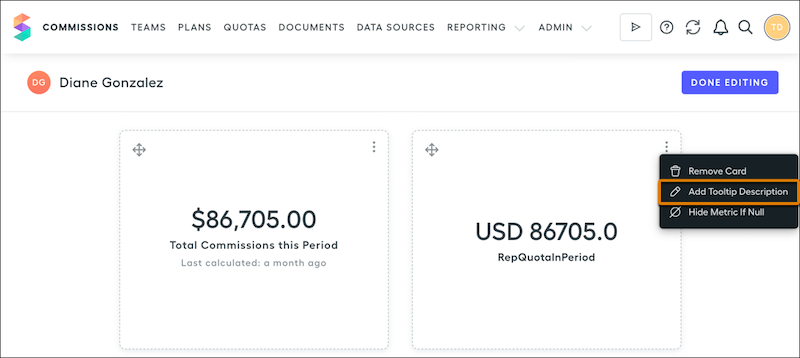
When you save your changes and refresh the statement, tooltips are visible when you hover over the part of the statement where you added it.
SEE ALSO
Deliver a Simpler, Less Noisy Statement Experience
Help your sales reps and managers find meaningful statement payout details more quickly and filter out information that isn’t pertinent to their role. Hide metrics tiles and data cards from a rep’s view of a statement when those tiles or cards don’t have any data to show. When a statement hides placeholders and shows only information that adds value, your sales team can focus their time on other important work.
How: When you’re editing a statement, click the three dots menu in one of these locations and select Hide Metric If Null.
- Metric tile at the top of the statement
- Key Metrics and Data card in a payout rule
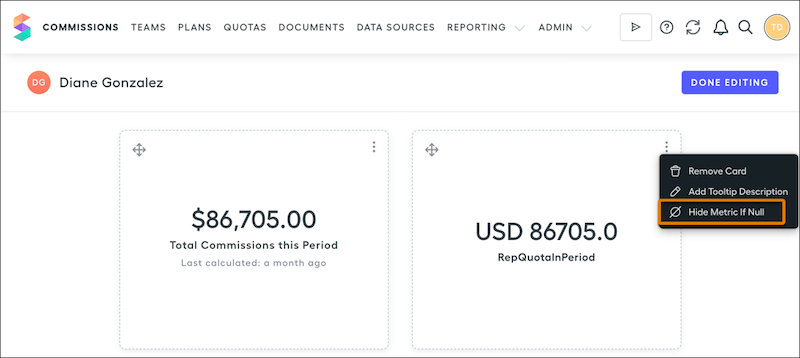
After you turn on this option, the tile or card shows a label, Hidden if null. When you save your changes and refresh the statement, the tile or card with no value doesn’t appear. This option is dynamic. If the tile or card has this option turned on, it’s hidden only during statement periods when there’s no value to show.
To turn off this option, click the three dots menu again and select Show Metric If Null.
SEE ALSO
Provide More Flexibility for Helping Sales Reps Estimate Commission
Build a more thorough process for creating and testing real-time compensation management calculations that estimate a rep’s potential commission on quotes and opportunities. Install and configure the Spiff Commission Estimator managed package in any Salesforce org that you connected to Spiff, including sandboxes.
Why: Previously, you could install the estimator only in one Salesforce environment that you connected, and the estimator wasn’t compatible with sandboxes.
How: Now, you can install the estimator in any Salesforce environment that you connected in Spiff, including sandboxes.
SEE ALSO
Export Custom Reporting Data More Efficiently
Download custom reporting data from Salesforce Spiff for integration with other systems more quickly, and save some cloud storage space along the way. With the Salesforce Spiff Reporting API, export a Spiff custom report as .csv.gz files, which are .csv files compressed with gzip. This option exports reports more quickly, at a smaller file size and with fewer total files created, than uncompressed .csv files. Spiff also supports a larger file size limit for exports, regardless of compression.
Why: Previously, you could export custom reports with the API only as uncompressed .csv files. If a report exceeded 50 MB, the Spiff Reporting API created multiple uncompressed .csv files, up to 40 separate files or 2 GB total. This option used a considerable amount of time and data storage.
Now, the maximum file size increases from 50 MB to 500 MB and you can export uncompressed .csv files or compressed .csv.gz files. If a report is less than 500 MB, the Spiff Reporting API creates only one file, regardless of compression. If a report exceeds 500 MB, the uncompressed option creates multiple files, up to 4 separate files or 2 GB total. The compressed option also creates multiple files, but fewer than 4 separate files. The exact number of files depends on the compression at run time.
How: The optional compressed parameter on the requestExport endpoint specifies whether the Spiff Reporting API exports the report as compressed .csv.gz files (true) or as uncompressed .csv files (false). The default is false.
SEE ALSO
