Organize and Find Records Easily with Personal Labels
Apply your own labels to records to help you organize, track, and find the records you
need quickly and easily. Add labels to records related to a region, project, campaign, or anything
else that helps keep work organized. Labels that you add to records are separate from labels added
to To Do List items.
Required Editions
Available in: Developer, Enterprise, Professional,
Unlimited editions
When you add labels to records, you can quickly view all records with a specific label, as well
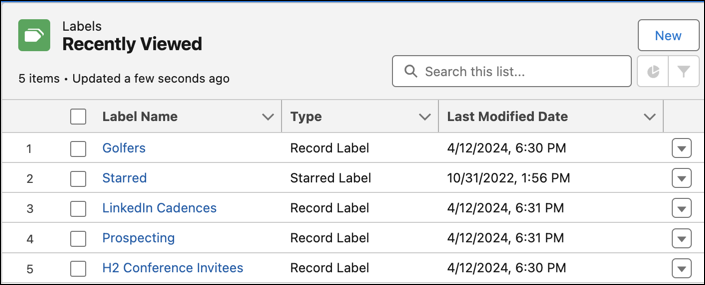
as the list of labels you've created. Each user creates and manages their own set of labels.
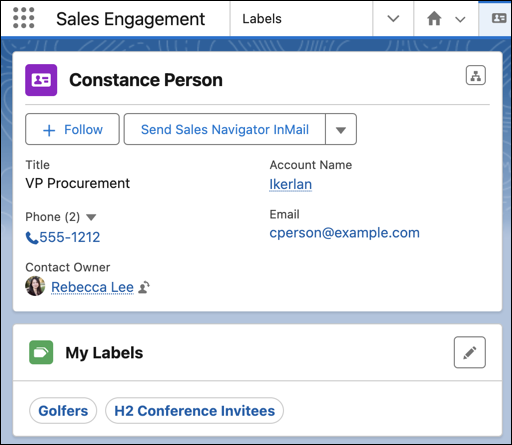
When your Salesforce admin adds the My Labels component to record page layouts, you can see the
labels you've added to a record.
View the list of labels you've created on the Labels home page.
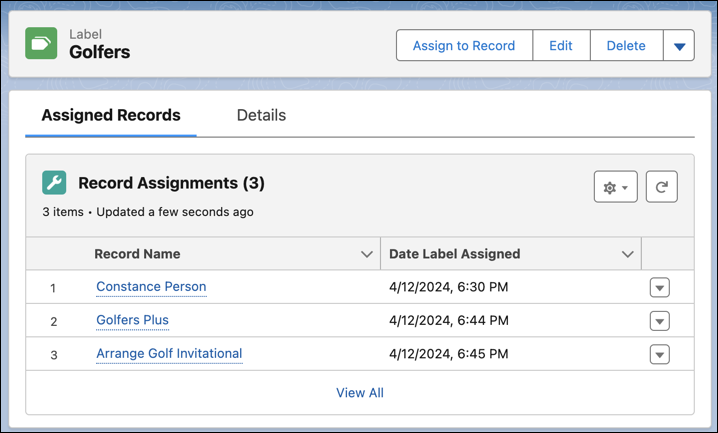
On a label's record page, view the list of records with the label assigned.
You can add labels to records on these objects.
Account
Cadence
Cadence Step Tracker
Call Script
Campaign
Contact
Case
Email Template
Lead
Opportunity
Orchestration Work Item
Task
Custom objects
Personal labels added to records are separate from Topics, which other users can see.
Each user can create up to 20 labels per object and a total of up to 200 labels. Users can
assign each label to up to 500 records. Record labels are separate from To Do List item labels,
which are limited to 10 per user. Labels don't count against your organization's data storage
limits.
The Label object can't be edited with the Object Manager. The page layout for label records
also isn't editable.
Note Standard user profiles include access to the Label object. If you use custom profiles, to
ensure users have access to both record labels and To Do List labels, add access to the Label
object.
Did this article solve your issue?
Let us know so we can improve!
Loading
Salesforce Help | Article
Cookie Consent Manager
General Information
Required Cookies
Functional Cookies
Advertising Cookies
General Information
We use three kinds of cookies on our websites: required, functional, and advertising. You can choose whether functional and advertising cookies apply. Click on the different cookie categories to find out more about each category and to change the default settings.
Privacy Statement
Required Cookies
Always Active
Required cookies are necessary for basic website functionality. Some examples include: session cookies needed to transmit the website, authentication cookies, and security cookies.
Functional Cookies
Functional cookies enhance functions, performance, and services on the website. Some examples include: cookies used to analyze site traffic, cookies used for market research, and cookies used to display advertising that is not directed to a particular individual.
Advertising Cookies
Advertising cookies track activity across websites in order to understand a viewer’s interests, and direct them specific marketing. Some examples include: cookies used for remarketing, or interest-based advertising.