
You are here:
Commissions Summary Page in Salesforce Spiff
The Commissions Summary page is the landing page for admins upon login. The page shows an overview of all commission statements for the period and provides tools for reviewing, recalculating, syncing, and analyzing commission statements.
Required Editions
| Available in: both Salesforce Classic (not available in all orgs) and Lightning Experience |
| Available in: Enterprise, Unlimited, and Developer Editions |
| Available for an additional cost in: Professional Edition with Web Services API Enabled |
The Commissions page provides an overview of all commission statements for the period.
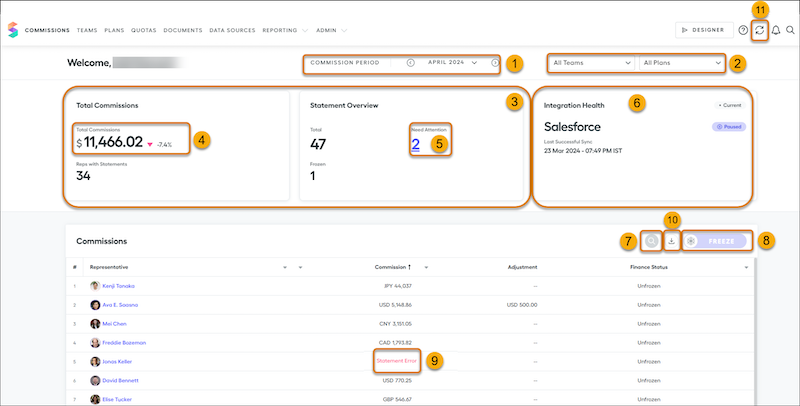
By default, the current commission period is shown. Use the Commission Period Selector (1) to choose the statement period. The periods for your instance can be weekly, biweekly, monthly, quarterly, or other custom cadences. The cadence was determined during your Salesforce Spiff implementation. Use the arrows to make incremental changes from period to period, or click the dropdown to navigate to periods much farther back in time easily.
Filter commission statements by team, plan, or both (2). After you filter by team or plan, you can use the freeze button to freeze the data only for the selected team or plan.
Use the cards on this page (3) for a quick summary of the total commission amount across all reps for this period. You can filter by team or plan for a more specific plan/team total. Or, view a summary of errored or frozen statements.
You can have one or more reps whose statements are calculated in their preferred currency, but the Total Commissions metric (4) is calculated in the Corporate Currency. All commissions are converted to the corporate currency using the conversion rate effective at the end of the period. The commission amounts are then summed to arrive at the total amount displayed.
The Integration Health card (6) provides the date and time of the last successful sync. If an error has occurred, the status updates from Healthy to Sync Error and instruct you to either authenticate again or reach out to support.
On the Statement Overview card, click the number under Need Attention (5) to see a table of all statement errors for the period.
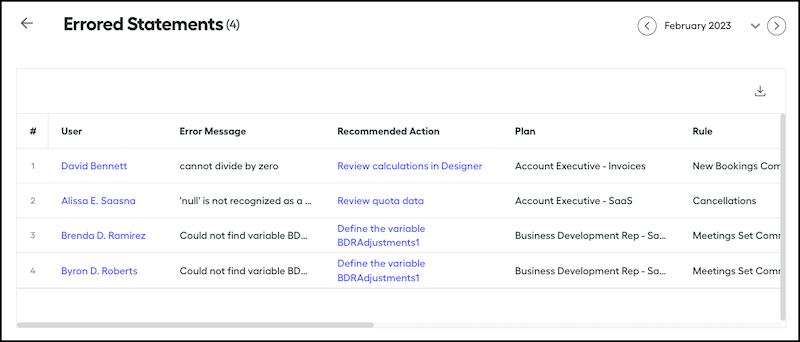
The Errored Statements table provides a more detailed look at users with errored statements. The table includes the error message, a link to the relevant location to fix the issue, and more. You can export this table.
The Commissions table provides a commission summary for each of the reps that have a calculated statement in the period. To sort the Commissions table, click the arrow next to a field name and select ascending or descending order. To remove or change the sort order, click again.
To find a particular rep, use the search (7).
To freeze or unfreeze all user statements from the selected statement period, click Freeze (8). Filter by a plan or team and freeze or unfreeze an individual plan or team. For details, see Freezing and Unfreezing Statements.
The Commissions table shows finance status by indicating whether the statement is frozen or unfrozen. The table also shows adjustments and highlights statement errors in red text (9). Check for errors at the end of the period because statement errors don't appear in the exported statement.
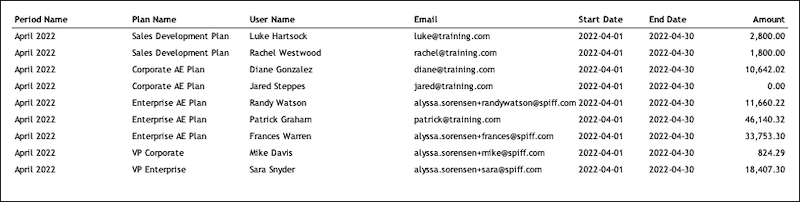
To export a summary of all statements for the period in a Microsoft Excel worksheet, click the export button (10). The export includes commission amounts earned by each rep during the period and shows the commission amounts earned at the payout rule level.
You can recalculate individual statements or recalculate all statements at once. To recalculate all unfrozen statements for all users for all periods, click the Global Sync icon (11) and select Global Recalculate. To resync any new data from a connector simultaneously, select Sync Connectors & Recalculation.
