
You are here:
Give Users Access to Salesforce Spiff Commission Estimator
Assign the appropriate permission set license and permission sets to admins and reps who use the Salesforce Spiff Commission Estimator managed package.
Required Editions
| Available in: both Salesforce Classic (not available in all orgs) and Lightning Experience |
| Available in: Enterprise, Unlimited, and Developer Editions |
| Available for an additional cost in: Professional Edition with Web Services API Enabled |
| User Permissions Needed | |
|---|---|
| To manage licenses for a Salesforce managed packages: | (Salesforce) Manage Package Licenses |
| To assign Salesforce permission sets: | (Salesforce) Assign Permission Sets AND (Salesforce) View Setup and Configuration |
| To edit Salesforce profiles: | (Salesforce) Manage Profiles and Permission Sets |
Add Licenses for Spiff Commission Estimator Users
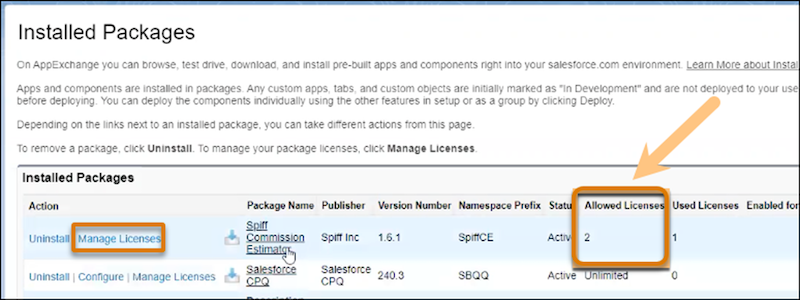
- From Setup, in the Quick Find box, enter Installed Packages, and then select Spiff Commission Estimator.
- In the Allowed Licenses column, verify that you have enough licenses for all Spiff Commission Estimator users. To add licenses, contact Salesforce Customer Support.
- Click Manage Licenses, click Add Users, and then add users.
Assign CPQ Permissions (Quotes Only)
If you plan to use the Spiff Commission Estimator for quotes, first assign Salesforce CPQ permissions. If you plan to use the Spiff Commission Estimator for opportunities only, skip these steps.
- Assign the Salesforce CPQ License permission set license to each user.
- Assign the Salesforce CPQ User or Salesforce CPQ Admin permission set to each user.
Assign Spiff Commission Estimator Permissions
- Assign the Spiff Commission User or Spiff Commission Admin permission set each user.
- Turn on Enhanced Profile User Interface.
-
Give admin users access to the Spiff Connect tab.
Admins use the Spiff Connect tab for configuring access to third-party connections to Spiff. Ensure that only admins can access the tab.
- From Setup, in the Quick Find box, enter Profiles, and then select Profiles.
- Select System Administrator or the custom admin profile you selected when you installed the Spiff Commission Estimator managed package.
- Select Object Settings.
- Select Spiff Connect.
- Click Edit.
- For Tab Settings, and select Tab Hidden.
- Save your changes.
Did this article solve your issue?
Let us know so we can improve!
