
You are here:
Create a Payroll Report in Salesforce Spiff
Ensure accurate and efficient reporting of payroll data for each rep in Salesforce Spiff. Automate the payroll process and make payroll data readily available for every custom report.
Required Editions
| Available in: both Salesforce Classic (not available in all orgs) and Lightning Experience |
| Available in: Enterprise, Unlimited, and Developer Editions |
| Available for an additional cost in: Professional Edition with Web Services API Enabled |
| User Permissions Needed | |
|---|---|
| To create a payroll report: | A Spiff user role with these permissions turned on.
|
-
Sync payroll data from your CRM ,or upload an export from your payroll or HR system.
To link records to the correct reps, make sure the uploaded file contains unique IDs and fields. The tab name is what the object or table is named in Salesforce Spiff.
-
Connect the uploaded data to Designer.
- From the left panel under Data, click Manage Objects & Fields.
- Select the data source and expand the object dropdown.
- Click the + icon next to any field you want available for this report.
-
Create a filter to map payroll records to the correct representatives.
- From the left panel under Data, click Filters.
- Select the .csv file you uploaded and click New Filter.
-
Name the filter PayrollDataByRep and enter syntax.
User_Id = rep.Id
-
Create a worksheet to pull in necessary payroll data from a rep’s record.
- Create a separate folder for payroll data and add a worksheet.
-
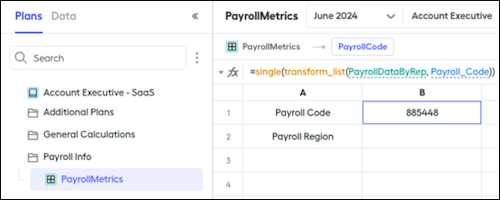
Name the payroll information and enter the payroll formulas.
Payroll Code =single(transform_list(PayrollDataByRep, Payroll_Code))Payroll Region =single(transform_list(PayrollDataByRep, Payroll_Region)) - Continue with any other payroll data from your upload. Selecting different representatives dynamically updates the values returned.
-
Establish a ghost payout rule that calculates the payroll fields for each rep on that plan.
The ghost rule guarantees that the data is included in rule logic but results in a zero payout.
-
On the payroll worksheet, name the ghost rule and enter the payroll formulas.
=if(PayrollCode, 0, 0) + =if(PayrollRegion, 0, 0) -
Create a payout rule on a plan and turn the ghost rule on.
You can reuse this rule and add it by default to every plan to make sure you always have the payroll data you need in your reports.
-
On the payroll worksheet, name the ghost rule and enter the payroll formulas.
-
Calculate statements and create the report.
- Calculate any unfrozen statements to make sure data flows through to the report.
- From Reports, click Create Report.
- Click Add Columns to add payroll fields to your report.
- Click Apply and then click Run & Save.
Did this article solve your issue?
Let us know so we can improve!
