
You are here:
Quotas Management in Salesforce Spiff
Create and manage quotas that motivate your sales reps. Manage quotas in Salesforce Spiff with a quota table, which includes quota values for commission calculations for all reps assigned to this quota type.
Required Editions
| Available in: both Salesforce Classic (not available in all orgs) and Lightning Experience |
| Available in: Enterprise, Unlimited, and Developer Editions |
| Available for an additional cost in: Professional Edition with Web Services API Enabled |
When you create a quota table, set the quota cadence to monthly, quarterly, or annually. Choose a cadence based on how frequently the quota changes. For example, suppose reps have an annual quota but you anticipate needing to make adjustments throughout the year. A monthly quota makes sense for this case. For example, let’s assume an annual quota table with a few reps assigned. Diane originally had a $700,000 quota for the year, but it turns out she’s taking a leave of absence and we need to adjust her quota.
We can change the table and update the quota to $450,000, but after the update is made there’s no visibility or audit trail of the change that has occurred. Additionally, if any historical statements were unfrozen, or if they were unfrozen and then recalculated, the calculation is based on the current entry.
Compare the annual quota to a monthly quota. We can enter Diane's yearly quota amount each month. If any changes are made as the year progresses, you have an audit trail of when those updates happened and visibility on any previous entries.
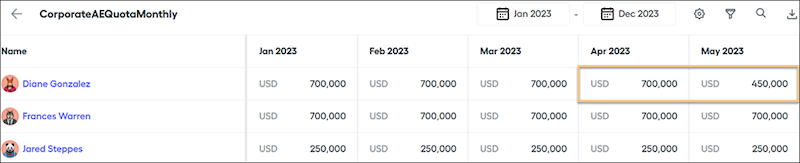
Quota functions in Designer are flexible and can handle several different approaches depending on how you want to store quota values. For example, you could have a monthly quota cadence and then calculate an annual quota target by summing the monthly entries, and the same goes for quarterly cadences. This is considered during your implementation or plan revamp.
To create a quota table, click New Quota in the Quotas tab. Enter a name that doesn’t include spaces for your quota table. You can also include the quota description displayed on your quotas page. Select the quota cadence: annual, quarterly, or monthly, and save your table.
If most sales reps have a similar quota, enter a default quota value that applies to all reps, and change the quota for only reps that have different quotas. If the quota depends on the team, create a custom quota field on the Team object, add the field to a statement calculation, and use the calculated field as the default quota value.
- Assign Users to a Quota Table
After you've created a quota table in Salesforce Spiff, start assigning users to the quota table. - Add Values to a Quota Table
After you've created a quota table and assigned users in Salesforce Spiff, enter quota values. - Set Up a Quota Table
Specify how you want to format values in a quota table in Salesforce Spiff. Update the table's name or cadence. - Manage Attainment Adjustments with Quota Tables
Track manual adjustments to attainment amounts with a quota table, which provides an auditable log of adjustment entries that you can reference in calculations for all statement statement periods. Overwriting a value on a statement applies only to the rep for a specific statement period, but a quota table provides a more permanent and reliable solution. - Create a Ramp for New Hires in Salesforce Spiff
A ramp in Salesforce Spiff refers to a structured period of time for new hires to learn the company's products, processes, and sales strategies without the immediate pressure of meeting full quotas. Gradually increase quotas over time so new reps can build their pipeline and gain confidence in their selling abilities. A ramp is also called a guaranteed commission and is a common feature of many commission plans.
