
You are here:
Configure the Integration with Microsoft Teams in Salesforce
Turn on the integration with Teams in Salesforce. Then users with the User for Teams Integration permission can access Salesforce data and mention Salesforce records in their Teams conversations.
Required Editions
| Available in: Lightning Experience |
| Available with Sales Cloud and Service Cloud in: Enterprise, Performance, and Unlimited Editions |
| User Permissions Needed | |
|---|---|
| To turn on the app and select data sharing: | Modify All Data |
| To set user permissions: | Assign Permission Sets |
- From Salesforce Setup, in the Quick Find box, enter Teams, and then select Teams Integration.
- Turn on Let users access Teams Integration features.
- Read and acknowledge the agreement.
- Select Assign Permission Set, and assign the User for Teams Integration permission set to users who need access to Salesforce in Teams.
-
Select how much Salesforce data to include when a user shares a Salesforce record anywhere
in Teams.
Show the object type only When a rep mentions a record in a conversation, the conversation shows only information about the object type mentioned. Users with Salesforce access can preview more record details in Teams. Users without Salesforce access see only that a record was mentioned and its type, such as contact, opportunity, lead, account, or case. Users see a card with limited information when they mention a record in a channel.
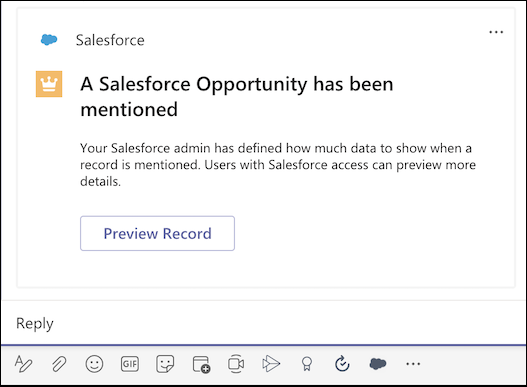
Show the object type only When a rep mentions a record in a conversation, the conversation shows only information about the object type mentioned. Users with Salesforce access can preview more record details in Teams. Users without Salesforce access see only that a record was mentioned and its type, such as contact, opportunity, lead, account, or case. After users select Preview Record, they see different amounts of information based on their Salesforce permissions.
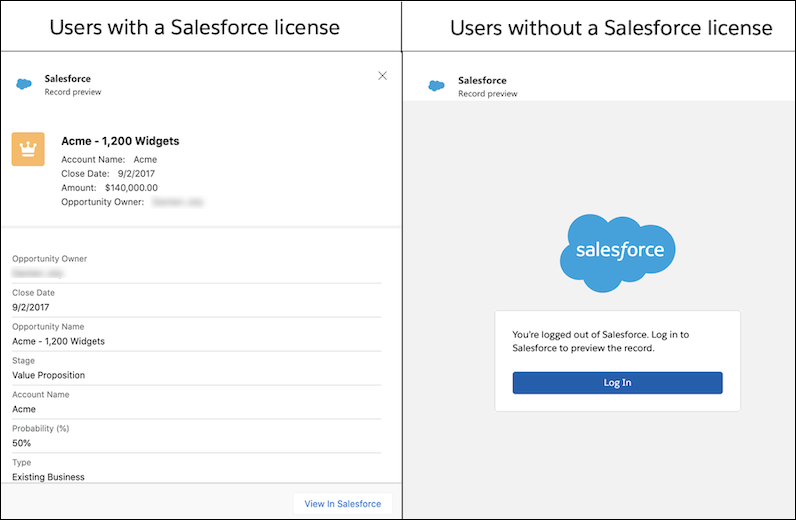
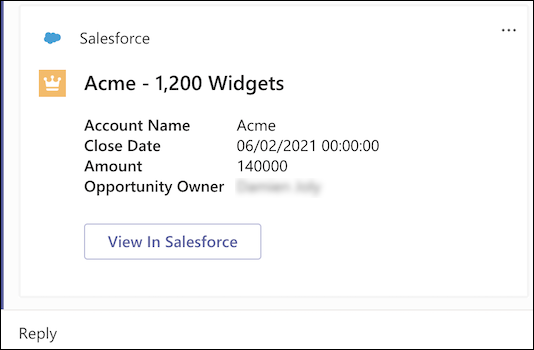
Show record summary When a rep mentions a record, the record’s compact layout shows in the conversation, even to users who don’t have Salesforce access. This option provides the most insight into the record shown and is best for collaboration within Teams. However, ensure that the structure of your compact layouts and the data included are appropriate for all members of a Teams channel to see. When a user mentions a record, all channel members see an adaptive card with record details. Details shown on the adaptive card are stored in your company’s Office 365 Teams storage.
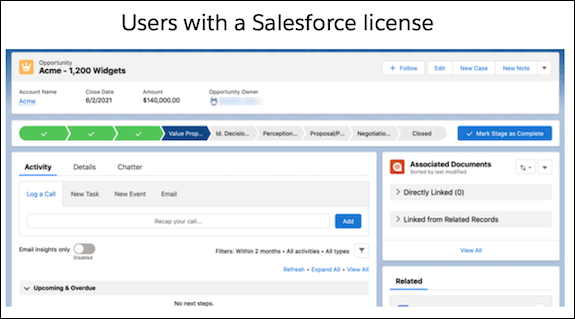
After users who have a Salesforce license select View in Salesforce, they see the record detail page in Salesforce with any information available to them based on their permissions.
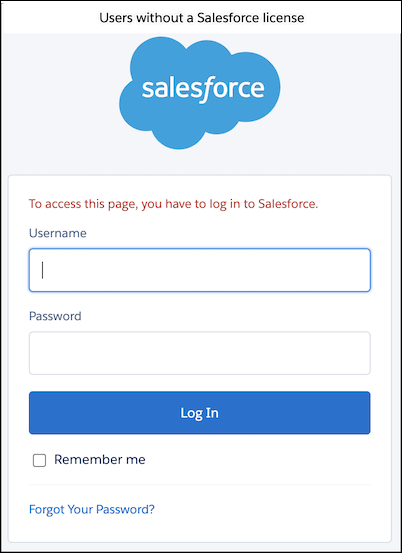
After users who don’t have a Salesforce license select View in Salesforce, they see a login page. They can’t view any additional Salesforce records’ details without acquiring a login.
Some fields aren’t displayed in Teams adaptive cards when the integration is configured for record mentions in a compact layout.
- All empty fields
- Address and rich text fields in the compact layout
- The PhotoUrl field on contacts and leads
- Work with your Teams administrator to provision the integration in the Teams application.
