
You are here:
Guidelines and Considerations for Using Opportunity Splits and Opportunity Product Splits
Use opportunity product splits to coordinate multiple products’ and team members’ contributions to a deal without leaving your opportunity record. Learn about key guidelines and considerations when working with splits.
| Opportunity Splits are available in: Lightning Experience and Salesforce Classic |
| Opportunity Product Splits are available in Lightning Experience |
| Available in: Performance and Developer Editions and Enterprise and Unlimited Editions with Sales |
| User Permissions Needed | |
|---|---|
| To create or edit opportunity splits and opportunity product splits for opportunity team members: | Edit on opportunities AND Owner of opportunity record or above the owner in the role hierarchy |
Opportunity Splits
- Your admin can create custom fields on opportunity splits to help you track splits that you create for team members.
- The split on the Opportunity Amount field includes one revenue split and one overlay split type. If you want more split types, ask your admin to create them. Your admin specifies which types of splits always total 100%. Look for “must total 100%” in the description of the split.
- If you don’t see splits on a field, ask your admin to check your field-level security limits.
- To remove a team member from a split, click Del next to the team member’s name.
- To edit rich text fields or multiselect picklists, go to each team member’s opportunity split detail page. Your admin can’t include those kinds of fields in the Edit All Opportunity Splits window.
- When you enter a monetary amount that requires a split percentage with more than two decimal places, the amount is automatically rounded to two places.
- When an opportunity has overlay splits, changing the opportunity owner without keeping the opportunity team gives the new owner the sum of the previous owner’s split percentage. The new owner also gets the previous owner’s split percentage for the overlay split.
- You can’t insert or edit certain fields on opportunity splits of a certain opportunity split type, if product split records are set up on the opportunity for that split type. You also can’t delete any opportunity splits belonging to a split type that has product splits included on the opportunity.
- Opportunity splits don’t roll up to sales territories.
- In the Salesforce mobile app, the Split Amount field isn’t available, and other opportunity splits fields are read-only.
Opportunity Product Splits
- When an opportunity is transferred to a new owner, the opportunity team can be transferred along with the associated product splits.
- When you delete all the products on an opportunity and the amount becomes 0, we roll up the changes to opportunity splits. The owner is assigned a 100% split and team members are assigned a 0% split.
- When you delete all the product splits on an opportunity, we roll up the changes to opportunity splits. The owner is assigned a 100% split and team members are assigned a 0% split. On opportunities with opportunity splits only, when the opportunity amount value is changed to 0, the case is different. Opportunity splits maintain the original percentages.
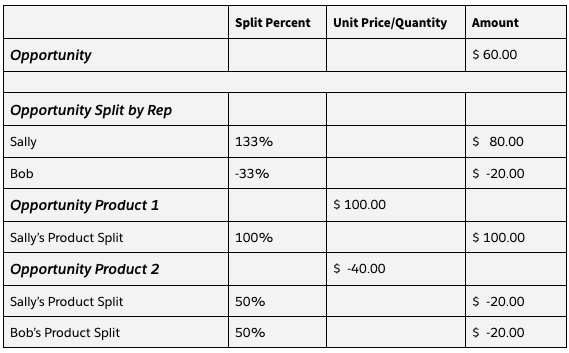
- You can’t define product splits on an opportunity for products with both positive and
negative amounts if the rollup values in the Percentage field on the related opportunity split
record will be outside of the allowed range of 0% to 100%. For example, Sally has an
opportunity with two products. She wants to add a product split on Product 2 for her team
member Bob. Bob gets 50% of Product 2, which has a negative amount. Sally’s split on the same
product is updated to 50%. This split scenario isn’t valid because the opportunity splits for
the two reps are outside of the allowed range of 0-100%.
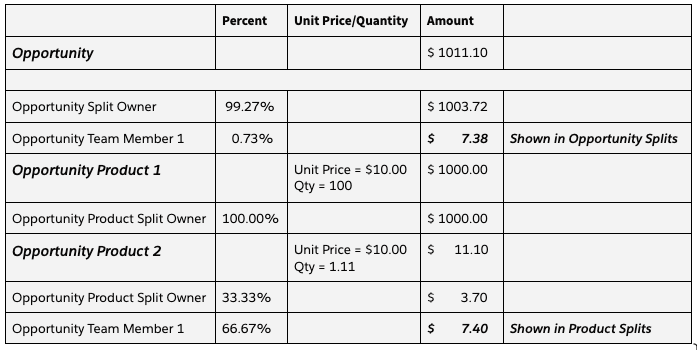
- When product splits are rolled up to the opportunity splits level, the amounts are limited
to two decimal places. While the totals can be more precise with more decimal places, the
values sometimes don’t add up to the exact value. For example, an opportunity with two products
shows slightly different amounts based on the product split percentages.
- When you use product splits on revenue split types, you can’t have more than 200 products on an opportunity.
- Assigning a split to a territory doesn’t change the opportunity owner or territory. The current owner and territory still own the opportunity.
- All splits of one split type for a team member, including the opportunity owner, must have a unique territory.
- The Split Archived Territory Name, Split Territory ID, Split Territory Name, and Split Territory Description fields are available in the Opportunity and Product Split Report and the Opportunity and Product Split Schedule Report.
- To distinguish between split territories and opportunity territories in reports, the
Territory, Territory Description fields are named Opportunity Territory and Opportunity
Territory Description in these reports.
- Opportunity and Product Split
- Opportunity and Product Split Schedule
- Lead Lifetime
- Opportunities with Partners
- Opportunities with Competitors
- Opportunities with Contact Roles
- Opportunities with Opportunity Teams
- Opportunity History
- To see whether splits are associated with archived territory models, add the Archived Territory Name field to the Opportunity and Product Split and Opportunity and Product Split Schedule reports.
Did this article solve your issue?
Let us know so we can improve!
