
You are here:
Draft Personalized Emails with Service Email Assistant
Expedite your emails with AI. Using a preset or custom prompt instruction, Service Email Assistant pulls case data to draft a response to your customer.
Required Editions
| Available in: Lightning Experience | Available in: Einstein 1 Service Edition OR Enterprise and Unlimited Editions with the Einstein for Service Add-on |
| User Permissions Needed | ||
|---|---|---|
| To create and manage prompts: | Prompt Template Manager permission set | |
| To send Service emails with Einstein: | Prompt Template User permission set | Einstein Service Email Assistant User permission set |
To get started, you must have both the Lightning email composer and Email-to-Case enabled.

The language used to write the prompt instructions or any response language requested in the instructions doesn’t determine the output language. Instead, the execution logic determines the language used in the response. Learn how the output language is determined.
- Open the case email composer in Lightning Experience.
-
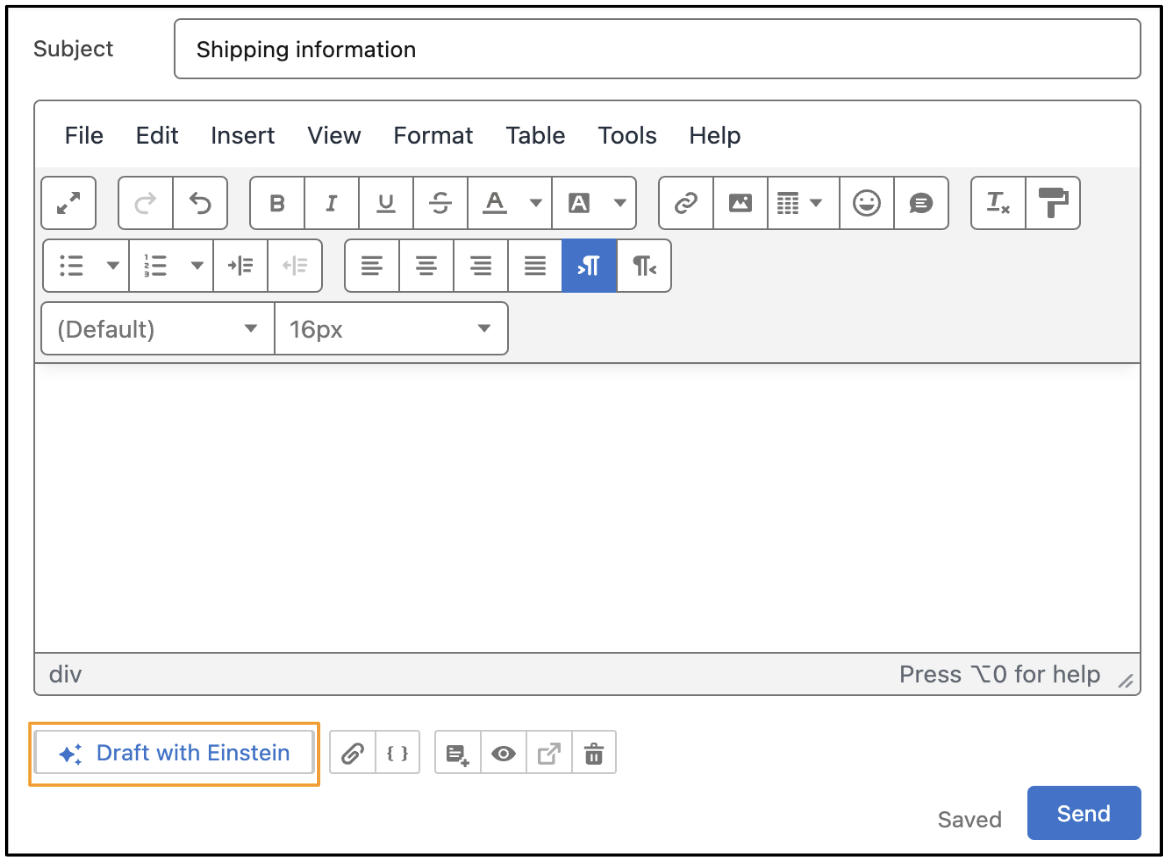
Click Draft with Einstein.
-
Write your own instructions for the email or choose pre-made instructions, then click
Draft Email.
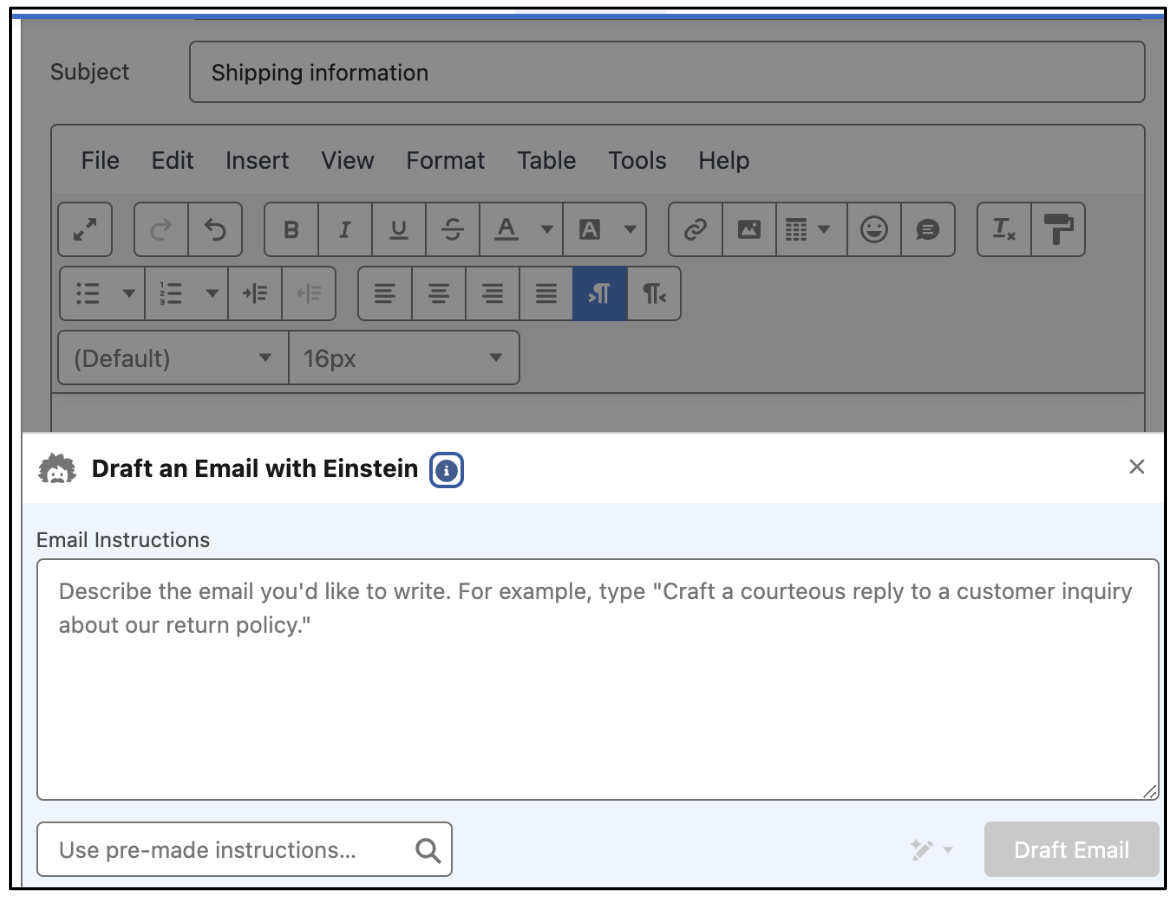 Only plain text is supported.
- To provide your own instructions, you must have the Add email prompt instructions
in Draft with Einstein preference enabled on the Email-to-Case Setup page.
Use natural language to indicate the content and tone you want for the email. For example, type "Write a friendly reply telling the customer how to find the tracking details for their order."
- The standard pre-made instruction drafts a reply based on the case information. You can also use a custom instruction for tasks like confirming that a case can be closed, or helping the customer with troubleshooting.
- To provide your own instructions, you must have the Add email prompt instructions
in Draft with Einstein preference enabled on the Email-to-Case Setup page.
-
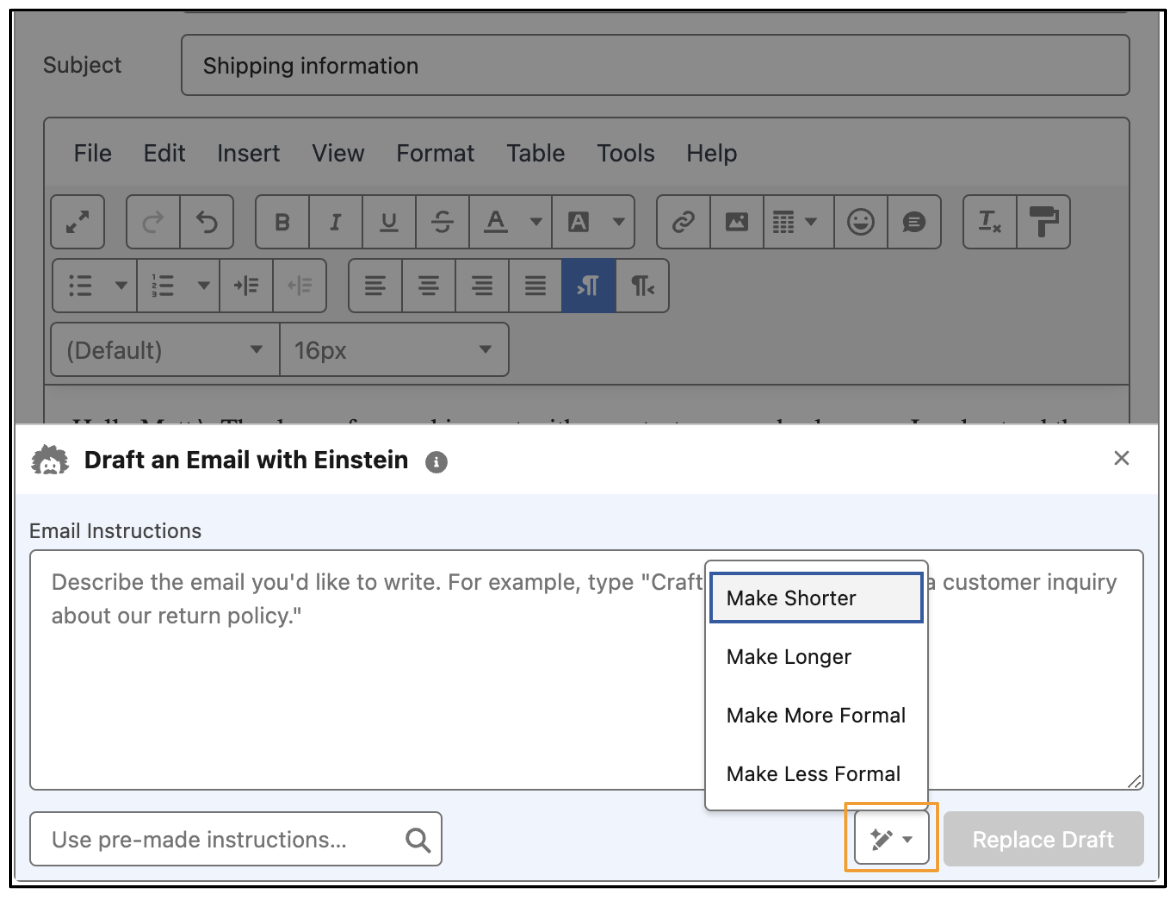
Modify the draft by clicking Revise. Provide different
instructions, or click the pencil icon to edit the length or tone. Click
Replace Draft. You can also revise content that you wrote. Keep
in mind that rich content is replaced with plain text when you automatically revise
emails.
-
Review the email and make any necessary changes before sending.
If you add the [[[GENERATED_CONTENT]]] placeholder to an email or email template and then use Draft With Einstein, the placeholder is replaced with the content generated by Einstein. If you don't use this placeholder in a Case Email, Einstein replaces all content above the Original Message quote line with the AI-generated content.
