Loading
Salesforce now sends email only from verified domains. Read More
Help Agent Performance DegradationRead More
Service
Table of Contents
Select Filters

          No results
          No results
          Here are some search tips

          Check the spelling of your keywords.
          Use more general search terms.
          Select fewer filters to broaden your search.

          Search all of Salesforce Help
          Add Members to a Swarm in Lightning Experience

          Add Members to a Swarm in Lightning Experience

          If resolving a customer issue requires help from others with different skills, you can add members to an ongoing swarm. Use Expert Finder to find people with the best skills, availability, and capacity. Or add people directly, by name. When you’re using Expert Finder, Omni-Channel routes invitations to the best available user with the specified skills and creates swarm member records for the case and swarm. Add swarm members by name, find them by skill with Expert Finder, or skip adding swarm members and add them later.
          Required Editions

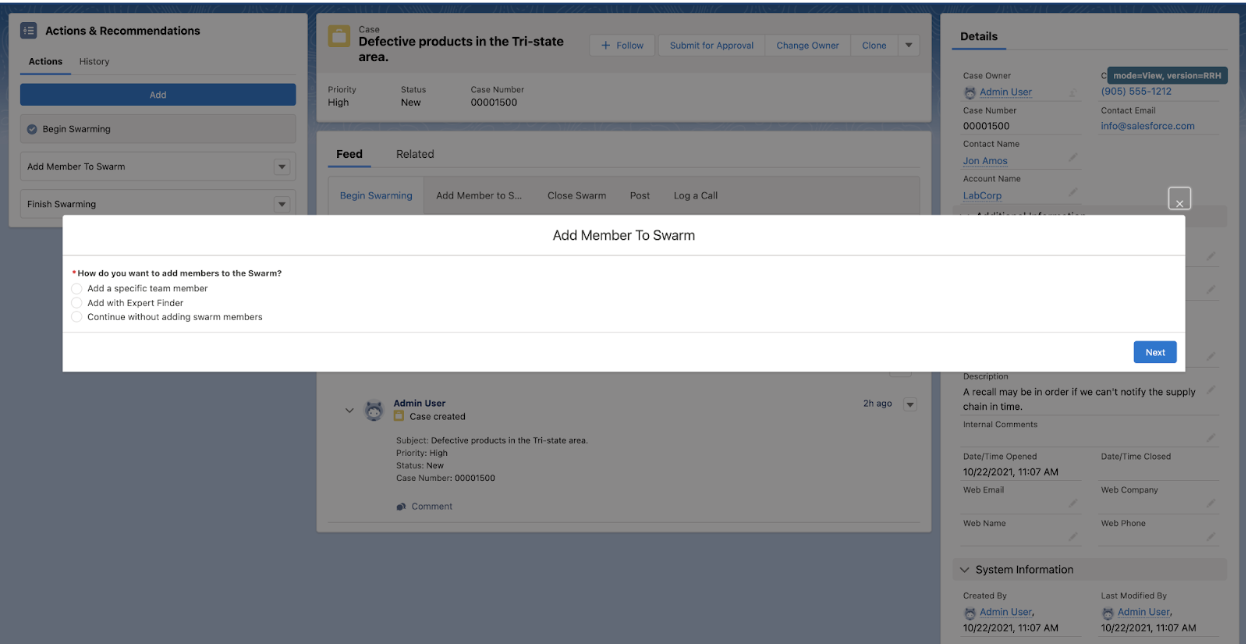
          1. Start the Add Member to Swarm flow via Actions & Recommendations, dynamic actions, or quick actions.
            Add member modal
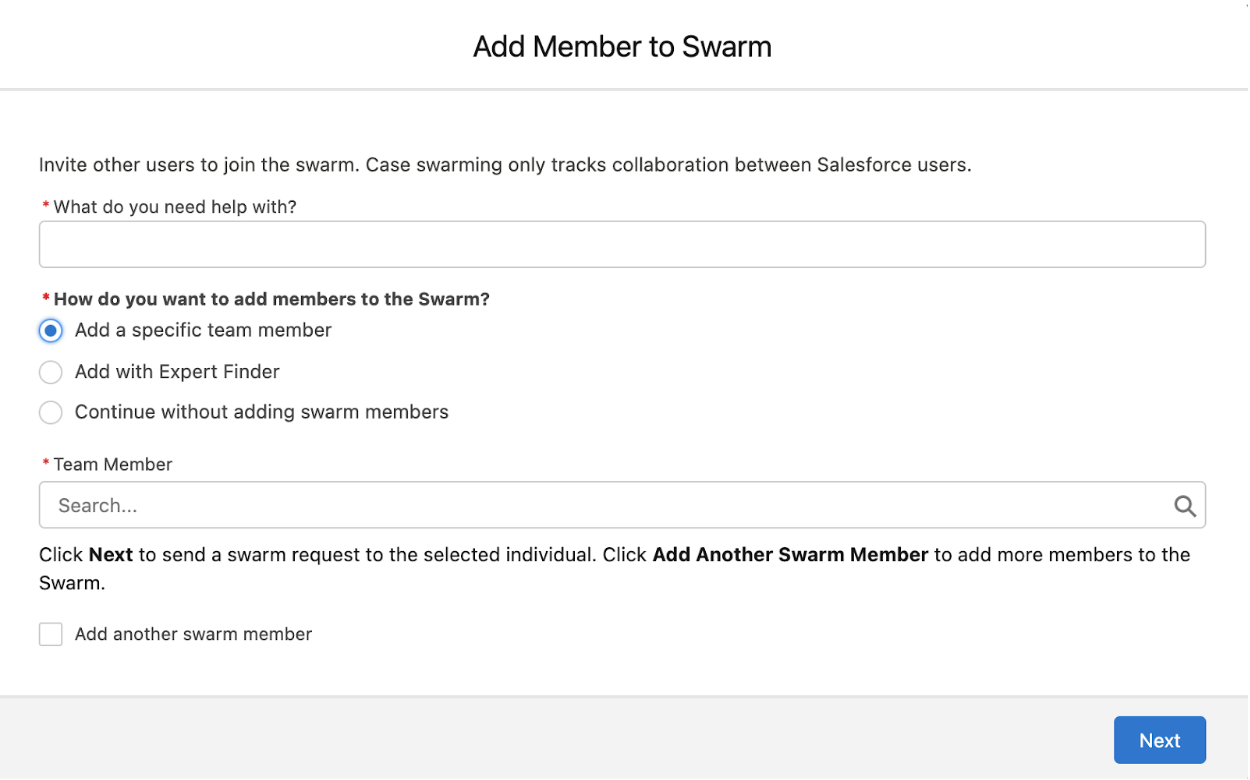
          2. To add specific team members, select the corresponding option, and then enter their name where prompted. See Considerations for Adding Swarm Members.
            Add member modal
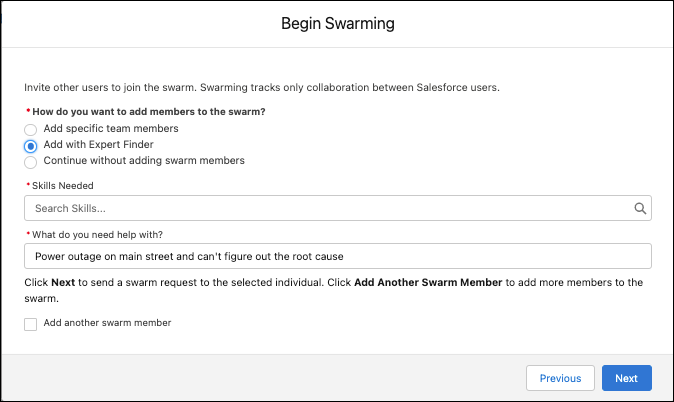
          3. To add team members via Expert Finder, select the corresponding option, and then choose the skills needed to complete the swarm. With this option, Expert Finder uses Omni-Channel routing to find a qualified support rep with capacity to assist. The expert suppoprt rep receives a swarm member request that they can choose to accept or reject.
            Add members with expert finder
          4. To use the flow to add more than one new member to the swarm, enter the names of the people or use Expert Finder, then repeat this step until the swarm is filled with the members you want. When you’re finished adding members, click Next.
          Example
          Example If you’re swarming with a Service Agreement expert but you want to determine whether an issue violates the customer’s contract, add an account specialist to the swarm.

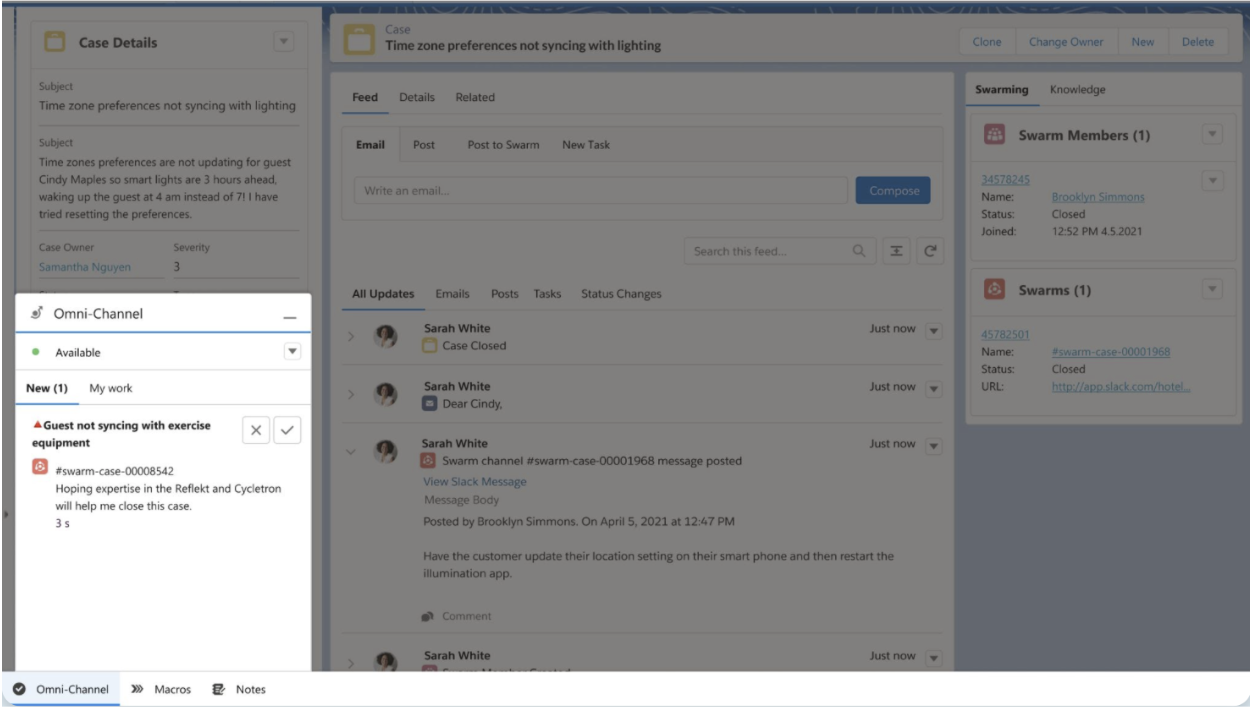
          Omni-Channel routes your swarm request record to other available support reps with capacity that match your skills specifications. When a swarm member is created, the case owner is assigned as the owner by default. When someone accepts the invitation, the record status automatically changes from New to In Progress, and they’re reassigned as the swarm member record owner.

          Swarming in the omni-channel viewer

          To view the swarm and swarm members, see the record’s Swarm Members and Swarms related lists. Your swarm member status is automatically set to New.

          Salesforce users that join, are added to a swarm channel from Slack, or that contribute to the swarm conversation are automatically added to Salesforce as a swarm member as long as the swarm is open.

           
          Loading
          Salesforce Help | Article