
Create Asset Hierarchies
Establish parent-child relationships between assets to represent products with multiple components.
Required Editions
| Available in: both Salesforce Classic (not available in all orgs) and Lightning Experience |
| The Agentforce Field Service and Operations core features, managed package, and mobile app are available in Enterprise, Unlimited, and Developer Editions. |
For example, perhaps your business sells a tent which is tracked as an asset, but the tent poles (which customers have a tendency to misplace) are tracked as a separate asset. You can make the tent poles asset a child of the tent asset.
To create hierarchical relationships between assets, use the Parent Asset field and the Child Assets related list on asset detail pages. Assets also come with a few additional fields related to hierarchies:
- The read-only Root Asset field lists the top-level asset in an asset hierarchy. Depending on where an asset lies in the hierarchy, its root might be the same as its parent. If an asset is at the top of a hierarchy, it is its own root asset, and the Parent Asset field is blank.
- The read-only Asset Level field is a number that reflects the asset’s position in a hierarchy. If the asset has no parent or child assets, its level is 1. Assets that belong to a hierarchy have a level of 1 for the root asset, 2 for the child assets of the root asset, 3 for their children, and so forth.
An asset hierarchy can have up to 10,000 assets. Here are some ways to use hierarchical assets to improve your support process.
- When creating a work order to repair a broken asset, create line items on the work order that correspond to specific child assets.
- For situations where a work order is created from an asset, set up a workflow rule or process that creates a work order line item for each child asset.
- Set up a trigger that notifies the owner of an asset by email when the install date for one of the asset’s child assets was more than five years before the current date.

Viewing Asset Hierarchies
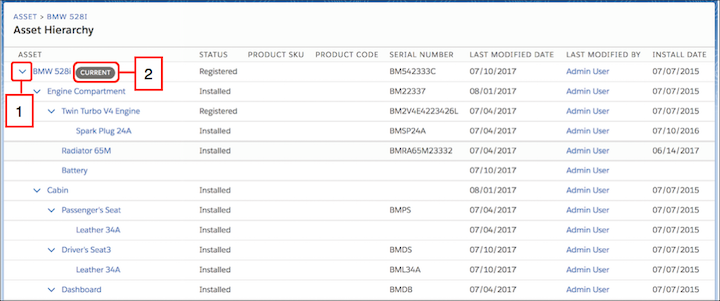
To view an expanded tree grid of all assets in an asset’s hierarchy, click View Asset Hierarchy in the drop-down action menu on any asset detail page in Lightning Experience. (That’s in the top right-hand corner of the page.) The action is also available on assets in the console. This view gives field service workers a way to quickly identify parts, assess bills of materials, and understand how assets are related to each other.
Click the caret next to each asset name (1) to collapse and expand a node. You can go up to 20 levels deep in a hierarchy. The asset whose hierarchy you’re viewing is shown with a CURRENT stamp (2). The fields that appear in the hierarchy aren’t customizable. If you don’t see the action, add it to your asset page layouts: In the layout editor, select Mobile & Lightning Actions, then drag it onto your page layout.
The View Asset Hierarchy action is available only for hierarchies of 500 or fewer assets. If a hierarchy contains more than 500 assets, you can still refer to each asset’s Child Assets related list and Parent Asset, Root Asset, and Asset Level fields.
Here’s what happens if you don’t have access to certain elements of an asset hierarchy:
- If your field-level security settings prohibit you from accessing a particular field in the asset hierarchy view, you can see the field name in the column title, but the column is blank.
- If sharing settings prohibit you from viewing an asset that’s lower in the current asset’s hierarchy, the restricted asset doesn’t appear in the hierarchy view for you.
- If sharing settings prohibit you from viewing an asset that’s higher in the current asset’s hierarchy, an error appears and you can’t view the asset hierarchy. This is because record sharing settings also apply to child records.
The asset hierarchy view isn’t searchable or editable. It isn’t available in Salesforce Classic, Experience Cloud sites, Salesforce for iOS, Salesforce for Android, or the Field Service mobile app.
