
You are here:
Deliver Knowledge Articles with Article Answers
Use Article Answers to create a powerful FAQ-based bot from your Lightning Knowledge base. Article Answers combines machine learning and traditional search to accurately process complicated customer inputs, including common typos, slang, and multiple questions. Then it serves up relevant fields from your knowledge articles directly in the conversation. You can adjust Article Answers to fit your company’s voice, and you can display a subset of your knowledge articles via knowledge data categories. Plus, prebuilt feedback capturing with event logging collects article feedback from your users in real time.
Required Editions
| View supported editions. |
| User Permissions Needed | |
|---|---|
| To build and manage Einstein Bots: | Customize Application OR Modify Metadata OR Manage Bots |

- Article Answers works best with knowledge bases that include more than 10 articles.
- Article Answers supports English (US), French, German, Italian, Portuguese, and Spanish. Article Answers returns articles based on the preferred language the user selects for the bot. If the user doesn’t select a preferred language, Article Answers uses the bot’s primary language set on the Bot Overview page.
Article Answers is configured on three levels: the Einstein Bots Setup page, the Bot Overview page, and the Article Answers dialog.
- On the Einstein Bots Setup page, and click the Smart Features tab. Then, under Article Answers, click Get Started.
-
Select the fields and data categories that the bot uses to deliver
answers.
Article Answers requires the following fields.
Question Used as an index to compare to the customer’s question
We recommend adding multiple questions to a knowledge article. Start each question on a new line of the Question field.
Adding multiple questions to capture even minor variations can improve the accuracy of answers returned. For example, in our testing, an article with both "How do I make Cold Brew Coffee?" and "What's the recipe for a cold brew?" in the Question field performed better than the same article with either question alone.
Answer Delivered back to the customer as the answer
For best performance inside the conversation, we recommend shorter, conversational answers in the Answer field.
Title Displayed as a menu button when there are multiple relevant articles To populate these fields, add Question, Answer, and Title fields to your Knowledge page layout or map existing fields.
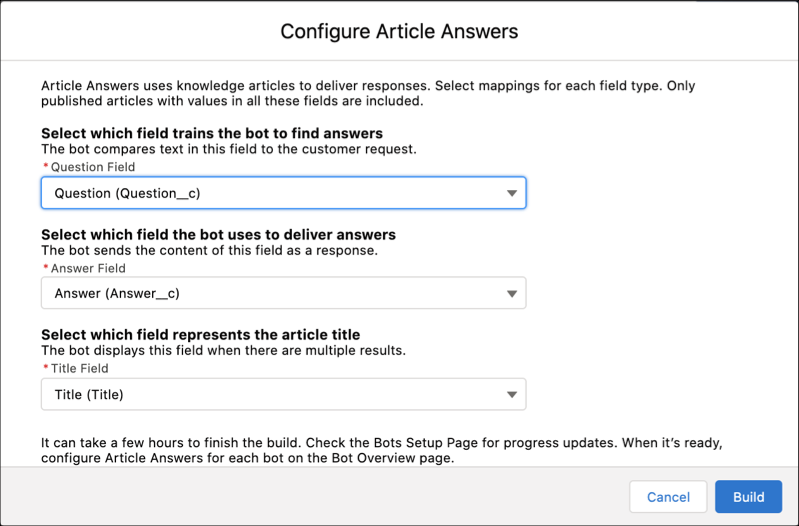 Only published articles with valid values in all these selected fields are indexed and searched.
 - Click Build. The bot indexes the knowledge base for approved articles and creates a build of the approved articles.
-
To view the status of the build, check the Einstein Bots Setup page in about 30
minutes. When complete, the feature shows an Active status.
A build generally takes from 15 to 30 minutes and depends on the size of your knowledge base.Article Answers only indexes and searches published knowledge articles with values for the Question, Answer, and Title fields. The build automatically refreshes every 24 hours to index new articles or changes to existing articles. You can manually refresh the build using the Refresh button on the Setup page.
-
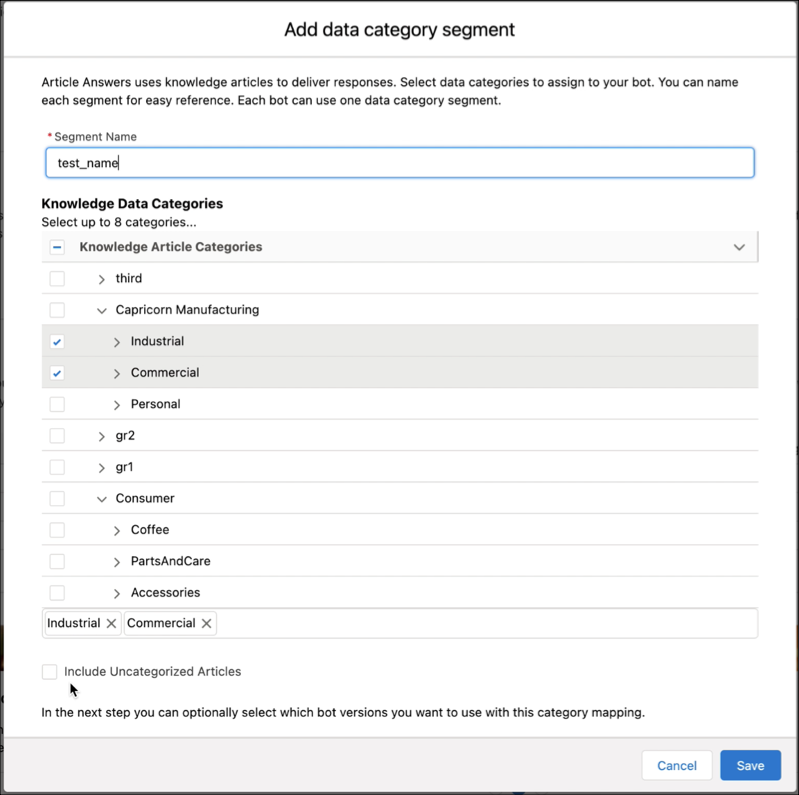
Optionally, you can create and assign Knowledge Data Category Segments to your
bots and show a subset of articles to specific audiences. To assign categories
to the segment, define a Segment Name and select multiple data categories. To
include uncategorized articles in the segment, select Include
Uncategorized Articles, and then save your changes.
- From the Einstein Bots Setup page, select the bot you want to configure, and then use the menu dropdown to access the Overview page.
- Select Store Einstein Bots conversation data and select a Custom Chatbot User that has view access to knowledge articles.
-
On the Article Answers tile, edit the tile and then select Use
Article Answers with this bot.
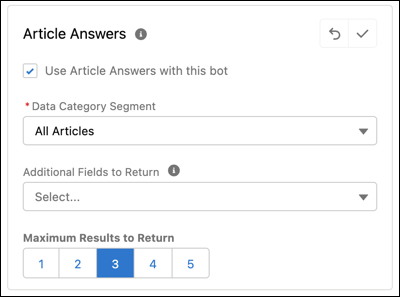
- Optionally, select a Knowledge Data Category Segment or additional fields, such as a URL field, to deliver along with the Answer field. To include an additional field in bot messages, use merge syntax.
- Optionally, specify the maximum number of articles to return. The default is three.
-
In the Menu dropdown, select Dialogs and then click the
Article Answers dialog. The Article Answers dialog is
pre-configured to work with your bot and can be customized to your company’s
needs.
-
After the bot delivers the answer to the customer, the bot asks the
customer if the answer was helpful. The Knowledge Feedback action step
after the question dialog step comes pre-defined with variables to
collect this feedback.
-
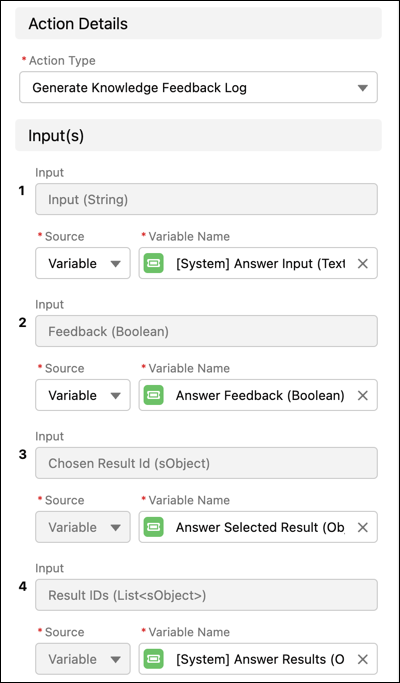
After the bot delivers the answer to the customer, the bot asks the
customer if the answer was helpful. The Knowledge Feedback action step
after the question dialog step comes pre-defined with variables to
collect this feedback.
- Activate the bot.
To evaluate Article Answers performance in your org, view the Article Chosen Last 30 Days, Article Chosen Today, Article Positive Feedback Last 30 Days, and Article Positive Feedback Today standard bot reports.
- Article Answers Troubleshooting Tips
Review these troubleshooting tips so that you can deliver knowledge to your customers intelligently.
