
You are here:
Understand Einstein Bot Dialogs
A dialog is the workhorse of your bot’s interaction with your customer.
Required Editions
| View supported editions. |
Dialogs are conversation snippets that control what your bot can do. You can associate every dialog with a dialog intent which can be trained to understand variations in customer input. During a conversation with a customer, your bot moves between several different dialogs. Each dialog handles a portion of the conversation. For example, Welcome, Main Menu, Order Status, Location and Hours, and Transfer to Agent are individual dialogs that a customer might experience as part of a single conversation with your bot. Dialogs are specific to the version of the bot in which they’re created.
The following illustration gives you an overview of the Dialogs panel.
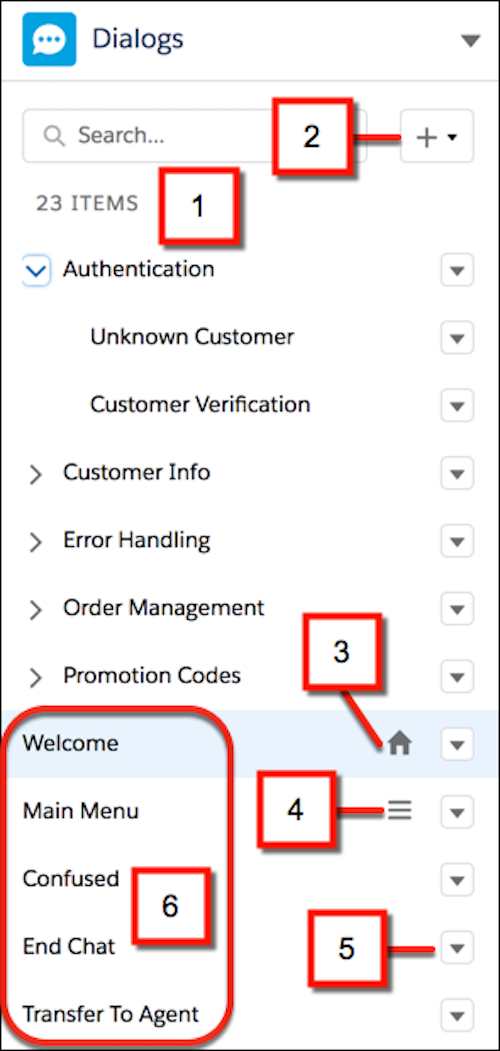
- It’s handy to organize your dialogs into groups (1). Plus, you can reorder your dialog list by dragging a dialog or dialog group to a new location in the list.
- Add dialogs and groups as needed (2).
- The first dialog you present to your customer is the Welcome dialog (3). The Einstein Bot Greeting Message that you write when you created the bot is saved as a message in the Welcome dialog. We provide a Welcome dialog to get you started but you can create your own and use the action menu (5) to set it to Welcome.
- The next step the bot performs after displaying the Welcome message is to display the Main Menu dialog (4). Use the Main Menu dialog to present the main capabilities of your bot to your customers. The menu items that you add when you create a bot are saved in the Main Menu dialog. We provide a Main Menu dialog to get you started but you can create your own and use the action menu (5) to set it to Main Menu.
- We provide some basic dialogs to get you started (6). Edit them as needed.
 Note The Confused dialog helps you smoothly address requests that are out of scope for your bot. The messages displayed in this dialog, combined with intent training, are used by the bot to respond whenever it’s unable to resolve a customer’s input.
Design the way the dialog works by adding one or more of the following dialog steps.
| Type of Dialog Step | Description | Example |
|---|---|---|
| Outbound Messages | Displays an outgoing message from the bot to your customer. | Hi, I’m Fun Bot. My job is to suggest fun activities in your home town. |
| Questions | Gathers information from your customer. Also, Question steps let you present choices for customer responses as buttons or menus. | What town do you live in? |
| Actions | Performs an action on your Salesforce data. |
|
| Rules | Perform specific tasks based on certain conditions. Actions include: call a dialog from within the current dialog, redirect to a different dialog, clear a variable value, transfer to a service rep, and set a variable. | In a dialog, a question step asks whether a user is a new or existing customer. A rule step in the same dialog:
|
To add a step to your dialog, drag a step from the Dialog Component Library onto the canvas, or
click  on the
canvas to select a type of step. Use the filter or list view to find your dialog step faster.
Then configure the details in the Step Properties panel.
on the
canvas to select a type of step. Use the filter or list view to find your dialog step faster.
Then configure the details in the Step Properties panel.

- Add a Dialog
Name the dialog and decide whether to include it in the Bot Options menu that’s always available to your customers in the chat window. - Set Up a Dialog
After you add a dialog, set it up by adding steps (outbound messages, questions, actions, rules) and tell the bot what to do after the dialog finishes. If you’re using intents, train the bot to understand the customer intent associated with the dialog. - Clone a Dialog or Dialog Step
Cloning a dialog is a quick way to build your bot. Dialog step cloning helps you set up similar dialog steps with fewer clicks. - Work with Dialog Groups
Manage your bot’s dialogs with dialog groups. - Understand System Bot Dialogs
Einstein Bots are built for conversation. To make setup a breeze, some of the most common dialogs are included with each new bot. These dialogs allow you to quickly transfer conversations to a service rep, or gracefully end a chat. You can customize each message to your company’s voice and tone. - Use Map View to Visualize Your Bot
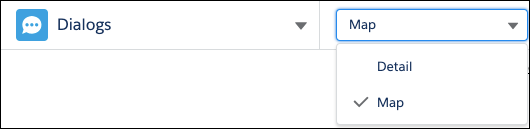
You can use Map View to create a visual representation of how conversations move through your Einstein Bot.
