
You are here:
Conversation Design for Asynchronous Components
Because customers don’t have to respond to asynchronous components right away, these components require careful conversation design. Use asynchronous component settings and Rule conditions and actions to ensure a natural conversational experience.
Required Editions
| View supported editions for Einstein Bots. |
| View supported editions for Messaging. |
Asynchronous Component Settings
When you add an asynchronous component to your bot, you can tell the bot to wait for customer input or move on to the next dialog step.
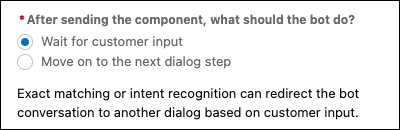
- Wait for customer input: The bot doesn’t continue on to any of the dialog steps
following the asynchronous component until the customer responds to the component.
Use this setting when you require a customer response to a component for your use case, such as authentication, a product payment, or a required form.
- Move on to the next dialog step: The bot continues through dialog steps following the
component, including moving on to another dialog.
Use this setting when a customer response to a component is optional for your use case, such a feedback form or a request for a donation.
When exact matching or intent recognition are enabled, the customer can enter text that redirects the bot conversation to another dialog, even when you select Wait for customer input. For example, you tell the bot to wait for customer input and the customer enters “Main Menu”. Through exact matching, the bot continues to the Main Menu dialog even though the customer hasn’t responded to the component.
If the customer returns to a component and responds to it, the bot returns to the component and moves to the next dialog step. To specify the bot’s behavior when a customer responds to an asynchronous component, we recommend adding a Rule action step after the component.

Asynchronous Components and Rule Actions
When a customer navigates away from a component and returns to respond to it, the bot returns to the component and picks up at the next dialog step. To ensure that the conversation is redirected appropriately, add a Rule action step after the component. The Rule action step can be configured to fire whenever the response variable is filled.
The following Rule step includes:
- A condition that triggers the Rule step whenever the output variable for the form component is filled.
- A rule action that sends a confirmation message to reorient the customer and indicate that they’ve successfully responded to the component.

When the component is set to wait for customer input and the customer responds to the component right away, the Rule step sends a confirmation message and the bot continues to the next rule action specified in the Rule step or the next dialog step.
When a customer responds to a component later in the conversation, the bot redirects the conversation to the component and moves on to the Rule step. The Rule step sends a confirmation message and moves to the next rule action specified in the Rule step or the next dialog step. The bot doesn’t return the customer to the dialog they were in before scrolling back to the component, but you can add a rule action to a Rule step to redirect a customer to another dialog.

To create a dedicated dialog to use after the customer has responded to a component, consider adding a Rule dialog step at the beginning of the dialog to check whether the associated variable has been filled. If a customer who hasn’t responded to the component accidentally arrives at the dialog through exact matching or intent detection, use the Rule dialog step to redirect them to an appropriate dialog.

However you configure your asynchronous component, consider the next dialog step that appears—whether it’s the next dialog step in the same dialog or the first step of a different dialog. For example, a component immediately followed by an unrelated question can be confusing conversationally, because the customer must decide whether to respond to the component or the question and can miss the component altogether.
