
You are here:
Ask a Question with Dynamic Options with an Enhanced Bot
Create a question with rich options that are filled dynamically from the object and fields you specify. For example, ask customers to choose from a list of their recent orders or cases. Then with the help of an Apex class or flow, present options to your customer in rich messaging formats that can include custom text, images, and buttons. For a plain text experience, use the non-messaging component Dynamic Question dialog step with enhanced and standard bots.
Required Editions
| View supported editions for Einstein Bots. |
| View supported editions for Messaging. |
| User Permissions Needed | |
|---|---|
| To build and manage Einstein Bots: | Customize Application OR Modify Metadata OR Manage Bots |
Support for messaging components varies by channel.
Before you begin:
- From the Messaging Component page in Setup, create a question with dynamic
options.
When you set up a question with dynamic options, you create a question to the customer. The question text isn’t visible in the Bot Builder, but you don’t need to add a separate dialog step to send it. In the bot conversation, the question text is sent to the customer when they reach the dialog step that references your component.
You can view or edit the question from the Messaging Components page in Setup, in the Constants section of the Component Details page for your component.
- Create an Apex class or flow that dynamically generates session-specific choices each time the component is sent.

-
To generate choices each time the component is sent, add an Apex class or flow to your
dialog.
- Go to the Bot Builder. Click Dialogs, and then select the dialog that you want to add the question with dynamic options to.
- From the Dialog Component Library, drag the Apex or Flow action dialog step onto the canvas.
- In the Step Properties panel, select the Apex class or flow associated with the question with dynamic options component.
- For each output, create or select a bot variable to store the output of the Apex class or flow. Create or specify an ID list variable to store the dynamic choices. You reference these variables again in the Question (Dynamic) dialog step to show available choices and other information to the customer.
-
Add the question with dynamic options to your bot.
- From the Dialog Component Library, drag the Question (Dynamic) dialog step onto the canvas.
- In the Step Properties panel, select the question with dynamic options associated with your Apex class or flow.
-
To show available choices and other information with the component, for each input
parameter, specify a bot variable. In most cases, specify the same output variables
you created in the previous Apex or Flow action steps in the corresponding input
parameter fields.
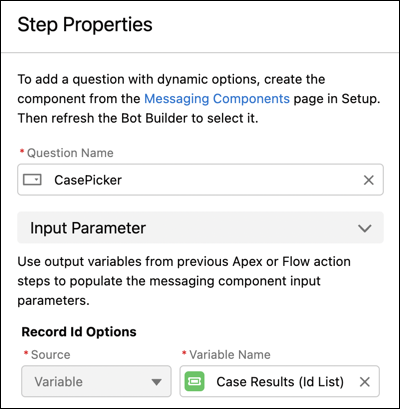
For example, in an Apex action step, you store the output of the Case Search Apex class in the Case Results ID list bot variable. In the associated Question (Dynamic) dialog step, in the Record ID Options input parameter, you specify the same Case Results ID list bot variable.
Apex dialog step Question (Dynamic) dialog step 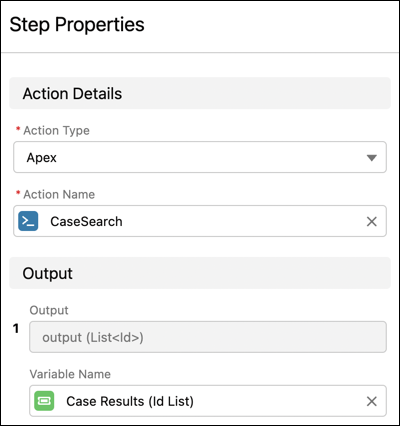
- Specify a backup rule action for the bot to use if the required input parameters don’t return any choices to show to your customer. Select Call Dialog or Redirect to Dialog, and then select the appropriate dialog.
-
In the output section, select or create an ID variable to store the customer’s
choice.
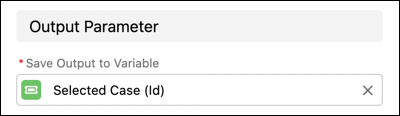
- Tell the bot what to do if the variable already contains a value. The bot can keep the original value and skip the question, or the bot can ask the question and override the original value.
-
Optionally, add repair attempts to prompt the customer to try again if
the bot doesn’t recognize their response. In the Repairing
Misunderstanding section, include one or two repair attempts.
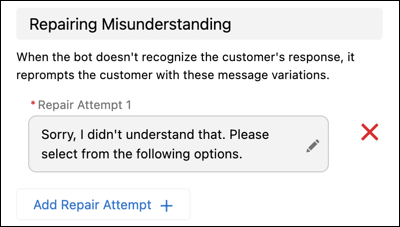
After the bot makes these attempts, tell the bot how to resolve the issue. Specify whether the bot repeats the repair attempts until the customer selects a valid choice or moves on to the next dialog step without filling the variable.
- Save your changes.
- Question with Dynamic Options: Example Apex Class
To use a question with dynamic options with your enhanced bot, create an Apex class to populate the options from the objects and fields you specify. The Apex class must return an ID list variable as output for use with the bot. - Question with Dynamic Options: Example Flow
To use a question with dynamic options with your enhanced bot, create an autolaunched flow to populate the options from the objects and fields you specify. The flow must return an ID list variable as output for use with the bot.
