
Loading
Salesforce now sends email only from verified domains. Read More
Build AI Solutions for Service
Table of Contents
Select Filters

          No results
          No results
          Here are some search tips

          Check the spelling of your keywords.
          Use more general search terms.
          Select fewer filters to broaden your search.

          Search all of Salesforce Help
          Ask a Question with Static Options with an Enhanced Bot

          Ask a Question with Static Options with an Enhanced Bot

          Create a question with static options messaging component to quickly gather customer information. For example, create a question that asks customers to select a reason for reaching out to the bot. Then present your customers with predefined options in rich messaging formats that can include custom text, images, and buttons. For a plain text experience, use the non-messaging component Dynamic Question dialog step with enhanced and standard bots.
          Required Editions

          View supported editions for Einstein Bots.
          View supported editions for Messaging.
          User Permissions Needed
          To build and manage Einstein Bots:

          Customize Application

          OR

          Modify Metadata

          OR

          Manage Bots

          Support for messaging components varies by channel.

          1. From the Messaging Component page in Setup, create a question with static options.
            When you set up a question with static options, you create a question to the customer. The question text isn’t visible in the Bot Builder, but you don’t need to add a separate dialog step to send it. In the bot conversation, the question text is sent to the customer when they reach the dialog step that references your component.
          2. Go to the Bot Builder. Click Dialogs, and then select the dialog that you want to add the question with static options to.
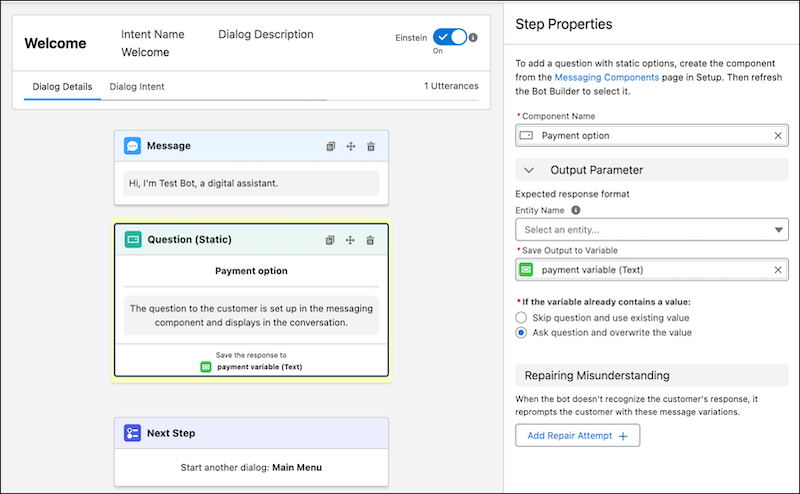
          3. From the Dialog Component Library, drag the Question (Static) dialog step onto the canvas.
          4. Optionally, select an entity in the Entity Name field if you want the customer’s response validated against an entity.
          5. In the Step Properties panel, enter the name of your messaging component to search for and select it. If you don’t see your component, refresh the builder and try again.
          6. Select or create a variable to store the customer’s response.
          7. Tell the bot what to do if the variable already contains a value. The bot can keep the original value and skip the question, or the bot can ask the question and override the original value.
          8. Optionally, add repair attempts to prompt the customer to try again if the bot doesn’t recognize their response. In the Repairing Misunderstanding section, include one or two repair attempts.
            After the bot makes these attempts, tell the bot how to resolve the issue. Specify whether the bot repeats the repair attempts until the customer selects a valid choice or moves on to the next dialog step without filling the variable.
          9. Save your changes.
          A Question (Static) dialog step and Step Properties panel
           
          Loading
          Salesforce Help | Article