
You are here:
Route Conversations to and from Your Enhanced Bot
Use Omni-Channel Flow to send conversations to and from your bot over enhanced Messaging channels. Or connect your enhanced bot to Slack or the Einstein Bots API on the Bot Overview page.
Required Editions
| View supported editions for Einstein Bots. |
| View supported editions for Messaging. |
| User Permissions Needed | |
|---|---|
| To build and manage Einstein Bots: | Customize Application OR Modify Metadata OR Manage Bots |

Turn on Omni-Channel to allow Salesforce to create Omni-Channel flows to route conversations to and from your bot. Omni-Channel must be enabled to manage Omni-Channel flows. Before routing conversations to and from your enhanced bot with Omni-Channel Flow, set up your enhanced Messaging channel.
Routing for Standard Versus Enhanced Bots
If you’re familiar with standard bots, you know that standard bots use connections and transfers to route conversations over a channel to and from the bot. These connections are more or less direct connections. For example, when you set up a transfer from a standard bot to a queue, you define a specific queue. Then when a customer reaches the Transfer to Agent dialog, the conversation is sent to that queue.
Enhanced bots use Omni-Channel Flow to route conversations dynamically over an enhanced Messaging channel. When a customer starts a conversation or triggers a transfer, instead of passing directly from one fixed destination to another, the conversation enters an Omni-Channel flow. The flow passes the conversation to a service rep, bot, queue, or skill based on the routing rules defined in the flow. So when you connect your enhanced bot to an inbound Omni-Channel flow, the logic of the flow determines which conversations are routed to your bot. And when your enhanced bot transfers a conversation, it passes the conversation to an outbound Omni-Channel flow that determines the transfer destination.
Depending on your setup and business needs, you can use separate Omni-Channel flows for inbound and outbound routing, or you can use a single flow to handle both.
What’s in an Omni-Channel Flow?
Omni-Channel Flow combines the functionality of Omni-Channel with the power and flexibility of Flow Builder. An Omni-Channel flow contains at least one Route Work action, which the flow uses to route the conversation. You connect your bot to a channel by adding the Route Work action as the last object in a branch of the flow. It defines the enhanced channel, the routing destination (a service rep, bot, queue, or skill), and a fallback queue.
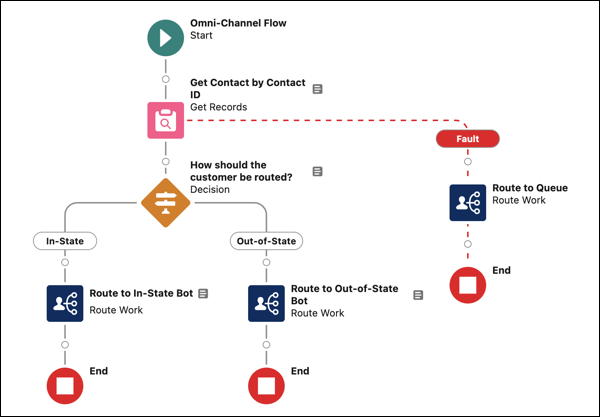
As with other flows, you can use flow elements to customize the logic of your flow. Use flow elements to create business and routing rules that tell the flow where to send the conversation under what conditions. For example, this Omni-Channel flow uses a Get Records element to get the customer’s Contact ID and determine the customer’s location. Then it uses a Decision element to route the conversation inbound to the appropriate bot.
Inbound Omni-Channel Flows
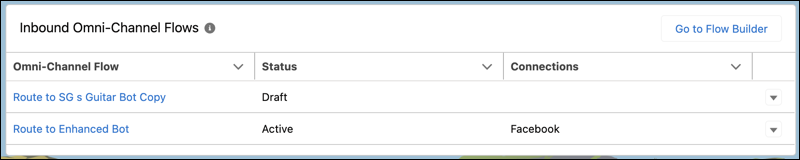
When you create an inbound Omni-Channel flow, you complete the setup in Flow Builder. In Einstein Bots, a flow is considered “inbound” when you add the Route Work action to the flow and select your enhanced bot as the routing destination. All Omni-Channel flows that route conversations to your bot appear in the Inbound Omni-Channel Flows section of the Bot Overview page. From the dropdown menu for your flow, you can add your flow to an existing Messaging channel.
Routing conversations to an enhanced bot from Slack or from the Einstein Bots API works differently. These endpoints use Connections for routing and don’t support routing with Omni-Channel Flow.
Outbound Omni-Channel Flows
In Einstein Bots, an Omni-Channel flow is considered outbound when you use it to transfer conversations from a bot. There are two ways to route conversations from your enhanced bot to an Omni-Channel flow.
-
Use the Outbound Omni-Channel Flow
Setting
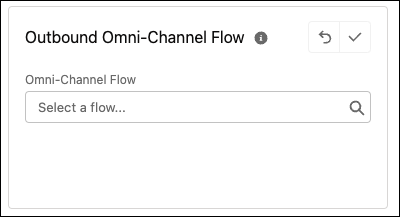
On the Bot Overview page, specify a default outbound Omni-Channel flow for the bot to use to transfer conversations with the Transfer to Agent system dialog and the Transfer to Agent Next Step. Depending on the method you use to create your enhanced bot, this setting can be prefilled for you, but you can always edit it to specify a different outbound Omni-Channel Flow.
-
Transfer Conversations with the Set
Routing Type Dialog Step
To route conversations to an outbound Omni-Channel flow other than the flow specified in the Outbound Omni-Channel Flow setting for your bot, you can set up a custom transfer with the Set Routing Type dialog step. This method is the same one you use to set up a transfer in a standard bot, except that you specify an Omni-Channel flow instead of a specific routing destination.

For bot-to-bot transfers to other enhanced bots, you can route to an Omni-Channel flow that sends conversations to another enhanced bot, or you can route to another enhanced bot directly.
Routing Considerations: Creating an Enhanced Bot
You don’t always have to create Omni-Channel flows for your enhanced bot from scratch. Different paths to creating an enhanced bot are available, and you get a different head start on routing with each. To learn more, visit Create an Enhanced Bot.
- Route Conversations from an Enhanced Bot
Use an outbound Omni-Channel flow to route conversations from an enhanced bot to a queue, a service rep, a skill, or another bot over enhanced Messaging channels. Specify a default outbound Omni-Channel flow to route from the Transfer to Agent dialog and the Transfer to Agent Next Step. To route conversations to an outbound Omni-Channel flow other than the default, set up a custom transfer with the Set Routing Type dialog step. Enhanced bots also support direct transfers to another enhanced bot.
