
You are here:
Route Conversations to an Enhanced Bot
Create an Omni-Channel flow to route conversations to your bot over enhanced Messaging channels, including Enhanced Chat and enhanced third-party channels. You can add powerful business rules to a flow to send a conversation to a bot or a service rep based on your criteria.
Required Editions
| View supported editions for Einstein Bots. |
| View supported editions for Messaging. |
| User Permissions Needed | |
|---|---|
| To build and manage Einstein Bots: | Customize Application OR Modify Metadata OR Manage Bots |

These steps cover how to create an inbound Omni-Channel flow from scratch. But depending on how you created your enhanced bot, Salesforce may have done some of the work for you. Each path to creating an enhanced bot gives you a different head start on inbound routing. To learn more, visit Create an Enhanced Bot.
To create and manage Omni-Channel flows, turn on Omni-Channel.
Create an Omni-Channel Flow
Create an Omni-Channel flow that routes conversations to your bot.
- From Setup, in the Quick Find box, enter Flows, and then select Flows.
- Select an existing Omni-Channel flow to edit, or follow the steps to create an Omni-Channel flow from scratch.
- Drag the Route Work action onto the canvas. Route Work actions are the last object in the flow.
- Give the action a label and API name and optionally, a description.
-
Under Set Input Values, complete the required fields.
Field Input Record ID Select the recordId variable you created. Service Channel Select Messaging. Route To Select Bot to populate the list of enhanced bots. - Under Bots, select your bot. Only active bots are available. If your bot doesn’t appear in the list, activate your bot, refresh Flow Builder, and try again. If you deactivate your bot later, it’s still associated with any flows that you added it to.
- Under Queue, select a fallback queue where the Omni-Channel Flow sends the conversation if routing is unsuccessful.
- Save your changes.
All Omni-Channel flows that route conversations to your bot with the Route Work action appear in the Inbound Omni-Channel Flows section of the Bot Overview page.
Connect Your Flow to Your Messaging Channel
After creating your Omni-Channel flow, link it to one or more Messaging channels by updating the channel’s routing settings. You can add the same flow to multiple channels, but a channel can have only one inbound flow.
If you haven’t created your enhanced Messaging channel, see:
- Enhanced Web Chat and In-App: Prepare a Salesforce Org for Enhanced Chat
- All other enhanced Messaging channels: Route Service Cloud Messaging Sessions with Omni-Channel Flows
To add a flow to a channel, your channel must be active. Manage your channels on the Messaging Settings page in Setup.
-
From the Inbound Omni-Channel Flows section of the Bot Overview page, click the
dropdown menu for the flow you want to connect to your enhanced Messaging channel. Then
select Add to Channel.

-
Specify the channel type and channel you want to modify, and select a fallback
queue.
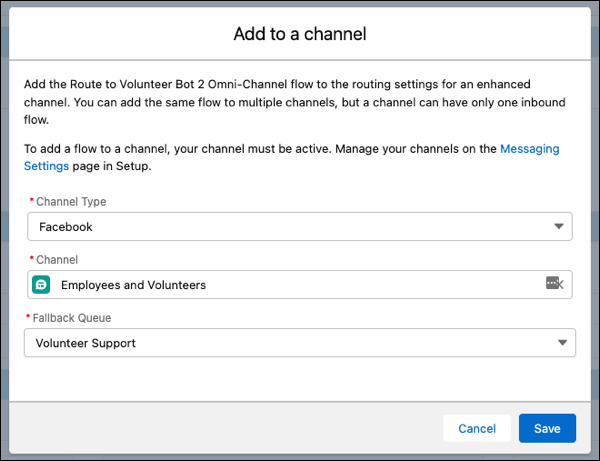
If the channel you want to modify already has a flow or queue associated with it, adding a flow to your channel replaces the existing flow or queue.
- Save your changes.
To let your enhanced bot use context variables, map each messaging channel to the Messaging Session ID field on the Routable Id variable. See Understand Context and System Variables.
