
You are here:
Import Intent Data to an Einstein Intent Set
You can use Einstein Intent Sets to move utterances and entities between Salesforce orgs.
Required Editions
| View supported editions. |
| User Permissions Needed | |
|---|---|
| To build and manage Einstein Bots: | Customize Application OR Modify Metadata OR Manage Bots |
| To manage intent sets and bot training: | Customize Application OR Modify Metadata OR Manage Bots OR Manage Bots Training Data |

Note You must have
Version 47 or higher of the Data Loader to access the Intent Utterance
object.
- Using the Quick find tool in Setup, type in Einstein Intent Sets to access the Einstein Intent Set menu.
-
To create an Intent Set, click New. Give your intent set a name
and save your changes. To add your Intents to the Intent Set, click the down button next
to the intent set, and click Edit.
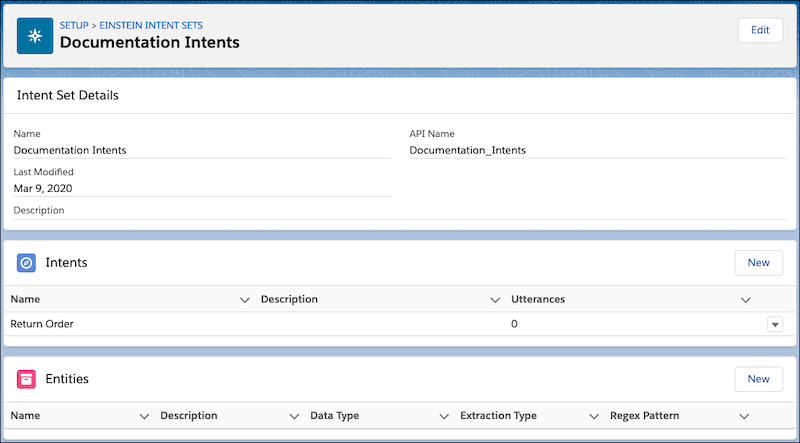 Note Intents must be created in the Einstein Intent Set before you can upload utterances related to the intent.
 -
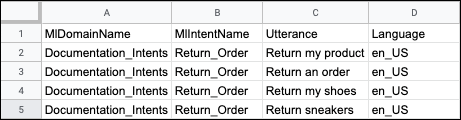
Create a three-column CSV file with the following headers: MlDomainName, MlIntentName,
Utterance, and Language. In an Intent set, MlDomainName (Capital M, lowercase l) refers to
the intent set API name. MlIntentName (Capital M, lowercase l) refers to the API name of
the Intent within the intent set.
- Log into Data Loader, and click Insert. After authentication, click Show all Salesforce objects.
- Select Intent Utterance (MlIntentUtterance) as the Object, and then click Browse to select your CSV file.
- To map your fields to MlDomainName, MlIntentName, and Utterance, click Map Fields. Click Next.
- Select the directory where your success and error files are saved. Click Finish.
- Return to the Bot Builder, and select the dialog you want to add the intent data. In the Intent Sets section, click Add Intent.
- Select your intent from the list then save your changes.
Did this article solve your issue?
Let us know so we can improve!
