
You are here:
Improve Intent Matching Quality with Bot Training
Help your bot improve its conversation quality with Bot Training. Bot Training, shows you the intent that the bot identified from an utterance. Then you can tell your bot if it was right, or you can correct the bot if it was wrong.
Required Editions
| View supported editions. |
| User Permissions Needed | |
|---|---|
| To build and manage Einstein Bots: | Customize Application OR Modify Metadata OR Manage Bots |
| To manage intent sets and bot training: | Customize Application OR Modify Metadata OR Manage Bots OR Manage Bots Training Data |

- Make sure to select a language for the bot, and make sure that Store Einstein Bots conversation data is selected. To confirm, open the Overview page from the Bot Builder.
-
Access Model Management from the Bot Builder. Click Build
Model. While the model builds in the background, an In Progress
message shows you the status of the build.

-
After the build is completed, your bot can collect text for bot training. To
collect text, activate and interact with your bot.
Note New customer inputs don’t appear in Bot Training in real time and can take up to 24 hours to populate.
-
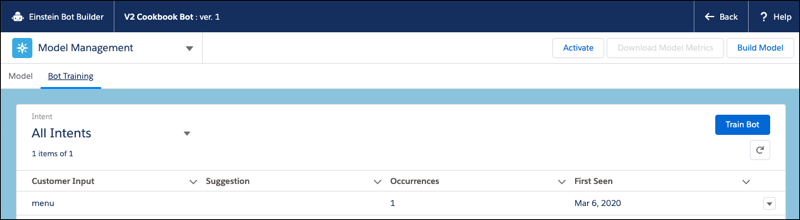
In the Model Management page, enter the Bot Training sub menu, and then click
Train Bot.
-
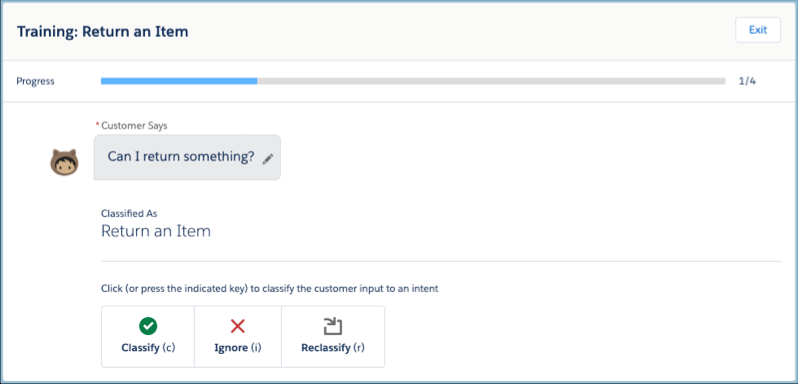
The Bot Training menu shows customer inputs and the bot’s top intent
prediction. Use the buttons to confirm the intent, ignore the utterance, or
reclassify to another intent. You can reclassify utterances to Einstein-enabled
dialog intents or exact matching intents. You can reclassify to any intent
enabled dialog.
- The Utterance field on the UtteranceSuggestion object is available for encryption with Shield Platform Encryption. This field includes customer suggestions to add to the Intent Model, and it contains data when admins select Store Einstein Bots conversation data on the Bot Overview page. This field only supports case-insensitive deterministic encryption. To encrypt this field, check Encrypt on the Encrypt Field page in Setup. Salesforce Shield is required for the customer to remain compliant while using the Store Einstein Bots conversation data setting on the Bot Overview page.
- To act on many inputs at once, select multiple customer inputs, and then use the Bulk Action buttons from the list view.
- After working through all open training items, click Build Model to integrate your suggestions.
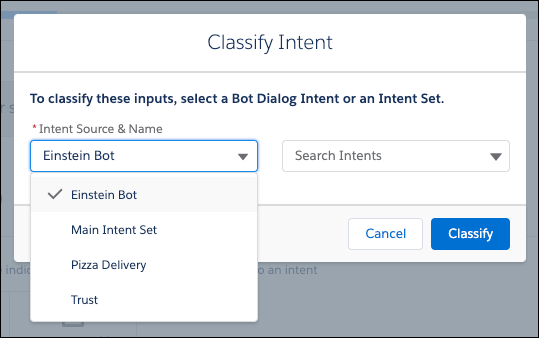
You can reclassify inputs to an intent inside the current bot or into an intent set. By reclassifying inputs into an intent set, admins can share authentic customer inputs with other bots or move the data to a sandbox.
To send a new customer input to an intent set, click the Reclassify button and then define the destination. To select an intent in the current bot, click Search Intents and select the intent. To assign to an intent set, select the intent set in the dropdown and select the intent.
The Store Einstein Bots conversation data setting must be enabled for Bot Training to suggest customer inputs. In the Log Conversations section of the Bot Overview page for your desired bot, select Store Einstein Bot conversation data.
Some customer inputs aren’t available in Bot Training:
- Inputs over 255 characters are discarded.
- Inputs that are already included in an intent are discarded.
- Newly added inputs that already exist as suggestions in Bot Training increase the Occurrences count for a suggestion. No new inputs are created.
- Suggested inputs that were ignored within the last two weeks or are older than two weeks aren’t shown.
New customer inputs aren’t automatically classified into an intent. It can take up to 24 hours for a new customer input to appear in Bot Training.
Newly classified utterances don’t automatically appear in your intent model. To integrate your suggestions, click the Build Model button.
