You are here:
Set a Bot Conversation Language
You can easily define a bot conversation language at the beginning of the conversation. End users can then select their preferred language and switch to the translated text. You can also set the preferred language variable using browser information or based on a URL.
Required Editions
| View supported editions. |
| User Permissions Needed | |
|---|---|
| To build and manage Einstein Bots: | Customize Application OR Modify Metadata OR Manage Bots |
For bots with multiple languages, set the preferred language as early as possible in the conversation to deliver an immersive experience. You can create a variable to store the language and add a dialog to manually set it inside the conversation.
You can also write custom code to define the preferred language based on data from the source website or browser metadata. If you code to set the language in the background, include a dialog to manually change the language if the set language is incorrect.
To create a bot conversation language selection dialog:
- In the Bot Builder menu, select Variables. Click New.
- Create a variable with a Custom Type and a Text Data Type, and then save your changes.
- In the Bot Builder menu, select Entities. Click New.
- Create an entity with a Data Type of Text and Extraction Type of Value, and then save your changes.
- Click the name of your new entity. Set your primary language as the active language using the language dropdown.
-
To add values, click Add next to Value List.
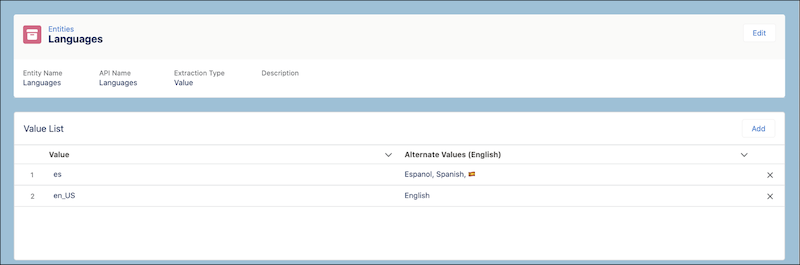
- Enter a value and an alternative value for each supported language. Make sure that the value matches the language code of the supported languages, as they’re the same across all languages. The alternative values, separated by commas, define ways that the language can be entered by an end user. Einstein Bots only supports translations for the languages listed in Set or Update a Bot Primary Language.
- Change the active language to each secondary language, and provide values and alternate values.
-
In the Bot Builder menu, select Dialogs. Click
 , and then
New Dialog.
, and then
New Dialog.
-
To add a question dialog step, click
 in the dialog, then select
Question.
in the dialog, then select
Question.
-
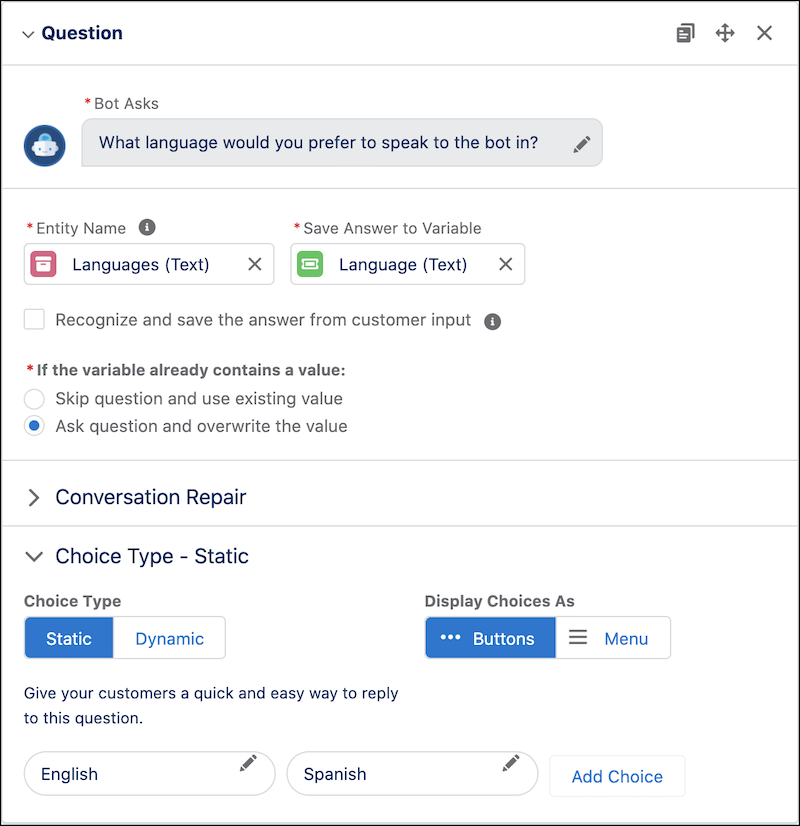
In the Bot Asks field, ask the end user to select their preferred language. Select the
custom entity and variable.
-
In Choice Type, select Static, and include options for all available languages.
 Note
NoteThe static options include one of the alternative values from your entity. Including multiple variations of alternative values covers cases where the end user chooses not to select the static choices and types in a value instead.
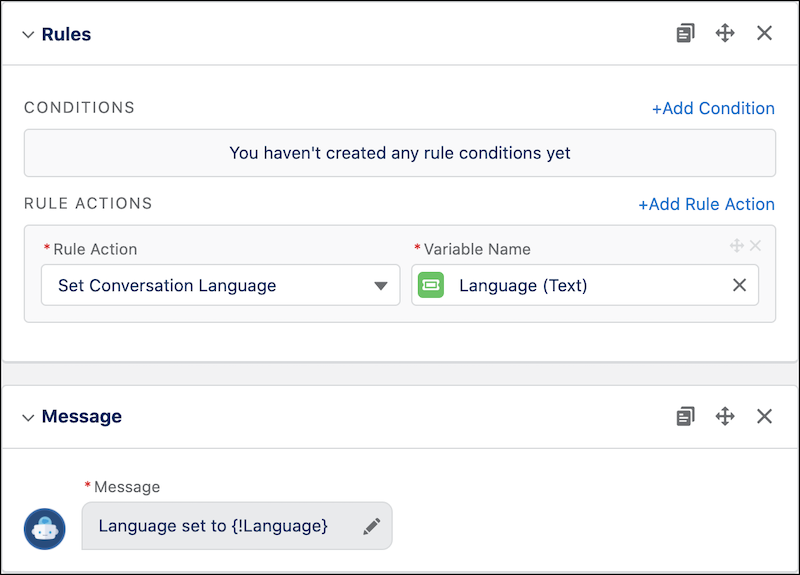
- Add a Rule Dialog Step without a condition. Select Set Conversation Language as the Rule Action and your custom variable as the Variable Name.
-
Add a message dialog step with a message confirming the language has been set to the
selected language.
-
In the Next Step section, select Start another dialog, select
the Main Menu dialog, and then save your changes. To enter
secondary language translations, change your active language to each secondary language,
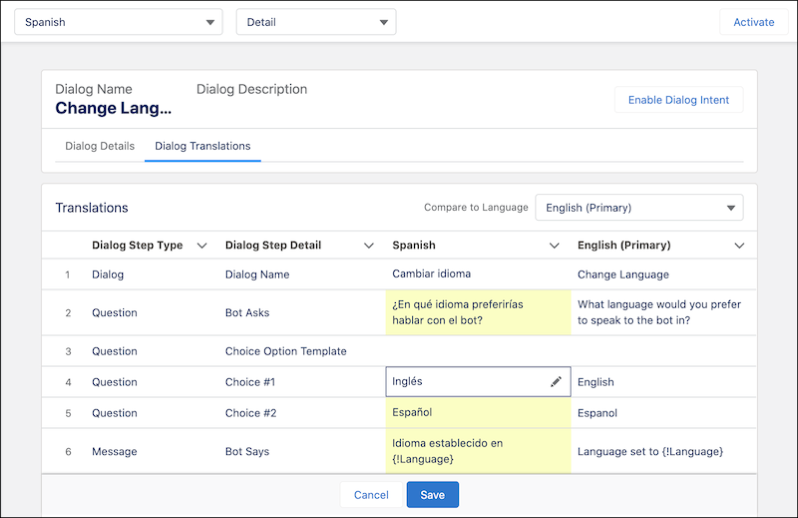
and click into the Dialog Translations tab. Save your changes.