
You are here:
Manage Secondary Language Translations
Edit bot translations directly in each bot dialog.
Required Editions
| View supported editions. |
| User Permissions Needed | |
|---|---|
| To build and manage Einstein Bots: | Customize Application OR Modify Metadata OR Manage Bots |
- Einstein Bots uses Translation Workbench to store translations. Turn on Translation Workbench, set up secondary languages, and define translator users in Translation Workbench. Learn more at Add a Secondary Bot Language
- To edit translations, users must have the Manage Translation permission or be assigned as a translator for a specific language in Translation Workbench. Users that don’t have required permissions can only view translations in the Bot Builder.
- Users with permissions to translate dialog text for a specific language can manage translations even with read-only access to the rest of the bot.
- Einstein Bots supports translations entered manually, through import and export, and added by the bot.
Add translations where the end user expects to interact with the bot. Start with message and question dialog steps, and include dialog names to cover exact matching. Or you can use the included compare tool to find visible text and add translations. To learn more about how the bot processes free text from the customer’s perspective, see Navigating Bot Conversations.
To edit the bot translations:
- In the Bot Builder, click Dialogs.
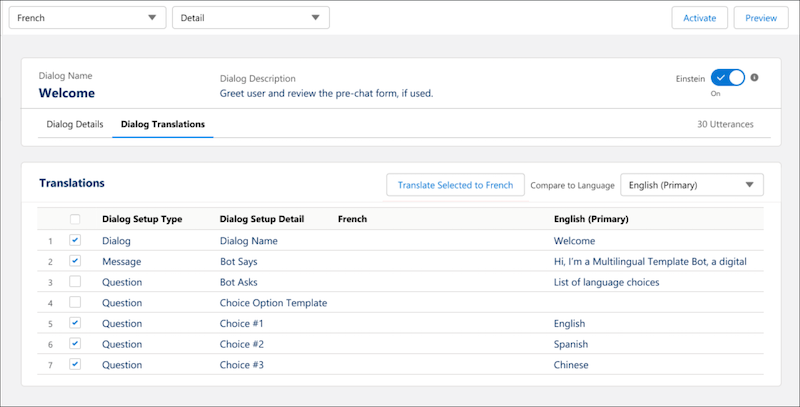
- Select the dialog you want to translate, and then click the Dialog Translations tab.
-
From the language dropdown, select the language that you want to manage translations
for.
The Translations section displays the selected language’s dialog step text.
- To see another language alongside the selected language, select a language from the Compare to Language dropdown.
-
To quickly add translations, select the dialog steps that you want to translate, and
then click Translate Selected (beta). Or, to add translations
manually, click
 for the text that you want to add or edit. You can edit multiple
translations in one interaction. When you’re done, save your changes.
for the text that you want to add or edit. You can edit multiple
translations in one interaction. When you’re done, save your changes.
Did this article solve your issue?
Let us know so we can improve!
