
You are here:
Navigating Bot Conversations
To build a more efficient bot, learn about how its parts work, such as the Confused dialog, conversation repair, transfers, and intent management. Understanding the order of operation also helps you troubleshoot your bot.
Required Editions
| View supported editions. |

Free Text Processing
Customers can send free text to a bot at any point of the conversation. The bot processes the text in this order.
- If the text input matches a menu option label or button, the bot moves to that menu option or button. The match isn’t case-sensitive.
- Intent recognition: If intent is enabled, the
bot looks for an exact match. If no exact match is found, it attempts to match the free text to
an intent. If the bot is confident that the text is a match to a specific intent, it redirects
to that intent.
 Note Successful, repeatable intent matches rely on balanced and robust intent models. If the model is unbalanced, your bot transfers to an unintended intent. Use the Bot Event Logs to identify when an intent match occurred inside a conversation and review the Intent Management section to better understand how to build a successful model.
 - If the bot has Article Answers or Generative Knowledge Answers, the bot redirects to the associated intent.
- Confused Dialog: If the text input
doesn’t match any of the above, the bot moves to the Confused dialog. The confused dialog sends
a message and then returns to the start of the dialog step where the bot became confused.
- If the text input matches a menu option label or button, the bot moves to that menu option or button. The match isn’t case-sensitive.
- Intent Recognition: If intent is enabled,
the bot reviews the free text and redirects to the intent if the bot is confident that the
text is a match to a specific intent.
The bot first searches for an exact match by intent and then checks the intent model. For example, if intent is enabled on the Transfer dialog and has utterances, the bot checks for an exact match when a customer enters “Transfer me to an agent”. If no exact match is found, the bot checks for an intent match. Then the bot finds the relevant intent and redirects to the Transfer dialog.
Note Successful, repeatable intent matches rely on balanced and robust intent models. If the model is unbalanced, your bot transfers to an unintended intent. Use the Bot Event Logs to identify when an intent match occurred inside a conversation and review the Intent Management section to better understand how to build a successful model. - If the bot has Article Answers or the Answer Questions with Knowledge copilot action, the bot redirects to the associated intent.
- Confused Dialog: If the text input
doesn’t match any of the above, the bot moves to the Confused dialog. The confused dialog
sends a message and then returns to the start of the dialog step where the bot became
confused.
The bot skips the Next Steps section inside the Confused dialog. Instead, the bot returns to the beginning of the original dialog. If the bot is confused within a question step, the bot follows the question step order.
Dialog Processing
Dialogs work differently depending on whether intent is enabled in the bot.
Each dialog has a Next Step section at the end of it that contains these action options.
- Wait for customer input: The default Next Step action of a new dialog. The bot waits for your customer to send a message, then attempts to match the text to an intent.
- Show a menu: A menu that contains other bot dialogs. The bot shows the menu to your customer and then redirects to the selected dialog.
- Start another dialog: A one-way redirect to another bot dialog.
- Transfer to an agent: Transfers the customer to the queue defined in the Chat Button or Channel Name. You can review the connections assigned to the bot on the Bot Overview page.
When using dialog action steps, keep these considerations in mind.
- In dialogs, messages are sent after the bot processes the entire dialog, regardless of the order of actions in the dialog. For example, when an Apex execution is after a message in a dialog action step, the message is sent after the Apex execution.
- When you add a pause to a flow, the bot doesn’t pause and wait for an event to resume the flow. The bot continues with the outputs that come out of the flow invocation until the flow is paused.
- To use the Object Search action step, the bot user must be a custom user with access to the searched objects. For example, to search Knowledge objects, the bot user must have Knowledge User enabled. To expand your bot’s capabilities, see Add a Custom Bot User.
- The Object Search action step supports these standard objects: Account, Case, Contact, Campaign, Contract, Knowledge, Lead, Opportunity, Order, Task.
- The Object Search action step supports these standard field types: Auto-Number, Birthday, Boolean, Content, Currency (including Currency ISO Code), Date, DateTime, Double, Due Date, Email, Entity ID, Enums (dynamic, static), Fax, Integer, Long, Multi-line Text, Percent, Phone Number, Record Type, String Plus Clob (text only), Text, URL
- The Object Search action step doesn’t support rich text, long text, or text area field types.
- Object Search for Knowledge objects is supported for Lightning Knowledge only.
- To define strict scenarios in which you want the bot to search for knowledge articles, use Object search for Knowledge objects. To detect questions and automatically generate conversational answers based on information in your knowledge base, consider using Generative Knowledge Answers.
Dialog question steps follow this specific order.
-
Named Entity Recognition (NER): The bot checks if the free text is recognizable as the entity data type defined in the Entity Name field.
Recognize and save from customer input: If checked, the bot reviews the free text that triggered the intent originally for an entity match and skips the question if a match is found. Example: If a customer says “I’d like to check on order 12345”, the bot skips the question asking for the order number and saves it to the Order Number variable.
- Intent Recognition: If NER fails and intent is enabled, the bot reviews the free text and redirects to an intent.
- Conversation Repair: If
NER and Intent Recognition both fail, or if Intent Recognition isn’t enabled, the bot
executes any Conversation Repair messages defined in the question.
The bot delivers up to two repair attempts, and then follows the setting defined in What Should the Bot Do Next. The bot can repeat the original question and repair attempts until the variable is filled, or move to the next dialog step without filling the variable.
- Confused Dialog: If no entity or intent is recognized, and Conversation Repair isn’t configured, the bot calls the Confused dialog. Then the bot returns to the start of the last dialog step.
These actions exist within dialog rule steps.
- Call Dialog: Call dialogs act as a loop. The bot returns to the calling dialog after the
call is complete. These dialog steps retain the context of the conversation. Call Dialogs are
ideal in use cases that require reusing dialogs in a conversation, such as user authentication
and collecting user feedback.
- When a dialog is called from a Call dialog, the Next Step section at the end of the dialog isn’t triggered.
- We recommend no more than five Call Dialogs in a chain.
- If Redirect to Dialog is invoked in a Call Dialog, the Call Dialog chain ends and the Redirect to Dialog continues.
- If an intent is detected, the Call Dialog chain ends and the dialog associated with the intent is started.
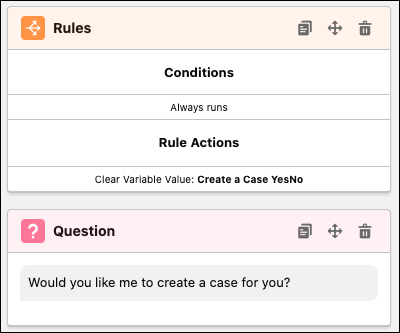
- Clear Variable Value: Removes the value of a variable.
- If the bot runs through a dialog multiple times within one conversation, we recommend that you add a clear variable value in the first dialog rule step of that dialog.
- If Clear Variable Value isn’t used, the bot retains the old value and moves on to the next
dialog step. Because the variable is already filled, any question that uses that variable is skipped.
- End Chat: Ends the bot conversation.
- Redirect to Dialog: Redirects are a one-way transfer to another dialog. Use redirects when you want to branch the bot conversation based on conditions in the conversation. For example, a bot collecting RSVPs can branch to different messages depending on a customer’s response.
- Send a Message: Sends a message to the customer. This rule action is useful for providing directed messaging based on a customer’s input.
- Set Conversation Language: Sets the language the bot uses with the end user based on a variable.
- Set Routing Type: Routes the chat session to a specialized queue that you define as a context variable.
- Set Variable: Sets the contents of a context variable into a user-defined variable.
- Transfer: Transfers a chat session to a service rep or queue. To complete the transfer, set a context value, such as a Queue ID.
