
You are here:
Navigate Einstein Bot Standard Reports
Prebuilt reports make it easy to monitor bot performance, improve conversation design, and share information with key stakeholders.
Required Editions
| View supported editions. |
| User Permissions Needed | |
|---|---|
| To build and manage Einstein Bots: | Customize Application OR Modify Metadata OR Manage Bots |

Learn more about engaged sessions in Engaged Sessions, Bot Billing, and Bot Performance.
Learn more about goals in Optimize Bot Performance with Goals.

Einstein Bots provides a range of out-of-the-box reports that track many different bot activities within a time frame. Standard reports use fields from the Bot Metrics Daily object (ConvDefDialogDailyMetric), the Bot Metrics Hourly object (ConvDefDialogHourlyMetric), and the Session Metrics object (ConversationDefinitionSession). Data populates in standard reports within an hour.
Most included reports use three data parameters: Time, Metric Type, and Value.
- Time: Reports covering the past 30 days use the Metric DateTime field. Reports covering today use the Hour field.
- Metric Type: The Metric Type field refers to the activity that the report captures. For example, the Exception metric tracks each time the bot encounters an error.
- Value: The Value field refers to the count of the metric type.
The following is an example of the Dialog Entry Points Last 30 Days standard report. It tracks the way that your customers trigger a dialog in a bot conversation. Triggers include manual user selection, system redirects such as a Rule Action step or a dialog next Step. For intent-enabled dialogs, triggers also include successful exact matches or intent recognition.
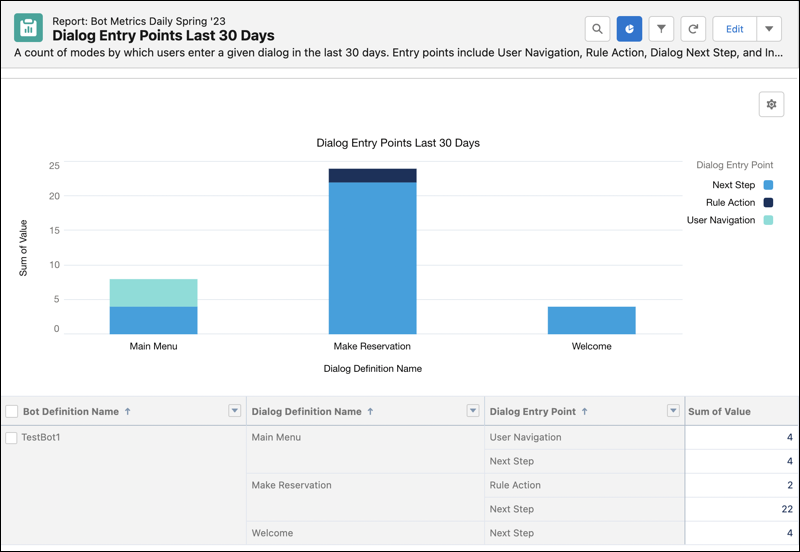
Because the report covers the last 30 days, it’s populated with fields from the Bot Metrics Daily object (ConvDefDialogDailyMetric) and the Metric DateTime field. For the metric type, it uses Dialog Opened, which captures each time the bot opens a new dialog.
The table groups rows by the Bot Definition Name, Dialog Definition Name, and Dialog Entry Point fields. The value column tells you how many times within the last 30 days the bot started a dialog from a given entry point. Customers manually navigated to the Main Menu dialog four times. After customers completed other dialogs, the system automatically routed them to the Main Menu four more times.
Available metric types vary based on the object used to create the report. Metric types include:
- Action Executed: An action dialog step such as Flow, Apex, Send Email, or Object Search completed.
- AllELUCalled: The bot extracts an entity or identifies an intent.
- Article Chosen: A user selects an article served by Article Answers.
- Article Feedback Count: A user gives feedback on an article served by Article Answers, and the bot counts it as a single instance of feedback. For the average positive feedback score for an article, divide Article Feedback Sum by Article Feedback Count.
- Article Feedback Sum: The bot sums the total positive feedback score for an article served by Article Answers. For the average positive feedback score for an article, divide Article Feedback Sum by Article Feedback Count.
- Cancel Dialog: A user exits the current dialog and enters a new dialog without completing the original dialog or ending the conversation.
- Confusion: The bot can't match one or more user inputs to an intent or entity.
- Choice Selected: The customer selected a choice in a Question dialog step.
- Dialog Completed: A user completes all steps of the current dialog and enters the next dialog.
- Dialog Opened: The bot opens a dialog.
- Dialog Closed: The bot closes a dialog.
- ELU Boolean Extracted: The bot extracted a boolean entity.
- ELU Entity Called: The bot extracted an entity.
- ELU Intent Called: The bot identified an intent via intent recognition.
- Engaged Session Count: A count of engaged sessions across all bots in an org.
- Escalation: A request to transfer to a service rep.
- Exception: The bot encountered an error.
- Failed Transfer Session Count: A count of sessions with at least one failed transfer attempt.
- Goal Completed: A user reaches an admin-defined point in a dialog flow where a common customer goal is considered complete. To define a goal, the admin adds the Goal dialog step to a dialog.
- NLP Intent Called: The bot identified an intent via exact matching or intent recognition.
- Sessions Started: The bot session started.
- Sessions Ended: The bot session ended.
- Sessions Engaged: Within a bot session, a user sends at least one message or clicks at least one menu option or choice.
- Transferred: The bot transferred the session to a service rep or another bot.
Reports in the Einstein Bot Report folder include:
- All Bot Sessions Last 30 Days: All bot sessions by day for the last 30 days.
- All Bot Session Today: All bot sessions by hour for today.
- Article Chosen Last 30 Days: The number of articles selected from articles served by Article Answers in each bot for the last 30 days.
- Article Chosen Today: The number of articles selected from articles served by Article Answers in each bot today.
- Article Positive Feedback Last 30 Days: A count of positive feedback received for each article selected through Article Answers in the last 30 days.
- Article Positive Feedback Today: A count of positive feedback received for each article selected through Article Answers today.
- Boolean Extraction Rate Last 30 Days: A count of successful (yes or no) and unsuccessful (neutral) attempts by the bot to extract boolean entities in the last 30 days. A relatively high count of neutral responses can indicate an opportunity to improve bot design.
- Boolean Extraction Rate Today: A count of successful (yes or no) and unsuccessful (neutral) attempts by the bot to extract boolean entities today. A relatively high count of neutral responses can indicate an opportunity to improve bot design.
- Confusion Frequency Last 30 Days: The number of times a bot got confused, and the last dialog that the user was on for the last 30 days. Confusion occurs when a bot can't match one or more user inputs to an intent or entity.
- Confusion Frequency Today: The number of times a bot got confused, and the last dialog that the user was on for today. Confusion occurs when a bot can't match one or more user inputs to an intent or entity.
- Dialog Entry Points Last 30 Days: A count of modes by which users enter a given dialog in
the last 30 days. Entry points include:
- User Navigation: A user manually navigates to a dialog. For example, a user selects a dialog from a menu.
- Rule Action: A user reaches a Call Dialog or Redirect to Dialog Rule Action step in a dialog. The user is directed to a new dialog specified in the original dialog’s Rule Action.
- Dialog Next Step: A user completes a dialog, and the dialog routes the user to a new dialog specified in the original dialog’s Next Step.
- Intent Detection: A user inputs text and enters a new dialog based on a successful exact match or intent recognition attempt.
- Dialog Entry Points Today: A count of modes by which users enter a given dialog. Entry
points include:
- User Navigation: A user manually navigates to a dialog. For example, a user selects a dialog from a menu.
- Rule Action: A user reaches a Call Dialog or Redirect to Dialog Rule Action step in a dialog. The user directed to a new dialog specified in the original dialog’s Rule Action.
- Dialog Next Step: A user completes a dialog, and the dialog routes the user to a new dialog specified in the original dialog’s Next Step.
- Intent Detection: A user inputs free text and enters a new dialog based on a successful exact match or intent recognition attempt.
- Dialog Frequency Last 30 Days: Count of dialog usage in a session for the last 30 days.
- Dialog Frequency Today: Count of dialog usage in a session.
- Dialogs Canceled Last 30 Days: A count of dialogs canceled by the user per bot in the last 30 days. In a canceled dialog, a user exits the current dialog and enters a new dialog without completing the original dialog or ending the conversation.
- Dialogs Canceled Today: A count of dialogs canceled by the user per bot today. In a canceled dialog, a user exits the current dialog and enters a new dialog without completing the original dialog or ending the conversation.
- Dialogs Completed Last 30 Days: A count of dialogs completed by the user per bot in the last 30 days. In a completed dialog, a user completes all steps of the current dialog and enters the next dialog.
- Dialogs Completed Today: A count of dialogs completed by the user per bot today. In a completed dialog, a user completes all steps of the current dialog and enters the next dialog.
- Dialogs Used Per Session Last 7 Days: The distribution of the number of dialogs started per session in the last 7 days. Use this report to understand the complexity of your bot conversations.
- Dialogs with Exceptions Last 30 Days: Count of dialogs with exceptions in the last 30 days.
- Dialogs with Exceptions Today: Count of dialogs with exceptions.
- Engaged Session Length Last 7 Days: The average length of all engaged sessions per bot in the last 7 days. Longer session averages can indicate higher customer engagement and bot effectiveness.
- Engaged Sessions Last 7 Days: Engaged sessions vs. unengaged sessions by day for the last 7 days.
- Engaged vs. Unengaged Sessions (30 Days): Engaged sessions vs. unengaged sessions across all bots by day for the last 30 days.
- Engaged vs. Unengaged Sessions Today: Engaged sessions vs. unengaged sessions across all bots by hour today.
- Entity Extraction Rate Last 30 Days: A count of successful and unsuccessful entity extraction attempts by bot in the last 30 days.
- Entity Extraction Rate Today: A count of successful and unsuccessful entity extraction attempts by bot today.
- Escalation Last 30 Days: A count of escalations initiated by the bot or user in the last 30 days. An escalation includes any attempt to transfer a conversation to a service rep, queue, or bot, typically when the bot cannot handle a request or encounters an error. Frequent escalations from a dialog can indicate opportunities to improve bot design or configuration.
- Escalation Today: A count of escalations (any attempt to transfer) that the bot or user initiates, and the dialogs from which an escalation originates. An escalation is any attempt to transfer (to a service rep, queue, or bot). Escalations typically occur due to an error or when the bot can’t handle a user request. A dialog with relatively high escalations can indicate an opportunity to improve bot design or configuration.
- Goals Completed Last 30 Days: A count of goals completed by bot and by day in the last 30 days.
- Goals Completed Today: A count of goals completed by bot and by hour.
- Goals Completed by Dialog Last 30 Days: A count of goals completed by dialog name and by bot in the last 30 days.
- Goals Completed by Dialog Today: A count of goals completed by dialog name and by bot today.
- Goals Completed by Goal Name (30 Days): A count of goals completed by goal name and by bot in the last 30 days.
- Goals Completed by Goal Name Today: A count of goals completed by goal name and by bot today.
- Intent Recognition Count Last 30 Days: A count of intent recognition attempts against the intent model by bot and by day in the last 30 days.
- Intent Recognition Count Today: A count of intent recognition attempts against the intent model by bot and by day.
- Intent Recognition Rate Last 30 Days: A count of successful and unsuccessful intent recognition attempts against the intent model by bot in the last 30 days.
- Intent Recognition Rate Today: A count of successful and unsuccessful intent recognition attempts against the intent model by bot today.
- Intents Matched and Recognized (30 Days): An aggregate count of successful exact matches and intent recognition by intent and by bot in the last 30 days.
- Intents Matched and Recognized Today: An aggregate count of successful exact matches and intent recognition by intent and by bot today.
- Intents Recognized Last 30 Days: A count of intents recognized by intent and by bot in the last 30 days.
- Intents Recognized Today: A count of intents recognized by intent and by bot today.
- Sessions Ended by Dialog Last 30 Days: A count of the number of sessions ended by either the bot or user with reason type. A high relative count indicates an opportunity to improve bot design unless the dialog closes the conversation.
- Sessions Ended by Dialog Today: A count of the number of sessions ended by either the bot or user with reason type. A high relative count indicates an opportunity to improve bot design unless the dialog closes the conversation.
- Sessions with Completed Goals (30 Days): A count of engaged sessions with at least one completed goal, by goal name and by bot in the last 30 days.
- Sessions with Completed Goals Today: A count of engaged sessions with at least one completed goal, by goal name and by bot.
- Transfer to Bots by Dialog Last 30 Days: A count of bot-to-bot transfers by dialog and by bot that initiated the transfer in the last 30 days.
- Transfer to Bots by Dialog Today: A count of bot-to-bot transfers by dialog and by bot that initiated the transfer today.
- Transfers Last 30 Days: A count of transfers to bots or service reps by bot in the last 30 days.
- Transfers Today: A count of transfers to bots or service reps by bot today.
To access the Einstein Bot Reports:
- From the Salesforce Main Page, click the App Launcher. In the Quick Find box, enter Reports, and then select Reports.
-
Click All Folders and then select a folder.
If a folder is missing, turn on Einstein Bots on the Bots Setup Home Page.Note
Previously, we added a folder for each release that contained the latest versions of all new and existing standard bot reports. Folders from Spring ’24 and earlier releases are still available. However, the reports in those folders don’t have access to new and updated metric types.
To filter the report by bot, add a filter with the Bot Version ID field and enter the Bot Version ID. You can find the Bot version ID in the URL of the bot builder when viewing a specific version of a bot. You can also find it in the report.

Reports that use hourly metrics retain data for 14 days, and reports that use daily metrics retain data for 180 days. To store the data longer, use the menu dropdown to click Export.
