Loading
Salesforce now sends email only from verified domains. Read More
Build AI Solutions for Service
Table of Contents
Select Filters

          No results
          No results
          Here are some search tips

          Check the spelling of your keywords.
          Use more general search terms.
          Select fewer filters to broaden your search.

          Search all of Salesforce Help
          Use Skills-Based Routing to Transfer Bot Conversations

          Use Skills-Based Routing to Transfer Bot Conversations

          Increase customer satisfaction with skills-based service rep routing and bots. Now you can route work items to service reps that can best serve customer needs based on skills like language or technical expertise. Skills-based routing makes bots the first point of customer contact. The bot identifies the required skills then transfers the customer to the next available service rep that matches their needs. Skills-based routing works the same across all channels.

          Required Editions

          View supported editions.
          User Permissions Needed
          To build and manage Einstein Bots:

          Customize Application

          OR

          Modify Metadata

          OR

          Manage Bots

          You must have the following features enabled to set up Skills-Based Routing for Einstein Bots:

          • Chat or Messaging enabled
          • Einstein Bots enabled
          • Omni-Channel set up with Skills-Based Routing enabled
          • The routing type for the Chat Button set to Button Skills
          • A list of the 18-digit skill IDs

          In Chat, if a transfer is started, the bot follows this process to identify the destination of the conversation:

          • The bot first checks for service reps with the skills required to complete the work item and identifies their availability. If a service rep is available to take the chat, the bot transfers to the service rep.
          • If all service reps are at capacity, the bot reviews the settings of the Chat Button record assigned to the bot to identify the queue size. The bot reviews the queue size only if Enable Queue is checked, and uses the Overall Queue Size or the Queue Size Per Agent to identify the size. You can identify the Chat Button assigned to the bot by visiting the Connections section of the Bot Overview page.
          • If there’s room to wait in the queue defined by the Chat Button, the session is added to the queue and a message is sent to the customer to let them know they are on hold.
          • If there’s no room to wait in the queue, the bot moves to the No Agent system dialog.
          Note
          Note Limitations with Skills-Based Routing and Einstein Bots:
          • Einstein Bots don’t support Skills-Based Routing Rules.
          • Refer to the Omni-Channel documentation for more limitations around Omni-Channel and Skills-Based routing.
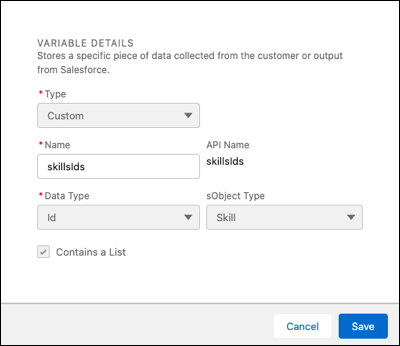
          1. In your bot, create a list variable with the data type of ID. Set the SObject Type to Skill.
            Creating a new list variable to store skill IDs.
          2. To add a set of skill IDs to a list, create an Apex class. We recommend adding the list of Skill IDs as a comment for reference.
            global with sharing class GetSkillsIdsAction {
            @InvocableMethod(label='Get Skills Ids' description='Return Ids of Skills') 
            global static List<List<Id>> getSkillsIds() {
            List<Id> skillsIds = new List<Id> ();
            
            /*
            * 18 char Skills Ids in the org:
            *
            * Dutch - 0C5RM000000028I0AQ
            * French - 0C5RM000000028D0AQ
            * Spanish - 0C5RM000000026R0AQ
            */
            
            skillsIds.add('0C5RM000000028I0AQ');
            skillsIds.add('0C5RM000000026R0AQ');
            
            return new List<List<Id>> {skillsIds};
            }
            }
            
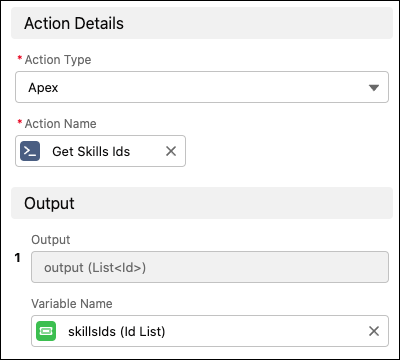
          3. In the Bot Builder, from the Dialog Component Library, drag the Apex action step onto the canvas to call the Apex class and set the skills IDs in the bot variable.
            An action dialog step to call the Apex class.
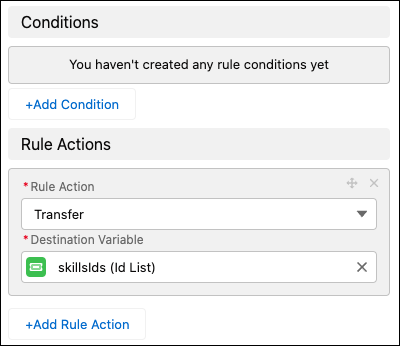
          4. Drag the Transfer rule step onto the canvas to transfer the bot conversation. In the Step Properties panel, in the Destination Variable field, select the ID variable that you created.
            A rule dialog step transfers the conversation using the Skill IDs.

          Bot Behavior in Messaging

          Bots check for available service reps differently depending on the channel. In Messaging, the bot checks service rep availability by using the business hours in the Messaging Settings. If the transfer is attempted outside of the set business hours, the bot moves to the No Agent dialog. To set business hours, see Modify Messaging Channel Settings.

           
          Loading
          Salesforce Help | Article