
You are here:
Use Actions to Work with Cases in Case Feed
Case Feed actions make it easy for support reps to do tasks like send email, post to portals and Experience Cloud sites, log calls, change case status, and write case notes, all on the same page.
Required Editions
| View supported editions. |
Actions appear in the publisher at the top of the feed.
Here are some common Case Feed actions. Depending on how your administrator has set up your organization, you don’t see all of these actions.
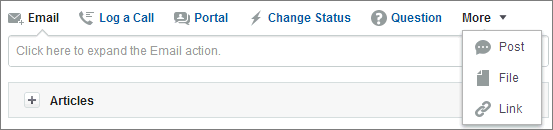
- Use the Email action to respond to customers by email. In some organizations, the Email and Portal actions are combined in an Answer Customer action.
- The Log a Call action lets you create a record of the details of a phone
call. Call logs are visible only to other users in your
organization, not to customers.
 Note If you’re using a SoftPhone, completed calls and call notes are logged automatically in the case’s feed, as are interaction log entries whose Status is Completed.
 - With the Portal action, you can post replies to a customer portal of Chatter Answers site.
- Use the Change Status action to escalate, close, or make other changes to the status of a case.
- The Question action lets you search for and create questions.
- The Post, File, and Link actions are the same ones you’re used to seeing
in Chatter.
- Use the Post action to create case notes to share information about the case or get help from others in your organization. (Notes created with the Post action aren’t included in the Case Comments related list on the case detail page.)
- Add a PDF, photo, or other document to the case with the File action. (Documents you add with File aren’t included in the Attachments related list on the case detail page.)
- Use the Link action to share a link that’s relevant to the case.
Did this article solve your issue?
Let us know so we can improve!