You are here:
Customize Case Hovers in Lightning Experience
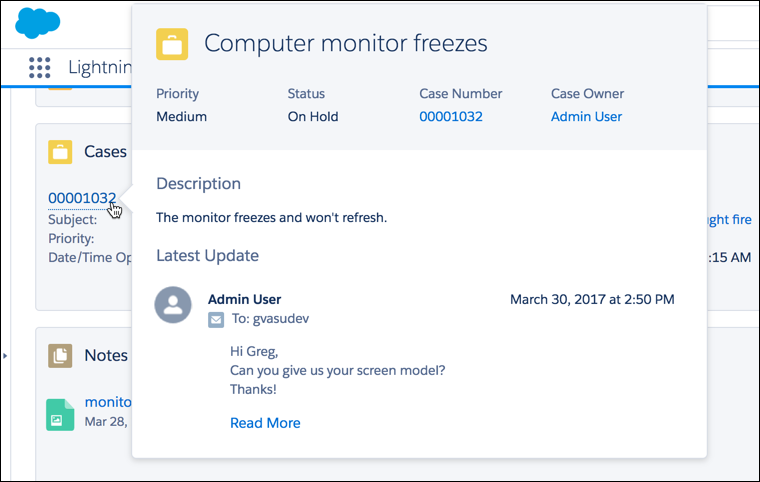
Case hovers give users a sneak peek at the details of a case, including the description and the latest update. Case hovers are enabled by default and appear whenever you hover over a case number, except in list views. For users who work with cases all day, these hovers can save valuable time.
Required Editions
| View supported editions. |
| User Permissions Needed | |
|---|---|
| To customize compact layouts: | Customize Application |
| To view compact layouts: | View Setup and Configuration |
Case hovers work in all Lightning apps, including apps with standard navigation and console navigation. These hovers are specific to cases only and don’t work for any other objects.
To make sure that your users get the most out of case hovers, you can edit the case’s compact layout to customize which fields appear in the hover.
There are three sections in the case hover: title and top fields, description, and the latest update.
- Title and Fields
- The top section of the hover displays the same information that’s displayed in the case’s
Highlights Panel in the case record home. Only the first five fields are displayed. The first
field is displayed at the title of the hover.
 Note The Highlights Panel and the case hover use the same compact layout. When you customize the compact layout, you affect both the Highlights Panel and the case hover.
To customize the title and fields displayed in the case hover, edit the case’s compact layout.
- From Setup, at the top of the page, select Object Manager.
-
Select Case and then click Compact
Layouts.
You can create a new compact layout or edit the default layout.
-
Add the fields that you want displayed in the hover.
Keep in mind that the hover displays only the first five fields, and the first field becomes the title. We recommend using the Subject as the first field in your compact layout.
-
Sort the fields by selecting them and clicking Up or
Down.
The order you assign to the fields determines the order in which they display.
- Save the layout.
- If you created a new layout, click Compact Layout Assignment to set the compact layout as the primary compact layout for the object.
You can’t customize the description and latest update sections.
- Description
- Displays the case’s description. If a case doesn’t have a description, the hover doesn’t include this section.
- Latest Update
- The Latest Update section of the hover displays the latest post or the most recent activity on the case feed. The case feed’s sort order determines which one is displayed in the hover. Whenever you change the sort order in a case feed, the hover is updated too. However, case feed filters don’t affect what’s displayed in the case hover. For example, if you filter a case feed for emails, the case hover still shows the latest update even if it’s not an email.
- To make sure that your users see the same latest update in the hover and on the case record page, use the Chatter component in the Lightning App Builder when editing your page. If instead you use the Chatter Feed component and filter it to display only certain feed types, your users will see inconsistent updates when looking at the record page versus the hover.
- The Latest Update section can display only one post. All post types are supported. For example, if the latest post was a post from a social channel like Facebook, that’s what displays in the hover.
Here’s what the default case hover looks like.