
You are here:
Work with Data Categories
Data categories are used in Salesforce Knowledge (articles and article translations), Ideas, Answers, and Chatter Answers to help classify and find articles, questions, or ideas. You can use data categories to control access to a particular set of articles, questions or ideas.
Required Editions
| Available in Salesforce Classic and Lightning Experience. View supported editions. |

The default maximum number of data categories is 100. If you require more than the allocated default maximum, you can ask Salesforce Support to increase the data category limits for the number of (active) data category groups, and the number of data categories within a group.
Salesforce Knowledge uses data categories to classify articles and make them easier to find. For example, to classify articles by sales regions and products, create two category groups: Sales Regions and Products. The Sales Regions category group could consist of a geographical hierarchy, such as All Sales Regions as the top level and North America, Europe, and Asia at the second level. The Products group could have All Products as the top level and Phones, Computers, and Printers at the second.
| Data Category Limits | Details |
|---|---|
| Maximum number of data category groups and active data category groups | 5 category groups, with 3 active at a time |
| Maximum number of categories per data category group | 100 categories in a data category group |
| Maximum number of levels in data category group hierarchy | 5 levels in a data category group hierarchy |
| Maximum number of data categories from a data category group assigned to an article | 8 data categories from a data category group assigned to an article |
| Data category assignments for translated articles | Data categories can be added only to the primary article. Data categories for translations are inherited from the primary article and can’t be added. |
In an answers zone, data categories help organize questions for easy browsing. Each answers zone supports one category group. For example, if you're a computer manufacturer you might create a Products category group that has four sibling categories: Performance Laptops, Portable Laptops, Gaming Desktops, and Enterprise Desktops. On the Answers tab, zone members can assign one of the four categories to each question and then browse these categories for answers to specific questions.

- Logical Classification of Articles
- As a knowledge base administrator, you can organize your knowledge base articles into a logical hierarchy and tag articles with the attributes that are significant to your business.
- Easy Access to Questions
- As an answers administrator, you can choose which data categories are visible on the Answers tab. Zone members can tag a question with a category, which makes finding questions and answers easier for other members.
- Control of Article and Question Visibility
- As a knowledge base or answers community administrator, you can centrally control the visibility articles or questions by mapping roles, permission sets, or profiles to categories in the category groups. When an article or question is categorized, users with visibility can automatically see it.
- Article Filtering
- As a support rep, when articles are classified into logical categories, you can quickly and easily locate the article you need by filtering your organization's knowledge base. To ensure you see all relevant articles, filtering by category has expansive results that include a category's upward and downward relatives in the category hierarchy. For example, if your category hierarchy for products has the levels All Products > Computers > Laptops > Gaming Laptops and you are helping a customer with a laptop problem, filtering by Laptops returns articles classified with Laptops as well as articles classified with Computers, All Products, or Gaming Laptops. Effectively, you are made aware of useful related articles like a free shipping offer for all products or an upgrade offer for gaming laptops. (To prevent irrelevant results, category filtering doesn't return nonlineal relatives like siblings and cousins. Articles about Desktops, a sibling of Laptops, would not display.)
- Article and Question Navigation
- As an end user, you can navigate the categories on the Articles tab or Answers tab to find the information you need to solve your problem.
- Managing Category Groups for Articles and Questions
- If your organization has Salesforce Knowledge and an answers community, you can create separate category groups or use the same category group for articles and questions.
- Data Categories in Articles
-
A category group is the container for a set of categories. In Salesforce Knowledge it corresponds to the name of the category drop-down menus. For example, if you use the Data Categories page in Setup, (enter Data Category in the Quick Find box, then select Data Category Setup) to create and activate a category group called Products, a Products menu displays on the Article Management tab, the article edit page, the Articles tab in all channels, and the public knowledge base.
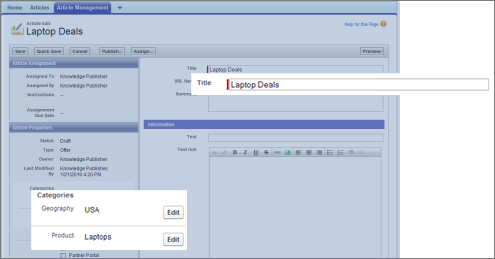
As an illustration, the figure below shows a knowledge base administrator's view of an article about laptop deals; using the article edit page, the administrator has classified the article with Laptops in the Products category group, and USA in the Geography category group.
An Article About Laptop Deals on the Article Management Tab
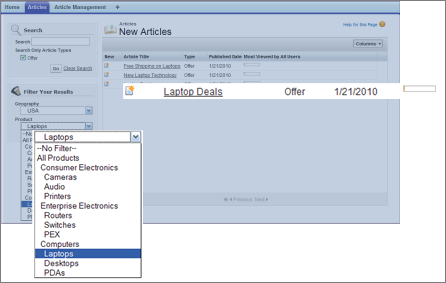
The next figure now illustrates a service rep finding that same article published on the Articles tab; the servoce rep has selected Laptops and USA respectively in the Products and Geography drop-down menus to retrieve an article that is classified with both Laptops and USA.
An Article About Laptop Deals on the Articles Tab
When you add categories to a category group, you build a hierarchy that can contain up to five levels of depth and up to 100 categories total. Each category can have one parent, many siblings, and many children. A robust and well-organized category hierarchy helps users find the articles that are relevant to them quickly and easily.
By default, all Salesforce Knowledge users have access to all categories; however, you can restrict category visibility by role, permission set, or profile.
- Data Category Implementation Tips
-
Consider the following information when planning and implementing data categories for your organization:
- You can create up to three category groups with a maximum of five hierarchy levels in each group. Each category group can contain a total of 100 categories.
- If you want to use data categories with Answers, after creating your category group you must assign it from Setup by entering Data Category Assignments in the Quick Find box, then selecting Data Category Assignments under Answers. You can only assign one category group to an answers community. Salesforce Knowledge supports multiple category groups.
- Category groups are hidden from users until they are activated. Do not activate a category group until you have finished defining its categories and their access settings, including their visibility.
- When assigning categories to articles, you can choose up to eight categories in a category group.
- If an article has no categories, it displays only when you choose the No Filter option in the category drop-down menu.
- When searching for articles or article translations, selecting a category automatically includes the parent and children of that category and any grandparents, up to and including the top level. Sibling categories are not included. For example, if a category hierarchy has the levels All Products, Switches, Optical Networks, and Metro Core, selecting “Optical Networks” from the category drop-down menu returns articles assigned to any of the four categories. However, if the Switches category has a sibling category called Routers, selecting “Optical Networks” does not return articles classified within Routers. Category visibility settings may limit the specific articles you can find.
- Once visibility settings have been chosen for the categories:
- Users who are not assigned visibility can only see uncategorized articles and questions unless default category visibility has been set up.
- For role-based visibility, Customer Portal users and partner portal users inherit the category group visibility settings assigned to their account managers by default. You can change the category group visibility settings for each portal role.
- If you only have access to one category in a category group, the category drop-down menu for that category group does not display on the Articles tab.
- You can translate the labels of categories and category groups using the Translation Workbench.
- Best Practices for Data Categories
-
Consider the following tips when using data categories:
- To quickly manage data categories, use keyboard shortcuts.
- After creating or updating categories, set up category group visibility rules.
- Save your changes frequently. The more actions you perform before clicking Save, the longer it takes to save.
- Keyboard Shortcuts for Data Categories
Use keyboard shortcuts to work quickly with data categories. - Create and Modify Category Groups
Category groups are used by Salesforce Knowledge (articles), answers (questions), or ideas. In all cases, category groups are containers for individual data categories. For example, a Contracts category group sometimes contains Fixed Price, Cost Reimbursement, and Indefinite Delivery categories. - Delete and Undelete Category Groups
Deleting a category group deletes all of its categories and removes all associations between the categories and articles or questions. Read this entire topic carefully to understand the consequences of deleting category groups. - Add Data Categories to Category Groups
Once you have category groups, you can add data categories to help support reps classify and find articles, questions, or ideas. - Modify and Arrange Data Categories
Modifying and arranging categories can result in long processing times, changes to the visibility and categorization of articles, and other significant consequences. Read this entire topic carefully before modifying categories. - Delete a Data Category
Deleting data categories can result in long processing times, changes to the visibility and categorization of articles and questions, and other significant consequences. Read this entire topic carefully before deleting categories. - Activate Data Categories on Your LWR Site
Data categories are an organizational structure for your internal knowledge and catalog items, which helps you classify, discover, and show the most relevant article, question, or idea to your users. - Add the Network Data Category Object Page (Beta)
Quickly add the Network Data Category object page to your LWR site. - Manage Data Categories on Your LWR Site
After your data categories are activated on your LWR site, you can customize how they appear to site visitors.
