
You are here:
Use Work Summaries in the Console
Einstein Work Summaries generates an outline of conversations on cases and voice calls. Ask for summaries from the Einstein panel with copilot. For Messaging, Chat, and Voice, you can draft, edit, and save summaries from the Wrap Up component in the Lightning Service Console. For Email, use the Einstein Email Summaries component.
Required Editions
| View supported editions. |
| User Permissions Needed | |
|---|---|
| To view and act on Work Summaries recommendations: | Work Summaries User permission set |
| To access Einstein Copilot: | Use Einstein Copilot for Salesforce user |
| To run prompt templates and use the Summarize Record action: | Prompt Template user |

Languages
Work Summaries for Messaging, Live Chat and Voice channels, are available in English, Dutch, French, German, Italian, Japanese, Portuguese (Brazilian), Spanish (Mexico), Spanish (Spain) and Swedish.Work Summaries for Email is available in Salesforce's fully supported languages. Conversation Catch-Up is available in English, French, German, Italian, Japanese, and Spanish (Spain).
Work Summaries with Einstein Copilot are available in English only.
Einstein detects the case or transcript language and drafts summaries accordingly. If Einstein can’t detect the language, summaries are drafted in the user locale’s language.
Einstein Copilot (Beta)
Use natural language to request and save summaries for chat, messaging and voice transcripts from the Einstein panel.
When service reps ask Einstein to summarize a Voice, Messaging, or Chat transcript, the Summarize Record copilot action uses a Work Summaries prompt template to generate a summary, issue, and resolution.
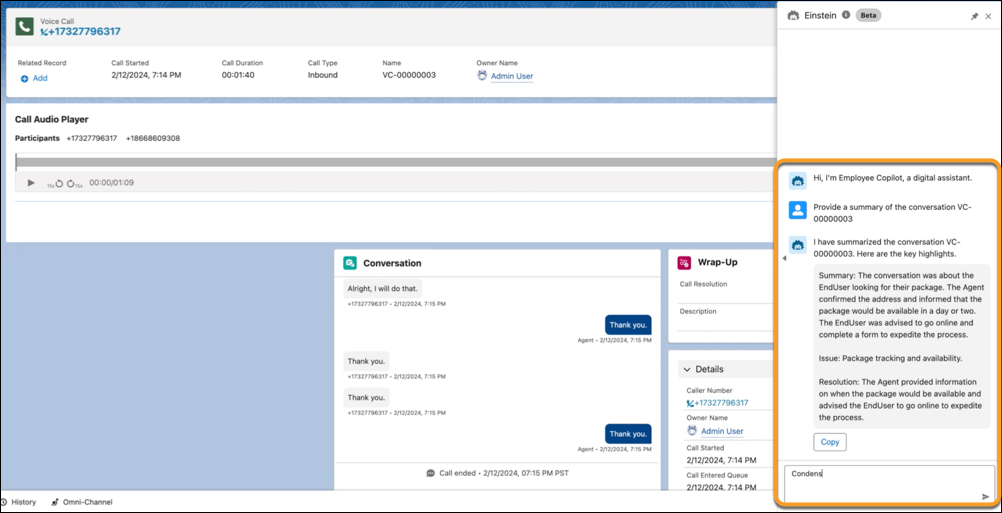
If the request starts from a voice, messaging or chat record page, Einstein Copilot recognizes natural language requests such as “What is the summary of this conversation?”, “What are the key takeaways from this conversation?”, or “Give me a quick snapshot of this session.”
If the request starts from another page in the console, service reps must include the record ID in the request, such as “Give me a brief synopsis of MS-00000071”, “Condense the main points from the conversation VC-0000508” or “Summarize the chat id 00000071.”
Customize how Einstein drafts Work Summaries in Copilot. Add your own formatting rules or restrictions to the Summarize Messaging Session or Summarize Voice Call Record Summary prompt template. To create or customize the prompt template, follow the instructions in Ingredients of a Prompt Template.
Messaging and Chat, and Voice
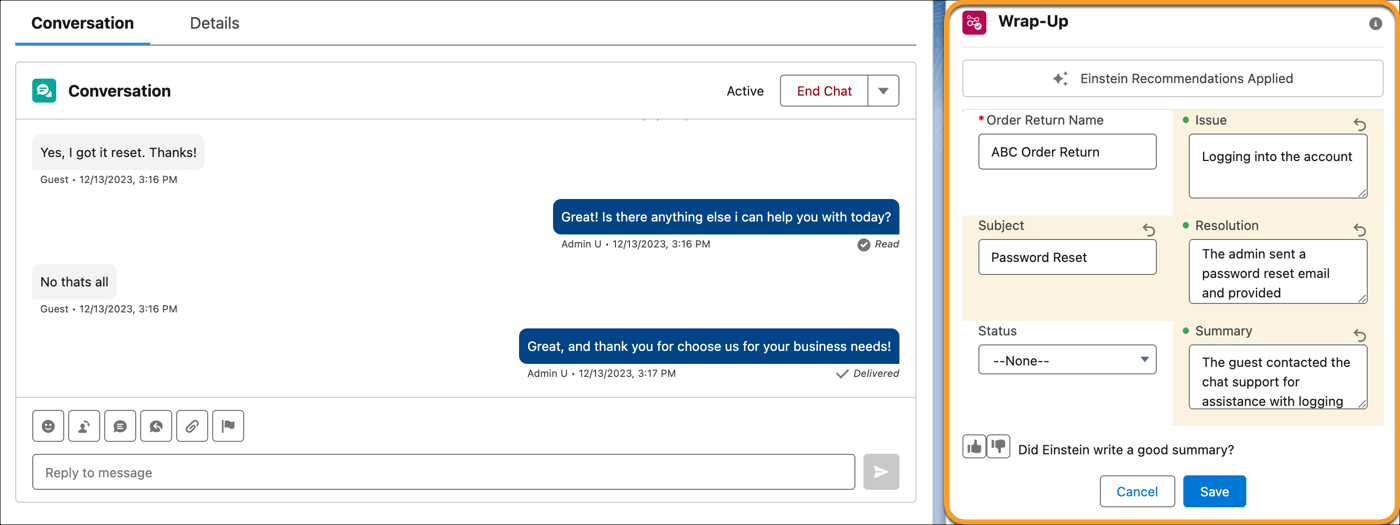
You can generate, edit, and save summaries for chat, messaging and voice channels from the Wrap Up component in the Lightning Service Console. Service reps can get predictions both during and after the conversation.
When a service rep clicks Get Einstein Recommendations, Einstein generates a summary, issue, and resolution from the conversation.
For Voice calls, Einstein automatically generates a summary at the end of the call.
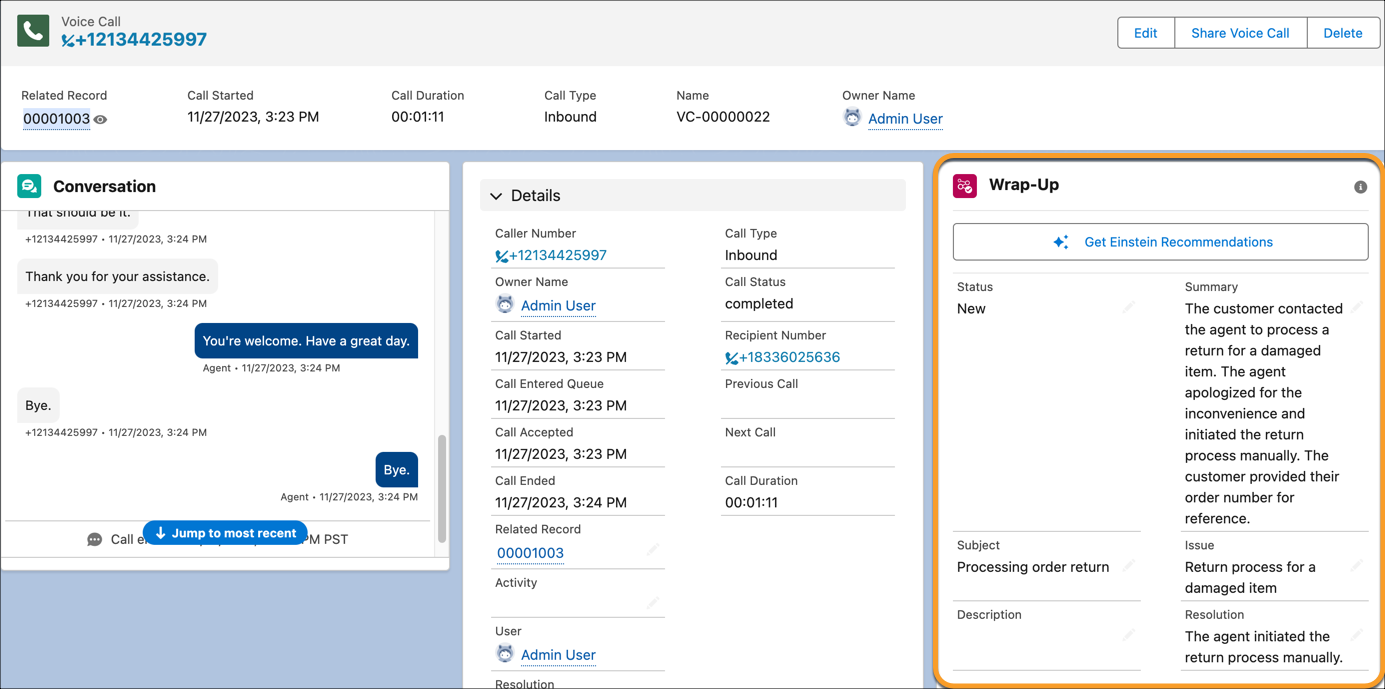
Einstein generates predictions only with conversation context, then from the Wrap Up component, service reps can then review, edit, and save these summaries.

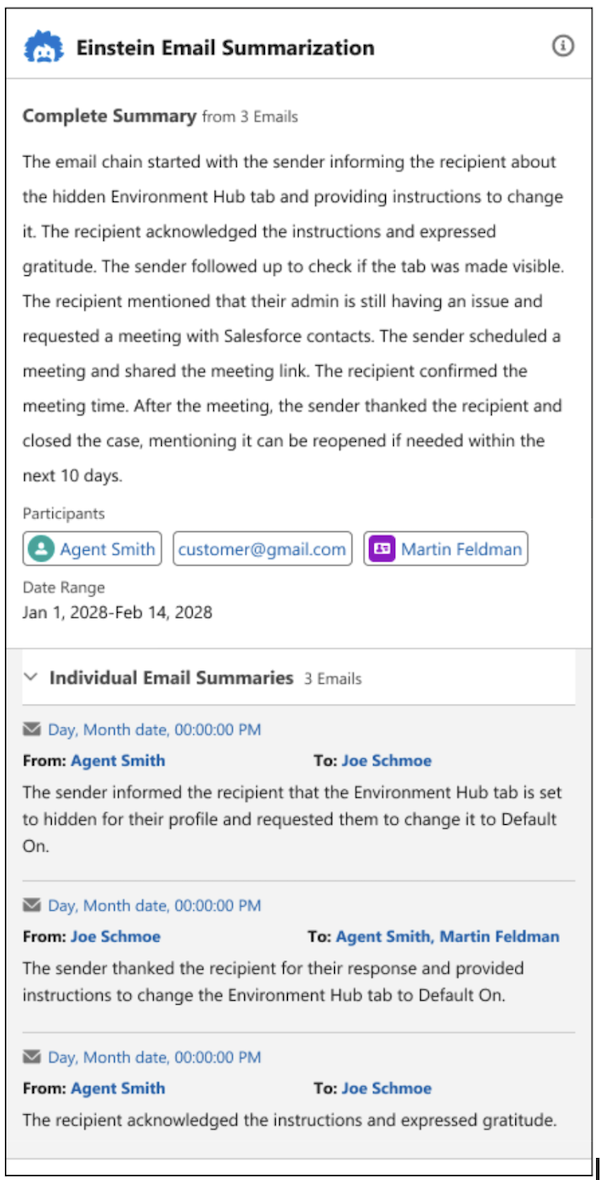
Access summaries of emails and email threads from the Einstein Email Summaries component on a case record page.
To get summaries for an email thread, click Get Summaries on the related case. This component will be visible only for cases that have an associated email.
You can access both summaries of individual emails and a combined summary of the entire conversation.
The combined summary shows the email senders and recipients, the number of emails summarized, and the date range from the first to the last email summarized. To see the email detail page, click the date of an individual email summary. You can also submit feedback to improve these summaries.
Case (Beta)
Service reps can draft Case Summaries from either the Case Feed or the Case Comments.
From the Case Feed, under Post, select Draft a Case Summary with Einstein. Einstein’s summary includes a Summary, Issue and Resolutions and appears in the Body text area.
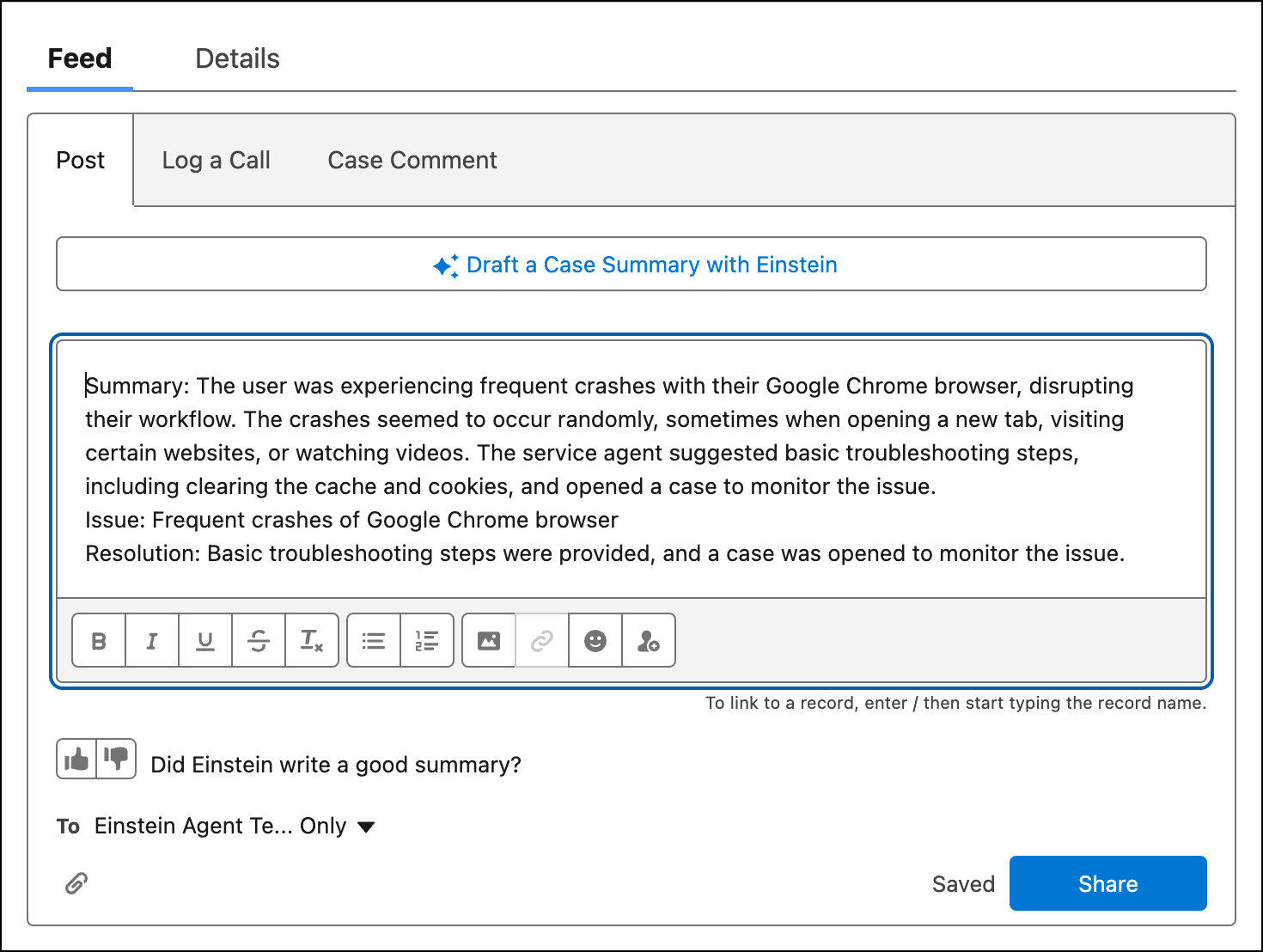
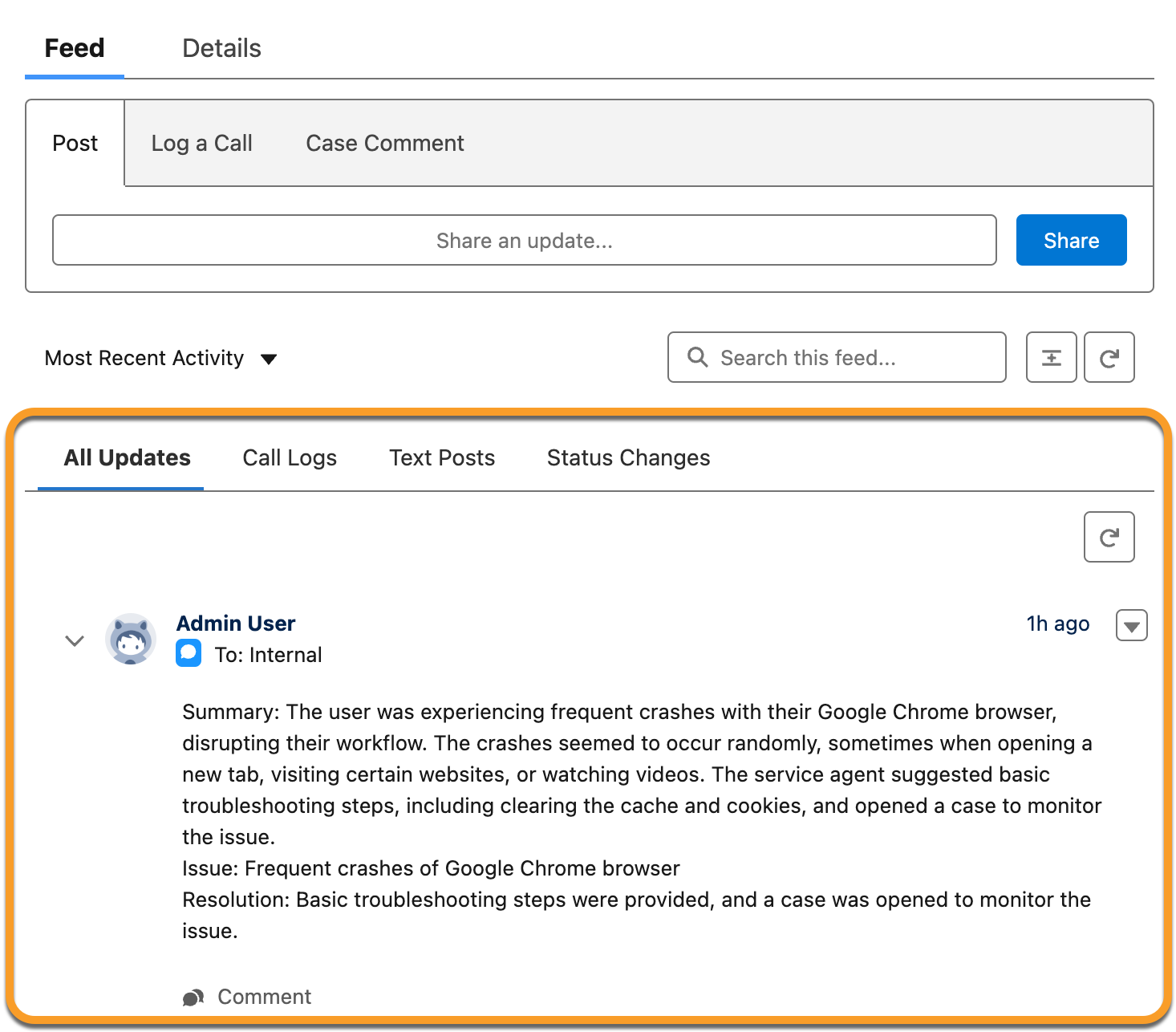
Service reps can review, edit, and share the summary to the case feed.
From the Case Comments, select Draft a Case Summary with Einstein. Einstein’s summary appears in the Body text area.
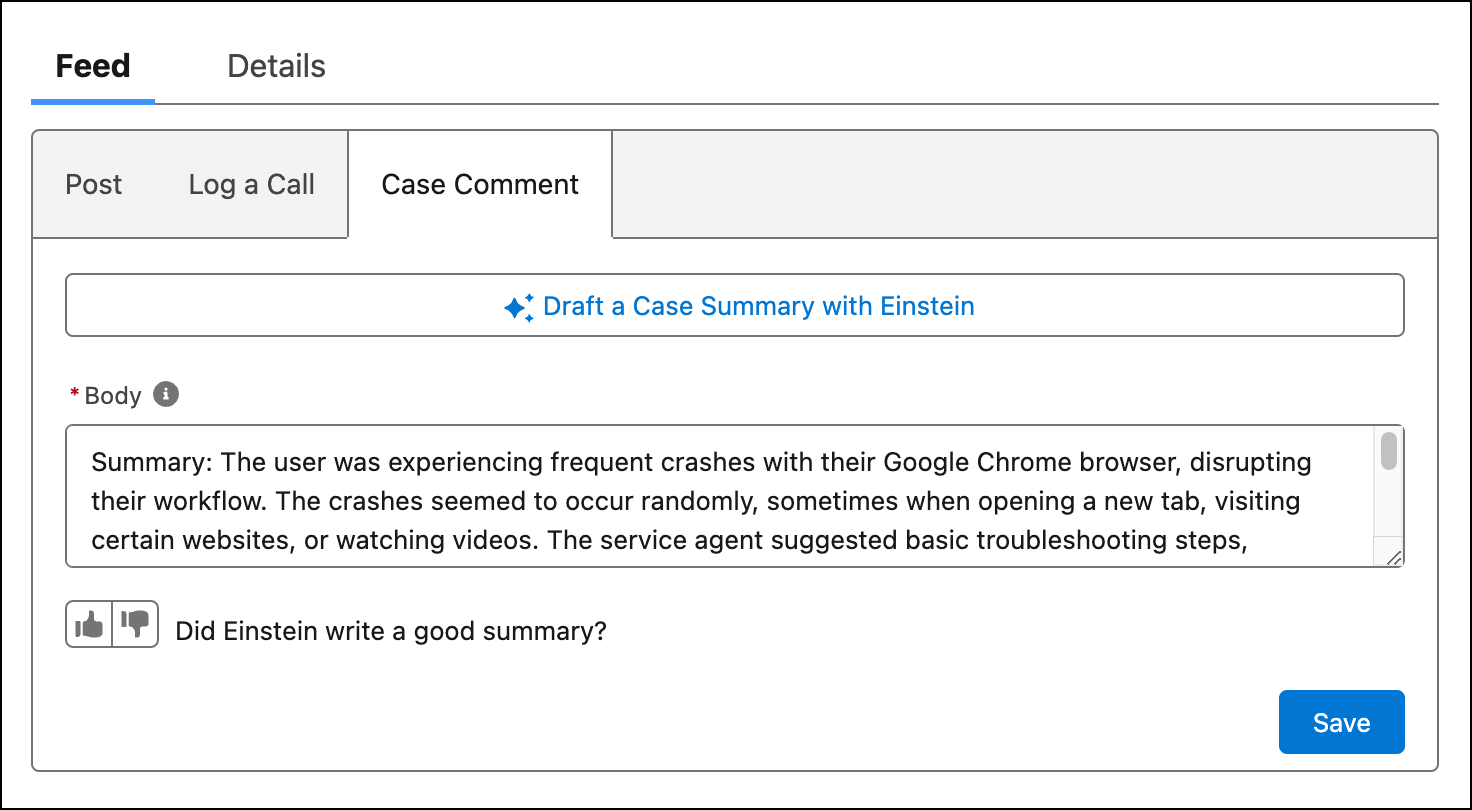
Service reps can review, edit, and save the summary to the case comments. Case comments also appear in the Feed.
Case Summaries are drafted in the language detected from the case subject and description. If the detected language isn’t supported, Einstein defaults to English.
Mid Conversation
When a service rep or supervisor joins or starts monitoring an active voice call or messaging session, the Conversation Catch-Up window appears at the top of the conversation.
In this window, they can:
- View a one-line summary of the issue and a longer, more detailed description.
- Dismiss the summary when they no longer need it. After it’s dismissed, a summary isn’t stored anywhere and can’t be retrieved. Refreshing the browser page reveals a new summary.
- Rate the summary’s accuracy and usefulness by giving it a thumbs-up or thumbs-down. Ratings help improve Einstein’s summary capabilities.
To see summaries from the supervisor view, expand the Conversation Catch-Up window.
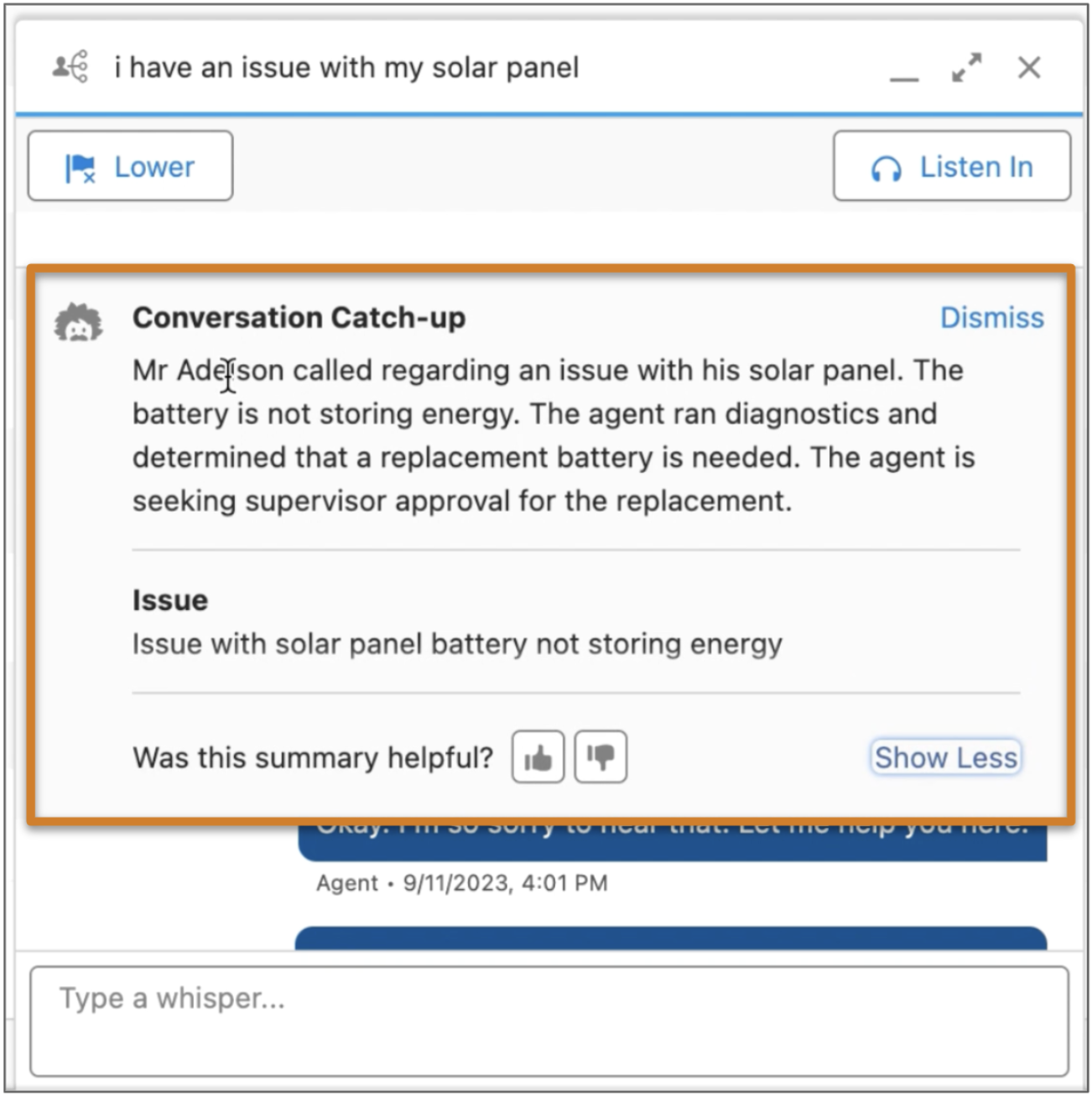
To see summaries from the service rep view, expand the Conversation Catch-Up window in the messaging window.
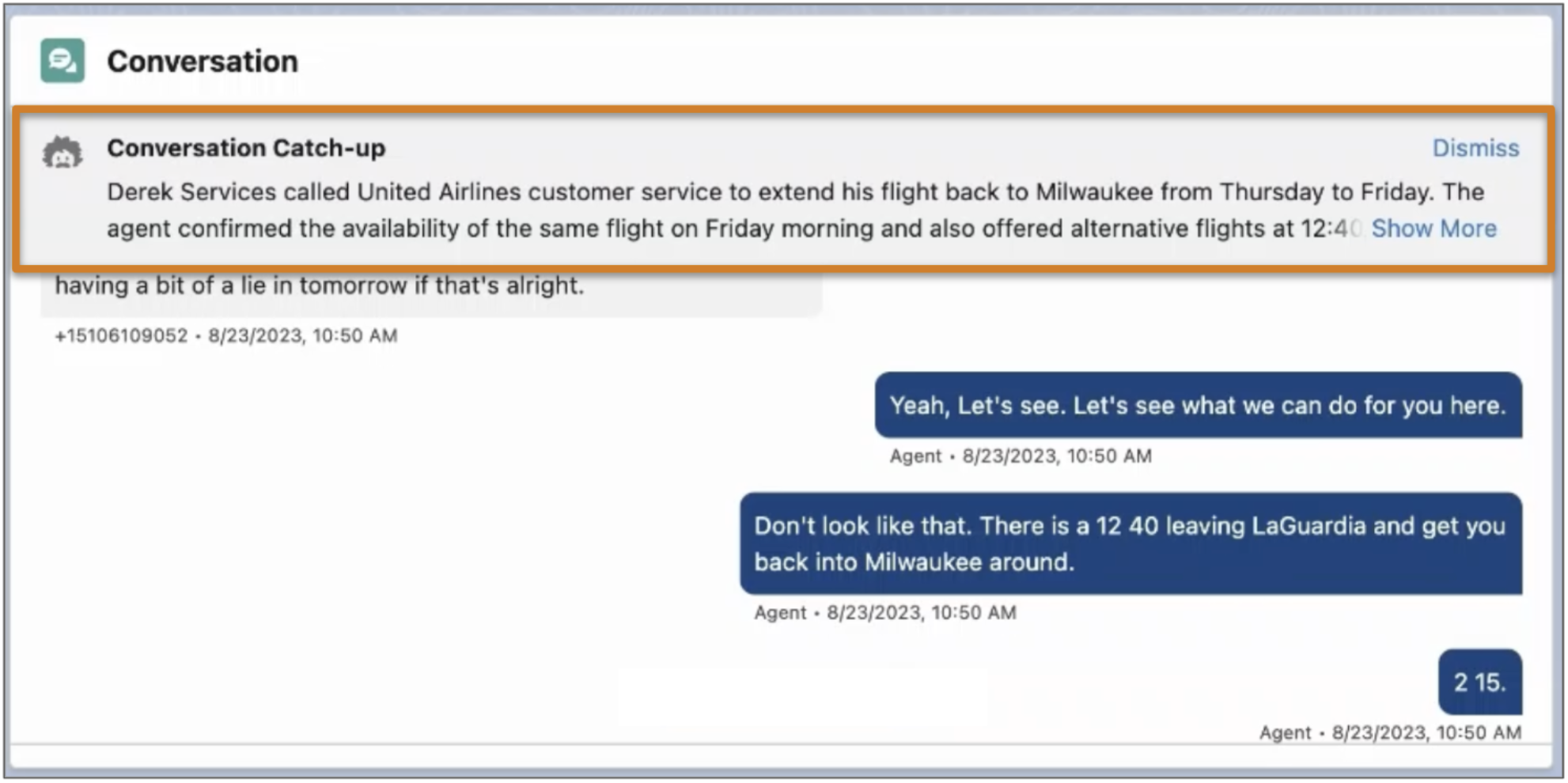
A conversation must have at least 10 text-based entries before a summary can be generated. These entries don’t include menus from bots, menu selections from the customer, auto-responses, or other rich content that might be sent as part of the conversation.
Conversation Catch-Up is available in six languages: English, Spanish, French, German, Italian, and Japanese. If a logged-in user’s default language in Salesforce is one of these languages, they see summaries in their language regardless of the language being used in the conversation. If their language isn’t supported, they don’t see summaries.
