
You are here:
Configure Your Einstein Classification Model
Specify which closed cases and fields Einstein learns from, and choose the fields that you want Einstein to predict.
Required Editions
| View supported editions. |
| User Permissions Needed | |
|---|---|
| To build and manage Einstein Case Classification and Einstein Case Wrap-Up: | View Setup AND Customize Application AND Manage Profiles and Permission Sets AND Edit on cases OR Modify All Data |
-
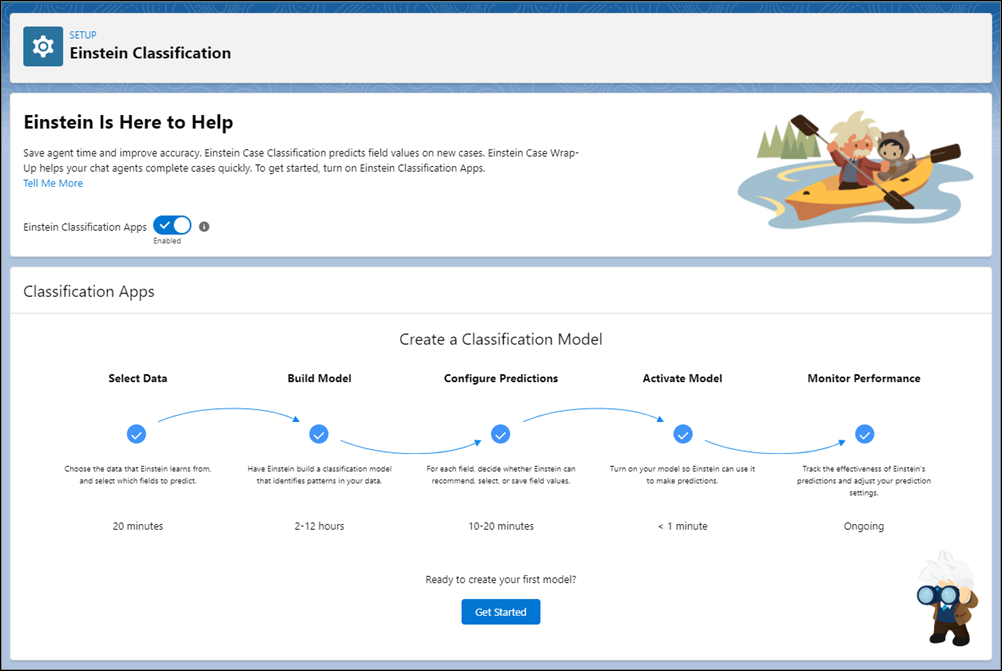
To create a model, click Get Started or New
Model on the Einstein Classification setup page.
-
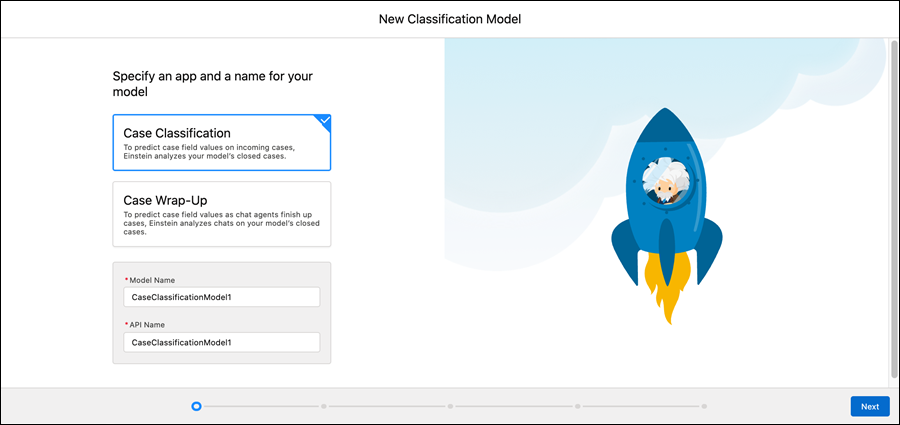
Select an app and enter a name for your model. Click Next.
-
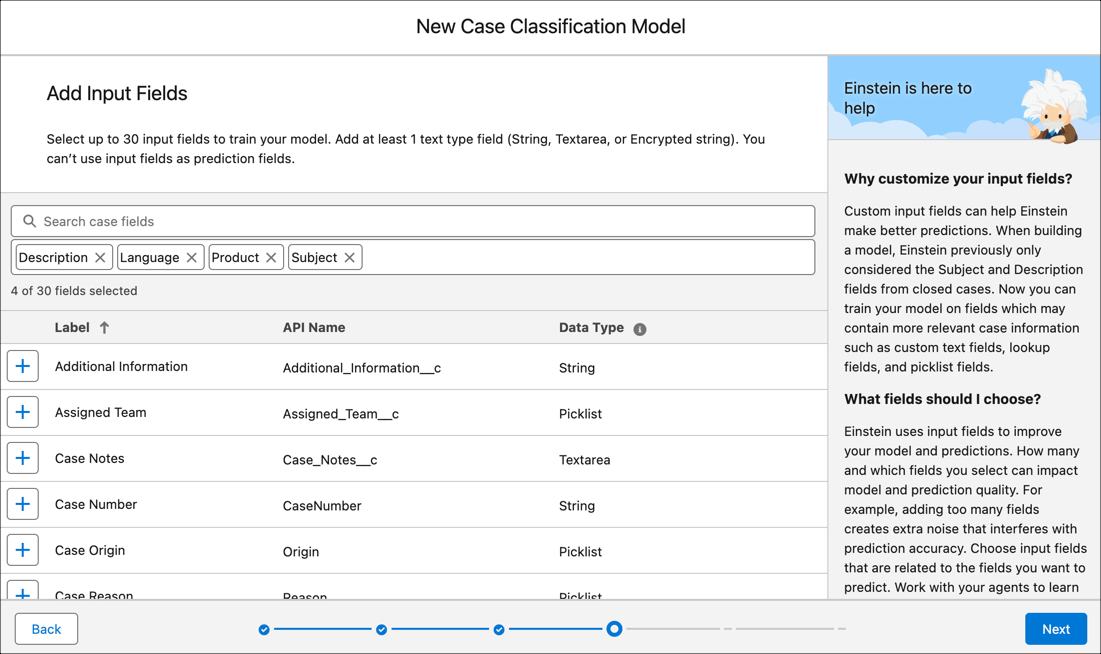
Define the type of cases for your model to focus on for training. For Einstein Case
Classification, you can add up to 30 input fields including String, Picklist, and Lookup
fields. At least one string-type input field is required for training. For Einstein Case
Wrap-Up, only subject and description fields are used as inputs.If you want, define a segment of cases to limit which closed cases Einstein learns from and which new cases get predictions. See Case Classification Key Concepts. Then, click Next.
-
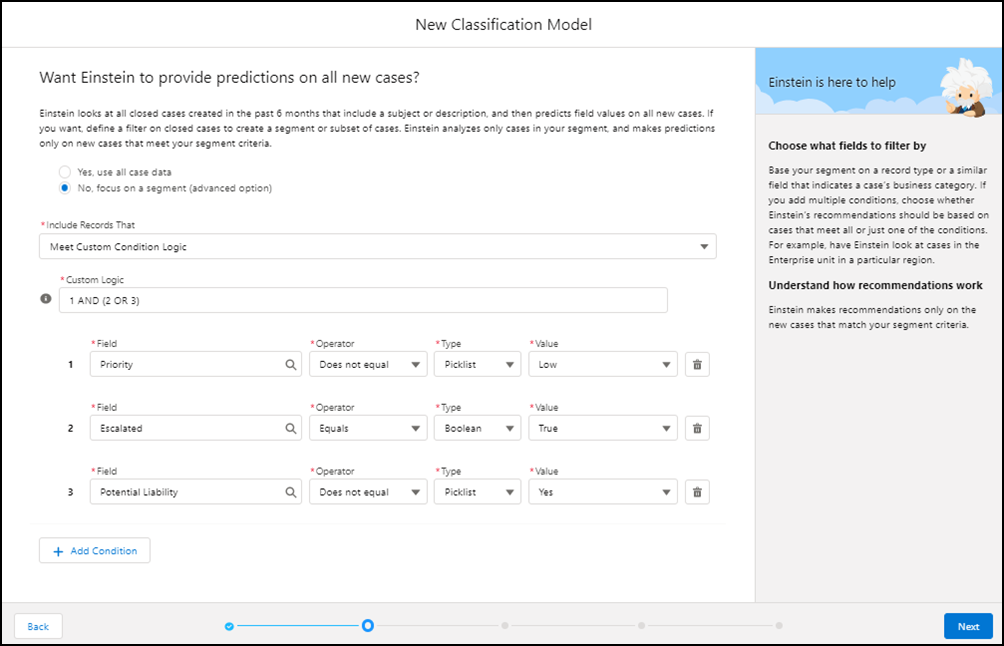
If you want, define a segment of cases to limit which closed cases
Einstein learns from and which new cases get predictions. See Case Classification Key Concepts. Then, click
Next.
-
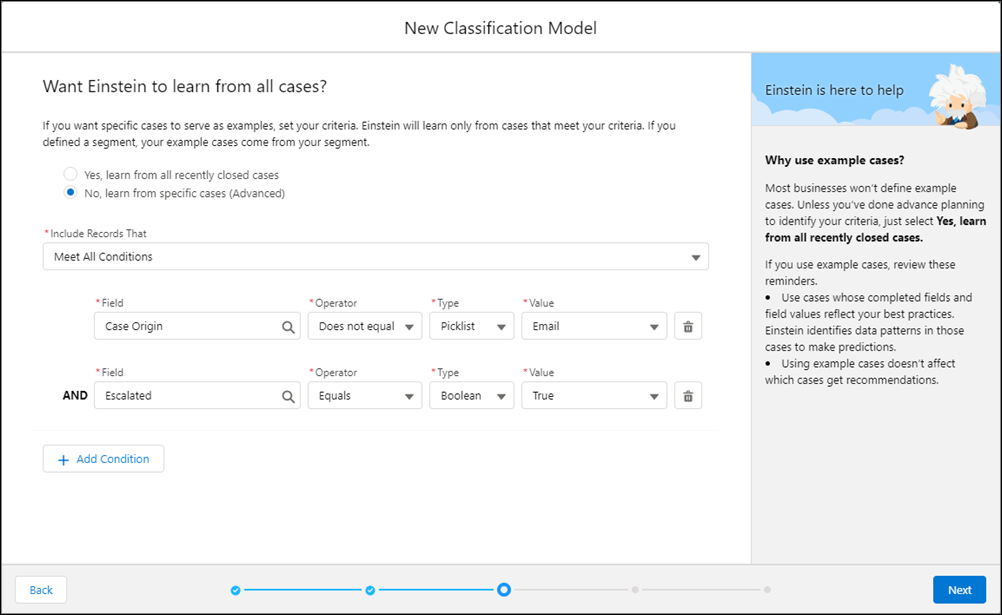
If you want, define additional criteria to identify example cases for
Einstein to learn from. If you defined a segment, your example cases come from your
segment. See Case Classification Key Concepts. Then, click
Next.
-
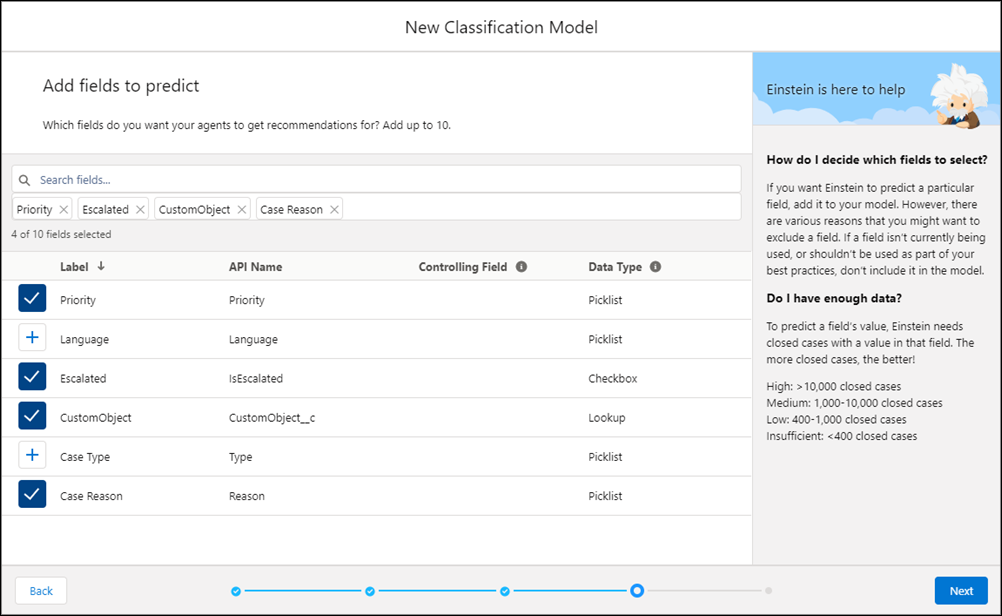
Add the fields that you want Einstein to predict. For help, see Considerations for Choosing Fields to Predict. Then, click
Next.
-
Address any warning or error messages and make sure that you have enough data.
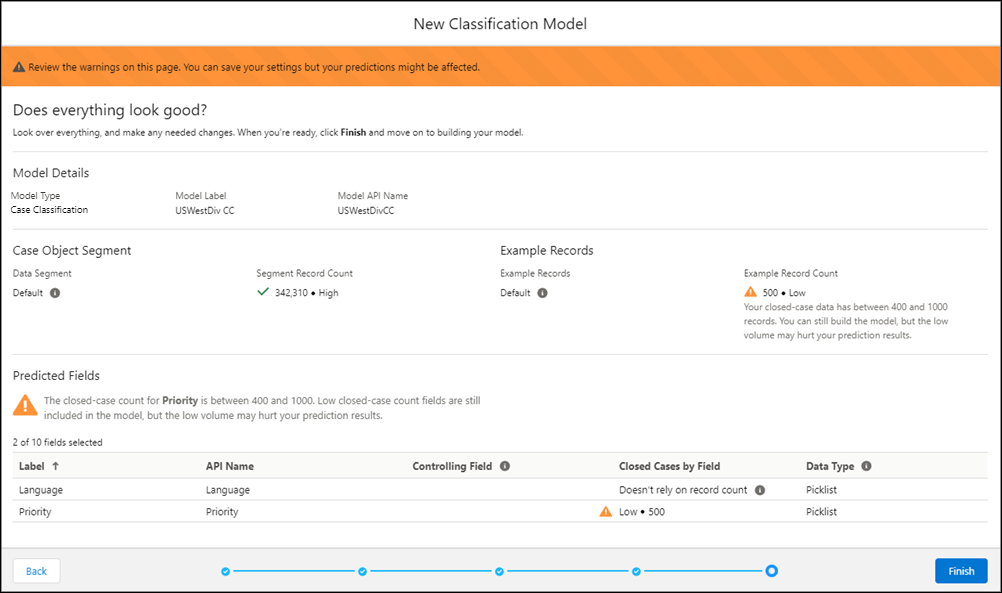
If you have a low volume of closed-case data (400–1,000 closed cases) in your segment or example case set or for an input field in your model, you can still save your settings and build the model. However, the low volume can hurt your prediction results. If you have fewer than 400 closed cases in any of those categories, gather more data or adjust your filters.
A large number of segment or example filters can take a while to process. If the process takes too long you don’t always see a case count, but your model still builds.
-
Click Finish and move on to building your model. Your new model
appears on the Einstein Classification setup page.
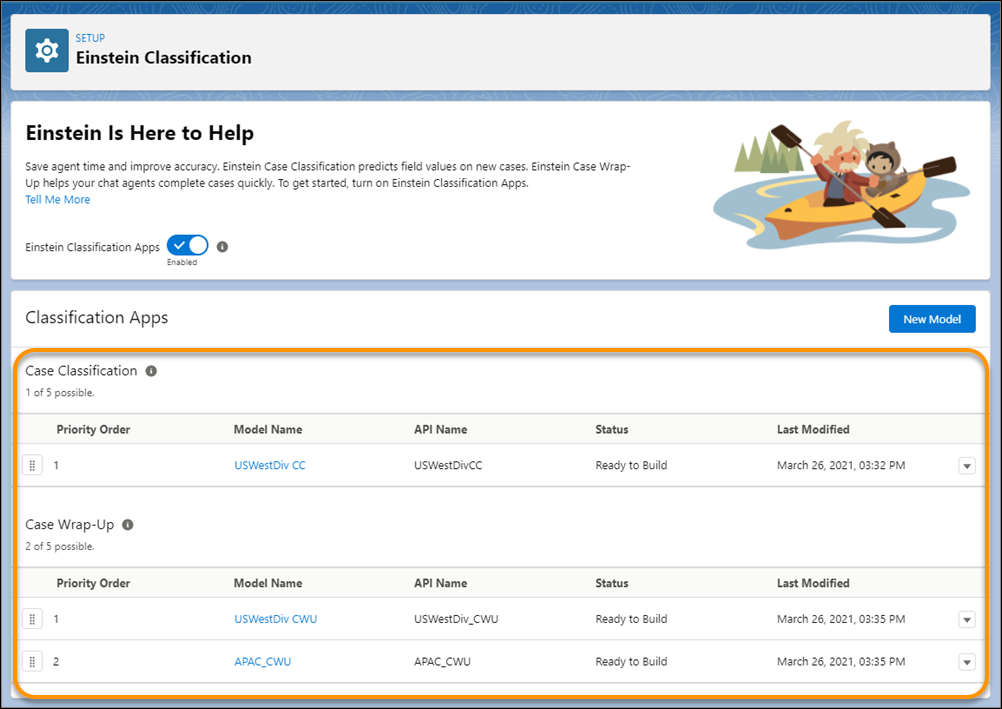
If you create multiple models, drag them into priority order in the list. If a case matches multiple models’ criteria, predictions come only from the active model with the highest priority. For example, suppose that the higher-priority Model 1 predicts the Priority and Reason fields, and Model 2 predicts the Escalated field. If a new case matches both models’ filter criteria, service reps see predictions for the Priority and Reason fields but not for the Escalated field. Keep in mind that you can add the same field to multiple models.
- Considerations for Choosing Fields to Predict
When you create your Einstein classification model, you select the fields that Einstein learns from and the fields Einstein predicts. Follow our guidelines when choosing fields.
