After your Einstein classification model is built, it’s time to decide how much
prediction automation you’re comfortable with. For Case Classification and Case Wrap-Up, Einstein
recommends the top three field values for each field in your model, or you can have Einstein
select the best value. For Einstein Case Classification, Einstein can also save the best value
automatically.
After your model is built, choose your field prediction confidence settings. Update these
settings at any time. Changes take effect immediately.
From Setup, in the Quick Find box, enter Einstein Classification,
and then click Einstein Classification.
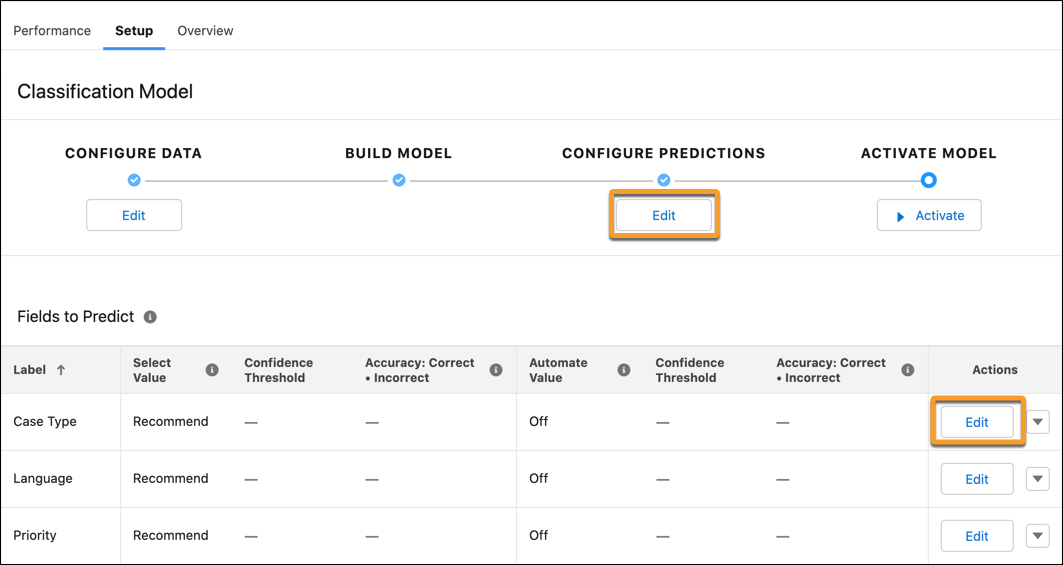
Click a model name, and then click its Setup tab.
If the model isn’t active, click Edit under Configure Predictions
and select a field. Alternatively, click Edit next to a field in the
list.
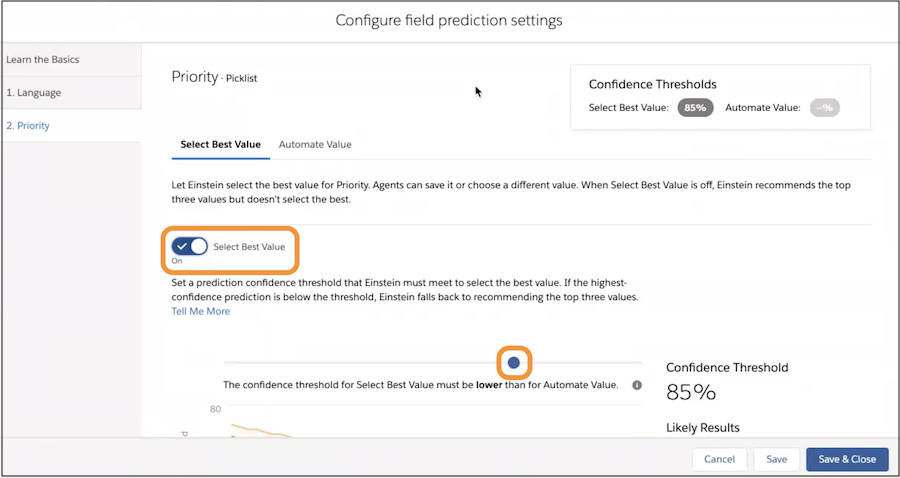
To show the field with the best value selected, turn on Select Best
Value. Drag the slider to choose the prediction confidence threshold.
Service reps see BEST next to the value. Then confirm and save it.
If you have the paid version of Einstein Case Classification, you can also tell
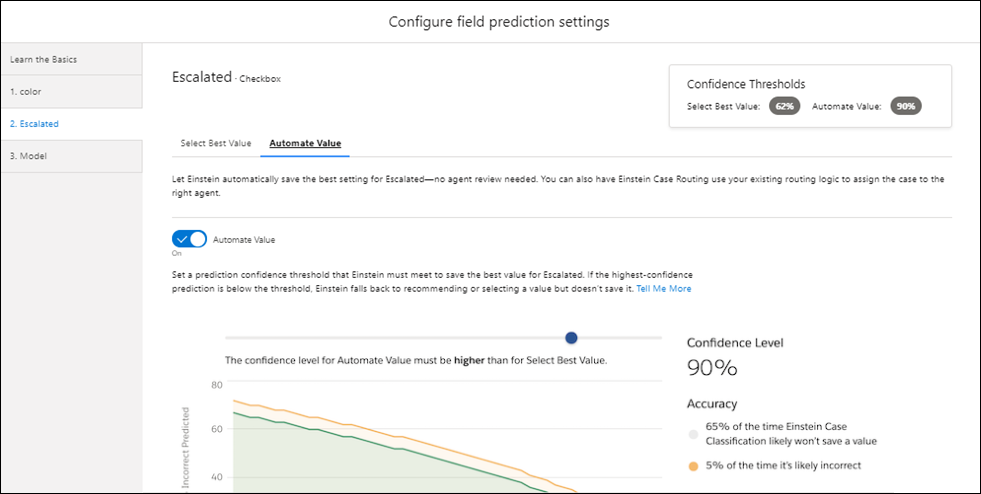
Einstein to update and save the field without service rep review. Turn on
Automate Value. Drag the slider to choose a prediction confidence
threshold for auto-updating the field. Because the case field update happens
automatically, the Automate Value threshold must be higher than the Select Best Value
threshold.
With Einstein Case Wrap-Up, you can set the Select Best Value threshold only. Automate
Value isn’t an option.
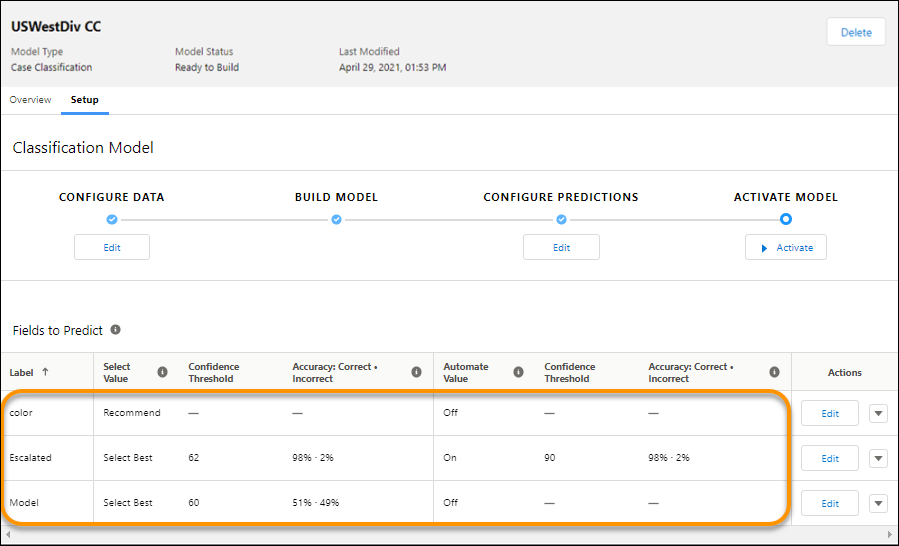
Save your changes. They take effect immediately, and you can see your prediction settings
in the field list.
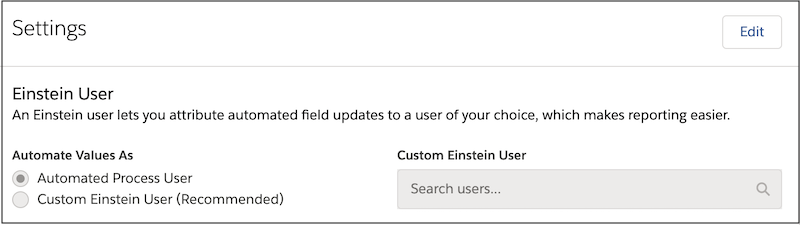
To make reporting easier, we recommend that you create a user to distinguish Einstein’s
actions from other users. Attribute the updates to the Einstein user, or use the default
automated process user. From Settings, under Automate Values As, select Custom
Einstein User (Recommended).
Under Custom Einstein User, select or create a user. The user must have edit permission on
cases and on the fields included in your classification model.
Example You add the Priority field to your Einstein Case Classification model and use these
prediction settings for the field.
Select Best Value is turned on with a 70% confidence threshold.
Automate Value is turned on with a 90% confidence threshold.
If Einstein predicts the priority with a confidence level:
Then, Einstein:
Lower than 70%
Shows the top three recommended values for the Priority field but doesn’t select one. The
service rep selects and saves a value.
Between 70%–89%
Shows the field with the priority selected. The service rep confirms and saves the
value.
Higher than 90%
Updates the Priority field and saves the case. The service rep doesn’t need to confirm or
save the value.
Did this article solve your issue?
Let us know so we can improve!
Loading
Salesforce Help | Article
Cookie Consent Manager
General Information
Required Cookies
Functional Cookies
Advertising Cookies
General Information
We use three kinds of cookies on our websites: required, functional, and advertising. You can choose whether functional and advertising cookies apply. Click on the different cookie categories to find out more about each category and to change the default settings.
Privacy Statement
Required Cookies
Always Active
Required cookies are necessary for basic website functionality. Some examples include: session cookies needed to transmit the website, authentication cookies, and security cookies.
Functional Cookies
Functional cookies enhance functions, performance, and services on the website. Some examples include: cookies used to analyze site traffic, cookies used for market research, and cookies used to display advertising that is not directed to a particular individual.
Advertising Cookies
Advertising cookies track activity across websites in order to understand a viewer’s interests, and direct them specific marketing. Some examples include: cookies used for remarketing, or interest-based advertising.