
You are here:
Salesforce Console in Salesforce Classic
Get started with the Salesforce console in Salesforce Classic.
Required Editions
| Available in: Salesforce Classic |
| Available in: Professional, Enterprise, Performance, Unlimited, and Developer Editions |
Salesforce Console User Interface
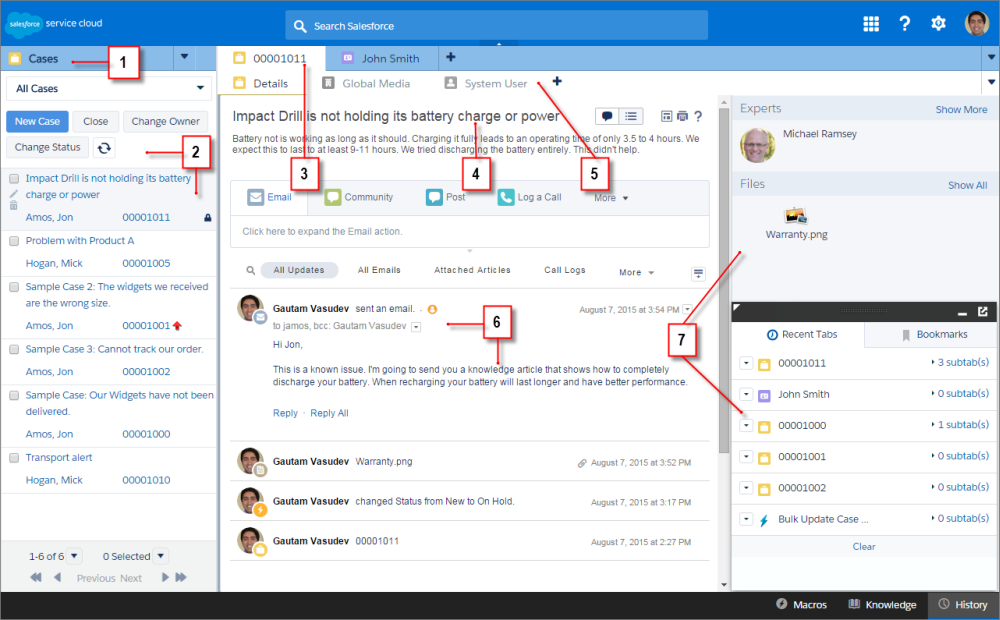
Here’s how a console in Salesforce Classic works:
(1) Select objects and records from the navigation tab. (2) Records display in a list, which you can pin at the left of the top of the screen. (3) Selected records appear as primary tabs, and tabs let you work on several items at once. (4) A highlights panel shows key information related to records. (5) Records related items appear as subtabs, and subtabs let you quickly switch between related information without losing context. (6) View and interact with content in the feed or detail area. (7) Access custom component data in sidebars and footers.

Lightning console apps don’t yet have full parity with Salesforce Classic console apps. For example, some features in Salesforce Classic console apps, such as push notifications and custom keyboard shortcuts, aren’t available in Lightning console apps. Learn more.
You can’t upgrade Salesforce Classic console apps to Lightning Experience from Setup. To get started in Lightning Experience, customize these Salesforce-provided Lightning console apps: Service Console and Sales Console.
- Set Up a Salesforce Console in Salesforce Classic
You can set up a console for Sales, Service, or create one for your own business needs. - Console Configurable Features in Salesforce Classic
An administrator must enable and configure most console features to determine how console users view and work with data. - Custom Console Customization Components in Salesforce Classic
Create components to customize, extend, or integrate the Salesforce Console with other systems. - Work with a Salesforce Console in Salesforce Classic
Get more done faster using a console’s enhanced interface to work with records.
