
You are here:
Salesforce Console in Lightning Experience
Get started with the Salesforce console in Lightning Experience.
Required Editions
| Available in: Lightning Experience |
Available in: Essentials, Professional, Enterprise, Performance, Unlimited, and Developer Editions Lightning console apps are available for an extra cost to users with Salesforce Platform user licenses for certain products. Some restrictions apply. For pricing details, contact your Salesforce account executive. |
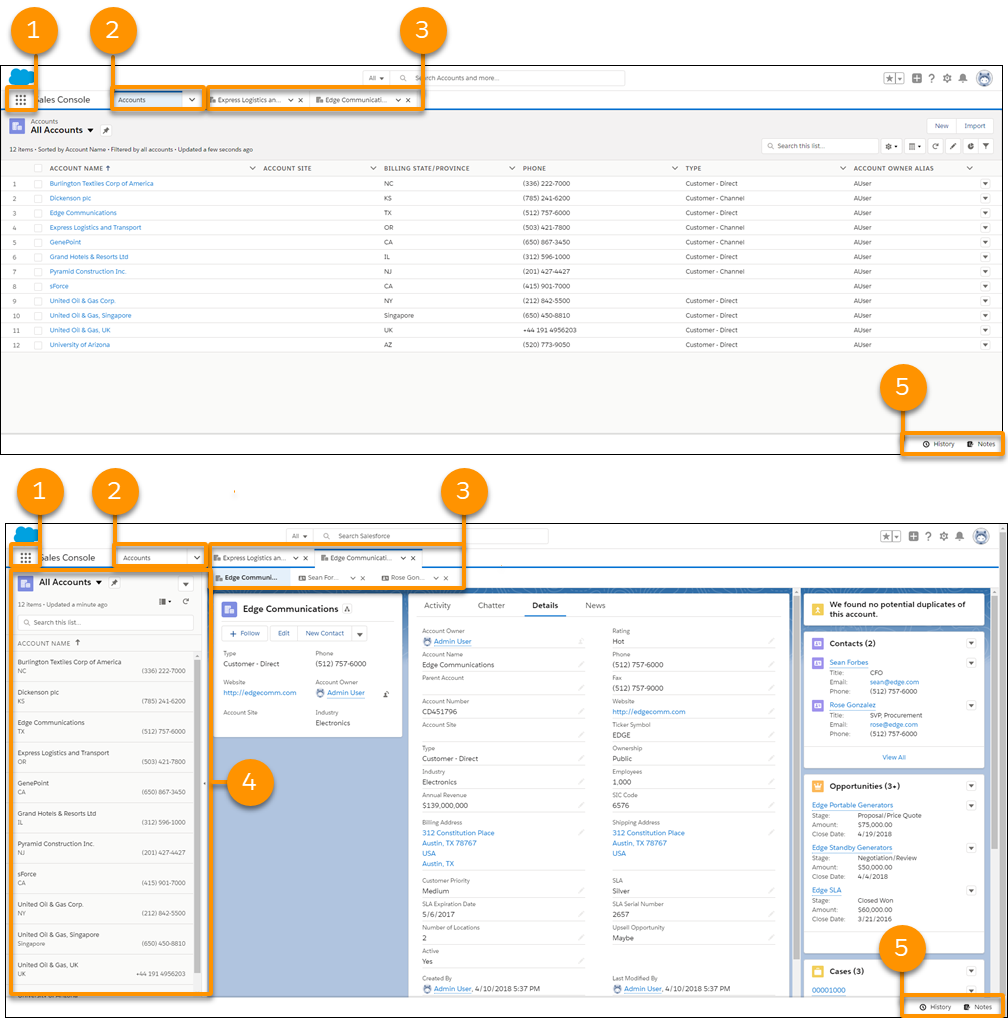
Use Lightning console apps to view multiple records and their related records on the same screen. Quickly work through records from a list using split view. To open a Lightning console app, use the App Launcher.
- The App Launcher
 (1) lets you switch between apps. To switch to another console app or
back to a standard app, use the App Launcher. The name of the app you’re currently in is
displayed next to the App Launcher.
(1) lets you switch between apps. To switch to another console app or
back to a standard app, use the App Launcher. The name of the app you’re currently in is
displayed next to the App Launcher. - The navigation menu (2) displays the navigation item you currently have selected. To
open the navigation menu, click
 . From there, you can view or edit your navigation
items. Selecting a navigation item opens the navigation item’s home page. Objects open
in table view
. From there, you can view or edit your navigation
items. Selecting a navigation item opens the navigation item’s home page. Objects open
in table view  .
Opening a record changes the view to split view
.
Opening a record changes the view to split view  . Once in split
view, click the navigation item again to switch back to table view, or use the
Display as dropdown.
. Once in split
view, click the navigation item again to switch back to table view, or use the
Display as dropdown. - Records open in workspace tabs, and related records opened from inside a workspace tab
open in subtabs (3). You can refresh, pin, customize, and close a tab using the tab menu
. You can also open navigation items in a new
workspace tab by using Ctrl+click or
Cmd+click.
- The split view panel (4) can be hidden with
 . Records opened from the split view panel open in
new workspace tabs.
. Records opened from the split view panel open in
new workspace tabs. - The utility bar (5) lets you access common processes and tools like History and Notes.

Lightning console apps don’t yet have full parity with Salesforce Classic console apps. For example, some features in Salesforce Classic console apps, such as push notifications and custom keyboard shortcuts, aren’t available in Lightning console apps. Learn more.
You can’t upgrade Salesforce Classic console apps to Lightning Experience from Setup. To get started in Lightning Experience, customize these Salesforce-provided Lightning console apps: Service Console and Sales Console.

Speed up your work flow! Download the Lightning Extension and turn on the Link Grabber feature. The Link Grabber makes all Lightning links open in a new workspace tab instead of a new browser tab.
- What Features Are Available in Lightning Console Apps?
Lightning console apps don’t yet have full parity with Salesforce Classic console apps. Some features available in Salesforce Classic console apps aren’t available in Lightning console apps. - Who Can Access Lightning Console Apps?
To access and use a Lightning console app, users must have the Lightning Console User permission and their profile must be added to the Lightning console app. - Create and Edit a Custom Lightning Console App
Create custom console apps in Lightning Experience the same way that you create other Lightning Apps. Use the App Manager in Setup to customize your app’s color and branding, add a utility bar and items, configure navigation rules, and assign the app to user profiles. You can always come back and edit your console app at any time. - Create and Assign Lightning Console Permission Sets
If your org has purchased Lightning Console permission set licenses, you can assign the licenses to users with Salesforce Platform licenses to add access to Lightning console apps. - Customize Lightning Pages for Lightning Console Apps
Use the Lightning App Builder to create custom Lightning pages to ensure that your console users always have the records they need in a layout that works best for them. - Personalize the Navigation Menu for Lightning Console Apps
Customize a console app’s navigation menu so that the user interface suits the unique way you work. You can add and reorder items, and rename or remove items you’ve added. - Defer Loading Inactive Lightning Console Workspace Pages
The “Defer loading inactive console workspace pages” setting improves performance by minimizing extra page loads. For example, if this setting is enabled and you use a navigation rule to open a workspace page, then the page doesn’t load until the user navigates to that page. This setting is enabled by default. - Limit the Maximum Number of Loaded Lightning Console Tabs
To set the maximum number of loaded console tabs in a session, enable the Loaded Console Tab Limit feature. - Customize Your Lightning Console App with Utilities
The utility bar is a great way to give your console users quick access to productivity tools, like softphones and History. It appears as a fixed footer in your Lightning console app and opens utilities in docked panels. Some utilities support pop-out, which lets them open in a new browser window. - Lightning Service Console
The Service Console is a standard Salesforce Lightning console app that meets all your service needs. You can customize this app to make it your own. - Lightning Sales Console
The Lightning Sales Console is a standard Salesforce Lightning app that gives you all your sales tools at your fingertips to prospect leads, close deals, and manage relationships. - Keyboard Shortcuts for Lightning Console Apps
Use keyboard shortcuts to work efficiently in Lightning console apps. Shortcuts help you navigate and work with records faster and without using your mouse. You can use these shortcuts with your web browser shortcuts.
