
You are here:
Lightning Sales Console
The Lightning Sales Console is a standard Salesforce Lightning app that gives you all your sales tools at your fingertips to prospect leads, close deals, and manage relationships.
Required Editions
| Available in: Lightning Experience |
| Available in: Professional, Enterprise, Performance, Unlimited, and Developer Editions with Sales Cloud |
Here's what you get in the standard Sales Console app.
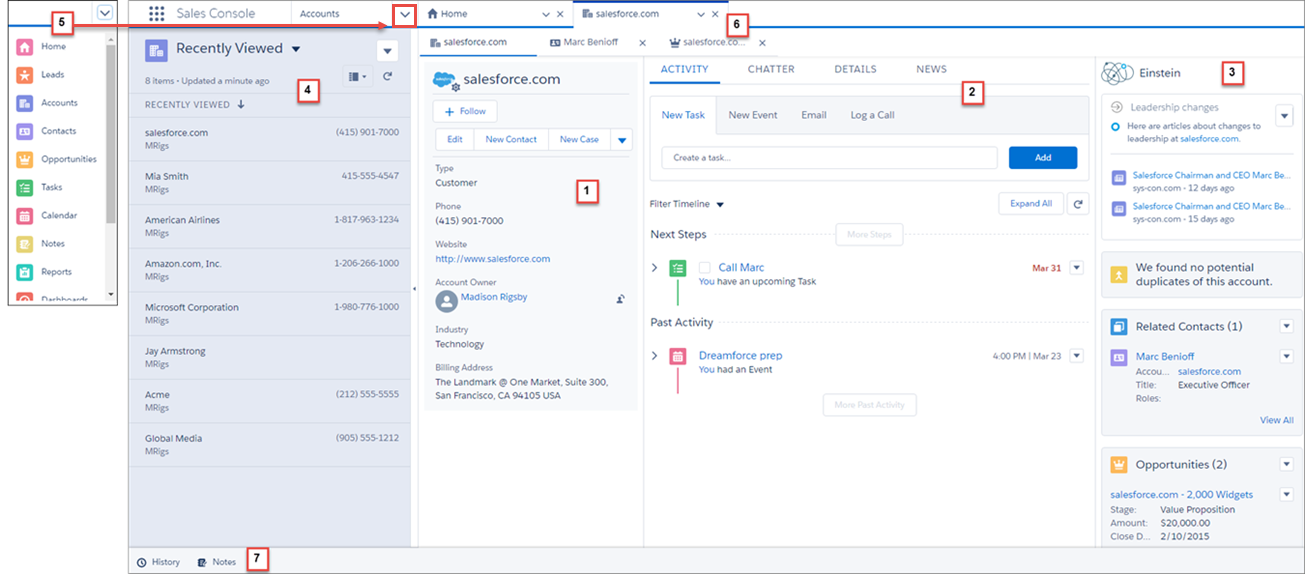
- A navigation-friendly three-column layout for the objects you rely on most—accounts, contacts, leads, and opportunities. The layout includes the record’s key details in the highlights panel (1), the familiar workspace (2), and useful related lists (3). To use your org's default Lightning page instead, use the Lightning App Builder to assign the preferred page to all Lightning apps.
- Split view shows a list view at the same time as your workspace tabs and subtabs, letting you work quickly through a list of records (4).
- Other go-to objects and features—including campaigns, tasks, reports, and more—are easily accessible (5).
- Intuitive tab and subtab navigation (6).
- A preconfigured utility bar with History (7). If Notes is enabled, it appears in the utility bar, too.
From Setup, admins can use the App Manager to customize the standard Sales Console app.
- Add your own branding.
- Add any additional items your teams need to access in the console.
- Configure the utility bar so reps can easily access productivity tools like Sales Dialer and macros.
- Sales Console is automatically assigned all standard and custom user profiles. You can modify these assignments to make sure the right people have access to Sales Console.
From Setup, admins can use the Lightning App Builder to customize specific page layouts. For example, if you use Marketing Cloud Account Engagement (Pardot), you need to add the Engagement History component to the appropriate page layouts.

Lightning console apps don’t yet have full parity with Salesforce Classic console apps. For example, some features in Salesforce Classic console apps, such as push notifications and custom keyboard shortcuts, aren’t available in Lightning console apps. Learn more.
You can’t upgrade Salesforce Classic console apps to Lightning Experience from Setup. To get started in Lightning Experience, customize these Salesforce-provided Lightning console apps: Service Console and Sales Console.
