
You are here:
Lightning Service Console
The Service Console is a standard Salesforce Lightning console app that meets all your service needs. You can customize this app to make it your own.
Required Editions
| Lightning Service Console is available in: Lightning Experience |
| Available in: Essentials, Professional, Enterprise, Performance, Unlimited, and Developer Editions with Service Cloud |

Lightning console apps don’t yet have full parity with Salesforce Classic console apps. For example, some features in Salesforce Classic console apps, such as push notifications and custom keyboard shortcuts, aren’t available in Lightning console apps. Learn more.
You can’t upgrade Salesforce Classic console apps to Lightning Experience from Setup. To
prepare for your transition to Service Cloud in Lightning Experience, watch  Get Ready to Transition to Service
Cloud in Lightning Experience (English only). Then customize the
Salesforce-provided Service Console app in Lightning Experience. You can always recreate
your Salesforce Classic console app in Lightning Experience, but using Salesforce’s
out-of-the-box app is faster and easier.
Get Ready to Transition to Service
Cloud in Lightning Experience (English only). Then customize the
Salesforce-provided Service Console app in Lightning Experience. You can always recreate
your Salesforce Classic console app in Lightning Experience, but using Salesforce’s
out-of-the-box app is faster and easier.
Here’s what you get in the standard Service Console app.
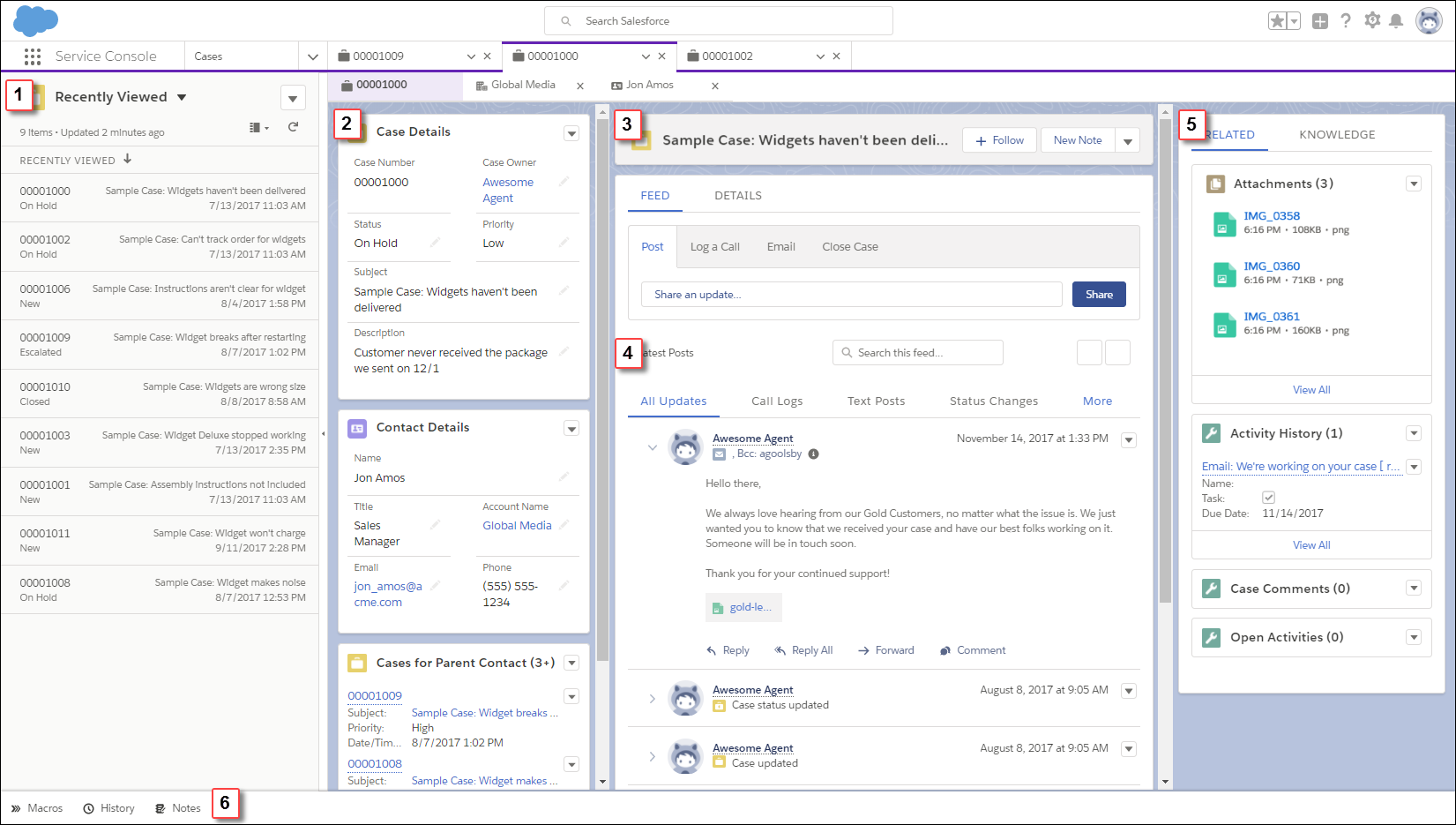
Here’s how the standard Service Console app helps you out.
- Manage cases faster
Split view shows a list view at the same time as workspace tabs and subtabs, letting your support agents manage multiple cases on a single screen (1).
- See it all at once
A preconfigured, three-column layout puts all the important information on the same page, and minimizes clicks and scrolling.
- In the first column, case details, contact details, and related cases for the parent account are displayed using Related Record and Related List Single components (2).
- The second column includes a highlights panel that’s front and center (3). The compact case feed lets you see more of your case updates (4).
- The third column includes related lists and Knowledge articles relevant to your case (5).
- Keep up on all the details
The preconfigured utility bar provides fast access to History and Notes (6). You can also customize the utility bar to include other tools like Macros, Omni-Channel, and the Open CTI Softphone.
Note For users to see and use the Notes utility, Notes must be enabled in your org. For users to see and use articles in the Knowledge component, Lightning Knowledge must be enabled in your org.
- Service Console Versions
The service console is the primary application used by customer service agents and supervisors. Service Cloud offers multiple console versions, including the Foundations Service Console and Lightning Service Console. Each version comes with different default components for the console and Case page layouts. - Choosing the Right Service Console Version
Service Cloud offers multiple console versions. Each version comes with different default components for the console and Case page layouts. To significantly reduce the need for customization, choose the version that best meets your business requirements. - Identifying Your Service Console Version
All service console versions are uniformly named Service Console. To identify the version you’re using, observe the app icon. - Best Practices for Customizing the Lightning Service Console
You can customize the Service Console app to meet your service needs. - Flow Builder for Service and the Actions & Recommendations Component
Give your users a to-do list in the Actions & Recommendations component. Show flows, quick actions, and recommendations from your Next Best Action strategies. To create your list, associate actions with a record page using an Actions & Recommendations deployment or Salesforce automation tools. You can create default lists for specific channels, like phone and chat, and show which actions that you want users to complete first and last.
