
You are here:
Optimize Setup with the Service Setup Assistant
Service Cloud is a powerful, customizable customer service tool. Use the Service Setup Assistant to create a work-ready service app for your team.
Required Editions
| View supported editions. |
| User Permissions Needed | |
|---|---|
| To run the Service Setup Assistant: | Customize Application |

How It Works
You—the fearless admin—head to the Service Setup Assistant page in Setup. Enter your main support email address and add service reps, and the Assistant creates your Service app. If you have licenses for Omni-Channel, Chat, Messaging, or Knowledge, the Assistant can also set up these key features for you.
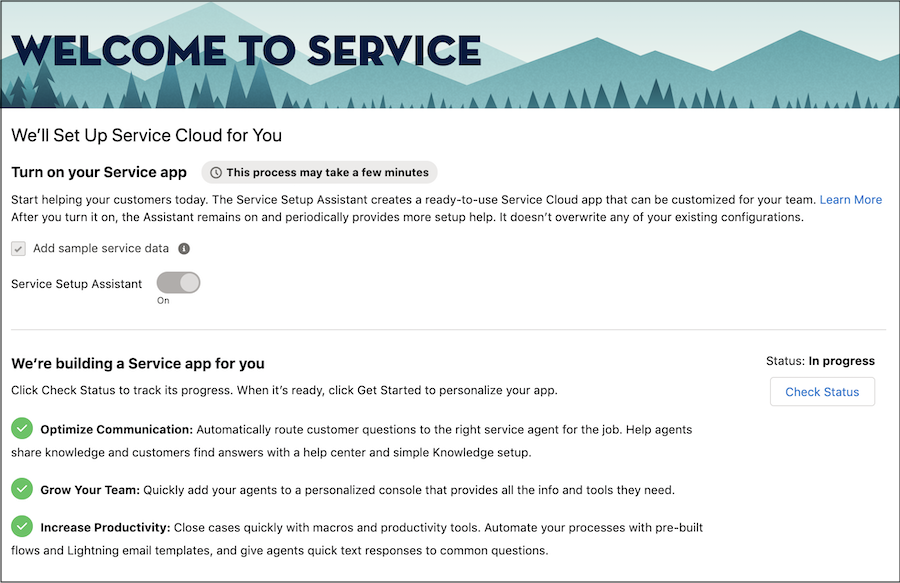
When the Assistant wraps up its setup, your new, fully configured Service app is available for you and your team in the App Launcher.
After you turn it on, the Assistant can’t be turned off, but you can customize its features to your company’s processes later. Turning on the Assistant doesn’t cause issues with your other apps.
Sounds Neat, What’s Included?
Our favorite, quick-win service tools! As part of creating your Service app, the Service Setup Assistant sets up queues, macros, and flows to streamline your workflows, optimizes high-use page layouts, sets up quick text responses and case email notifications, and more. For a full list of the tasks that the Assistant completes for you, see Features Included in the Service Setup Assistant.
Let’s Do This
- From Setup, in the Quick Find box, enter Service Setup Assistant, and click Service Setup Assistant.
- Click the toggle to On.
- The status changes to In Progress. To get the latest status, click Check Status.
- When the status changes to Ready, click Get Started.
- Enter your main support email address. To create a secure email address, click Generate Address, which you can add to your email’s forwarding service. After you add that email, any email sent to that address generates a case in Salesforce.
- Click Add Users, and enter the email address of any service reps and supervisors on your team. Assign each user a profile (Service Admin or Service Agent), feature licenses, and queues.
- Click Complete.
Your new, fully configured Lightning Service Console app is available for you and your team in the App Launcher. Just look for the Service Console app containing your business name.

Explore Other Resources
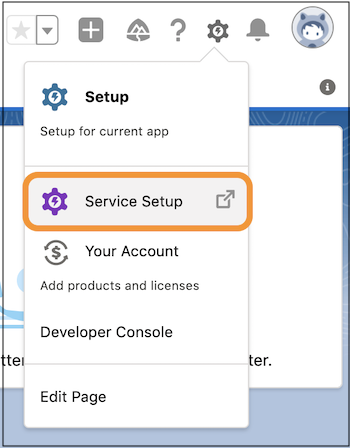
After the Service Setup Assistant creates your Service app, check out helpful resources on the Service Setup page. In the header, click the gear icon and select Service Setup.
Monitor Your Service Metrics: See how your email and social channels are doing, analyze call center spikes, and view up-to-the-minute caseload stats.
Get Setup Recommendations: See recommended setup flows, content, and tips to acquaint yourself with Service Cloud’s features. The guided setup flows walk you through tasks like integrating with Twitter and Facebook or importing your business data. Some of these tasks may already be set up for you by the Service Setup Assistant.
- Features Included in the Service Setup Assistant
The Service Setup Assistant walks you through essential setup tasks to get Service Cloud up and running. After a few clicks, your team can start using key Service Cloud features that are configured with optimal settings and layouts.
