You are here:
Add Service Catalog Pages and Components to Your Employee Service Site
Create the Service Catalog and My Service Catalog Request pages and components in your Employee Service Site using the Digital Experiences site builder.
Required Editions
| User Permissions and Permission set Licenses Needed | |
|---|---|
| To install Service Catalog pages and components: |
Service Catalog must be enabled in your org to assign the Service Catalog permissions and licenses. |
Several Digital Experience pages make up the Service Catalog and My Service Catalog Request pages. Create these pages using the Digital Experiences site builder.
- Service Catalog Request Detail
- My Service Catalog Request Details
- My Service Catalog Request List
- Service Catalog Categories
- Service Catalog Item
The steps take you through creating each page in the listed order. Be sure to create each page in its listed order as it properly generates the Service Catalog and My Service Catalog Request page’s in your Employee Service site.
- From Setup, in the Quick Find box, enter All Sites, and then select All Sites.
- Next to the name of your Employee Service site, click Builder.
-
Create the Service Catalog Request Detail page.
-
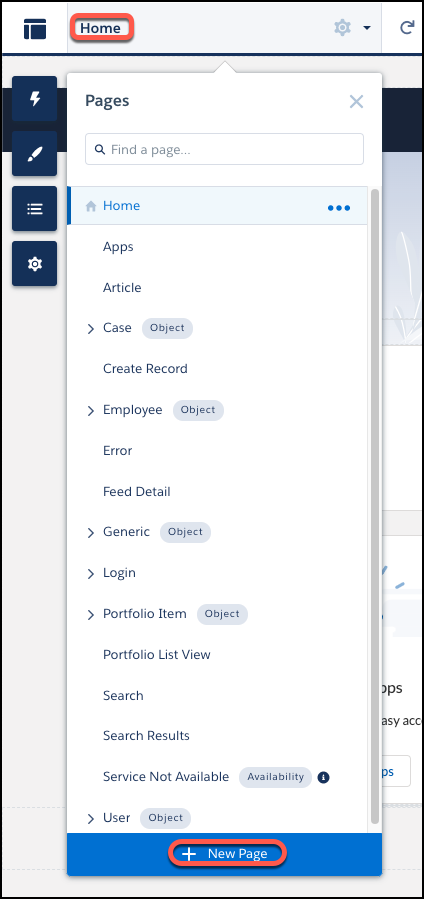
From the Home dropdown, select + New Page.
-
In the New Page window, set these configurations in the workflow.
- Select Object Pages.
- In the search box, enter Service Catalog, and select Service Catalog Request.
- Click Create.
- From the page description for the New Object Page, click Create.
The New Page window closes, and the Service Catalog Detail page opens.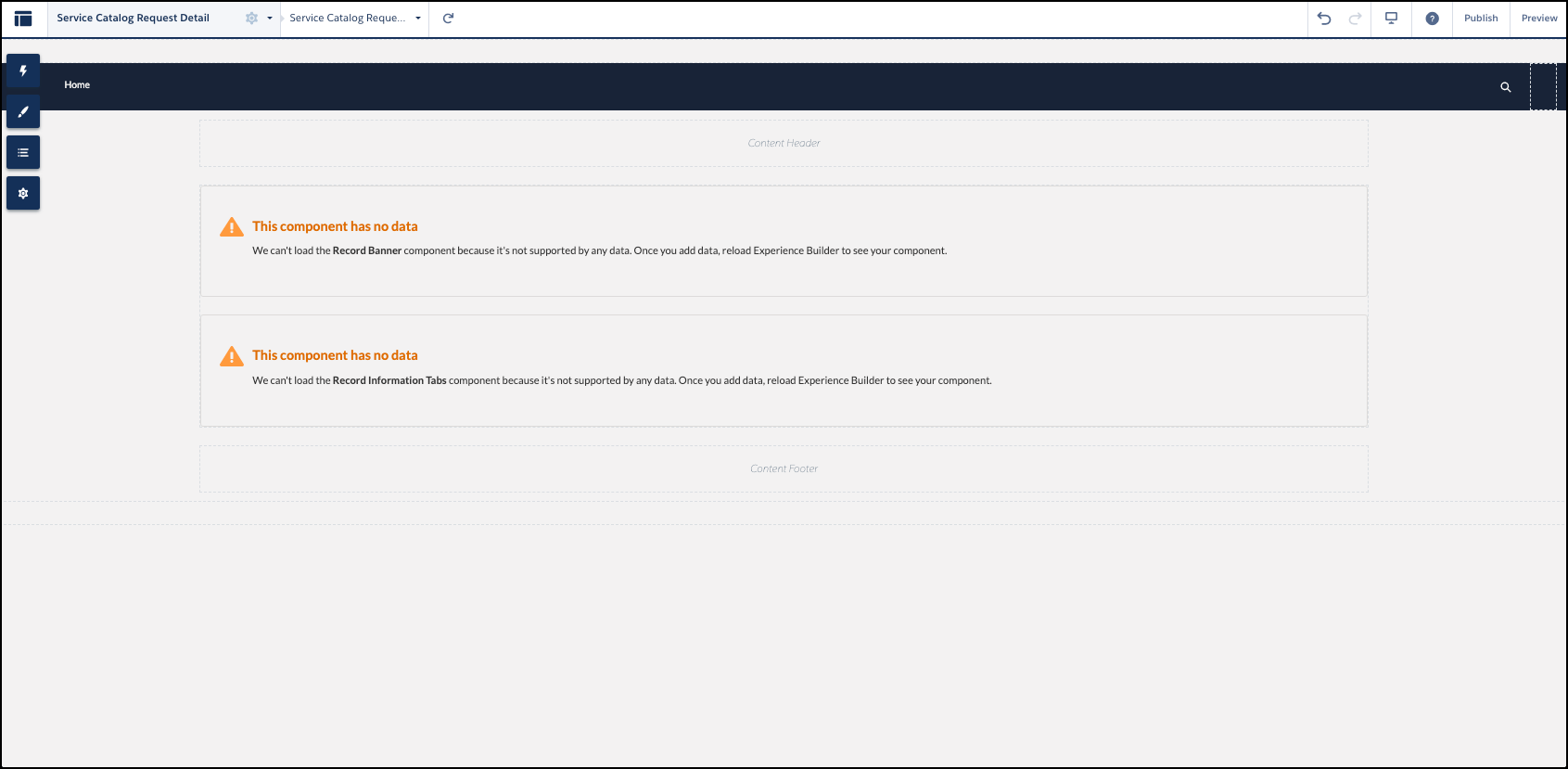
-
From the Home dropdown, select + New Page.
-
Create the My Service Catalog Request Details page variation.
-
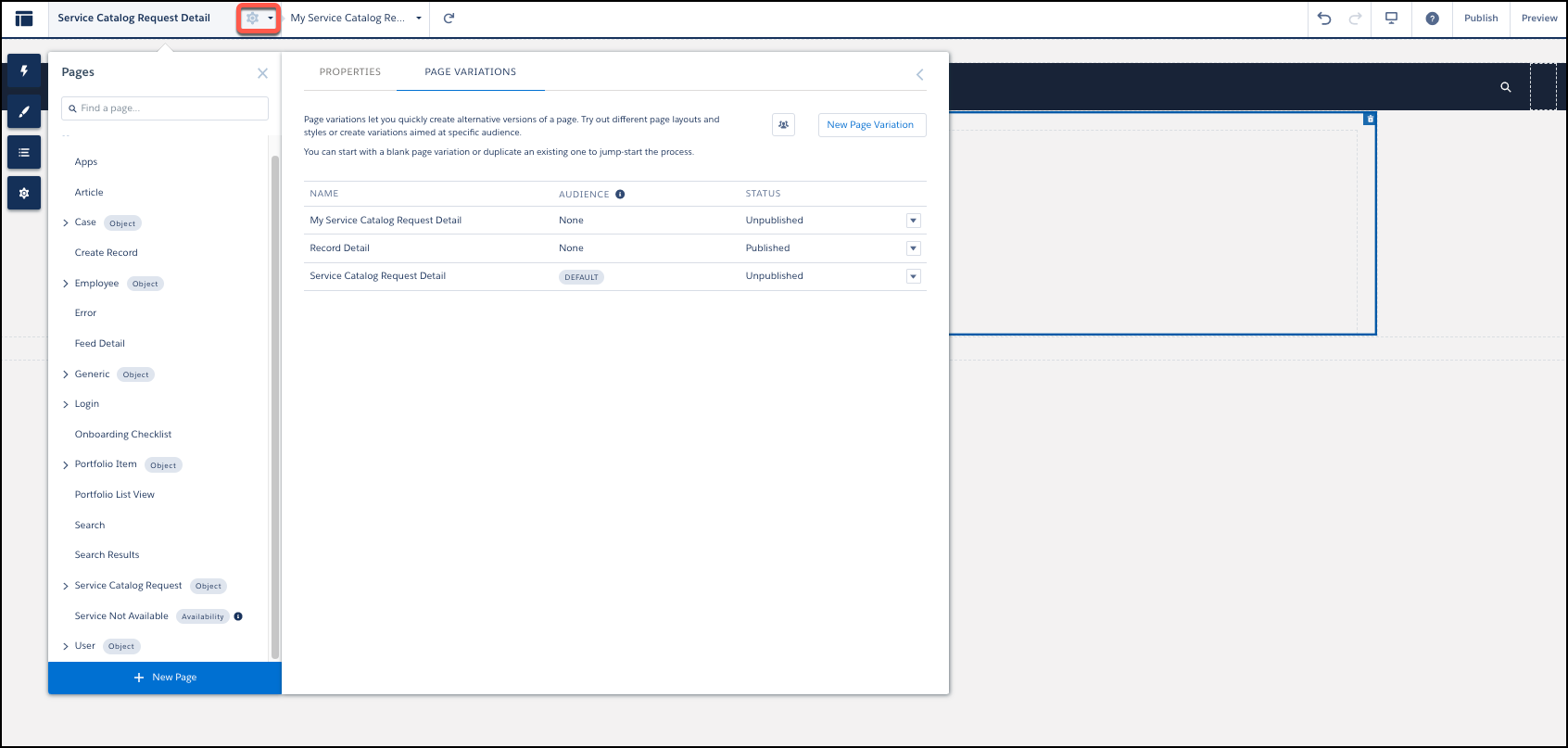
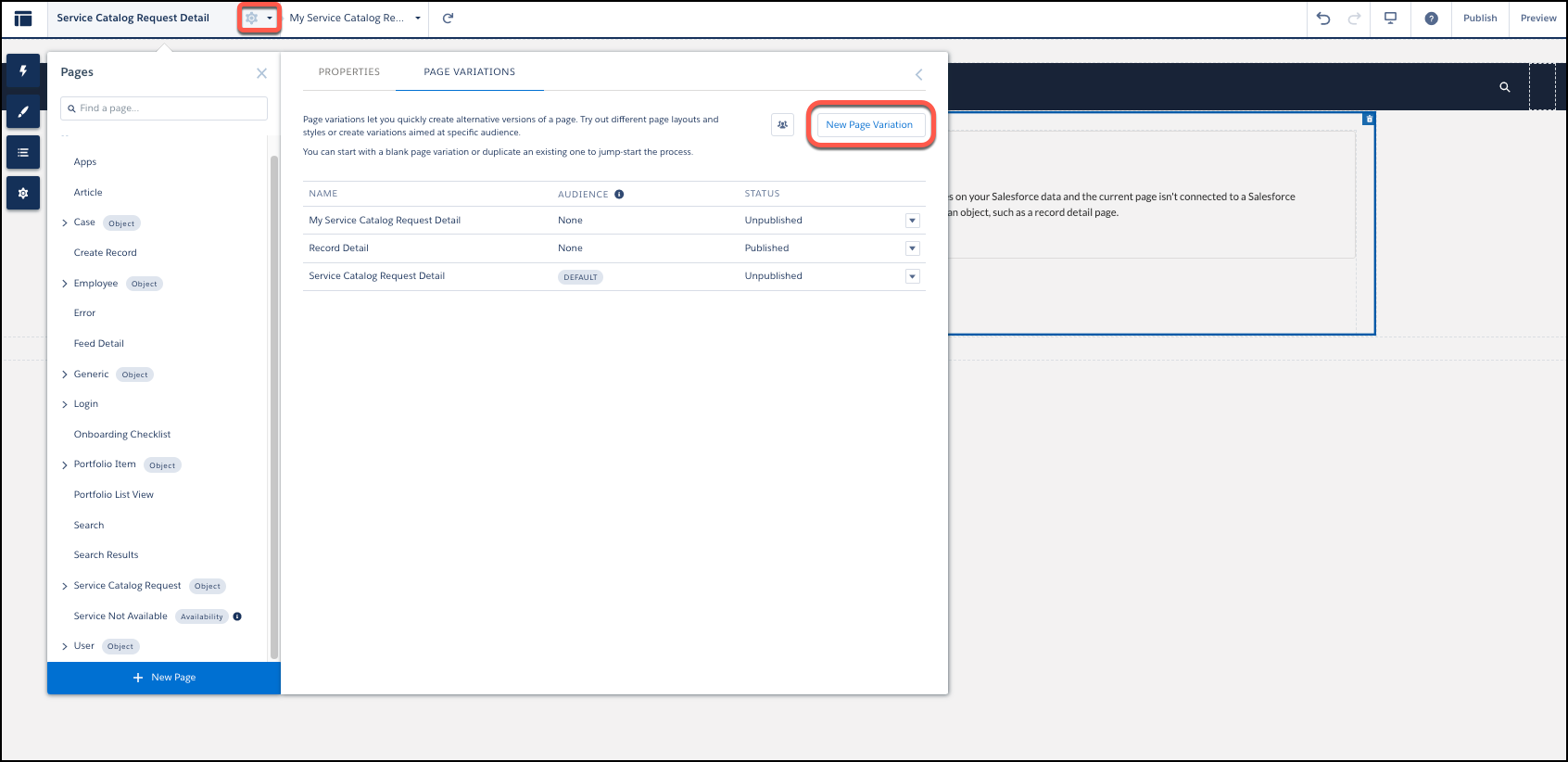
Click
 , and from the Page Variations menu,
click + New Page Variation.
, and from the Page Variations menu,
click + New Page Variation.
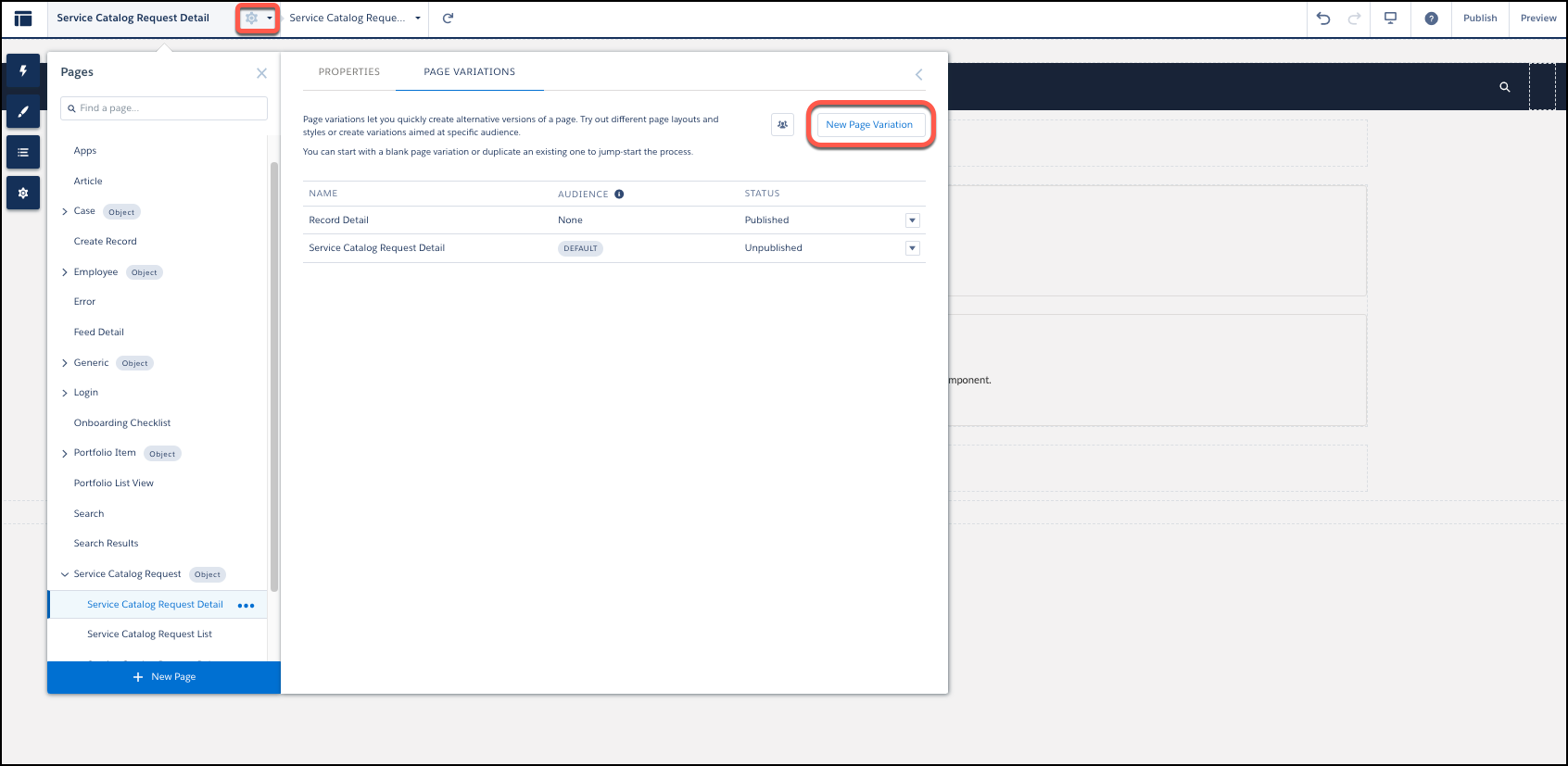
- From the New Page Variation window, set these configurations in the workflow.
-
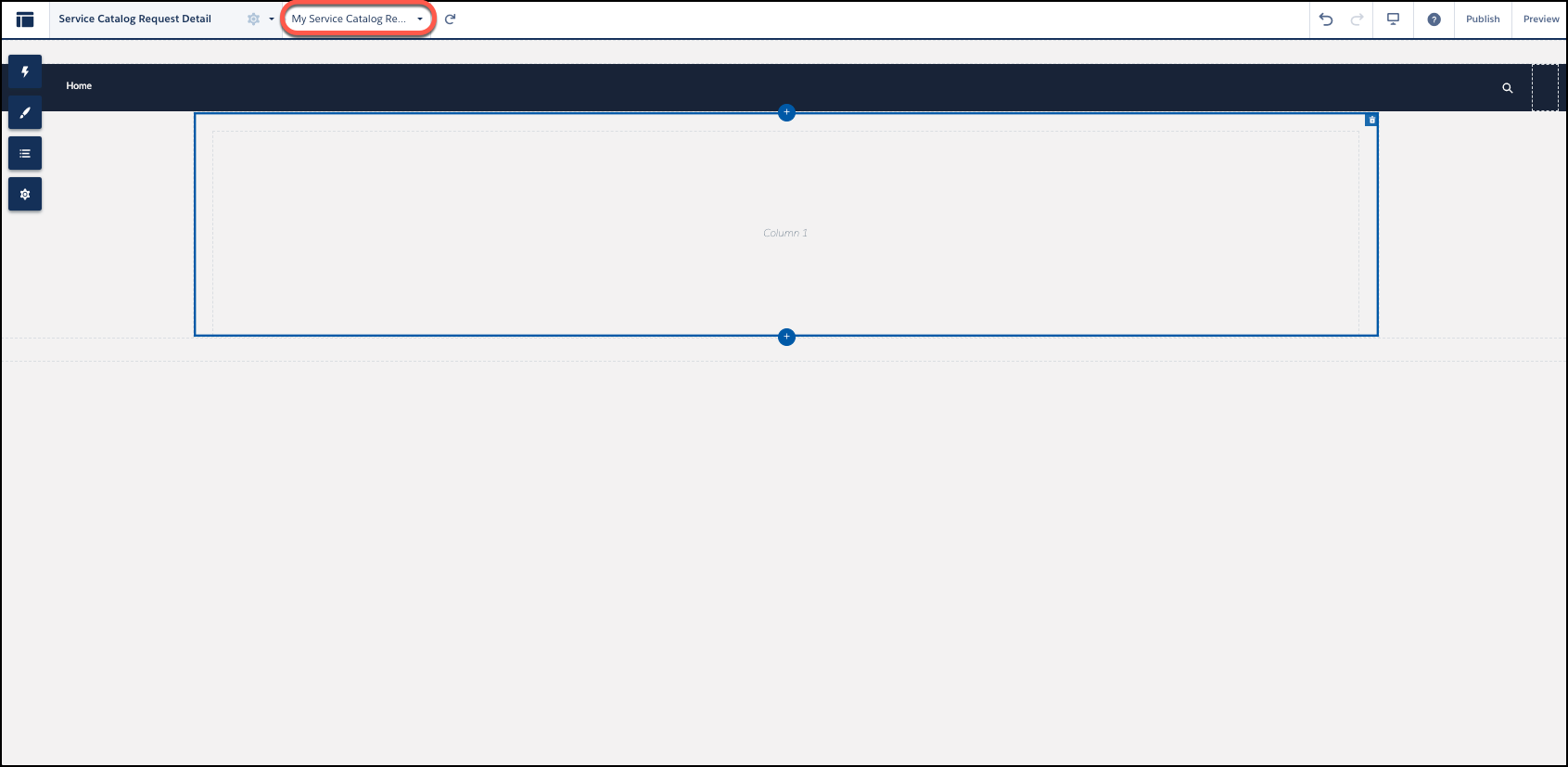
Click to open the Page Variations menu.
-
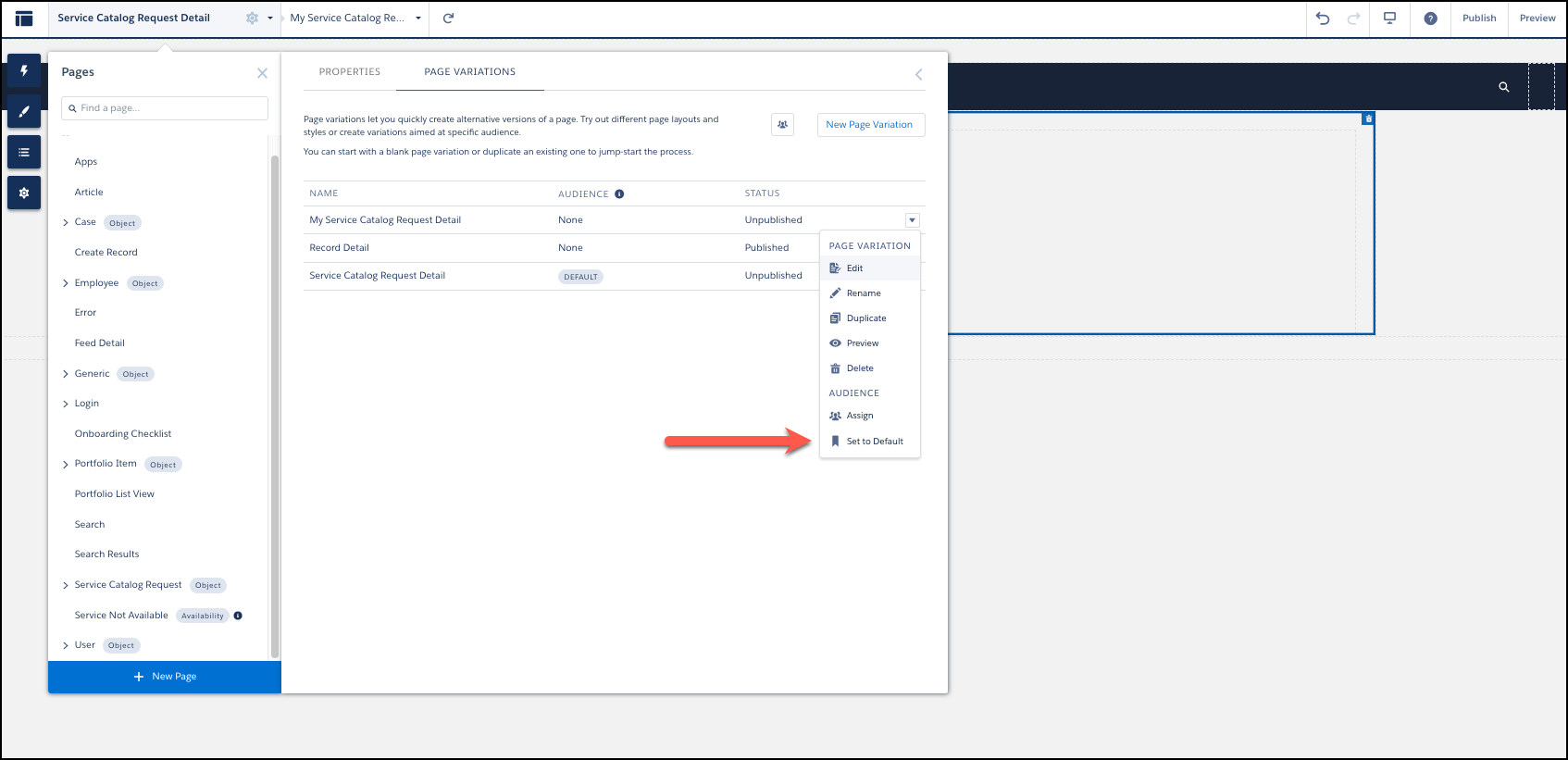
From the My Service Catalog Request Detail dropdown, select
Set to Default.
-
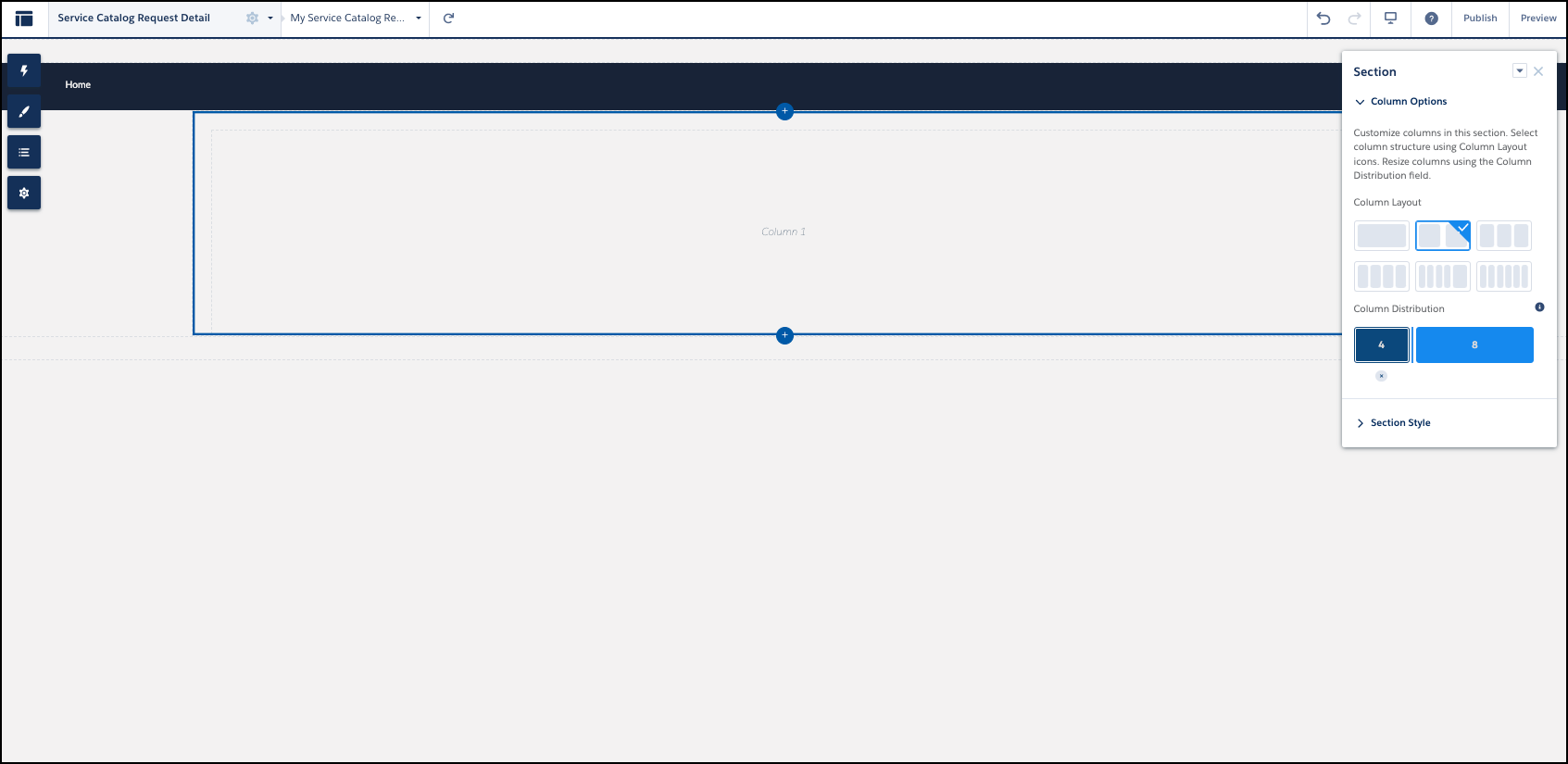
From the Experience Builder canvas, assign a double column layout and a
column distribution of four columns on the left and eight columns on the
right.
To set the column distribution, move the column divider to the left of the preset distribution.
-
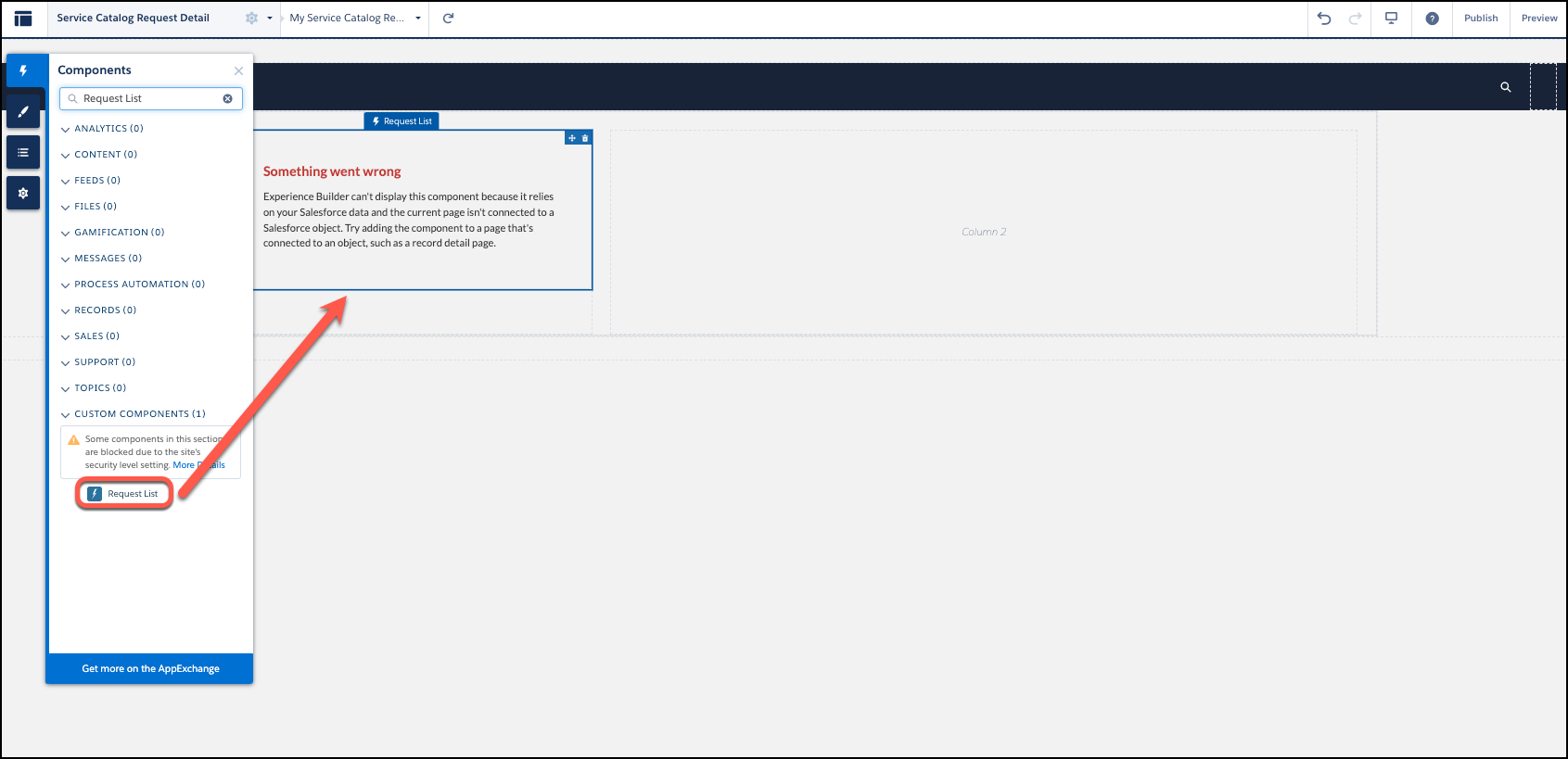
Click
 on the left
side bar, and enter Request List in the
Components search box.
on the left
side bar, and enter Request List in the
Components search box.
-
Select Request List and place it on the left
side of the builder canvas.
-
Click on the left
side bar, and enter Request Details in the search
box.
-
Select Request Details and place it on the right
side of the builder canvas.
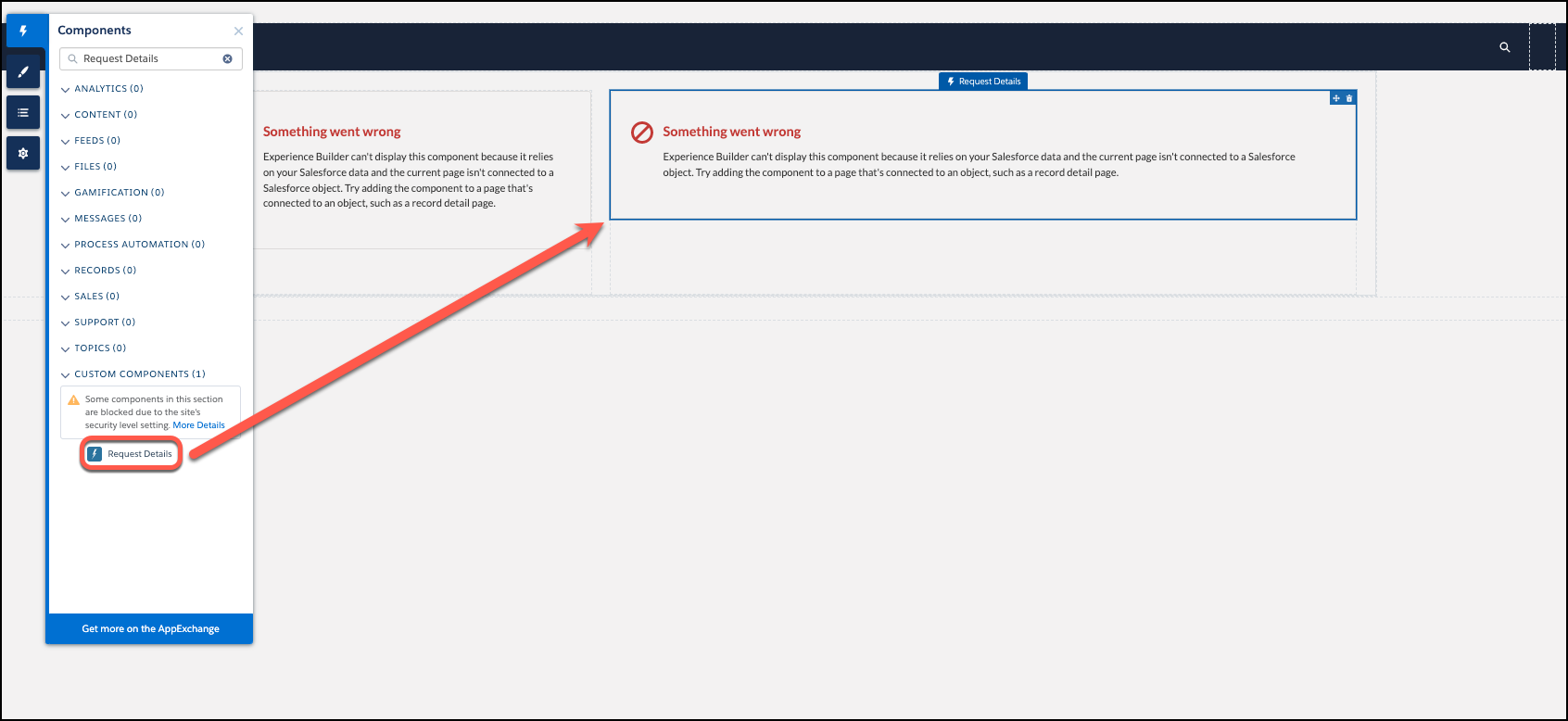
Your setup of the My Service Catalog Request Detail page variation is complete.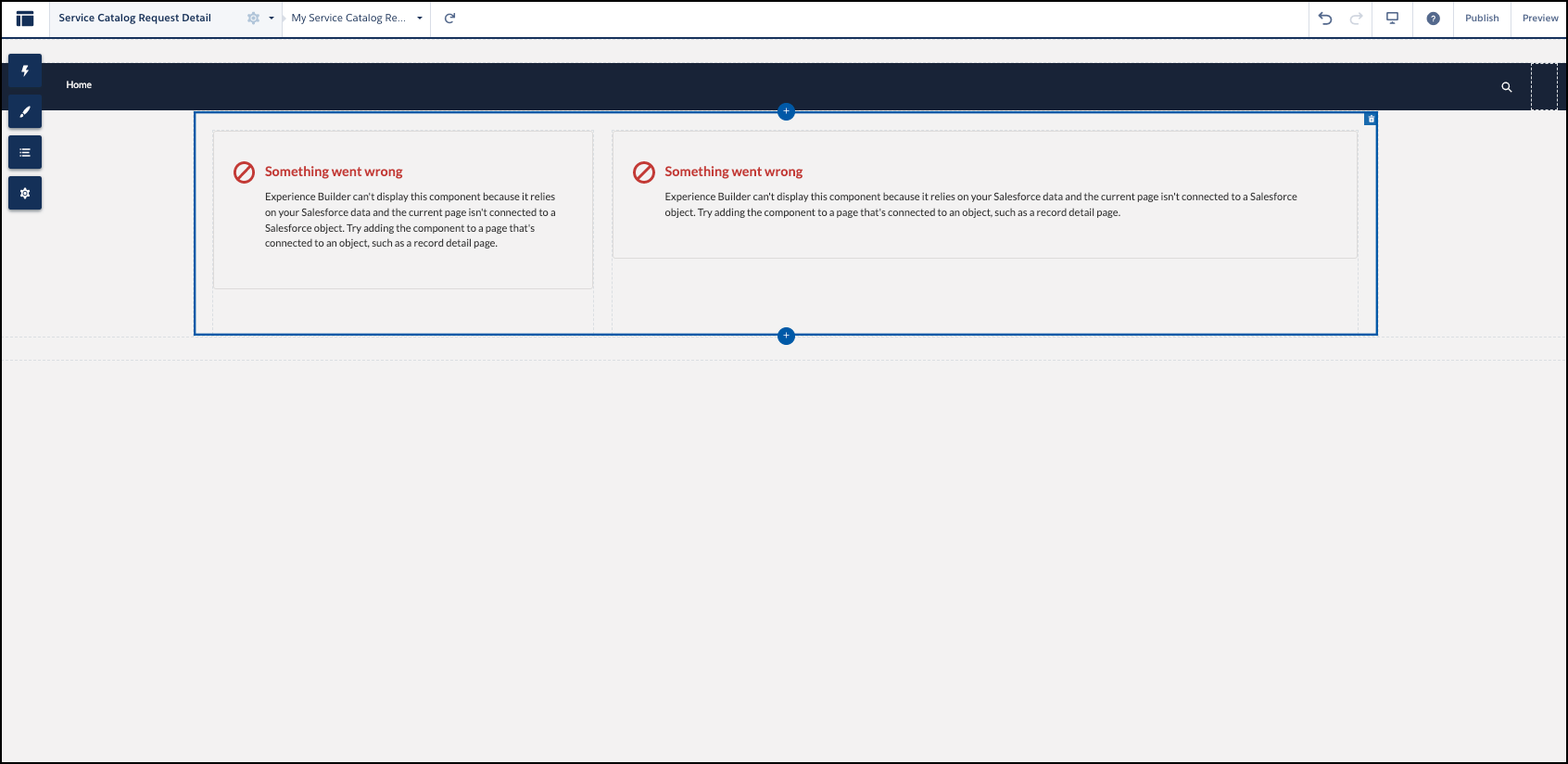
-
Click
-
Create the My Service Catalog Request List page variation.
-
Click , and from the Page Variations menu,
click + New Page Variation.
-
In the New Page Variation window, set these configurations in the
workflow.
- Select Flexible Layout, and click Next.
- For the page name, enter My Service Catalog Request List.
- Click Create.
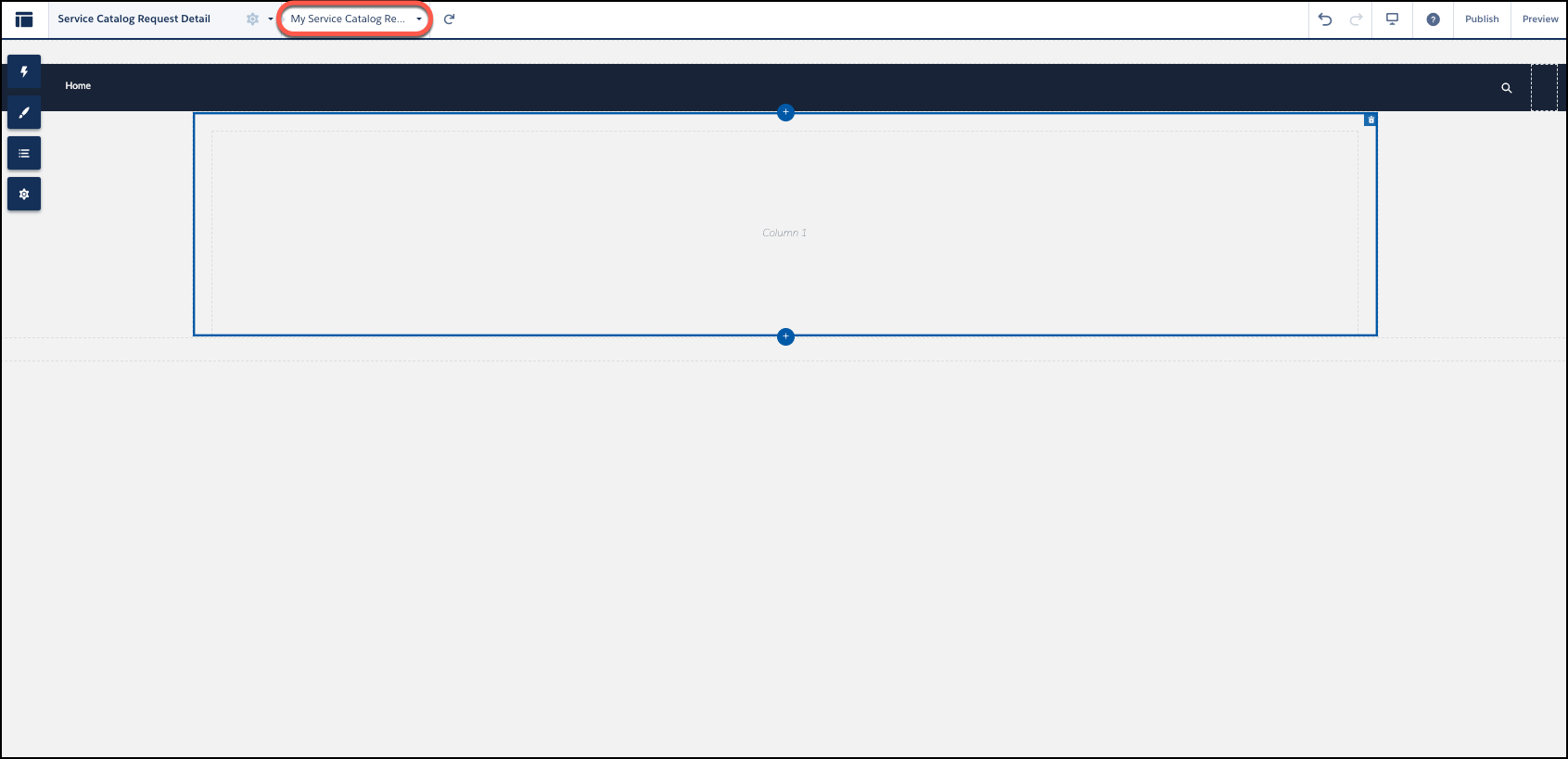
The New Page Variation window closes, and the My Service Catalog Request List page opens.
-
Click to open the Page Variations menu.
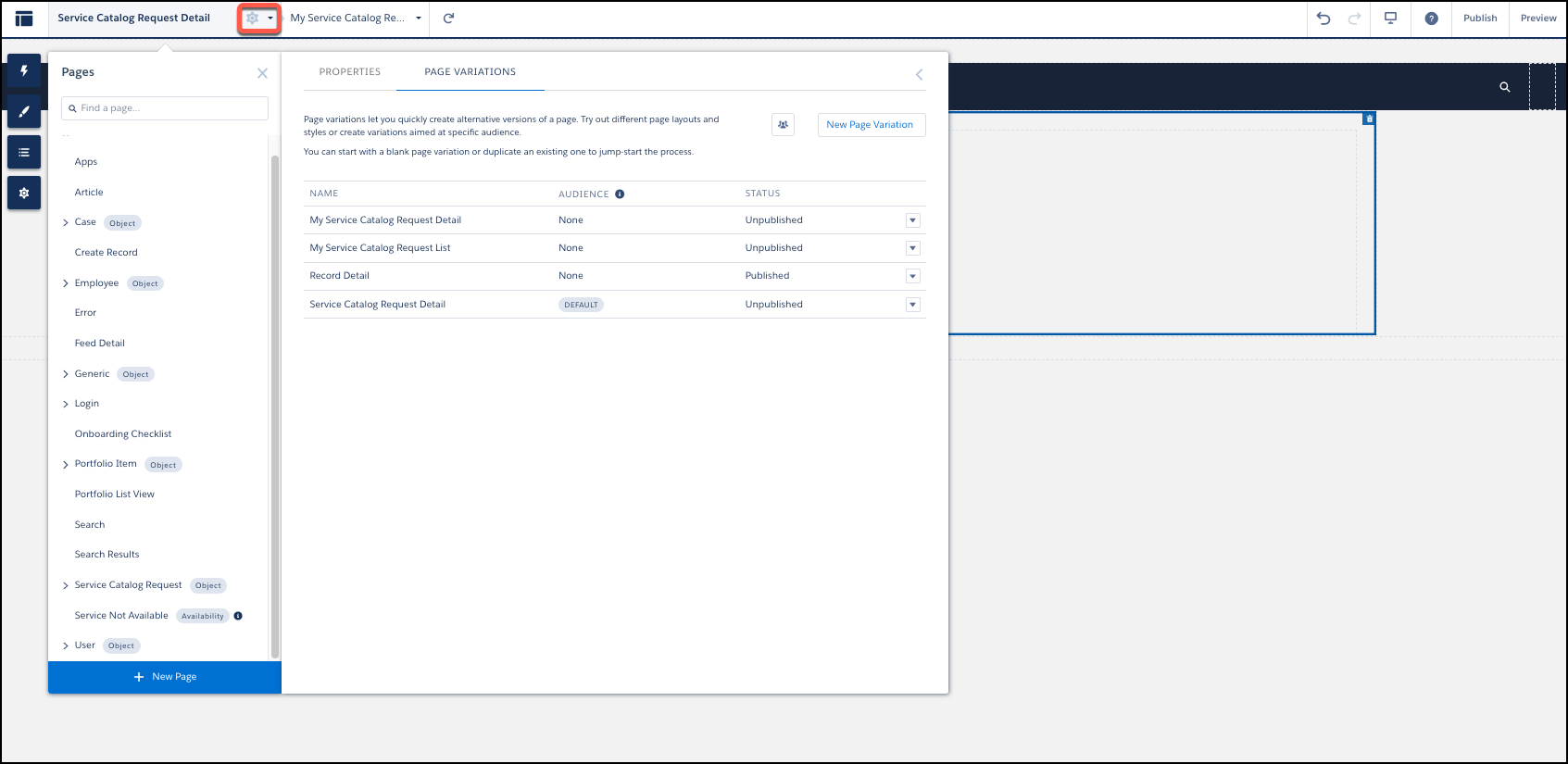
-
From the My Service Catalog Request List dropdown, select
Set to Default.
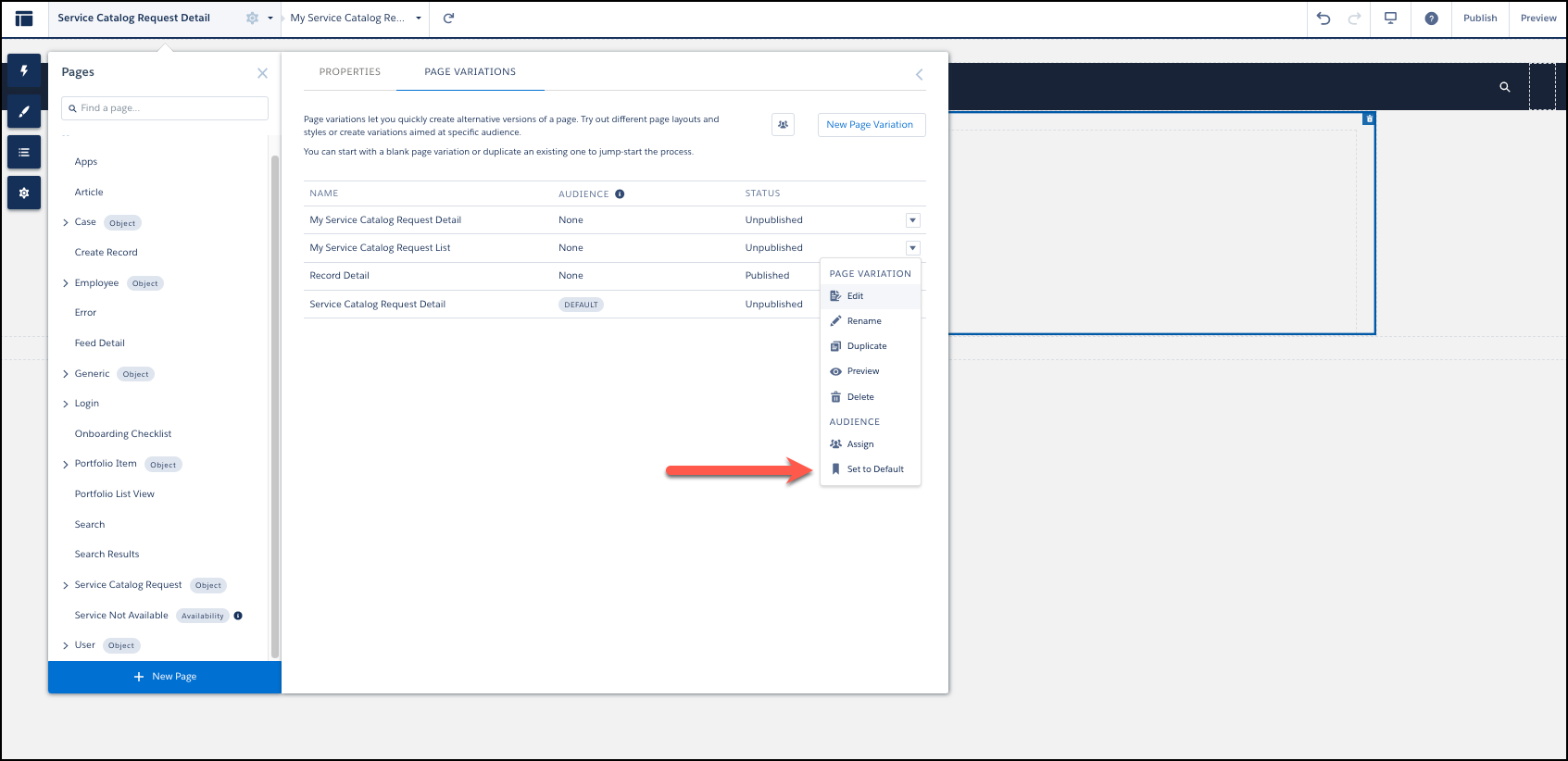
-
Click on the left
side bar, and enter Request List in the
Components search box.
-
Select Request List and place it on the builder
canvas.
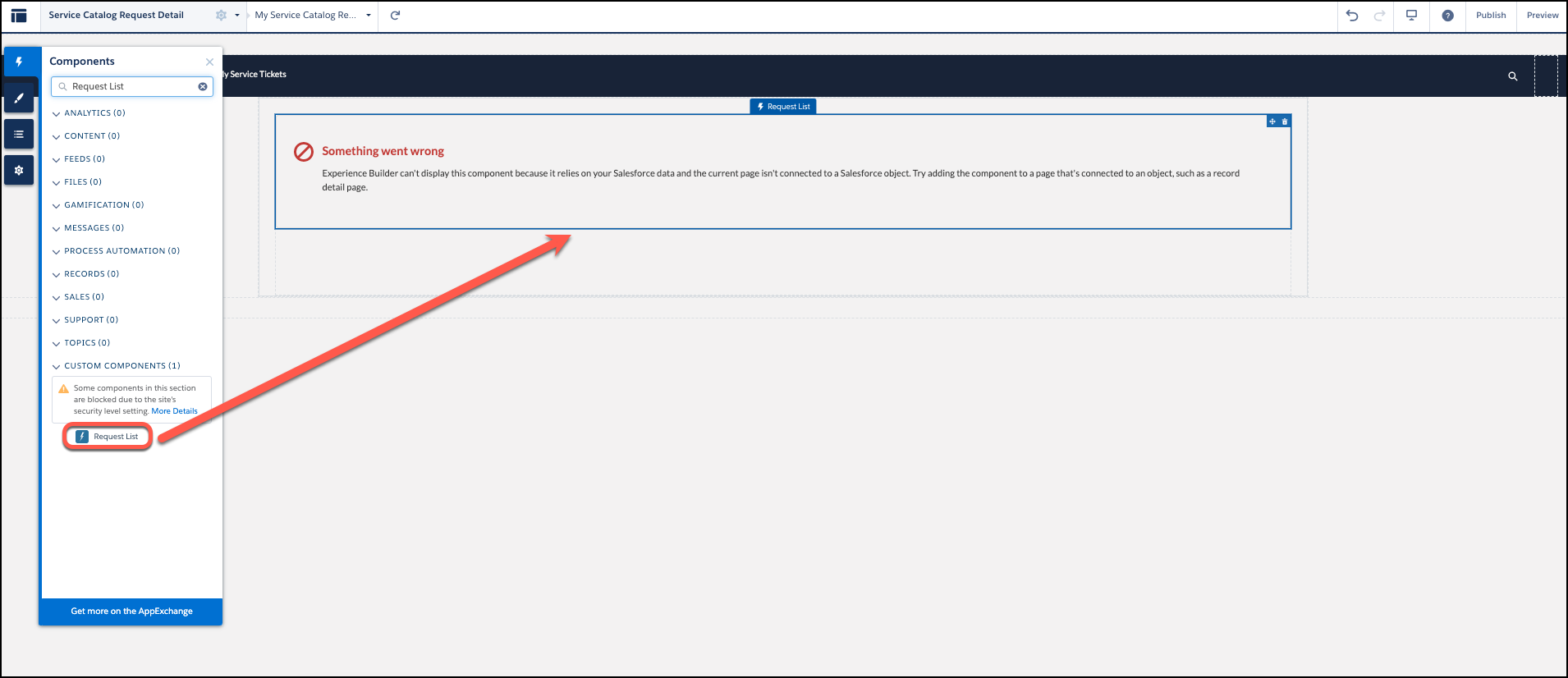
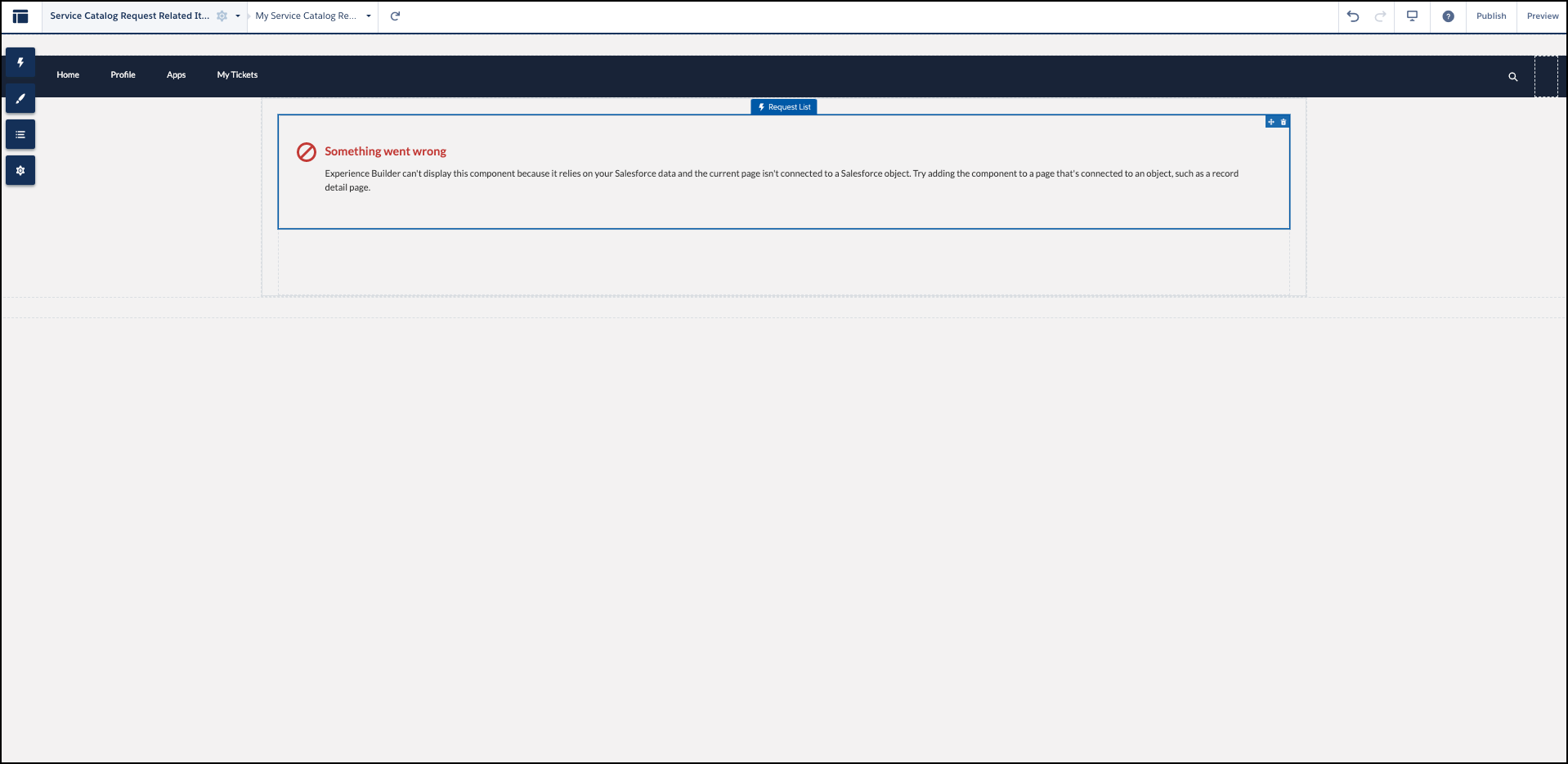
Your setup of the My Service Catalog Request List page variation is complete.
-
Click
-
Create the Service Catalog Categories page.
-
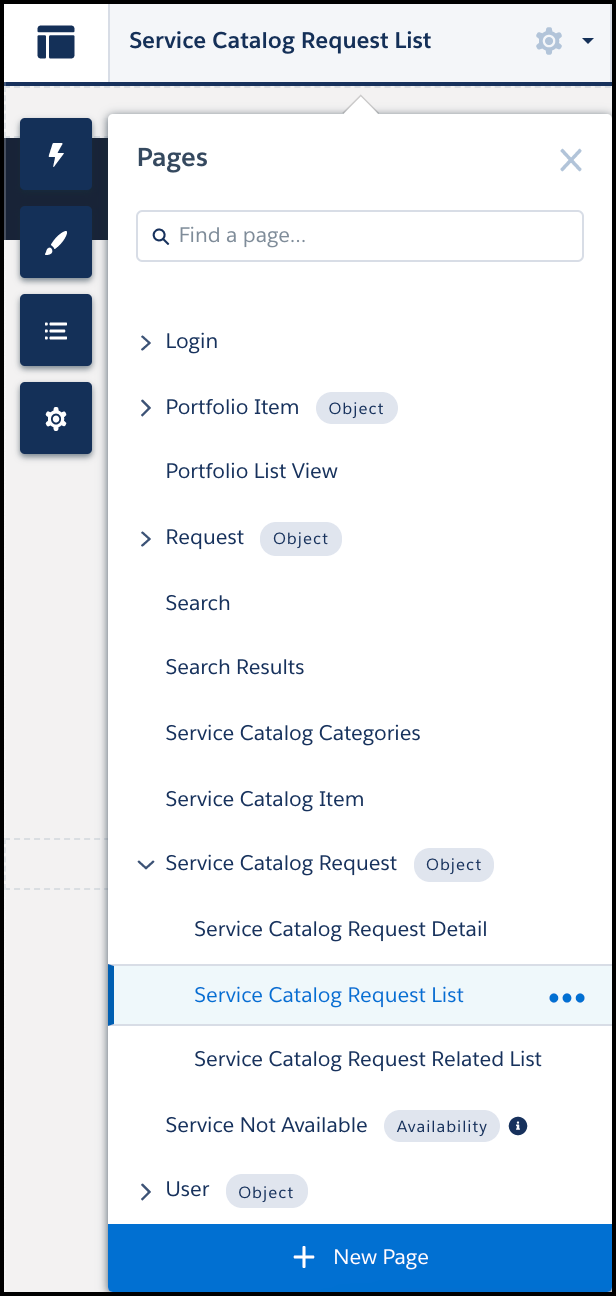
Click Service Catalog Request Detail in the
builder page menu, and then click + New
Page.
-
In the New Page window, set these configurations in the workflow.
- Select Standard Page.
- Click + New Blank Page.
- Select Flexible Layout, and click Next.
- For the page name, enter Service Catalog Categories.
- Click Create.
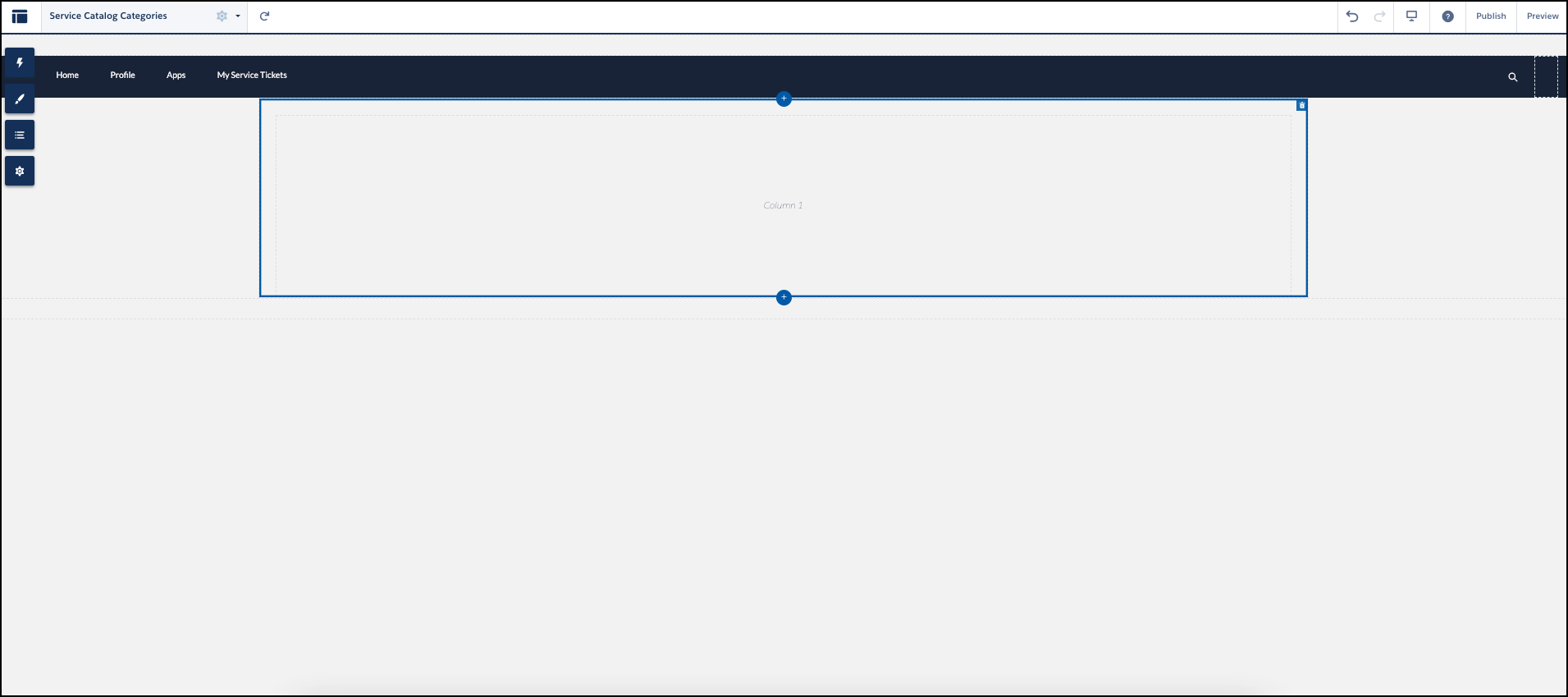
The New Page window closes, and the Service Catalog Categories page opens.
-
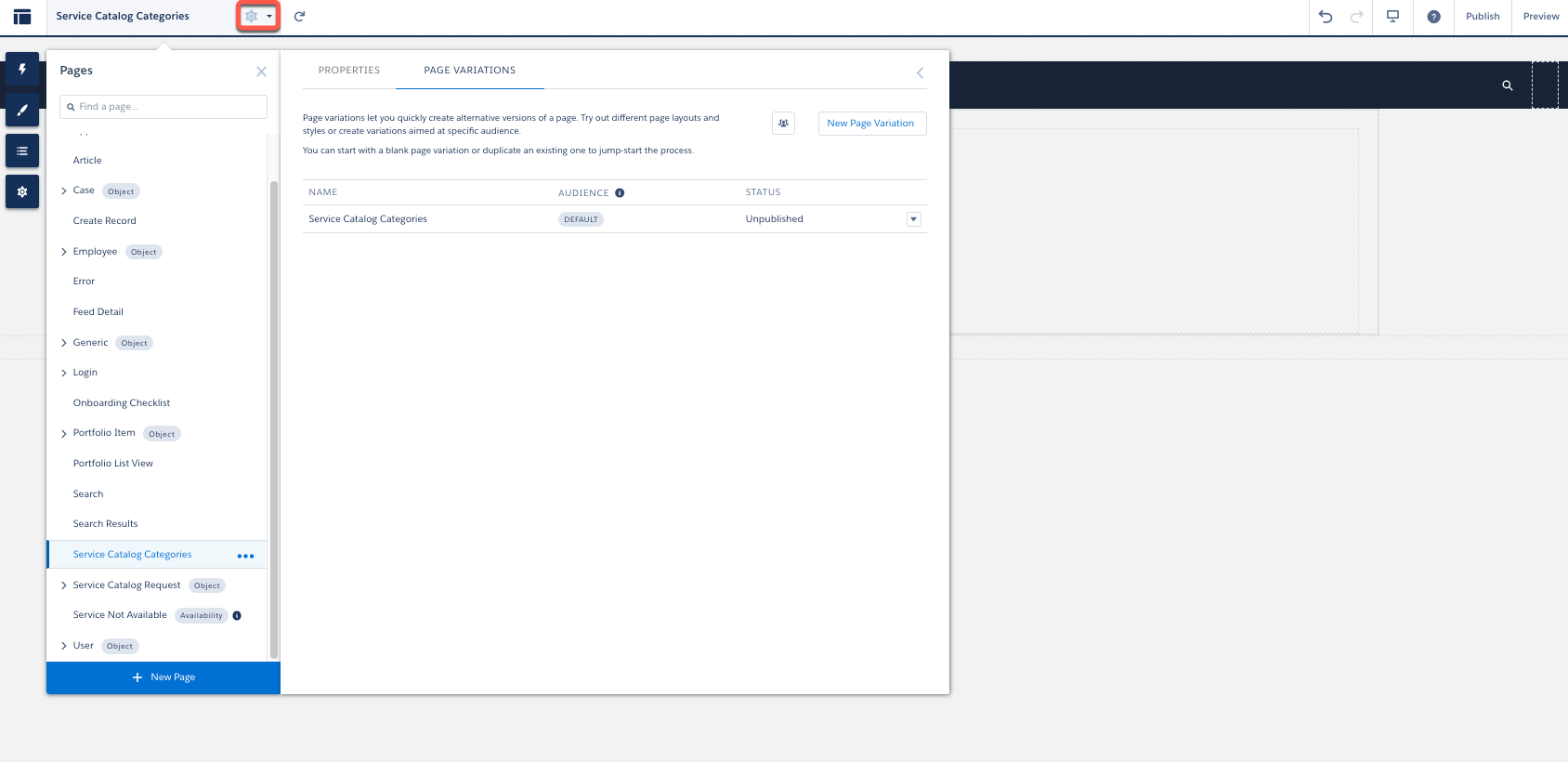
Click to open the Page Variations menu.
-
From the Service Catalog Categories dropdown, click
Edit.
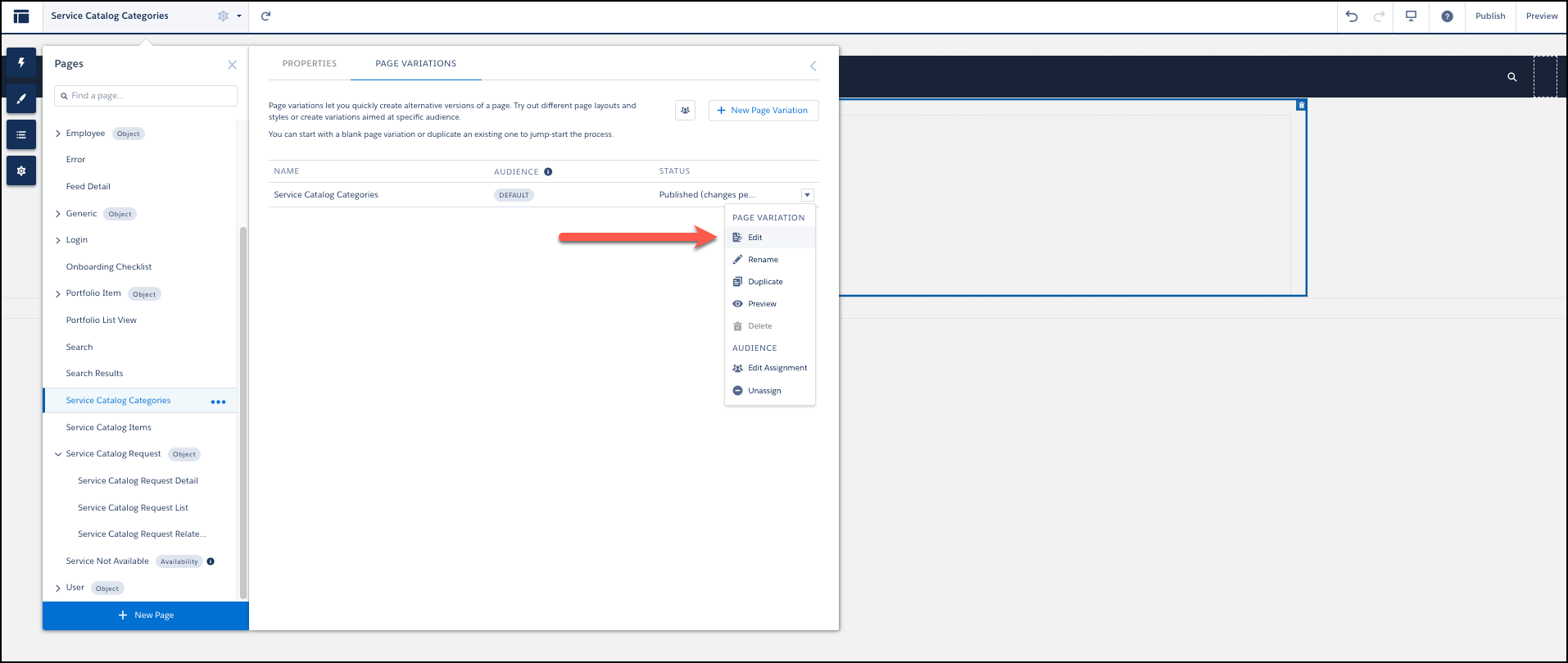 The Service Catalog Categories page refreshes.
 -
Click in the left side bar, and enter Service Catalog Categories in the Components search box.
-
Select Service Catalog Categories to place it on
the builder canvas.
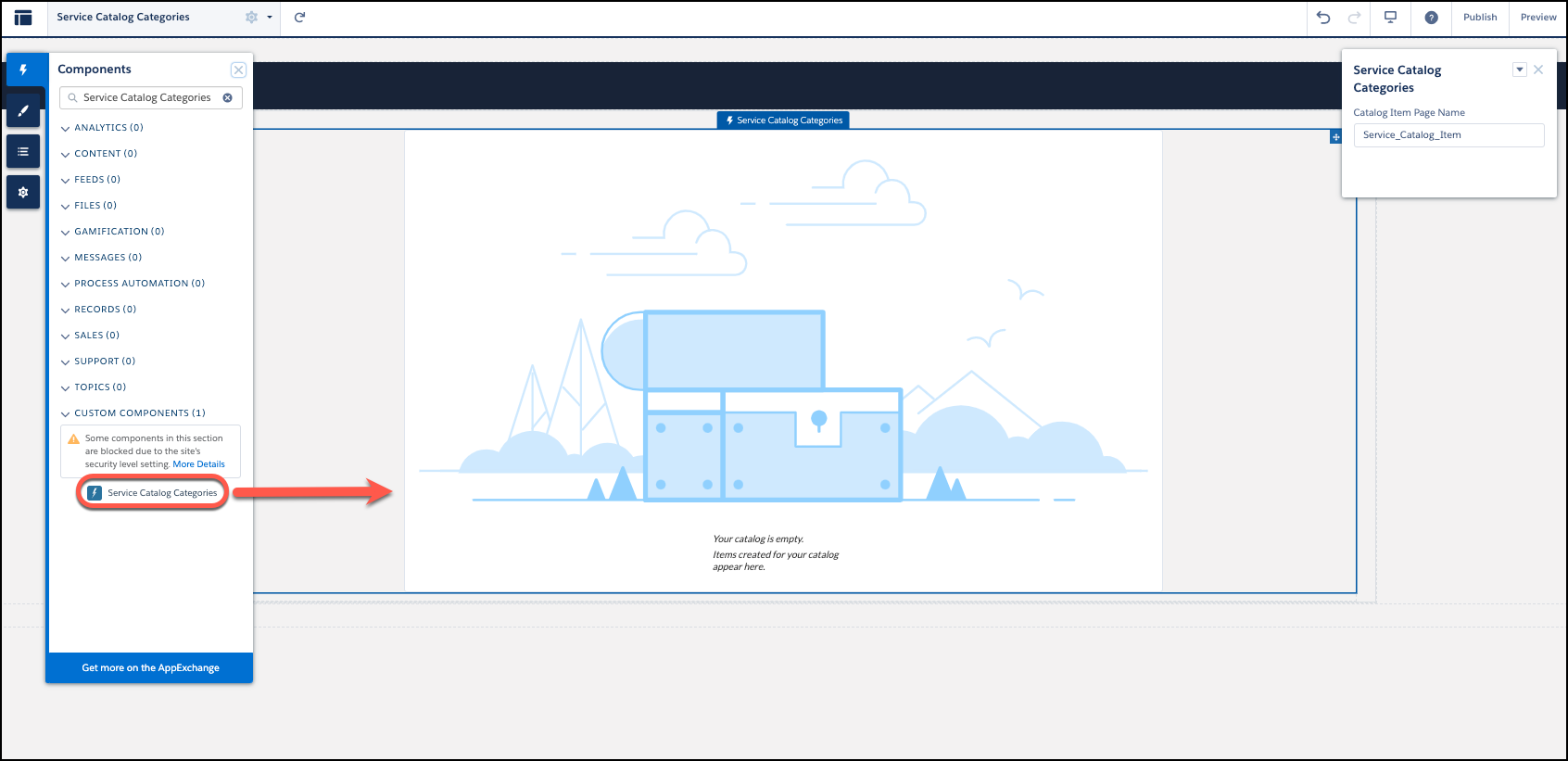 The Service Catalog Categories settings window opens in Digital Experience site builder. If it doesn’t open, click the title of the component or refresh the page.
 -
In the Service Catalog Categories settings window, enter
Service_Catalog_Item__c for the Catalog Item
Page Name.
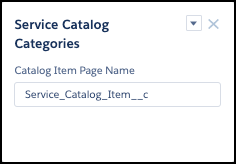
Your setup of the Service Catalog Categories page is complete.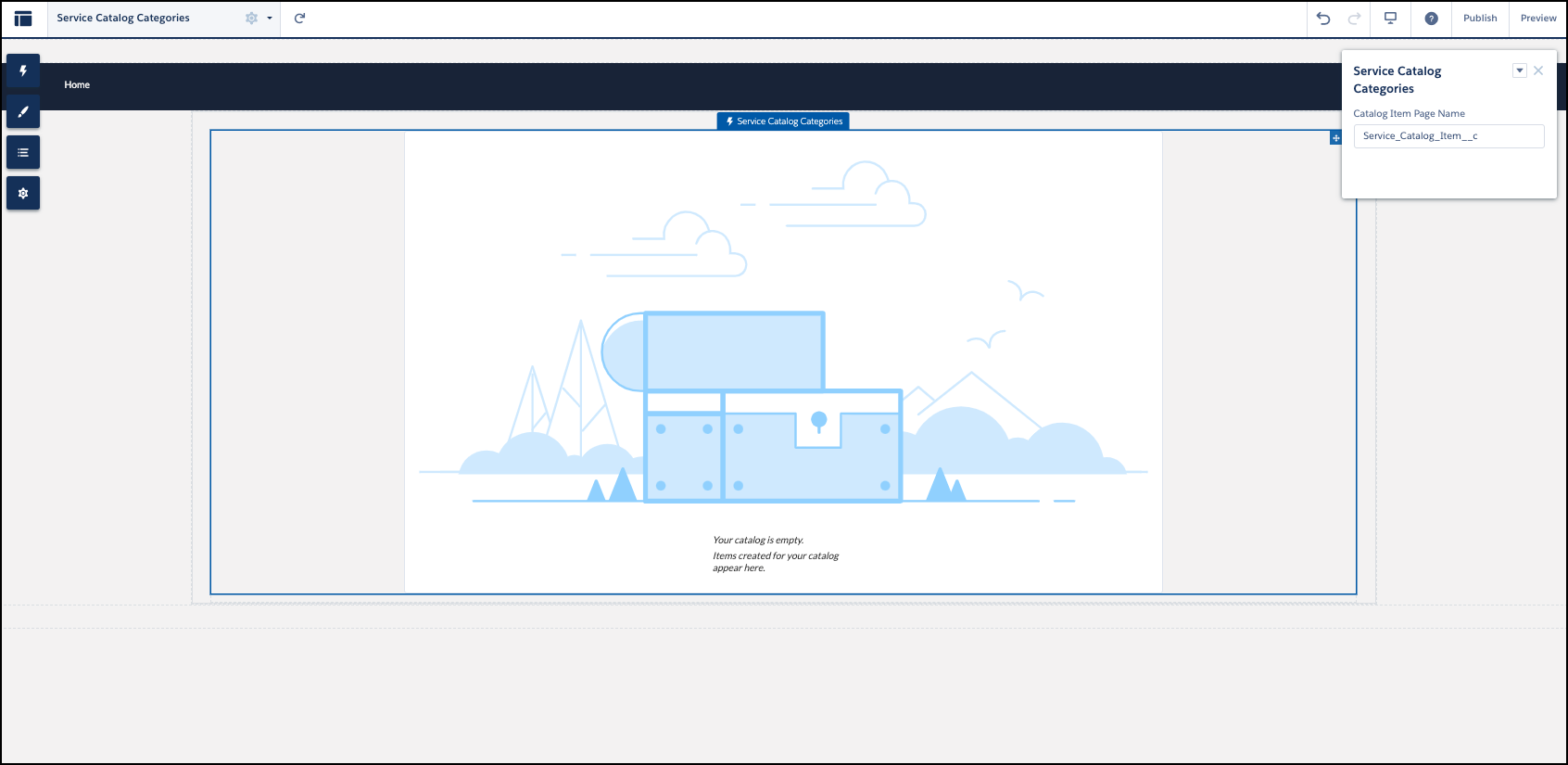
-
Click Service Catalog Request Detail in the
builder page menu, and then click + New
Page.
-
Create the Service Catalog Item page.
-
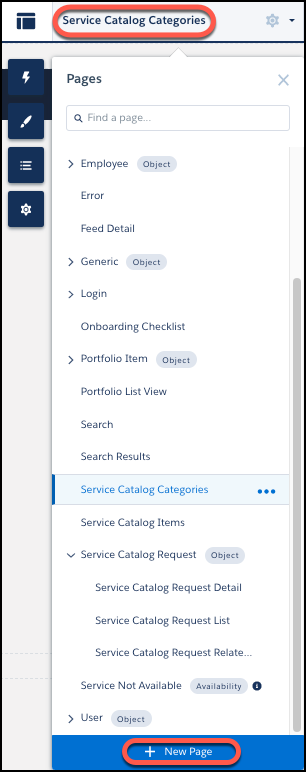
In the builder page menu, select Service Catalog
Categories, and then click + New
Page.
-
In the New Page Variation window, set these configurations in the
workflow.
- Select Standard Page.
- Click + New Blank Page.
- Select Flexible Layout, and click Next.
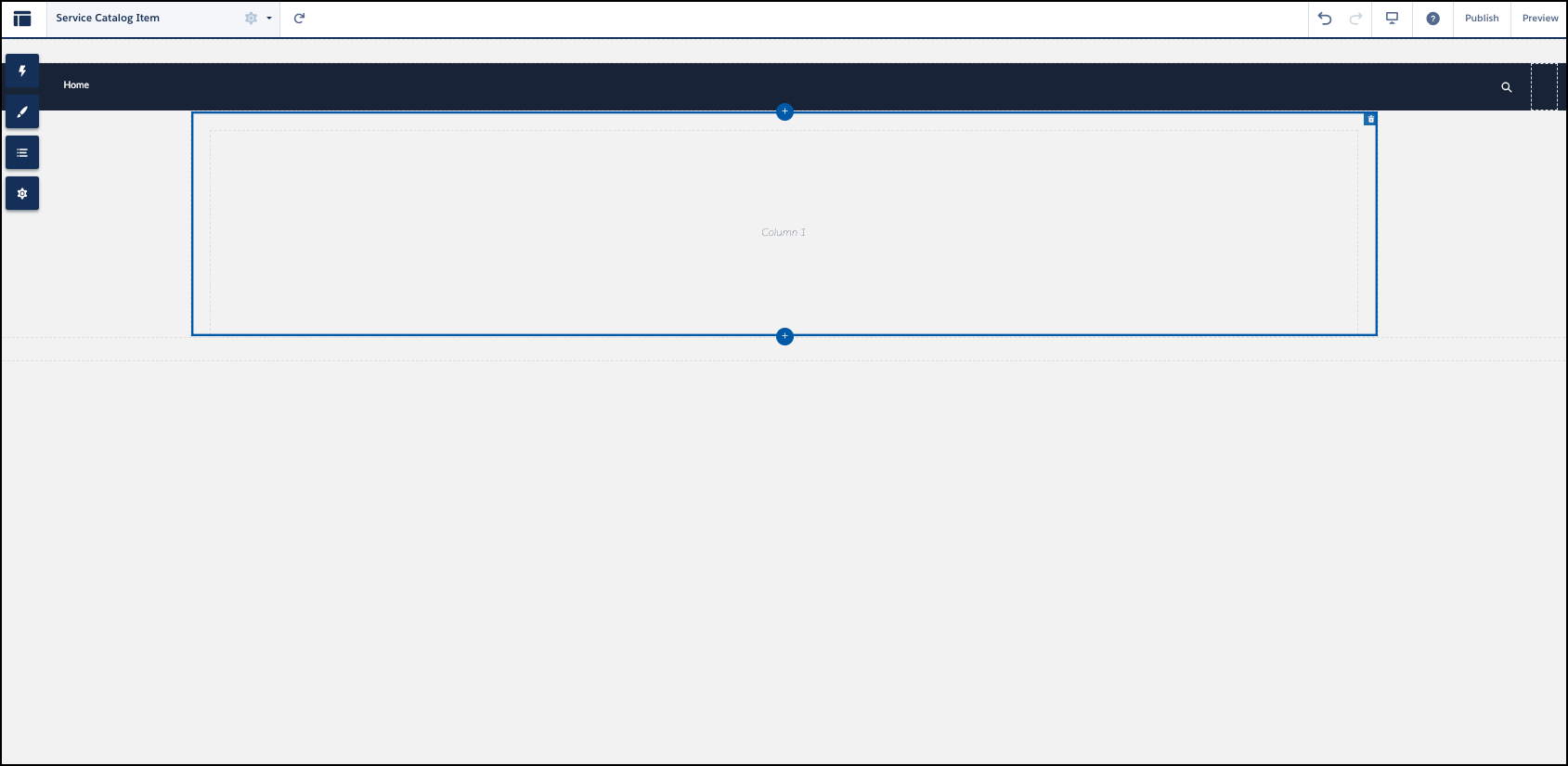
- Name your page Service Catalog Item.
- Click Create.
The Service Catalog Item page opens.
-
Click to open the Page Variations menu.
-
In the Service Catalog Item dropdown, click
Edit.
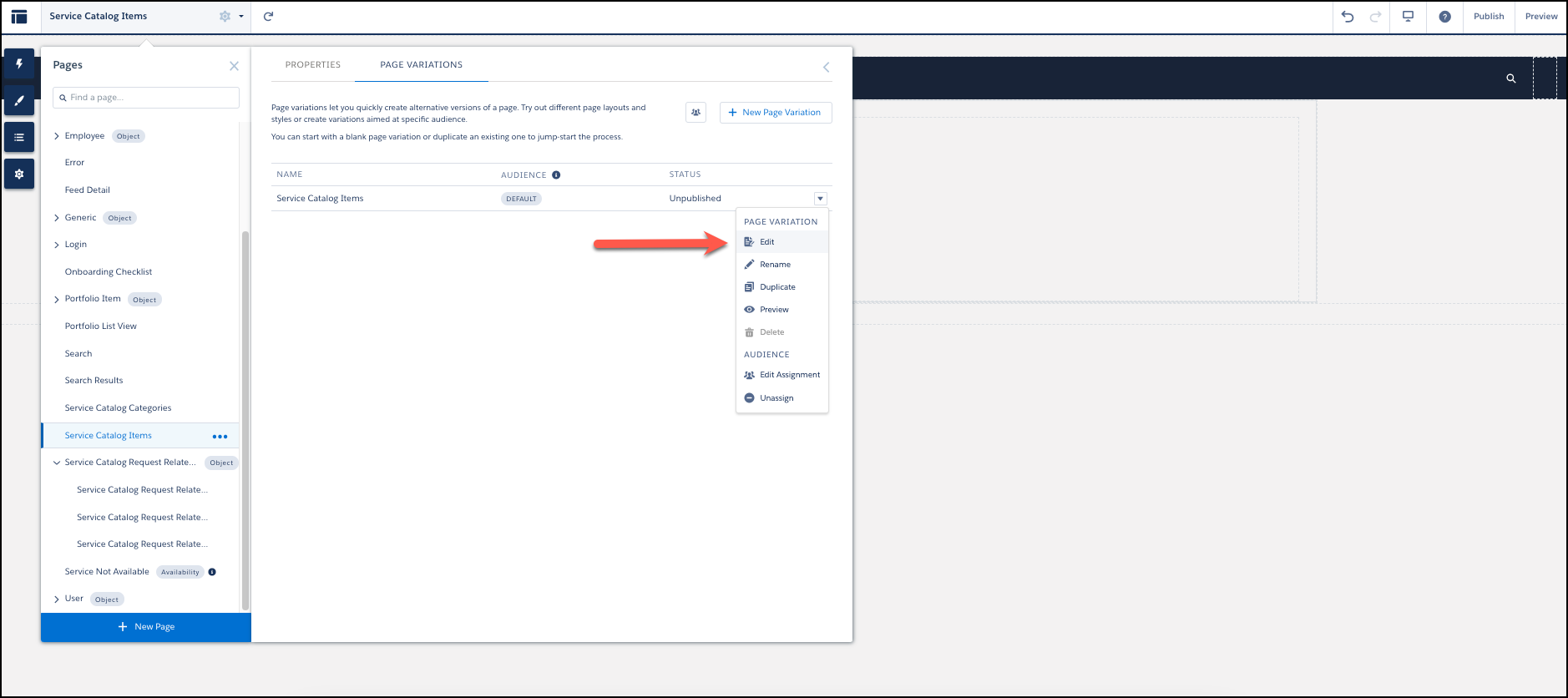 The Service Catalog Item page refreshes.
 -
Click in the left side bar, enter Service Catalog Item in the Components search box.
-
Select Service Catalog Item and place it on the
builder canvas.
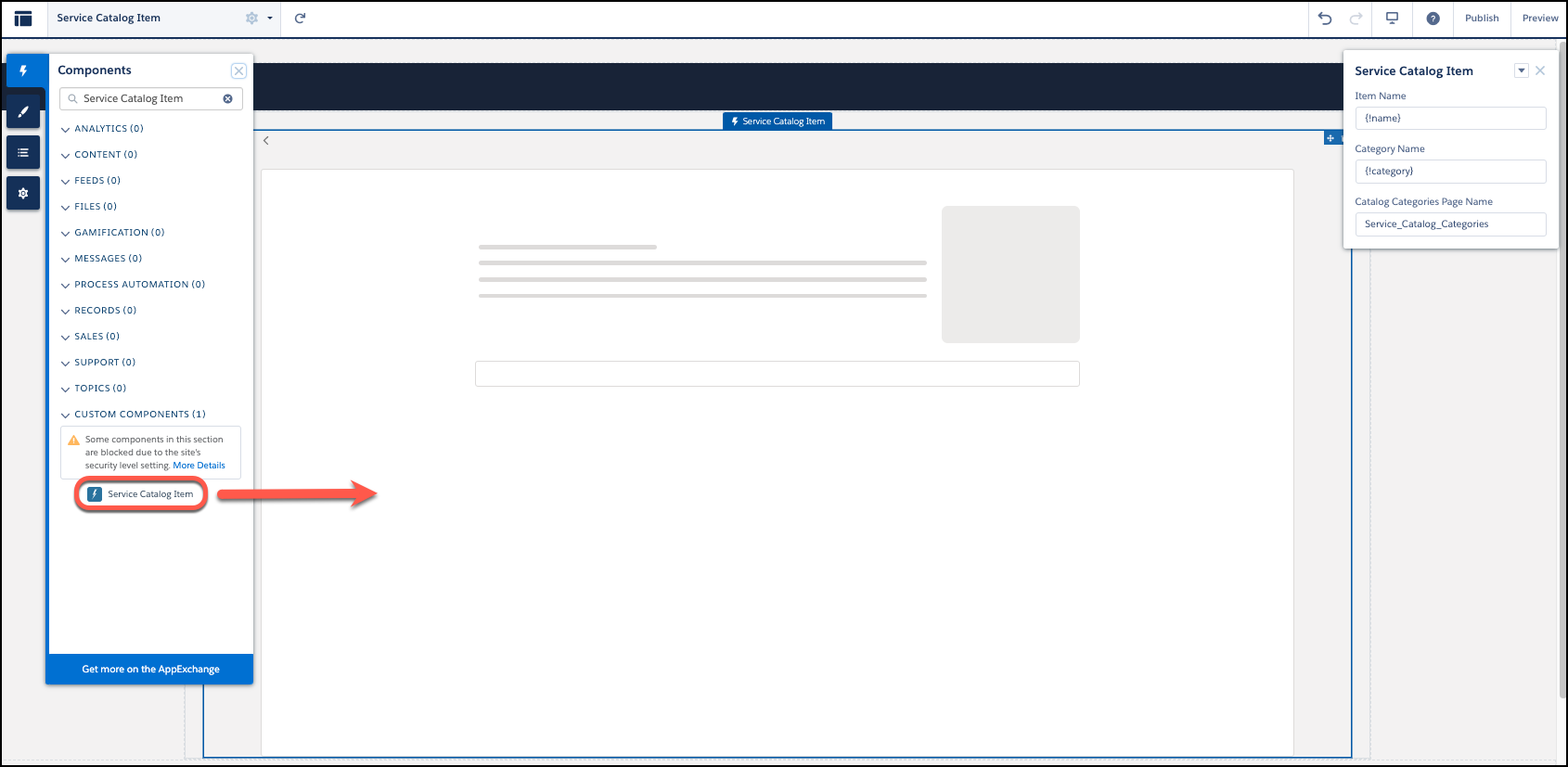
The Service Catalog Item settings window opens. If it doesn’t open, click the title of the component or refresh the page.
-
In the Service Catalog Item settings window, enter
Service_Catalog_Categories__c for Catalog
Categories Page Name.
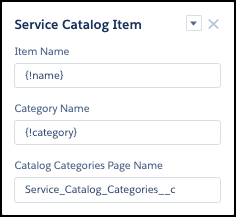
Your setup of the Service Catalog Item page is complete.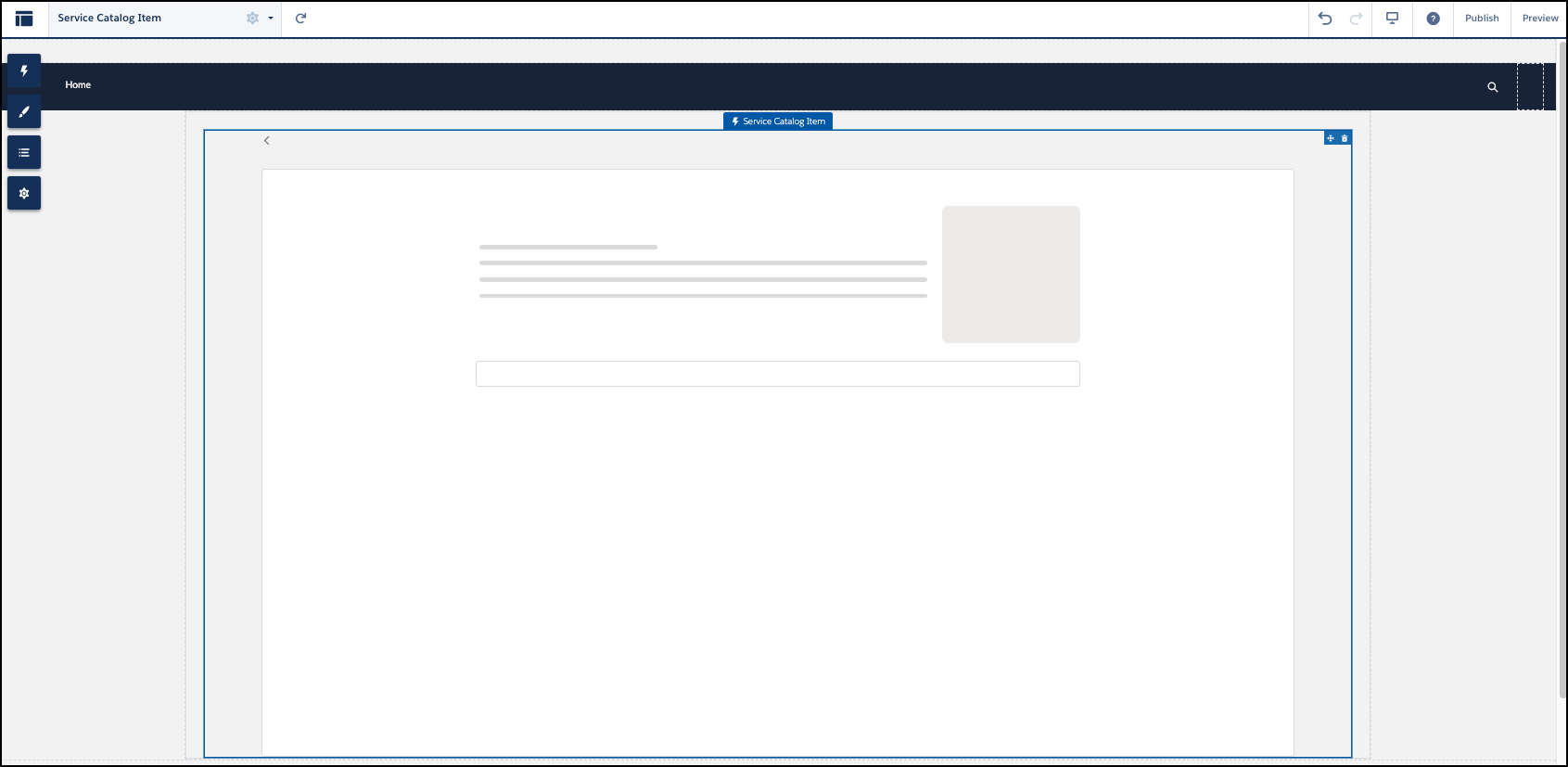
-
In the builder page menu, select Service Catalog
Categories, and then click + New
Page.
When you complete the steps, your setup of the Service Catalog pages, page variations, and components is complete. However, the pages don’t show in the Digital Experience site builder until you add the pages to your navigation bar.
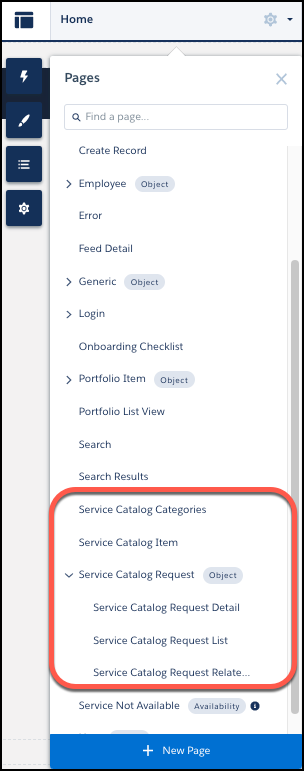
To confirm your setup of your Service Catalog pages and page variations, check that the Pages dropdown lists the Digital Experience site pages you created.