
You are here:
Restrict the Case Feed Access for the Standard Platform User in the CRM App
If Standard Platform users have access to the CRM app, several configurations are available to disable their visibility of internal or sensitive comments in the case feed.
These instructions assume that an Employee user is a Standard Platform user. If your organization created or cloned another custom profile and then assigned Employee users using this custom profile, the Employee user is associated with your custom profile configuration.
-
For apps the employee can access in the CRM, remove the Case object as a selected
item:
-
From Setup, in the Quick Find box, enter App Manager, and then
select App Manager.
You see the App Manager page.
- Select a CRM app that is accessible to employees.
-
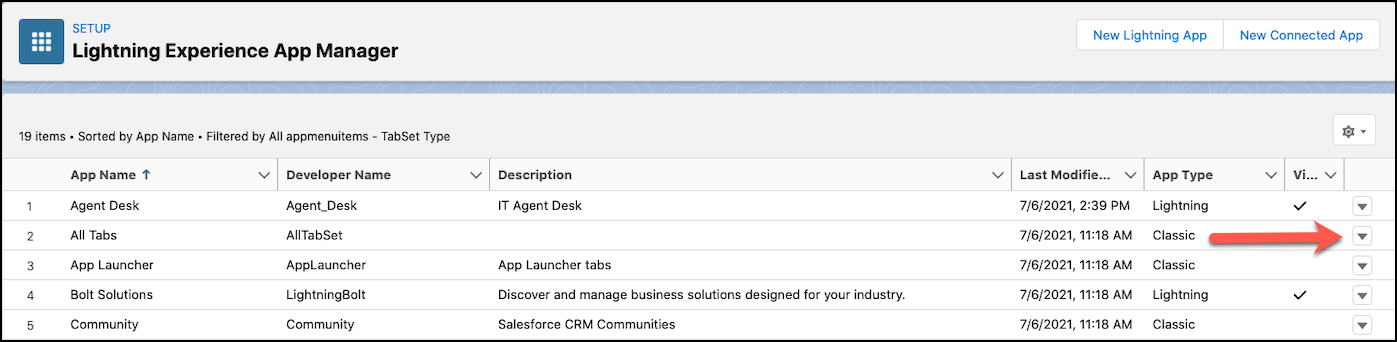
Click the dropdown icon for your selected CRM app, and then click
Edit.
- Click App Settings.
- Click Navigation Items.
-
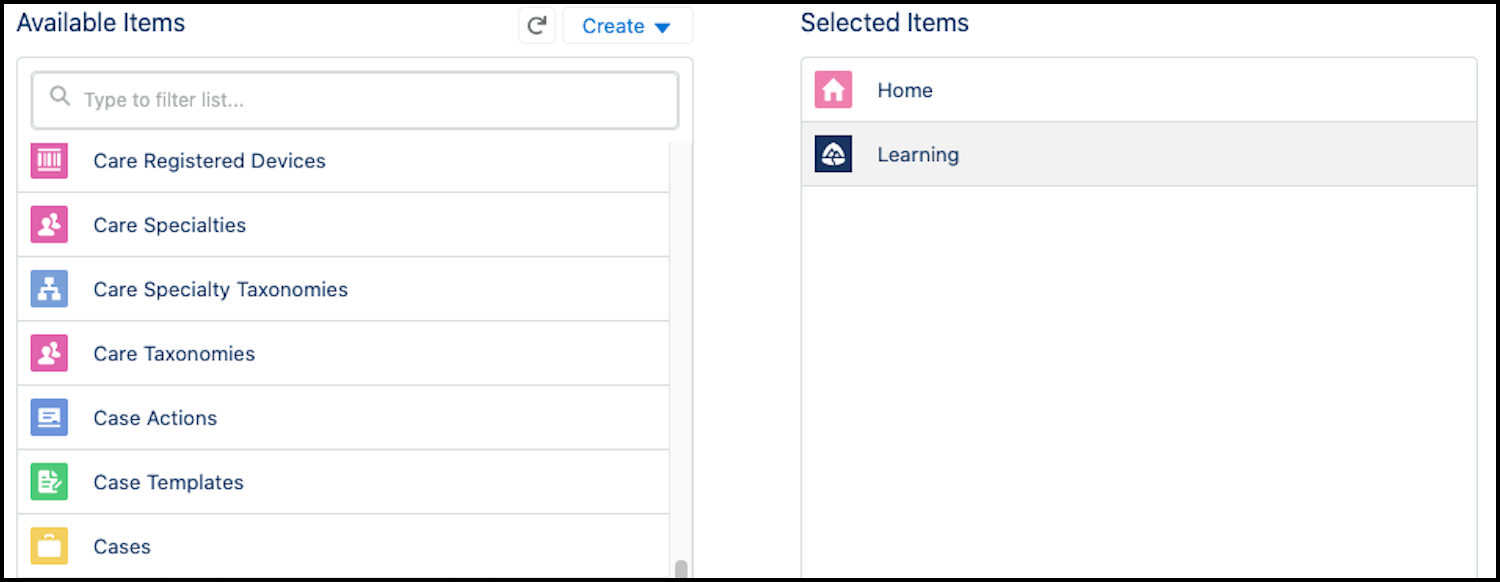
Move Cases from the Selected Items list to the Available Items
list.
The image shows the proper location for Cases.
- Save your updates.
-
From Setup, in the Quick Find box, enter App Manager, and then
select App Manager.
-
Remove the Feed-Based Layout from the Page Layout assigned to a Standard Platform
user:
- From Setup, select Object Manager.
- Click Case.
- Click Case Page Layouts.
- Click Page Layout Assignment.
- Find the Page Layout assigned to the applicable record types and Standard Platform user.
-
Confirm if the Case Page Layout shows a Feed View menu
option.

-
If confirmed, click New to create a Case Page Layout.
You see the New Case Page Layout window.
- Ensure that the Feed-Based Layout option isn’t selected.
- Save your new Case Page Layout, and then assign it to the Standard Platform user.
-
Remove the Feed Component visibility from the Case Record page.
 Note Two options are available to help you complete this step. Choose the option that works best for your current CRM app setup.Option #1 – Disable the Feed Component Visibility for the Standard Platform User.
- From Setup, in the Quick Find box, enter Lightning App Builder, and then select Lightning App Builder.
-
Under Lightning Pages, locate the Case Record Page.

-
Click Edit.
You see the Case Record Page.
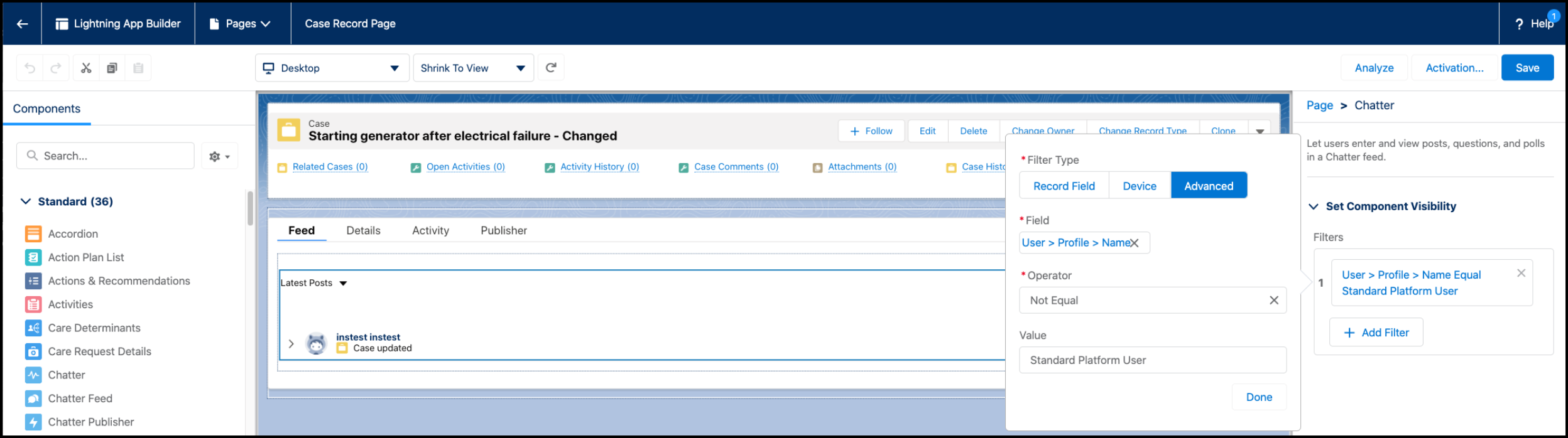
- Click the Feed tab.
- Click + Add Filter.
- Set Filter Type to Advanced.
- Set Field to User > Profile > Name.
- Set Operator to Not Equal.
-
Set Value to Standard Platform User.
- Click Done, and then save your updates.
Option #2 – Create a separate Case Records Page for Standard Platform Users.- From Setup, in the Quick Find box, enter Lightning App Builder, and then select Lightning App Builder.
-
Under Lightning Pages, locate the Case Record page.
-
Click Clone.
You see the Edit page.
- For Label, enter Employee Case Record Page.
-
Save your update, and then click Activate.
You see the Activation: Employee Case Record Page window.
- Click the App, Record Type, and Profile tab.
- Click Assign to Apps, Record Types, and Profiles.
- Assign the new page to one or more apps, record types, and profile, the Stand Platform user.
- Review and save your updates.
Did this article solve your issue?
Let us know so we can improve!
