
You are here:
Verify the Employee Service Pages and Components Installation
From the Experience Builder, confirm that the Employee Concierge and Service Catalog pages and components were installed successfully.

- From Setup, in the Quick Find box, enter All Sites, and then select All Sites.
- Next to the name of your Employee Workspace site, click Builder.
- From the Experience Builder home page, verify that you see these components in
the Builder Canvas:
- Featured Catalogs
- My Support Tickets List
- Concierge New Ticket Form
- Employee Lite Profile
- Request List
Note To see the component name, hover your cursor over each component in the Experience Builder Canvas.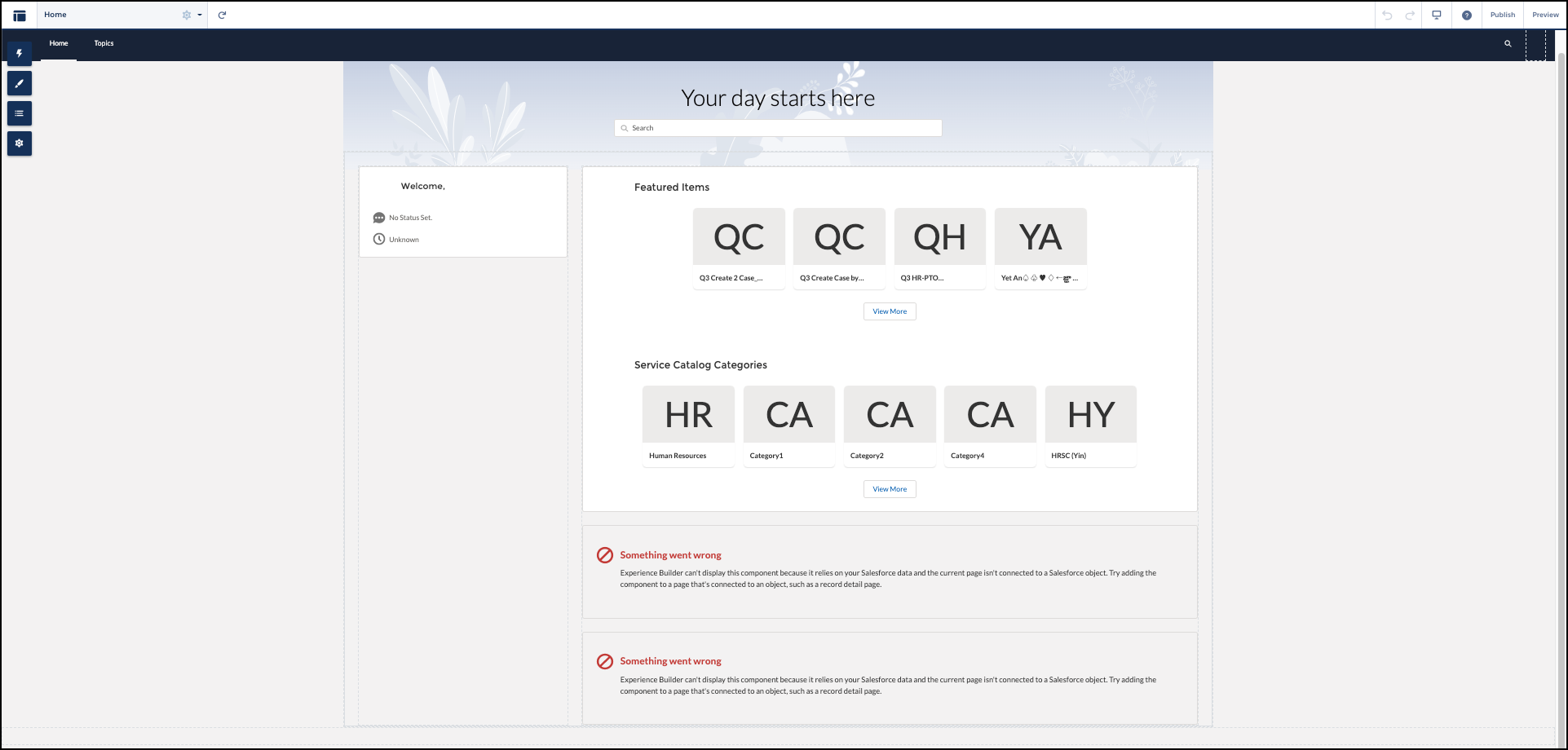
- To open the Pages dropdown, click
 .
. - Confirm that you see
Knowledge Articleand the layout for the Case object indicated in the image.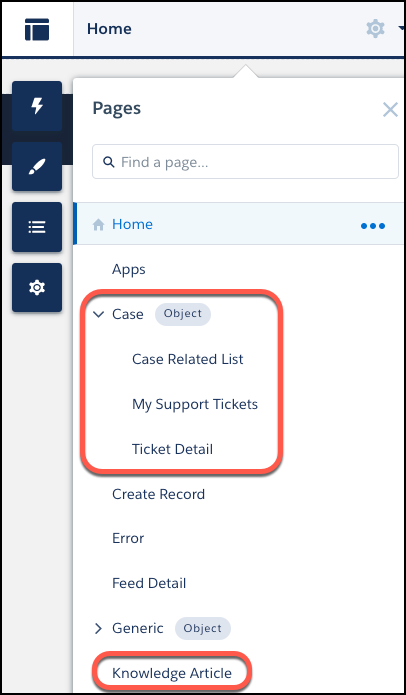
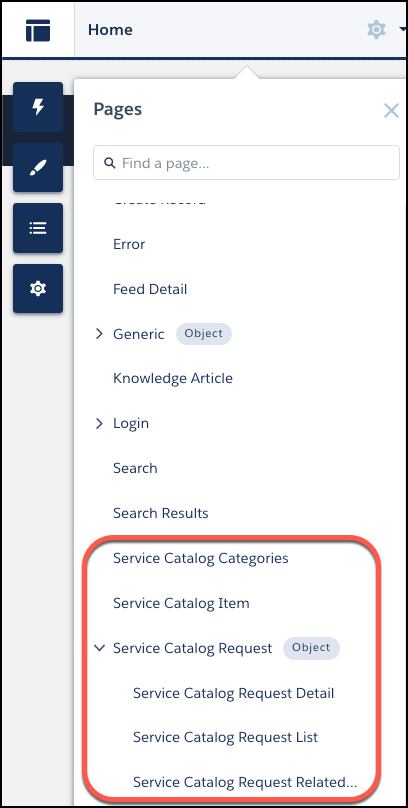
- Confirm that you see this layout for the Service Catalog pages indicated in the
image.
After you complete the steps, review the table to determine what to complete next.
| Customer type Defined by Employee Concierge Version | Task to Complete |
|---|---|
| Existing Customer with version 8.6 and later with Service Catalog | Add Service Catalog Pages and Components to Your Employee Service Site |
| Existing Customer with version 8.6 and later without Service Catalog |
|
|
Add the My Support Tickets and Service Catalog Tabs to Your Navigation Bar If you don’t have an Employee Productivity Plus permission set license or the IT Service Center - Endpoint Management add-on license, you can access the Service Catalog pages and components in the Digital Experiences site builder. But in your published Employee Service Community, only the Employee Concierge pages and components are available to you. |
