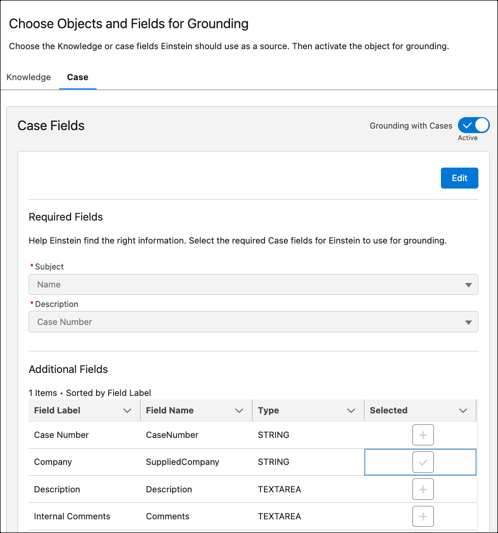
Select the subject, description, and additional Case fields for Einstein to ground on.
Einstein uses details from your selected case fields to draft personalized responses. To draft
case summaries, you can also use case feed as a grounding source in addition to the selected
case fields. Case feed includes crucial details like system updates, user comments, email
messages, and status changes.
In Service AI Grounding Setup, under the Case tab, select
Edit.
Under Required Fields, select Subject Field and
Description Field. The subject and description fields are
required for grounding on the Case object. You can choose the default subject and
description fields or use custom fields. However, if the subject and description fields
are encrypted, email generation fails because they can't be used for grounding. Case
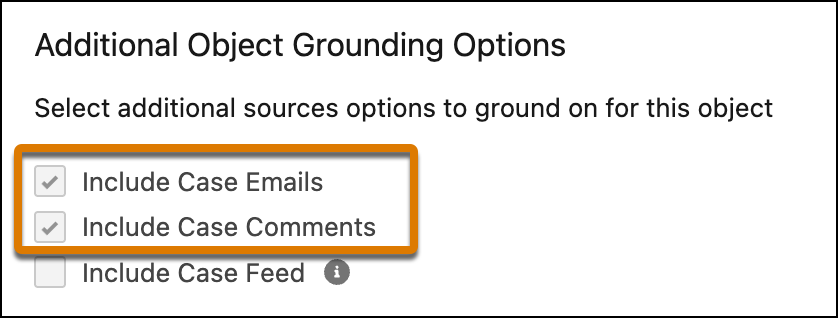
comments and emails are included for grounding by default.
For example, you can replace the default subject field with a custom field labeled
Contact Reason. Or, if you don’t want to limit yourself to a specific case type, choose
widely used fields in the required section, and then add fields in the additional fields
selection.
Warning Only ground on fields that contain information that
can be exposed to customers.
Under Additional Fields, select any other fields you want Einstein to consider for
grounding. Additional fields can’t repeat as required fields. Service AI Grounding only
supports String and Text Area type fields.
Click Save.
Activate grounding for your Case records.
Einstein begins indexing your cases. Indexing can take several hours depending on the
number of cases you have in Salesforce.
To consider case comments or emails when you ground for Knowledge Creation, go to
Additional Object Grounding Options and select Include Case Emails
and Include Case Comments.
Review these limitations and considerations before using Case comments as a grounding
source for Case Summaries.
Attachments like PDFs, Excel files, Word documents, and images, don’t appear in case
comments.
Images added directly to the case comments appear as a text placeholder, regardless of
the file type. For example, [Image: Screenshot 2025-11-07 at 15.02.37].
Links added to case comments show both the title and the full URL. For example, Title:
help.salesforce.com URL:
https://help.salesforce.com/s/articleView?id=service.service_learn.htm&type=5.
Important
Field level security limits the grounded responses that users can see. Users only see
grounded responses for fields that they can access.
Encrypted fields aren’t supported for grounding. Einstein can’t ground on or make
predictions for encrypted fields.
Service AI Grounding only supports String and Text Area type fields.
If Personally Identifiable Information (PII) is enabled for relevant fields, the case
summary limit is 262,144 characters. If PII is disabled, the limit is 65,536
characters.
Use Case Feed as a Grounding Source for Case Summaries Case Feed includes direct text entry and posts with attached links and files. A higher number of grounding posts will increase token costs and case summary generation times. To mitigate this, we limit grounding posts to a maximum of 100.
Did this article solve your issue?
Let us know so we can improve!
Loading
Salesforce Help | Article
Cookie Consent Manager
General Information
Required Cookies
Functional Cookies
Advertising Cookies
General Information
We use three kinds of cookies on our websites: required, functional, and advertising. You can choose whether functional and advertising cookies apply. Click on the different cookie categories to find out more about each category and to change the default settings.
Privacy Statement
Required Cookies
Always Active
Required cookies are necessary for basic website functionality. Some examples include: session cookies needed to transmit the website, authentication cookies, and security cookies.
Functional Cookies
Functional cookies enhance functions, performance, and services on the website. Some examples include: cookies used to analyze site traffic, cookies used for market research, and cookies used to display advertising that is not directed to a particular individual.
Advertising Cookies
Advertising cookies track activity across websites in order to understand a viewer’s interests, and direct them specific marketing. Some examples include: cookies used for remarketing, or interest-based advertising.