
You are here:
Add an Embedded Flow to Automate a Task
Use an embedded screen flow to help customers or users complete simple, automated tasks. An embedded flow is also guest-user friendly because users don’t need to log in to access the flow.
Required Editions
| View supported editions. |
| User Permissions Needed | |
|---|---|
| To set up embedded flows: | Customize Application AND Modify Metadata |
| To create, update, or delete deployments: | Customize Application AND Modify Metadata |

Legacy Chat will be retired on February 14, 2026. To avoid service interruptions to your end users, switch to enhanced Chat (formerly Messaging for In-App and Web). Enhanced Chat offers many of the legacy Chat features that you love plus asynchronous conversations that can be picked back up at any time. Learn about migrating in Help and Trailhead.
Before you begin, create a flow using Flow Builder. Then add it to an Embedded Service deployment.
Embedded Service supports only flows of the Screen Flow type. Users don’t need to log in to access an embedded flow.
- From Setup, in the Quick Find box, enter Embedded Service, and then select Embedded Service Deployments.
- Click New Deployment.
-
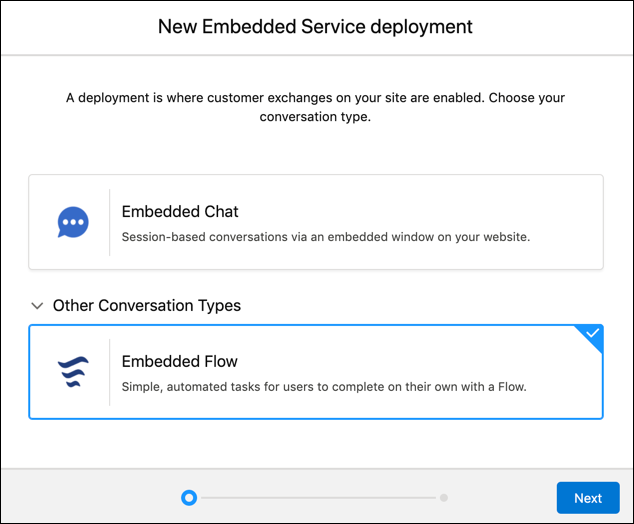
Select Embedded Flow as your conversation type, and click
Next.
-
On the New Embedded Service deployment panel, in the Embedded Service Deployment
Name field enter your flow name.
 Tip The deployment is shown in a list on the Embedded Service page. If you have several deployments, use a descriptive name so it’s easy to distinguish each one.
 - The API Name field is automatically populated.
- Under Site Endpoint, select the site you want to use and save it.
- In Embedded Service Deployment Settings, click Start next to the Flow Settings.
- Under Flow Name, select the flow you want to use in your Embedded Service deployment and save it.
- In Additional branding, edit image dimensions and labels, and click Finish.

- An insurance company can create an embedded screen flow so that policyholders can search for in-network medical providers without logging in.
- An online retailer can create an embedded screen flow to streamline how new customers create accounts.
To use a different flow in this Embedded Service deployment or to add custom labels, click Edit next to Flow Settings.
