
You are here:
Employee Concierge
Add Employee Concierge to Employee Workspace to set up a searchable knowledge base and ticketing system so employees can find solutions and get support when they need it.
Required Editions
| Available in: Lightning Experience |
| Available in: Enterprise and Unlimited Editions |
| Employee Concierge requires an Employee Experience or Employee Productivity Plus, IT Agent or Employee Service Agent, Company Communities, Service User, Knowledge User add-on licenses. |
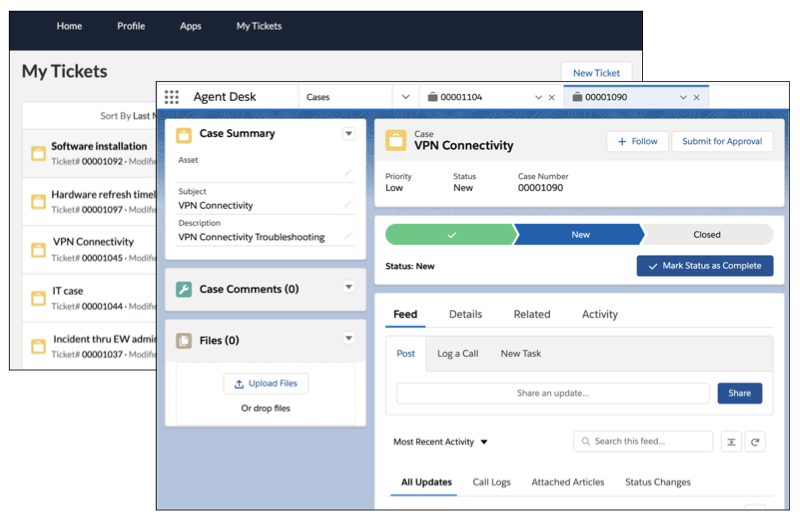
Employees access Employee Concierge through the Employee Service Experience Cloud site. The searchable knowledge articles are written and managed by your IT Agents and Knowledge Authors, so the information addresses common questions and requests at your organization. If employees can’t resolve an issue through a knowledge article, they can log a support ticket from the same Employee Workspace site. IT Agents manage and resolve employee tickets using Agent Desk, a Salesforce Lightning app that’s added to your Salesforce org when you install Employee Concierge.

- Prepare for and Install Employee Concierge
Before you can install and configure Employee Concierge, make sure you already have Employee Workspace set up and person accounts enabled in your org. When you’re ready, install the Employee Concierge managed package and verify what was added to your org in the process. After installing the package, complete the required manual configuration using the information here to guide you. - Review and Assign Employee Concierge Permissions
We recommend using our Employee Concierge personas to help you decide how to assign permissions when creating new or configuring existing users in your org. Review the personas and permissions, then assign permissions to users. - Assign Record Types and Enable Knowledge Access for Employee Concierge
Assign record types the Case, Account, and Knowledge objects to the System Admin and IT Agent profiles. Then enable access and set field-level security for knowledge articles. - Configure Employee Concierge Ticket Assignment
To give IT Agents easy access to tickets, add them to a public group and create and associate a queue with that group. Then create and set assignment and sharing rules for tickets. - Set Up the Agent Desk App
To complete the setup for Agent Desk, assign page and record layouts, and share the custom list view. - Manage Person Accounts and Employee Records
Support tickets that are created by or for employees are stored and managed as case records. Employee Concierge uses person accounts to associate employee data with cases. - Create Ticket Categories (Optional)
By default, Employee Concierge includes one ticket category. This category is used for all tickets unless you add more categories to your org. Create additional categories to allow employees and IT Agents to create more than one type of ticket. To add ticket categories to your org, complete all configuration steps in this section. Adding ticket categories is optional. - Set Up Email-to-Case for Employee Concierge
Email-to-Case automates the creation of support cases from emails. The feature provides your employees the ability to submit cases within their day-to-day workflow without logging into the Employee Service community. - Set Up Your Employee Service Site
After you’ve set up Employee Concierge in Salesforce CRM, the next Employee Concierge set up tasks require building your Employee Service site with the Experience Builder from Experience Cloud. - Prepare Your Team and Customize Concierge
After installing and configuring Employee Concierge, make sure all users have the information they need to succeed. Users have different access, based on their persona and related permissions and licenses. You can also edit or add to the default Concierge configuration to best meet your organization’s needs.
