
You are here:
Customize the Hero Component
Customize the hero component layout for your Employee Workspace site. The hero component consists of a search box, background image, and title text on the Employee Workspace home page.
The hero component is the key visual element on a page that focuses your users’ attention. The background image and title text are enabled by default. You can customize the default image, but not the title text. To customize the default hero image and disable the hero title text, follow these steps.

Tip You also can disable
both components or you can keep the title text and disable the default
image.
-
In the Experience Builder, click the gear icon on the left sidebar.
The Settings panel opens.
-
Select Theme, and then select
Configure.
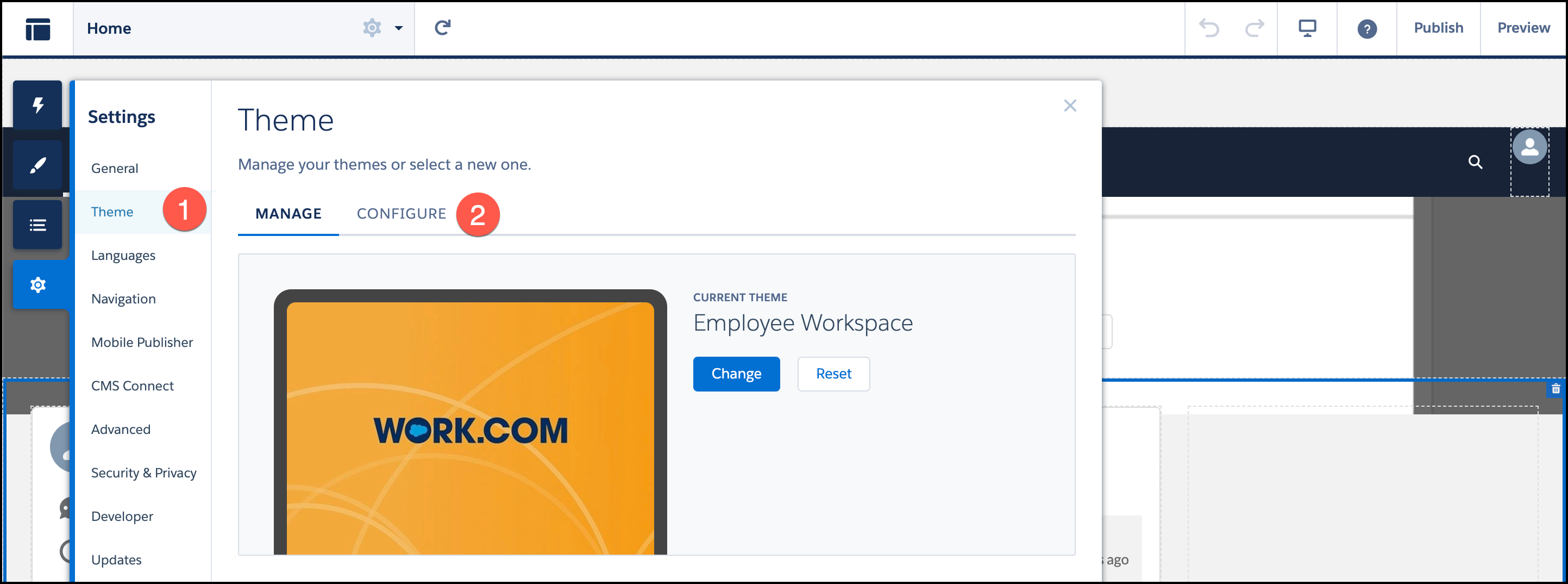 The Theme Layout settings menu opens.
 -
Under Theme Layout Component, click
 next to Theme Layout.
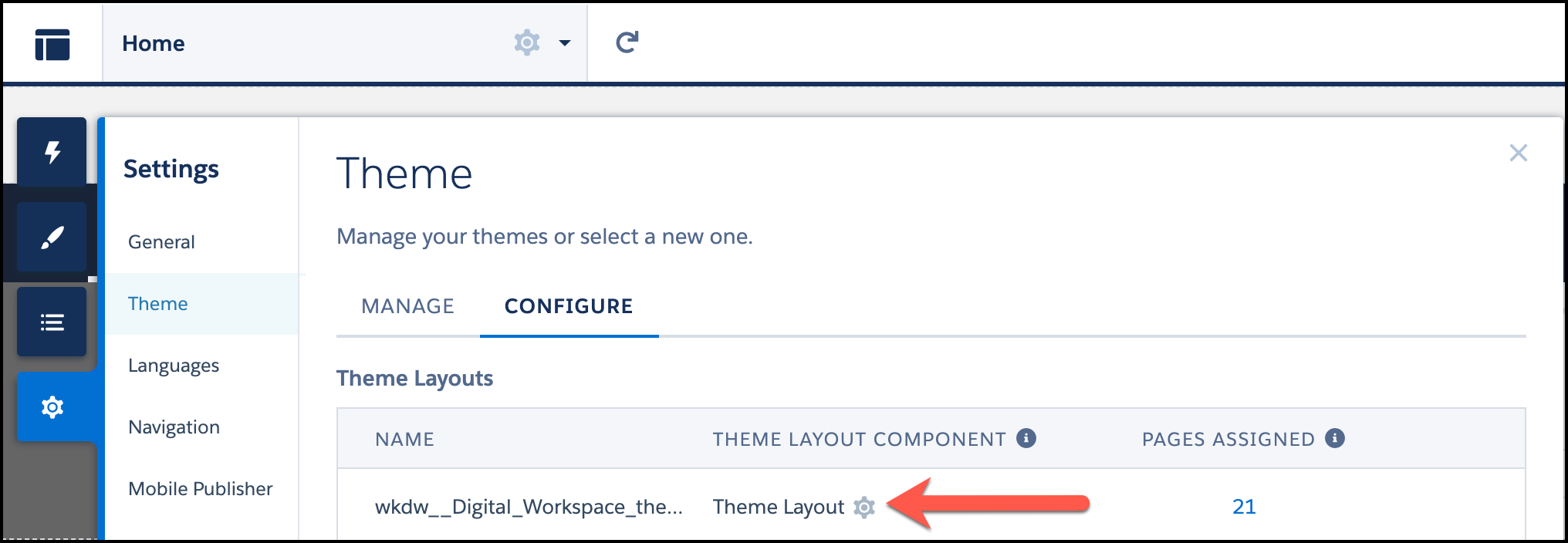 The Theme Layout settings drop down menu opens.
 -
Configure the hero component settings.
- Deselect Show hero title text.
- Ensure Show hero is selected.
- Enter a Hero CMS Content Id
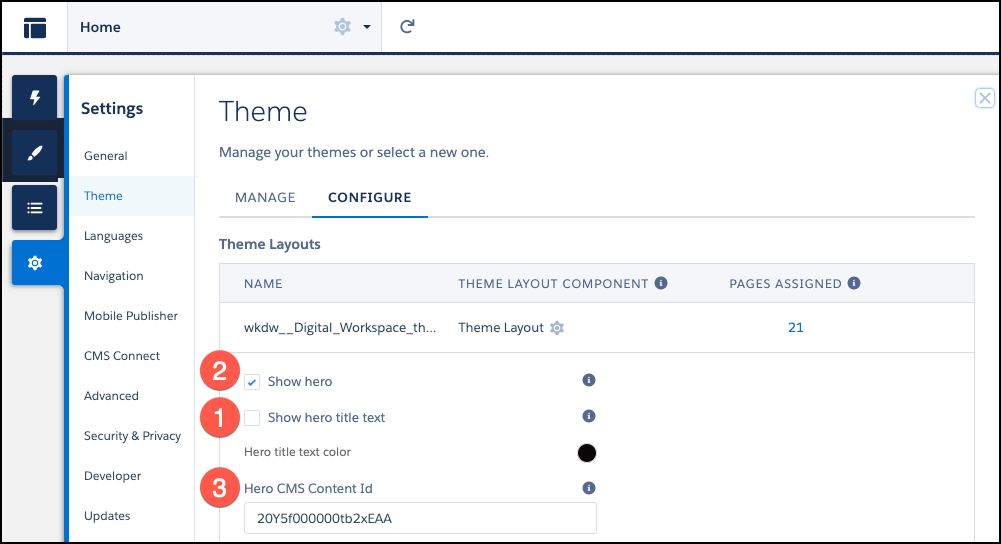
Your hero configurations update dynamically in the Experience Builder.
Did this article solve your issue?
Let us know so we can improve!
