
You are here:
Customize the News Banner
Deliver headline news to your employees within their Employee Workspace homepage. Create content for your Employee News Banner, and then add it to your Employee Workspace site.
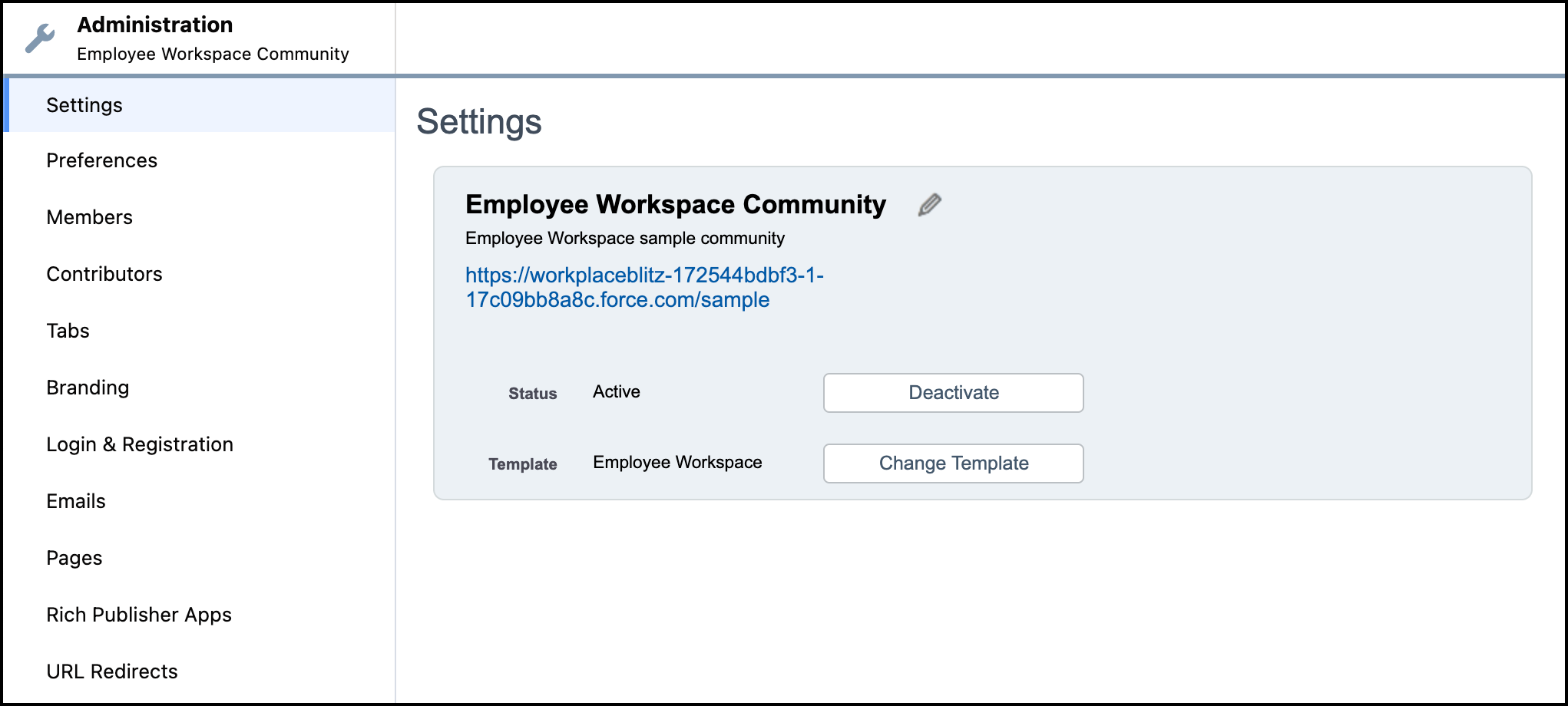
Before you begin, deactivate your Employee Workspace Community in the Employee Workspace Administration Settings.
- Click Experience Builder settings.
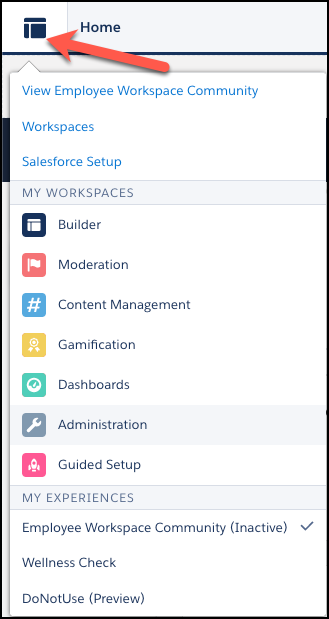
- Select Administration.
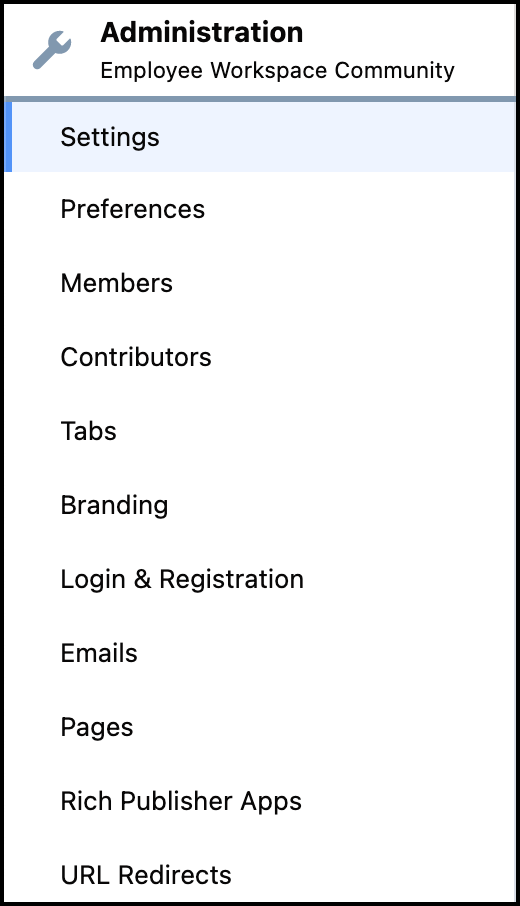
- In the Administration menu, select Settings.
- In the settings menu, click Deactivate.
To customize your news banner, follow these steps. If you already created news banner content from the Employee Workspace Customizations Help topic, proceed to step two.
-
Create news banner content.
-
From the Salesforce App Launcher, launch the Digital Experiences
app.
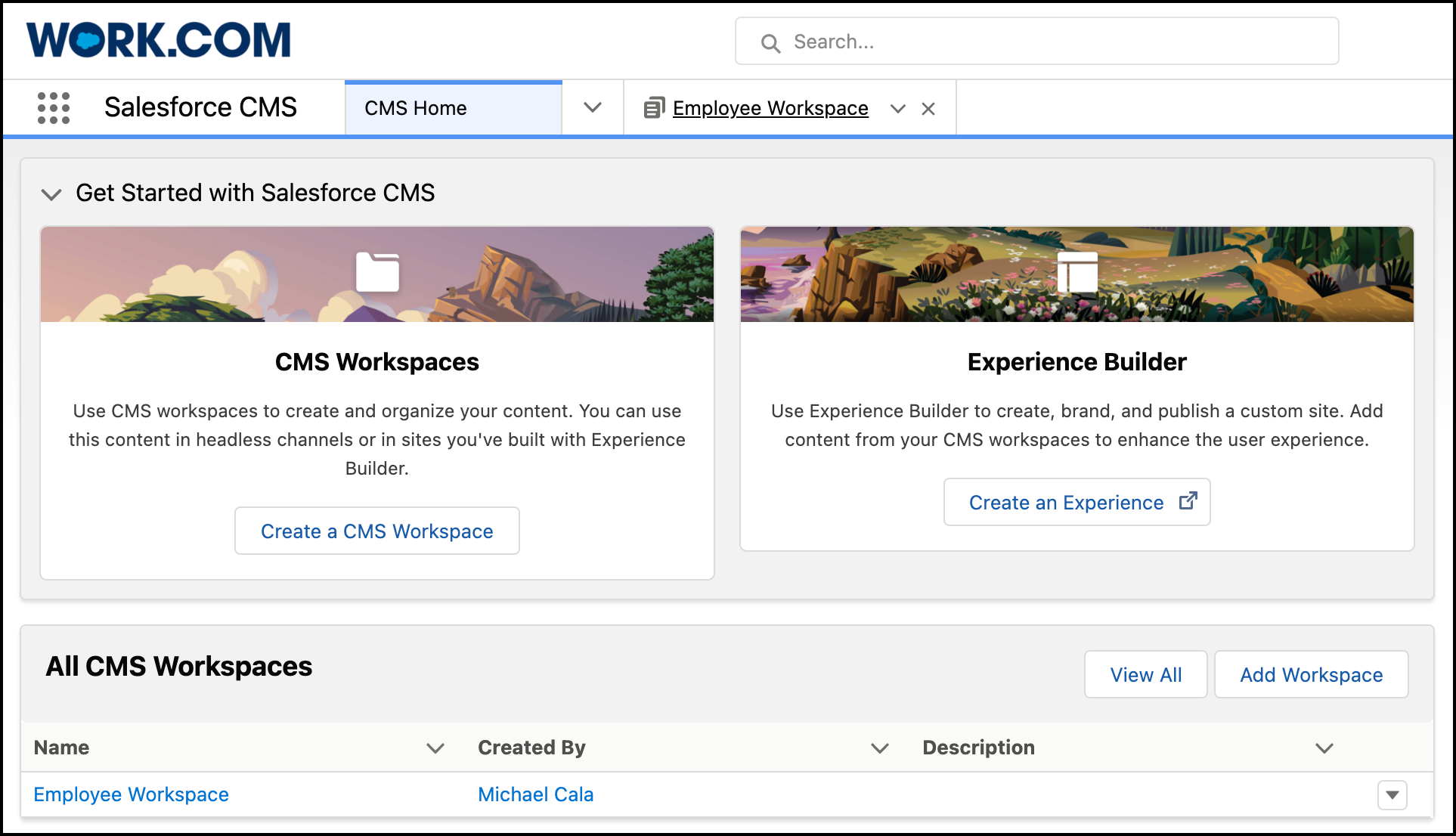
The Digital Experiences Home tab opens.
-
From the All CMS Workspaces menu, select a workspace.
 The Employee Workspace settings tab opens.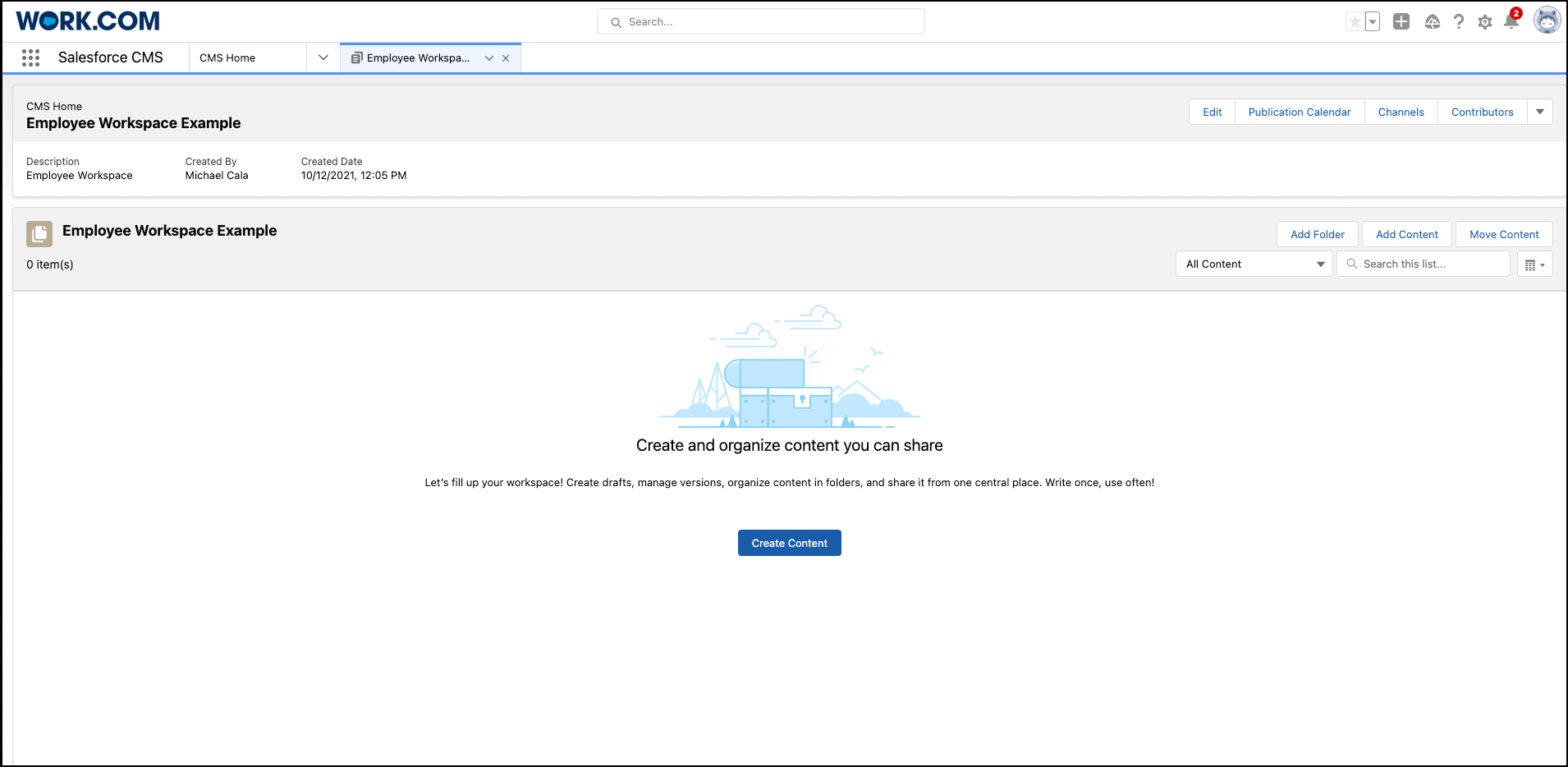
-
Click Add Content.
Or if you haven’t created CMS content, click Create Content.
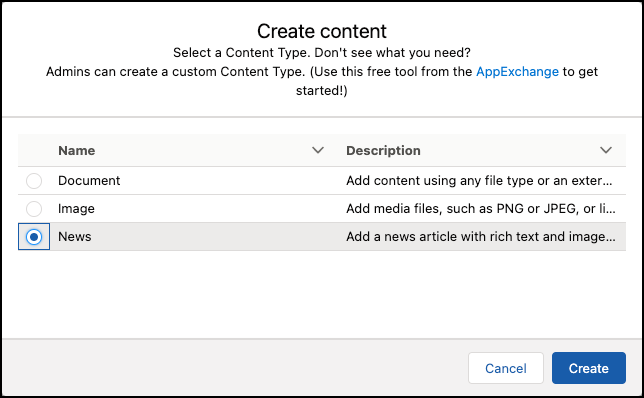
 The Create Content window opens.
 -
Select News as the content type, and then click
Create.
- In the Create tab, enter the required information in the text fields, and then click Save Draft.
- Click Publish.
-
Save the unique identifier for the news content that you created.
The unique identifier is in the web page URL starting with 20Y.
20Y5f000000tb2xEAA
-
From the Salesforce App Launcher, launch the Digital Experiences
app.
-
Add your news content to your Employee Workspace site banner.
-
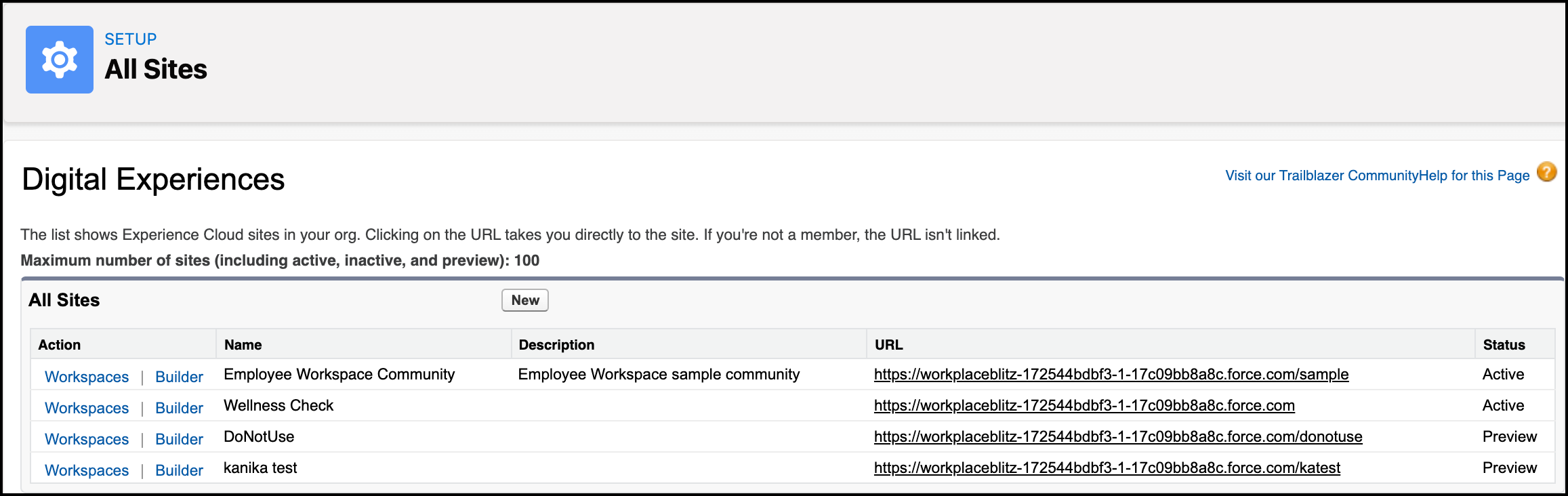
From Setup, in the Quick Find box, enter Sites,
and then select All Sites.
The All Sites setup menu opens.
-
Click Builder next to Employee Workspace
Community.
The Experience Builder opens.
-
Click .

-
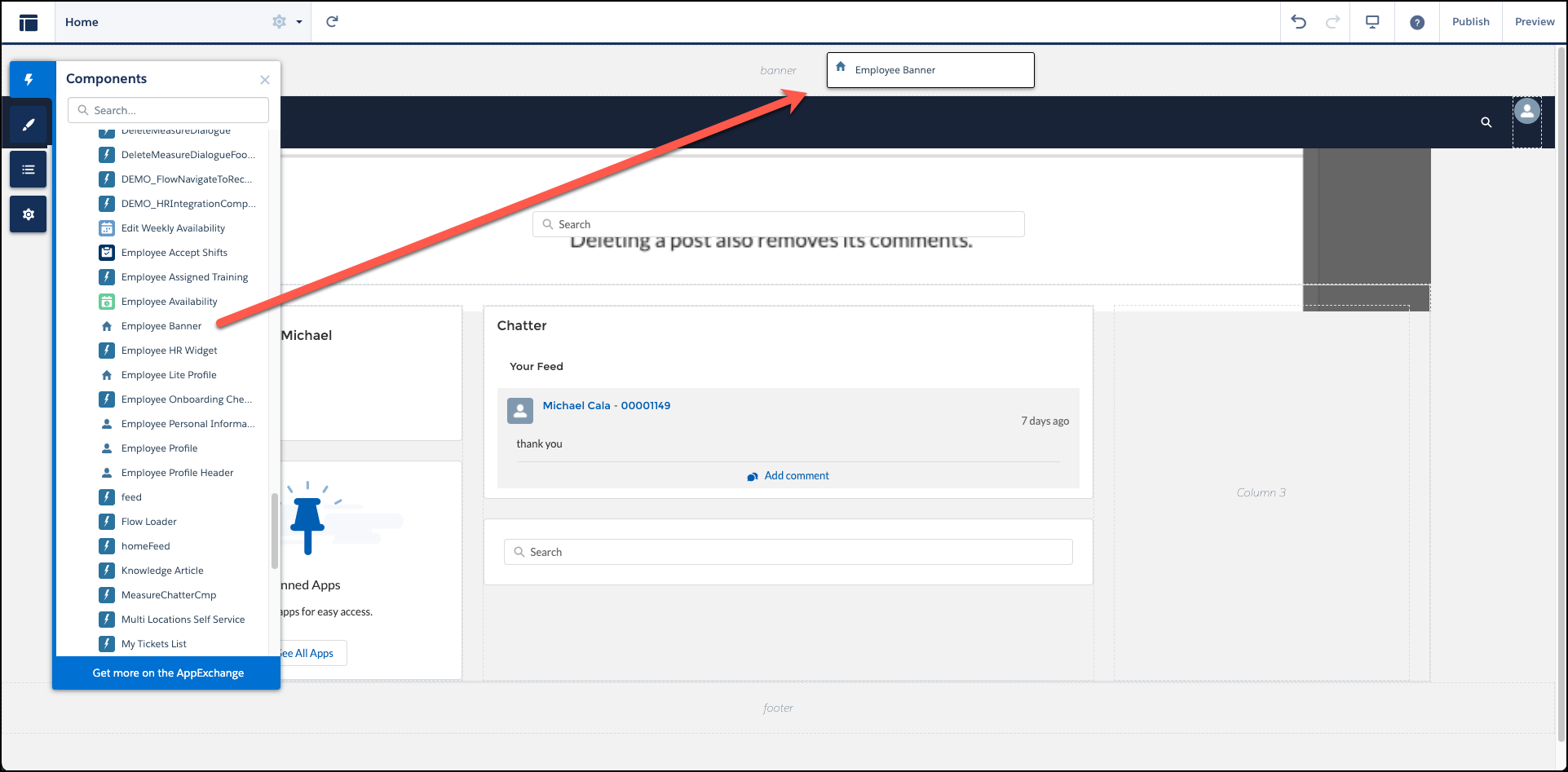
In Components, under Custom Components, select Employee
Banner and place it in the banner field of the
Experience Builder.
-
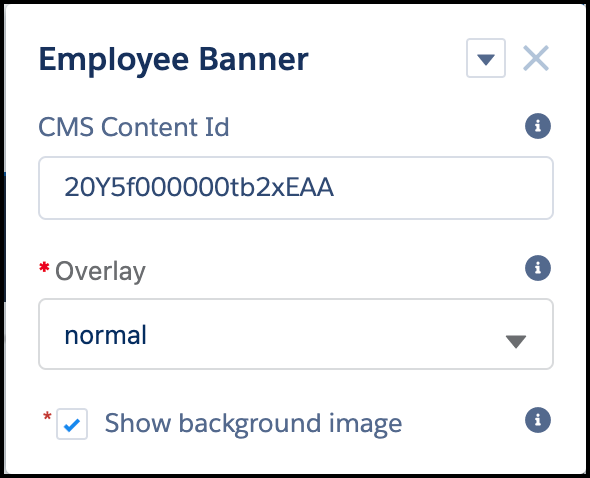
From the banner field, click Employee Banner.
The Employee Banner settings window opens.
-
Set the CMS Content ID to the news content that you created.
For example:
20Y5f000000tb2xEAA - To show news content in the banner field, publish your Employee Workspace site.
-
From Setup, in the Quick Find box, enter Sites,
and then select All Sites.
Once complete, reactivate your Employee Workspace Community.
Did this article solve your issue?
Let us know so we can improve!
