
You are here:
How Business Hours Work in Entitlement Management
When a support record is linked to an entitlement, the record, its milestones, its entitlement process, and the entitlement itself can each use different business hours. Learn how Salesforce approaches business hours in these situations.
Required Editions
| View supported editions. |
On records that include entitlement processes, business hours are applied according to a hierarchy. Salesforce uses the business hours specified at the highest level.
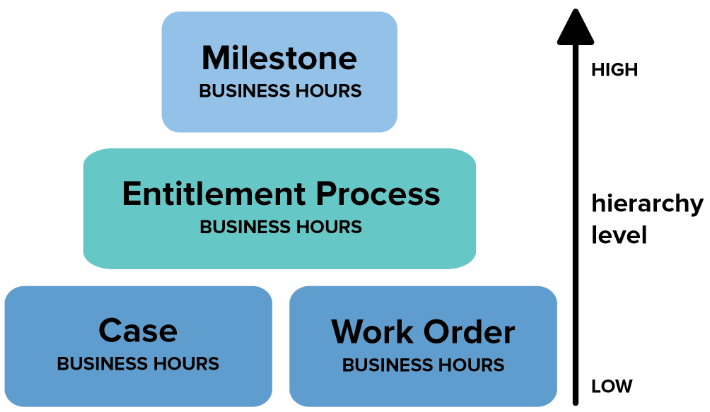
So a milestone’s business hours override the entitlement process’ business hours, which override the case or work order’s business hours. If no business hours are set on the milestone, then the entitlement process business hours are used. And if business hours aren’t specified on the milestone or the entitlement process, the case or work order business hours are used.
You can also set business hours on entitlements. If you create a record from an entitlement, it inherits the entitlement’s business hours. However, if the entitlement is part of an entitlement process, we recommend leaving the entitlement’s business hours field blank. Related records automatically use the entitlement process’ business hours.
When you set or update business hours, follow these best practices.
- If you want to use the same entitlement process for records that have different business hours, set business hours at the entitlement process level. For example, suppose that you set the business hours on an entitlement process to weekdays from 9 to 5. If a customer requests evening and weekend updates to their case, you can create an “Update Customer” milestone with its own 24/7 business hours.
- If you want to use different business hours for different severity levels, set business hours at the milestone level. For example, if the severity level of a case increases, you need to contact the customer more frequently. You can create a “Last Touch” milestone that changes business hours according to severity level while the other milestones in the entitlement process remain unchanged.
- To change the business hours specified on an active entitlement process, follow these steps.
- Before you start, make sure entitlement versioning is enabled on the Entitlement Settings page in Setup.
- Open the entitlement process for which you want to change the business hours.
- On the Entitlement Process Detail page, click Create New Version. This new version inherits the business hours from the original version. Change the business hours. Save your changes.
- Optionally, add or remove any holidays during which business hours are suspended.
- Go back to the original version and click New Update Rule under Entitlement and Support Record Update Rule.
- In Version to Update from, select the new version and click Save.
