
You are here:
Set Up the Milestone Tracker
The milestone tracker gives support reps a complete view of upcoming and completed milestones, and displays countdowns for active and overdue milestones. Add it to the case feed, work order feed, a custom page, or the Service Console.
Required Editions
| View supported editions. |
| User Permissions Needed | |
|---|---|
| To create and edit page layouts: | Customize Application |
| To assign page layouts: | Manage Users |
| To set how time displays in the milestone tracker: | Manage Entitlements |
Often, support reps’ performance is measured by how often they meet milestones. The milestone tracker helps support reps be prepared for support deadlines by showing them:
- The time remaining until an active milestone reaches its Target Date
- The time passed since an overdue milestone’s Target Date
- A list of upcoming milestones
- A list of completed milestones
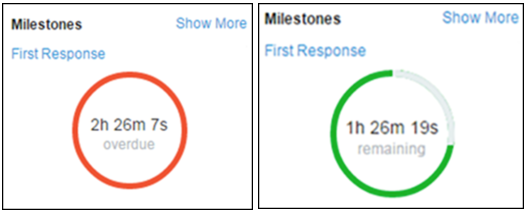
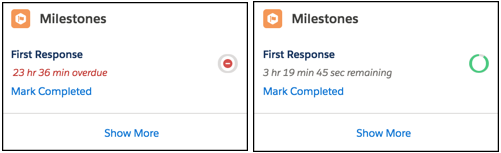
When a milestone is in progress, the milestone is represented by a green circle. The circle winds down clockwise as time elapses. The remaining time is shown in the center of the circle. When the time to complete the milestone expires, the circle turns red. The amount of time that the milestone is overdue is shown in the center of the circle. If more than 24 hours remain on a milestone, the countdown displays in days (for example, 1d). When fewer than 24 hours remain, the countdown format switches to hours/minutes/seconds.
In Salesforce Classic:
In Lightning Experience:
-
Expose the milestone tracker to support reps.
In Salesforce Classic, you can:
- Add it to the case feed. If you plan to use milestones on work orders, follow the
same steps to add the tracker to the work order feed.
- From the object management settings for cases, go to Page Layouts.
- In the Case Page Layouts section, click Edit, and then click Feed View in the page layout editor.
- In the Other Tools and Components section, select the Milestone Tracker and specify where on the page you want it to appear.
- Click Save.
- Add it to a custom Visualforce page using the
<apex:milestoneTracker>component. - Add it as a component to the Service Console.
In Lightning Experience, go to Lightning App Builder and add the Milestones component. See Create and Configure Lightning Experience Record Pages . In the Lightning App Builder, you can opt to hide the Mark Completed link from your support reps.
- Add it to the case feed. If you plan to use milestones on work orders, follow the
same steps to add the tracker to the work order feed.
-
Set how the milestone tracker displays time remaining or time overdue on milestones.
To make it display time remaining or time overdue in business hours, follow these steps.
 Note By default, the tracker displays actual hours.
- From Setup, enter Entitlement Settings in the Quick Find box, then select Entitlement Settings.
- In the Milestone Tracker section, deselect Show the time remaining in actual hours, not business hours.
- Click Save.

- If the milestone tracker shows the remaining time in business hours (the default setting), it displays a countdown of 2 hours and 30 minutes (4:30 to 5 p.m. today and 9 to 11 a.m. tomorrow).
- If the milestone tracker shows the remaining time in actual hours, it displays a countdown of 18 hours and 30 minutes (4:30 p.m. today to 11:00 a.m. tomorrow).
