You are here:
Create Service Resource Absences for Field Service
Create resource absences to indicate when a service resource is unavailable to work. During schedule optimization, service resources aren’t assigned to appointments that conflict with their absences. View and manage absences from the Absences related list on service resource records.
Required Editions
| User Permissions Needed | |
|---|---|
| To view resource absences: | Read on service resources |
| To create and update resource absences: | Read on service resources |
| To add or edit picklist values: | Customize Application |
| To customize the Field Service managed package: | Customize Application |
-
From the Absences related list on a service resource, click New.
To create a set of regularly scheduled absences, click New Recurring
Absence and fill out the form.
When modifying recurring absences, you can only modify them one at a time. For example, if a resource had a regularly scheduled appointment every Wednesday, and now that appointment occurs every Thursday, you must create a new recurring absence. If they must change their appointment time and date only a few times, you can modify individual absences in the pattern.
 Note Resource absence isn't supported for capacity-based service resources when you're using Enhanced Scheduling and Optimization.
 - Select Non Availability as the record type. The Break record type is used to automatically create breaks during schedule optimization.
-
Select an absence type: Vacation, Meeting, Training, or Medical.
Note Add more absence types by updating the Type picklist on the resource absence object in Setup. Don’t use Break as a picklist value; the managed package uses that name.
- Enter a start and end time and description.
-
Optionally, add a Gantt label. The Gantt label appears on the absence in the
Gantt. For example, Bahamas or Driver
Training.
Note Gantt labels aren’t available on Break resource absence or Recurring absence types.
- Optionally, enter an address, such as a training location. For absences that don’t span an entire shift, like a morning medical appointment, the absence address is used to determine travel time to and from adjacent service appointments. Appointments aren’t scheduled during dedicated travel time.
If the Field Service managed package isn’t installed, you don’t see options to select a record type or enter a Gantt label.
The Gantt shows breaks to the left of travel to appointments. If a break is planned during travel time, optimization can still schedule the appointment. The resource can drive, take the break at the specified time, and then complete the travel.
If you're using Enhanced Scheduling and Optimization and there’s no address on the resource absence, optimization and scheduling actions use the location of the last event (Service Appointment or Resource Absence) that has a location to calculate the travel time to the next event. If the resource absence overlaps with the shift end, the resource’s home base location is used to calculate the travel time. If you're not using Enhanced Scheduling and Optimization and there’s no address on the resource absence, optimization uses the resource’s home base to calculate travel time to the next service appointment. For a more precise travel estimate, add an address to the absence, such as the location of the previous appointment or an address for the break.
If you’re not using Enhanced Scheduling and Optimization, the Service Resource Availability work rule sets the home base to midnight. If a dispatcher manually schedules an appointment or resource absence during non-working hours after (or before) midnight, the travel time to the resource’s first appointment (or last appointment on the previous day) during working hours is taken from the manually scheduled item, which is during non-working hours. For example, a service resource has working hours from 6:00 PM to 11:00 PM. A resource absence is scheduled during the resource’s non-working hours between 1:30 PM and 3:00 PM. The travel time to the first service appointment of the day is calculated from the resource absence and not from the home base.
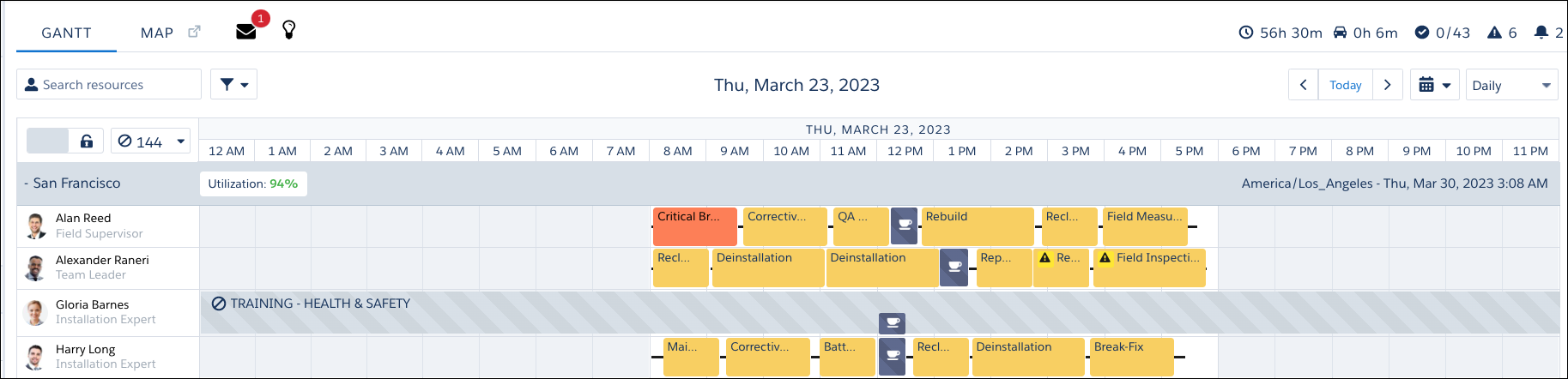
Non Availability absences are shown on the Gantt with a “no entry” icon, while Break absences are shown with a cup icon. To customize the color of a resource absence on the Gantt, update the Gantt Color field. You can also use Flow Builder to automate the color-coding of resource absences.
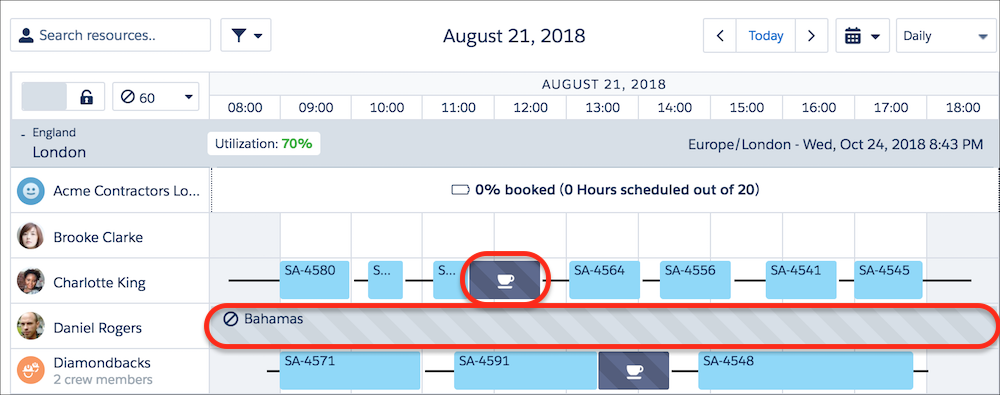
With Enhanced Scheduling and Optimization, a lunch break is created whenever a resource absence is created. If a full-day absence is created (there are no appointments for that day), a lunch break is still shown on the Gantt.