
You are here:
Create Service Crews
Set up teams who can be assigned to field service appointments as a unit. A service crew is a group of service resources whose combined skills and experience make them a good fit to work together on appointments. For example, a wellhead repair crew might include a hydrologist, a mechanical engineer, and an electrician.
Required Editions
| Available in: both Salesforce Classic (not available in all orgs) and Lightning Experience |
| The Agentforce Field Service and Operations core features, managed package, and mobile app are available in Enterprise, Unlimited, and Developer Editions. |
| User Permissions Needed | |
|---|---|
| To create service crews: | Create on service crews |
| To create service crews using the crew management tool: | Create on service crews AND Create on service resources AND Edit on service territories |
| To create service resources representing crews: | Create on service resources |
| To assign service crews to service appointments: | Edit on service appointments |
| To view service crew members: | Read on service crews AND Read on service resources |
| To create, update, or delete service crew members: | Edit on service crews |
Create service crews from the crew management tool or the Service Crews tab.
From the Crew Management Tool
 This is a Field Service managed package feature.
- Open the crew management tool by clicking the Crew Management tab or opening the Lightning page that contains it.
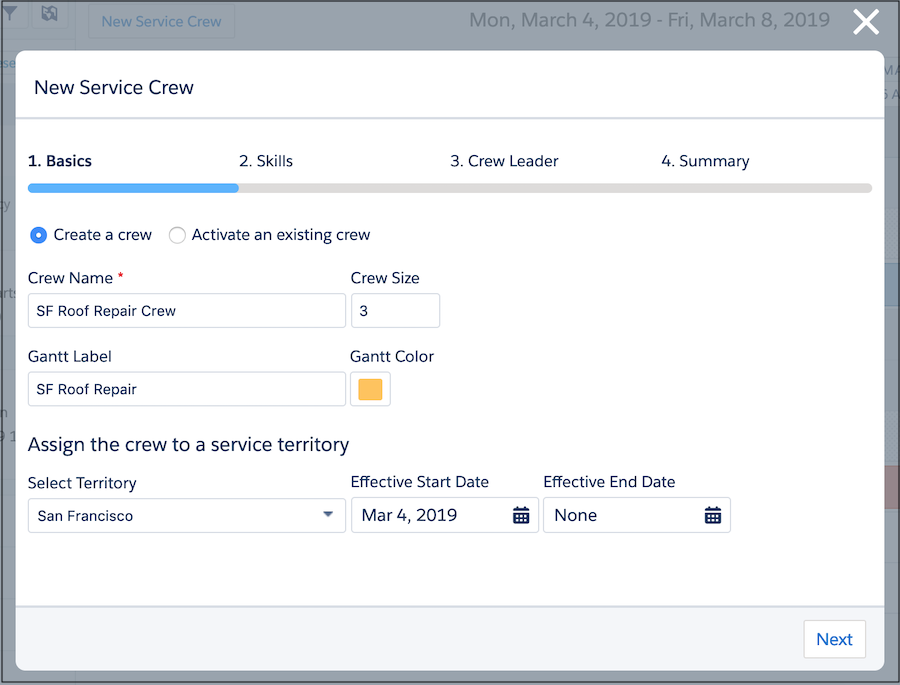
- Click New Service Crew to open the crew wizard.
- Complete the fields on the Basics tab.
- Optionally, add skills to the crew on the Skills tab. For example, perhaps the crew you’re creating must always include someone with the Welding skill. Adding skills makes it easier to find potential crew members with the skills you need.
- Select a leader on the Crew Leader tab.
- Save your crew. This creates an active service resource of type Crew that’s used during scheduling. You can now view the crew in the crew management tool and add members to it.
From the Service Crews Tab
-
Customize page layouts to support crew features.
-
Update the field-level security settings of the Service Crew field on service resources
so it’s not hidden. Then, add the field to service resource page layouts and check that the
User field is not marked as required. This lets you create service resources that represent
service crews so crews can be assigned to service appointments.
 Note Though the User and Service Crew fields won’t be marked required in the UI, service resource records can’t be saved unless one of the fields is filled out.
 - Update the field-level security settings of the Gantt Label field on service crew members so it’s not hidden. Then, add the field to the Service Crew Member page layout.
-
Update the field-level security settings of the Service Crew field on service resources
so it’s not hidden. Then, add the field to service resource page layouts and check that the
User field is not marked as required. This lets you create service resources that represent
service crews so crews can be assigned to service appointments.
- From the Service Crews tab, click New.
- Enter a crew name and ideal size, and save your changes.
- Add service resources to the crew from the Service Crew Members related list. You can specify start and end dates for members and flag the crew leader.
-
Create a service resource to represent the crew, which is required for scheduling. Changing
a crew’s members doesn’t affect its service appointment assignments.
- From the Service Resources tab, click New.
- Enter a name for the crew.
- Leaving the User field blank, select the crew in the Service Crew field.
- Select a Resource Type of Crew.
- Select Active to be able to assign the crew to service appointments and manage its membership with the crew management tool. Service resources of type Crew can’t be activated unless the crew has at least one active member.
- Skip the optimization option, which doesn’t apply to service crews.
- Save your changes.
- Considerations for Scheduling Service Crews
Field Service crews, much like individual service resources, can be assigned to service appointments. Learn how absences, efficiency, and crew settings affect service crew scheduling.
Did this article solve your issue?
Let us know so we can improve!
