
You are here:
Create Time Sheet Templates
You can automatically create time sheets from a template so that service resources can track their time and work. Specify the time period each time sheet covers, such as a week or month, and track specific tasks, travel time, and break time. Time sheets are created one day before their start date. You can only create time sheets for service resources of the type Technician.
Required Editions
| Available in: Lightning Experience |
| The Field Service core features, managed package, and mobile app are available in Enterprise, Unlimited, and Developer Editions. |
| User Permissions Needed | |
|---|---|
| To create time sheets: | Create on time sheets |
| To view time sheet entries: | Read on time sheets |
| To create, update, or delete time sheet entries: | Edit on time sheets |
- From Setup, enter Time Sheet Settings in the Quick Find box, then select Time Sheet Settings.
-
Click New and enter details for the time sheet template.
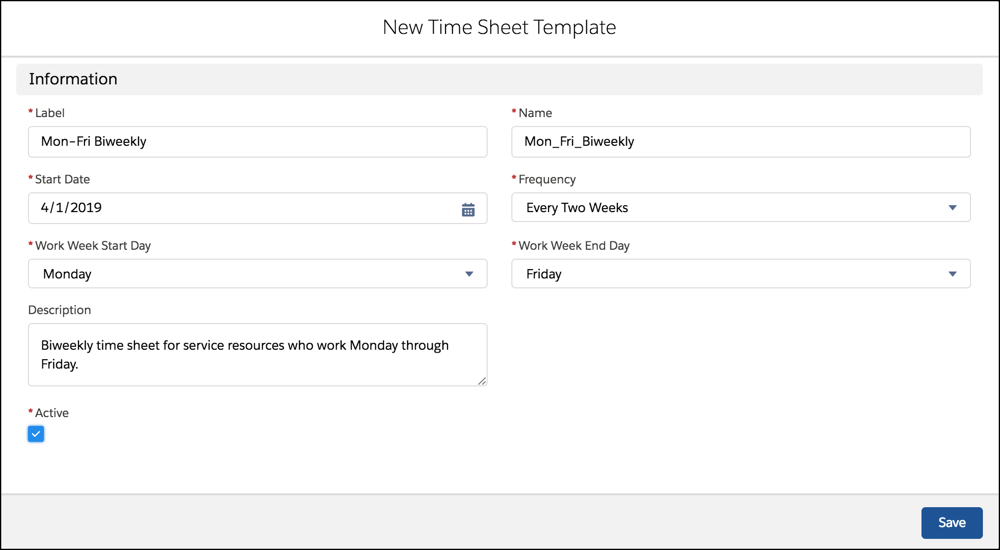
- For Label, enter a descriptive name for the template so that you can distinguish it from others.
- For Name, enter an API name for the template that uses underscores instead of spaces.
- For Start Date, enter the date that you want the time sheet template to take effect. Because the time sheet autocreation job runs once per day, we recommend setting a start date that is at least 24 hours in the future.
- For Frequency, select the time range that you want each time sheet to cover. New time sheets are automatically created on the frequency you specify. For example, if you select Daily, a time sheet is created every day. If you select Monthly, each time sheet covers an entire month, beginning on the start date that you entered.
- For Work Week Start Day, select the day that you want each work week to begin on.
- For Work Week End Day, select the day that you want each work week to end on.
- Enter a description for the time sheet template.
- Mark the time sheet template as Active.
 Note Time sheets are automatically created only if the template is marked Active.
 -
Assign the time sheet template to user profiles.
- Click Assign to Profiles.
- Select at least one user profile that you want to assign the time sheet template to, and click Change Assignments.
- Under Time Sheet Setting, select the time sheet template you want the profiles to use, and click Save.
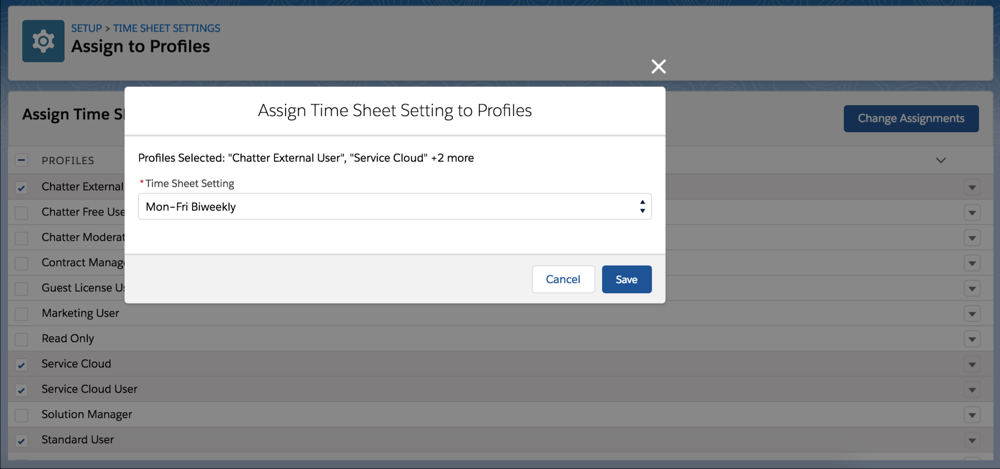
The template name appears next to each profile that you assigned it to.
To confirm that time sheets were created successfully, navigate to Time Sheets in the App Launcher, and create list view filters. If the autocreation process can’t create a time sheet, it doesn’t retry. If a time sheet isn’t created as expected, you can manually create it.
Considerations for time sheets:
- If you add a required custom field that uses custom values, time sheets aren't automatically created.
- Using the same work week start day and work week end day results in a work week that is one day long.
- The Twice a month frequency uses days 1–15 as the first half of the month and days 16–31 as the second half of the month.
- Start date defines the day your time sheet begins. So if your time sheet template's start date is on a Tuesday, your work week start day is Monday, and you set the frequency to every two weeks, the first time sheet starts on Tuesday. The time sheet autocreation job creates the first batch of time sheets when it runs on Monday. Thereafter, time sheets start on Mondays, and they are automatically created when the job runs on Sundays.
- Time sheet templates aren't included in updates to the managed package.
