
You are here:
Create Work Types for Field Service
Chances are, your business performs the same tasks for multiple customers. Work types are templates that save you time and make it easier to standardize your field service work.
Required Editions
| Available in: both Salesforce Classic (not available in all orgs) and Lightning Experience |
| The Field Service core features, managed package, and mobile app are available in Enterprise, Unlimited, and Developer Editions. |
| User Permissions Needed | |
|---|---|
| To create work types: | Create on work types |
| To apply work types to work orders or work order line items: | Edit on work orders |
Before you start, make a list of the work types you want to create. For example, a heater installation company can create work types names Install Heater, Repair Heater, and Replace Heater. List the skills and parts required to complete each task, estimate how long that type of work takes to complete, and attach any knowledge articles to it such as specs or guidelines.
If the Field Service managed package is installed, use Guided Setup to quickly create your work types.
- From the App Launcher, find and open the Field Service Admin app, and then click the Field Service Settings tab.
- Click Go to Guided Setup. When you launch guided setup, your Field Service permission sets are scanned to make sure that they’re up-to-date. You see a message if you’re missing a necessary permission.
- Click Create Work Types and Skills.
-
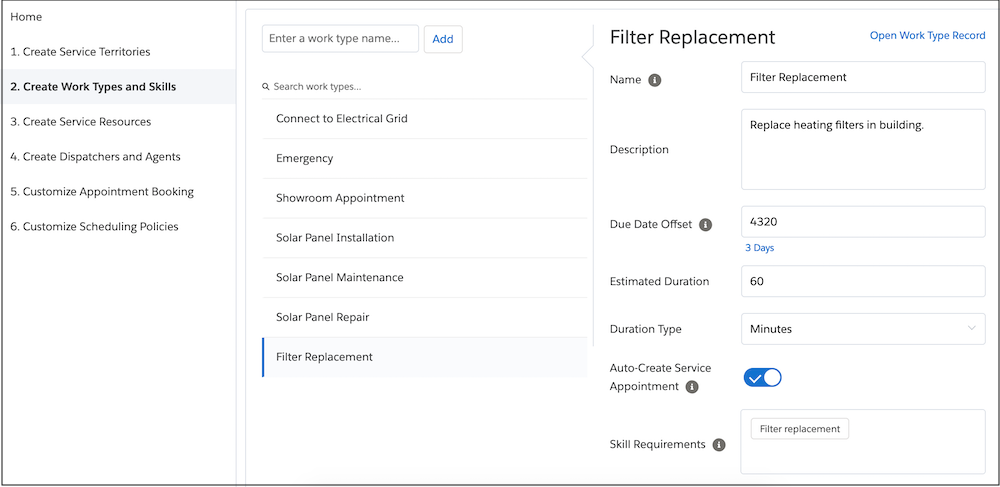
Enter a name to create a work type, and update the Name, Description, Due Date
Offset, and Estimated Duration.
 Note Hover over each field’s info icon for help with filling it out.
 - Select Auto-Create Service Appointment to generate a child service appointment when a work order or work order line item is created from the work type.
- Optionally, add required skills to represent the expertise or certification needed to complete the work. You can add a skill level from the work type’s Skill Requirements related list, outside of Guided Setup.
-
To update additional fields and add supporting records, select a work type in the list
and click Open Work Type Record.
- To apply a work type to a work order or work order line item, select the work type in the Work Type field on the record when creating it. When you add a work type, the record inherits settings from the work type.
If the managed package isn’t installed, create and manage work types from the Work Types tab.
- Guidelines for Creating Work Types for Field Service
Work types help you standardize your field service processes. Learn about inherited work type settings, required skills and products, auto-created service appointments, and attaching knowledge articles. - Create Skills for Field Service
Assign skills to service resources to represent certifications or areas of expertise. Add skill requirements to work types, work orders, and work order line items to indicate the skills needed to complete the work. If you select the Match Skill Level field in the Match Skills work rule, service appointments are only scheduled to service resources who have the same or higher skill level requirement.
